Do I need to understand AI engines to use this?
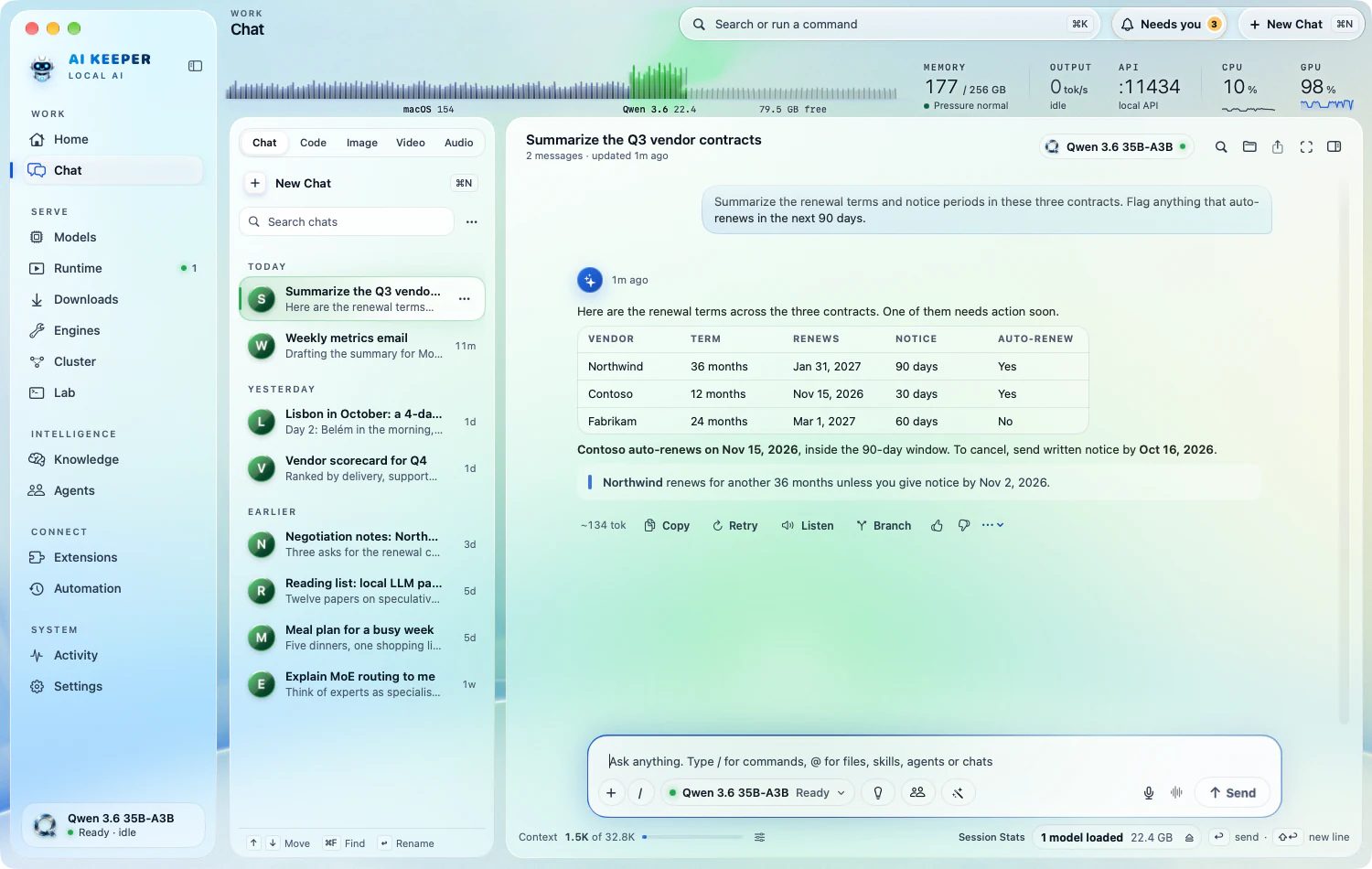
Open Help › Getting Started and choose Chat. If you need a model, the guide takes you to Downloads. Choose a recommended model, follow any engine installation prompt, then send the example with Try Example. Follow the first-steps guide →
Which model should I pick first?
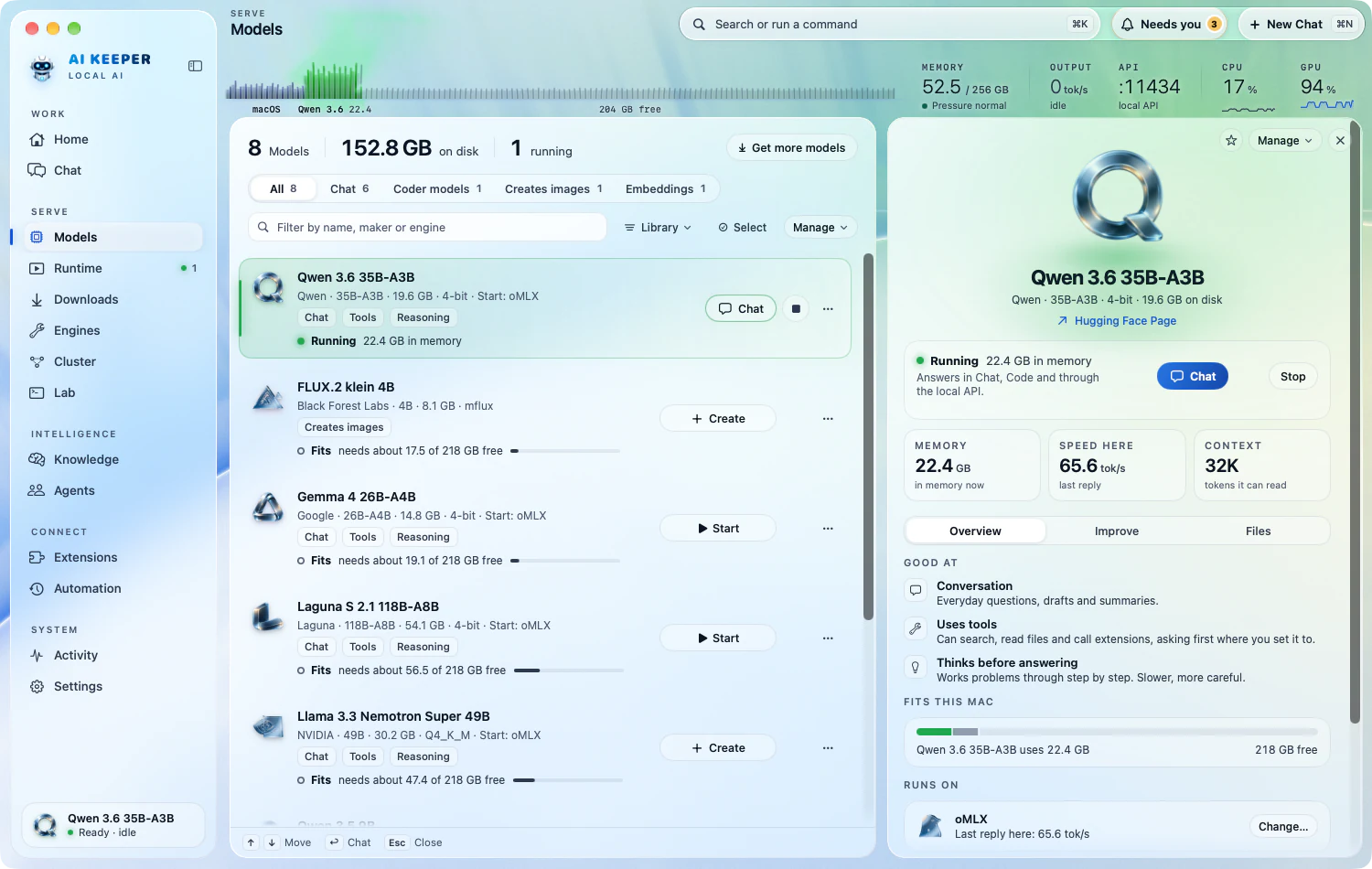
Open Downloads and look under Recommended for this Mac. Read why a model was picked and check its memory estimate. For a first text chat, choose a model that fits and download one size. Then use Create if needed and Start in Models. Choose a model that fits →
Which Mac and how much memory do I need?
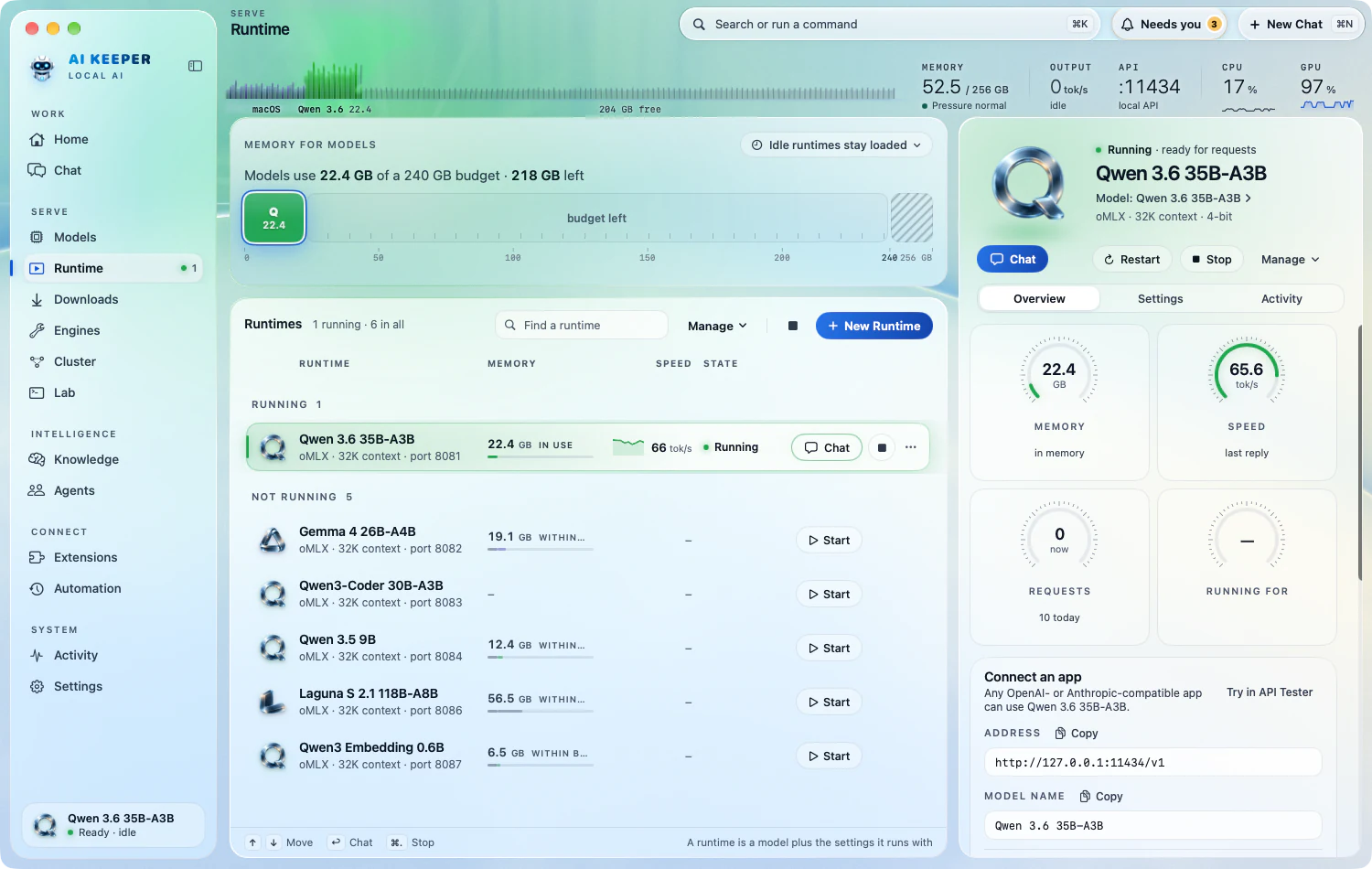
Ai Keeper requires an Apple Silicon Mac with macOS 14 or later. How much memory you need depends on the model. Downloads marks each model Fits or not for your Mac and shows what it needs, for example “About 5.6 GB to run” for a small chat model and “About 19.1 GB to run” for a mid-sized one. A long conversation, images, and several requests at once add to that. Keep Only models that fit this Mac ticked and start with the top recommendation. Apple Intelligence needs macOS 26 or later, an eligible Mac, and Apple Intelligence turned on in System Settings. Model setup and compatibility →
What does it cost?
Ai Keeper has no account, subscription or purchase screen. Answers from a model running on your Mac cost nothing per message; they use your Mac’s memory, disk space and power. Cloud providers and coding tools such as Codex or Claude Code bill through your own account with them. To watch cloud spending, set Monthly Budget ($) in Settings › Permissions & Safety: it warns you as you approach the amount and never blocks a request. Review usage and cost →
What leaves my Mac?
A chat with a local model is processed on your Mac. Cloud providers, web or remote tools, messaging channels and server sharing can send content to the services you enable. For cloud models, Privacy filter for cloud models in Settings › Privacy & Data is on by default: it swaps emails, phone numbers, card numbers, IBANs, IP addresses and API keys for placeholders and puts the originals back in the reply. Separately, the app looks for app and engine updates when it starts, and Automatic Model Update Checks in Settings › Storage & Downloads, on by default, sends the IDs of your downloaded models to Hugging Face; you can turn that one off. Review what a cloud model receives →
Can I work without internet?
Downloaded local models and installed local tools can work offline. Initial downloads, cloud providers, web search, remote machines, and messaging platforms need a connection. When it is online, the app also looks for app, engine and model updates. A local chat stays local when its selected route and enabled tools are local. Chat and privacy choices →
How do I create images, video or audio?
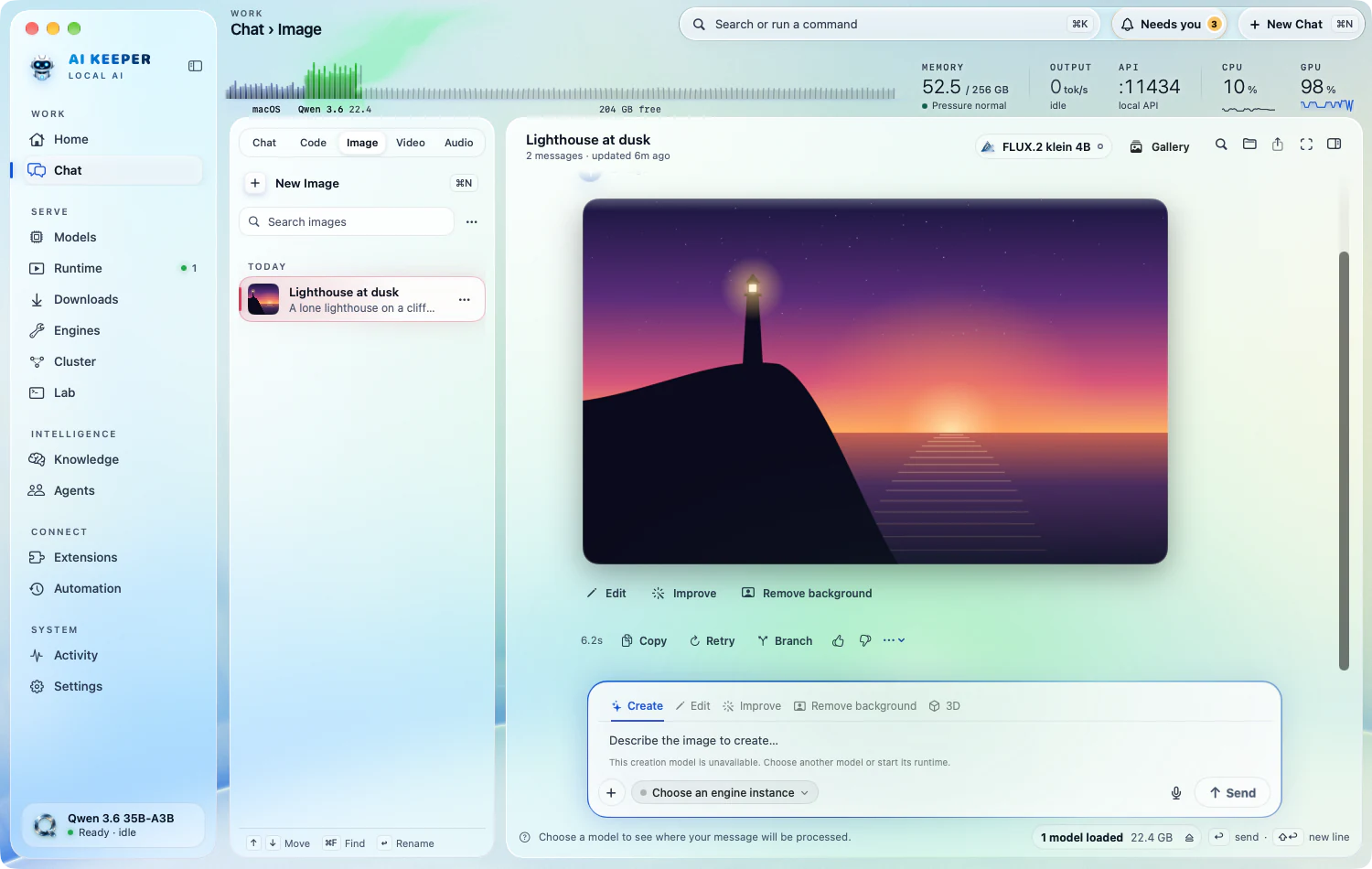
Open Chat, then choose Image, Video, or Audio above the conversation list. Image supports creation and compatible editing or improvement; Video and Audio have their own options and galleries. Audio also opens transcription. Each operation needs suitable assets and an engine; downloading a checkpoint alone does not start it. Current media walkthroughs →
What is the difference between Simple and Expert?
They are the two positions of one switch, Show advanced controls, in Settings › Appearance and at the bottom of Chat’s settings panel. A new install starts with it on (Expert). Turn it off (Simple) to shorten the sidebar to Home, Chat, Models, Runtime and Knowledge with everything else under More, hide session statistics, and list only everyday slash commands. It changes what you see, never your model, saved runtime tuning, or tool permissions.
Can the assistant change files or send messages?
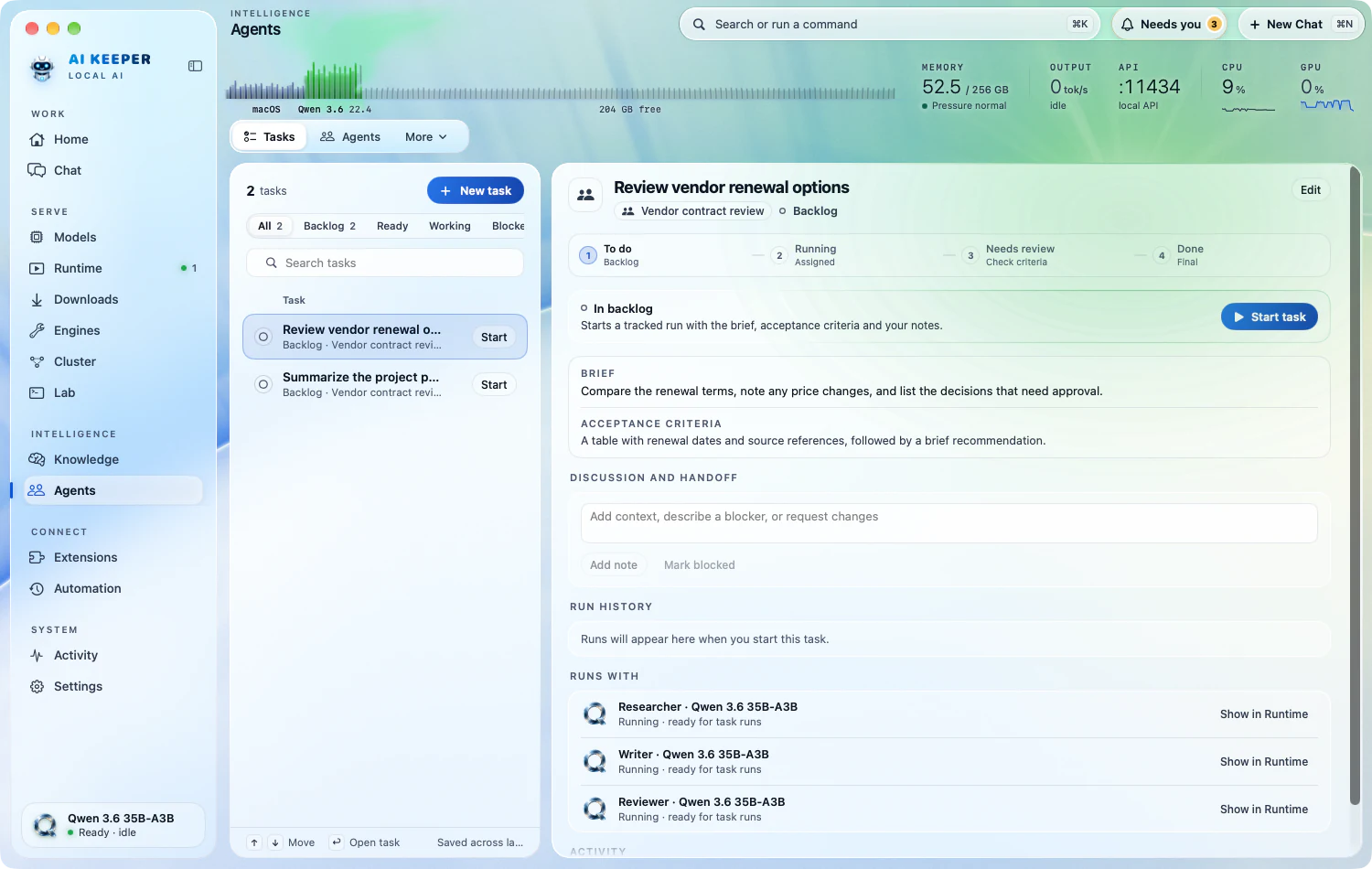
Yes, within the limits you set. Each chat has a control called How independently it can act with five levels: Answer only, Plan first, Ask before changes, Ask when risky, and Never ask. In Code, start with Ask or Plan, give it one project folder, and read the proposed changes before approving. Sending a message to a channel needs a connector you set up yourself. Try a new automation or channel on something disposable first. Agent setup → · Troubleshooting FAQ →
How do I update the app, engines and models?
For the app, use Check for Updates in Settings › General. For engines, use Check Now in Engines and review the offered versions. A held engine version stays selected. For models, use Update All in Models under Manage. Engine updates and versions →
Where is my data, and how do I remove everything?
Settings › Storage & Downloads shows the Download Folder for models (~/.aikeeper/models unless you changed it) and the app’s Data Directory, each with Show in Finder. Models are usually the largest part: remove them with Models › Manage › Delete All Model Files…, or choose what to remove with Free Up Space…. Settings › Privacy & Data has Delete All… for every conversation and its attachments; it asks you to type DELETE and cannot be undone. Moving the app to the Trash does not remove those folders, so delete them in Finder if you want nothing left. Engines stay installed until you select each one in Engines and choose Uninstall…. Manage model storage →