Security, operations, and recovery
Diagnose failures, inspect traffic and logs, watch resource pressure, manage sessions and usage, back up state, secure secrets, review audits, and customize operator controls.
Find one workflow
Filter this collection by name, outcome, provider, engine, channel, mode, or command.
Run diagnostics and Doctor
Get a structured readiness report before changing configuration.
Before you start
- Ai Keeper is open.
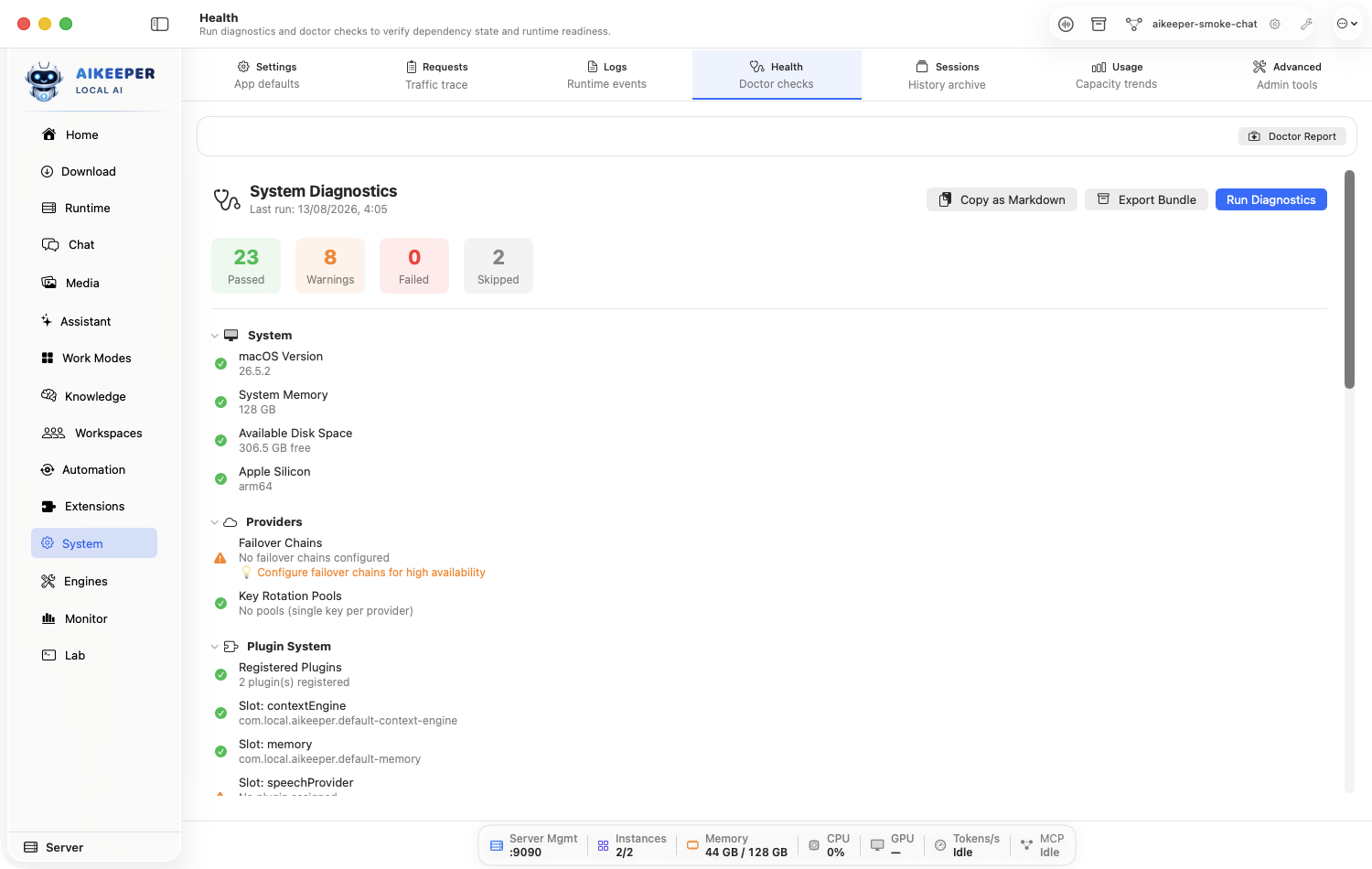
Open Activity > Health and run Diagnostics, then Doctor when available.
Start with red blocking items, then amber warnings. Expand each item to read its affected feature and remediation.
Use the provided navigation/fix action to reach Engines, Connection, Storage, Secrets, or the affected instance.
After fixing one root cause, rerun the focused check before moving to the next.
You are done when
Blocking checks are green or intentionally acknowledged, and you can name the remaining warnings and their impact.Trace a failed or slow request
Find the exact proxy request, route, transforms, latency, and response instead of guessing.
Before you start
- A reproducible request and approximate time/model.
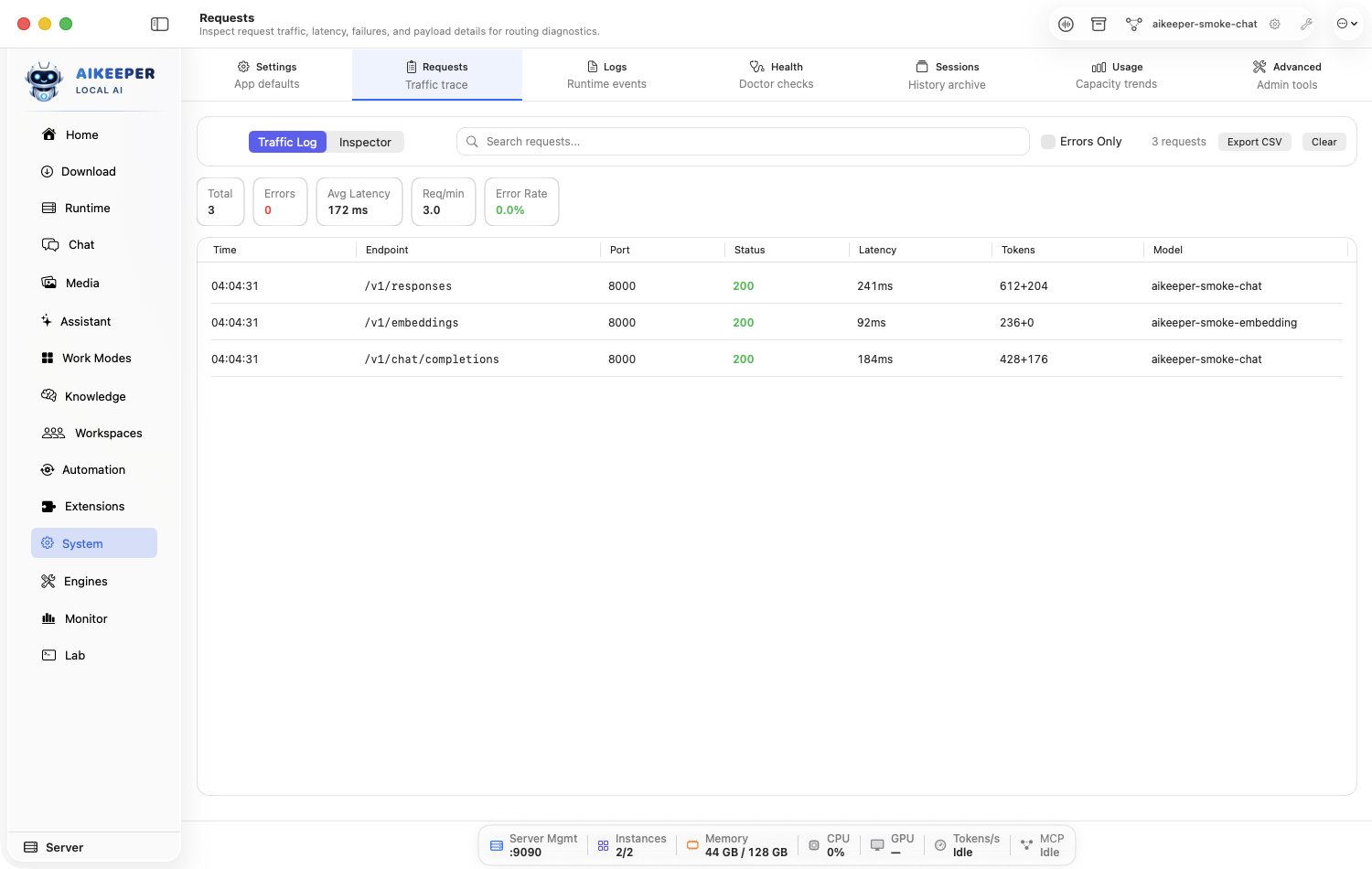
Reproduce once, then immediately open Activity > Requests > Traffic.
Filter by time, model, status, or endpoint and select the request.
Open Inspector to review public model, chosen target, status, timing, request shape, transforms, and safe headers.
Correlate its timestamp/request ID with Runtime or App logs.
Fix the narrow cause and repeat the exact request once.
You are done when
The repeated request succeeds or produces a more specific controlled error, and you can identify which layer owns it.Trace request timing and outbound egress
Record a bounded request path, inspect its span waterfall, and see every outbound destination without exposing credentials.
Before you start
- A reproducible proxy request.
- Authorization before enabling body capture or exporting diagnostics.
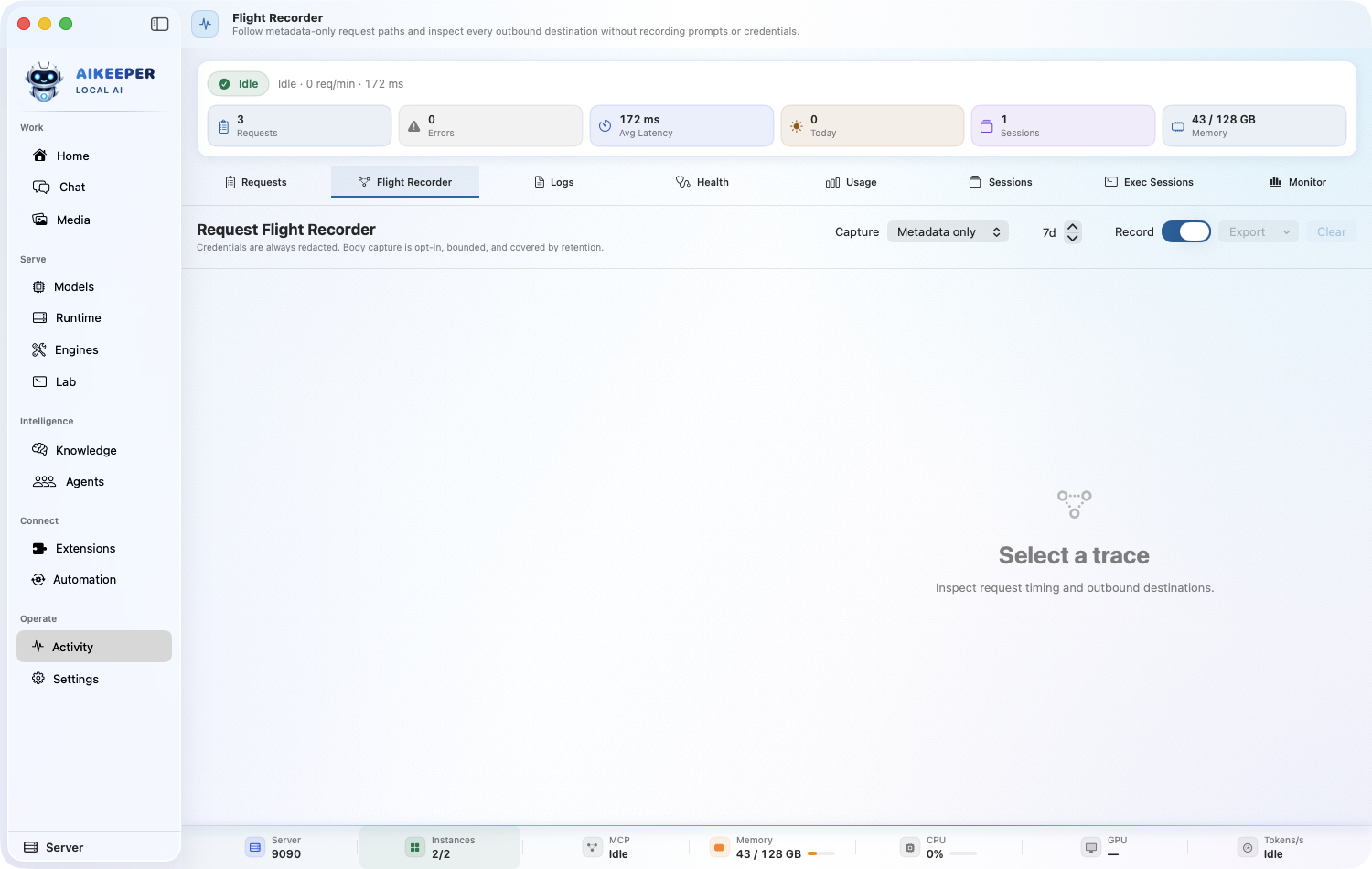
Open Activity > Flight Recorder. Keep Capture on metadata-only for normal diagnosis, choose a short retention period, and enable Record.
Reproduce one request, select its trace, and inspect resolved model, status, duration, TTFT, tokens, bytes, and the span waterfall.
Read the Egress ledger. It lists each scheme, host, path, owner, decision, and byte count; block a future non-local host only when doing so will not break an intended provider or tool.
Use full-content capture only after acknowledging that ordinary prompt text can still be sensitive even when secret-shaped fields are redacted.
Export sanitized JSON for a local report, or send completed spans to the configured OTLP endpoint only when that external sharing is intended. Clear retained traces when the diagnosis is complete.
You are done when
The selected trace accounts for request timing and every recorded egress destination, while credentials remain redacted and retention matches the chosen policy.Read runtime, app, and crash logs
Use the right log section and correlate one incident without drowning in unrelated history.
Before you start
- The approximate incident time and affected feature.
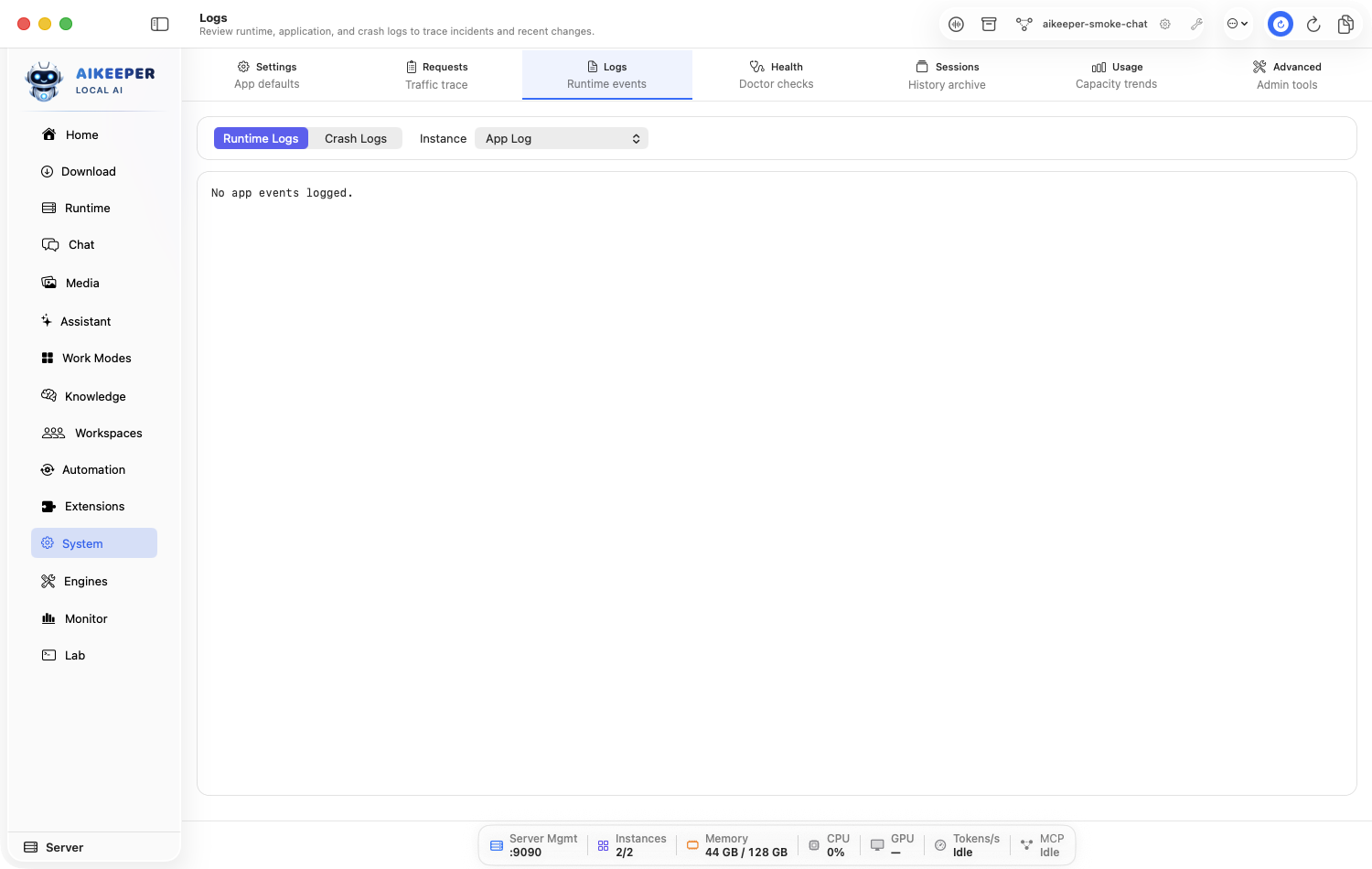
Open Activity > Logs and choose Runtime for engine output, App for application events, or Crash for terminated processes.
Filter around the incident time, model/instance, or category.
Read several events before and after the first error. The final line is often only a consequence.
Use request ID, process ID, instance ID, or timestamp to correlate with Requests/Monitor.
Export only the focused evidence if support needs it.
You are done when
You have a short evidence chain from initiating action to first causal error to user-visible result.Find and safely end a heavy process
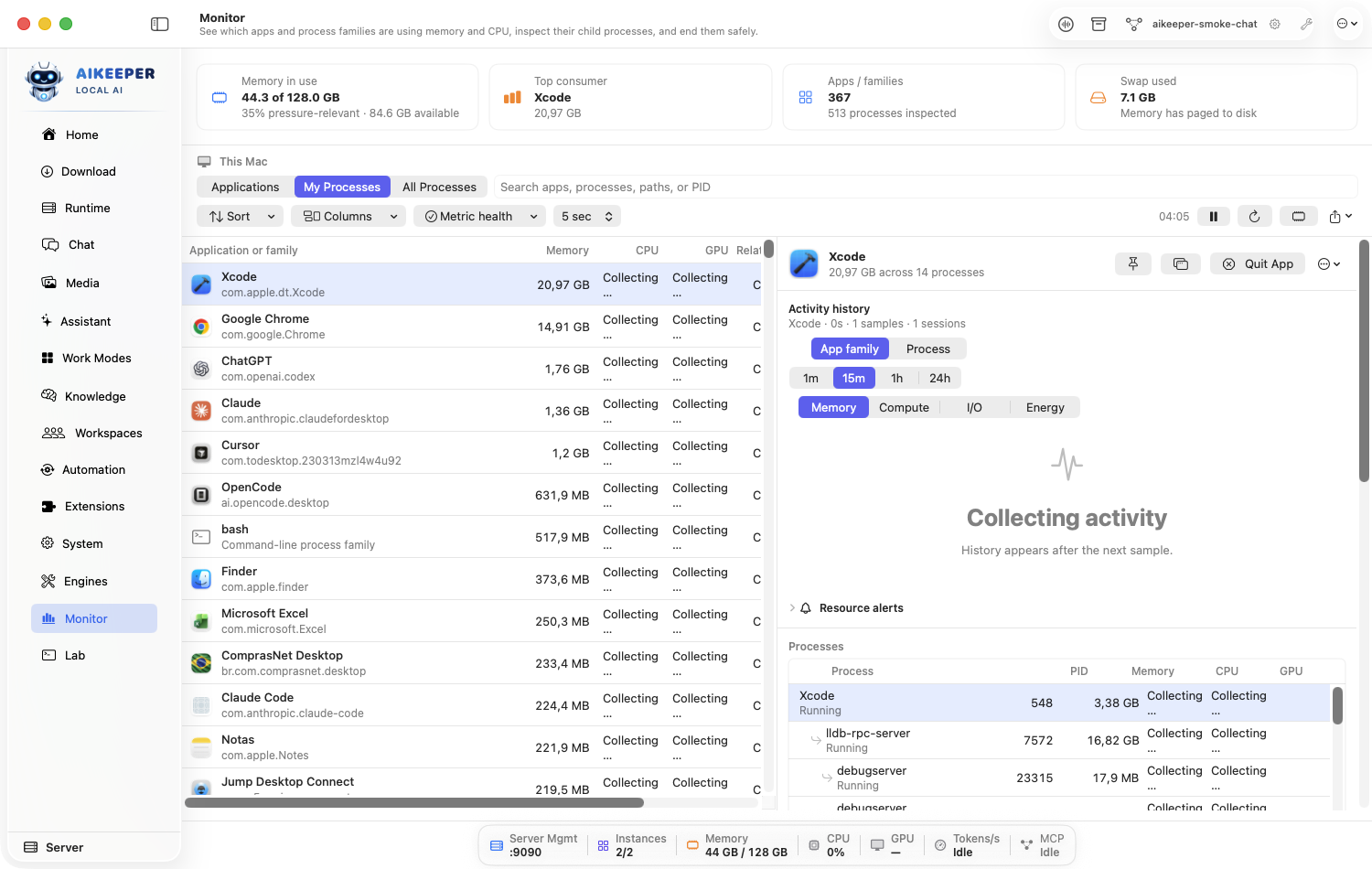
Use Monitor to see app/process-family memory and CPU before terminating anything.
Before you start
- A machine under pressure or a process you intend to stop.
Open Activity > Monitor and sort/scan by memory or CPU.
Expand the process family to confirm child process, model/engine identity, and ownership.
Prefer stopping a managed model from Runtime > Instances. Use Monitor's safe termination when the normal control cannot respond.
Confirm the exact process and choose the safe end action. Avoid force termination unless ordinary termination fails.
Wait for memory/CPU and instance state to refresh.
You are done when
The intended process disappears, pressure falls, and unrelated app processes remain healthy.Review token, request, and cost usage
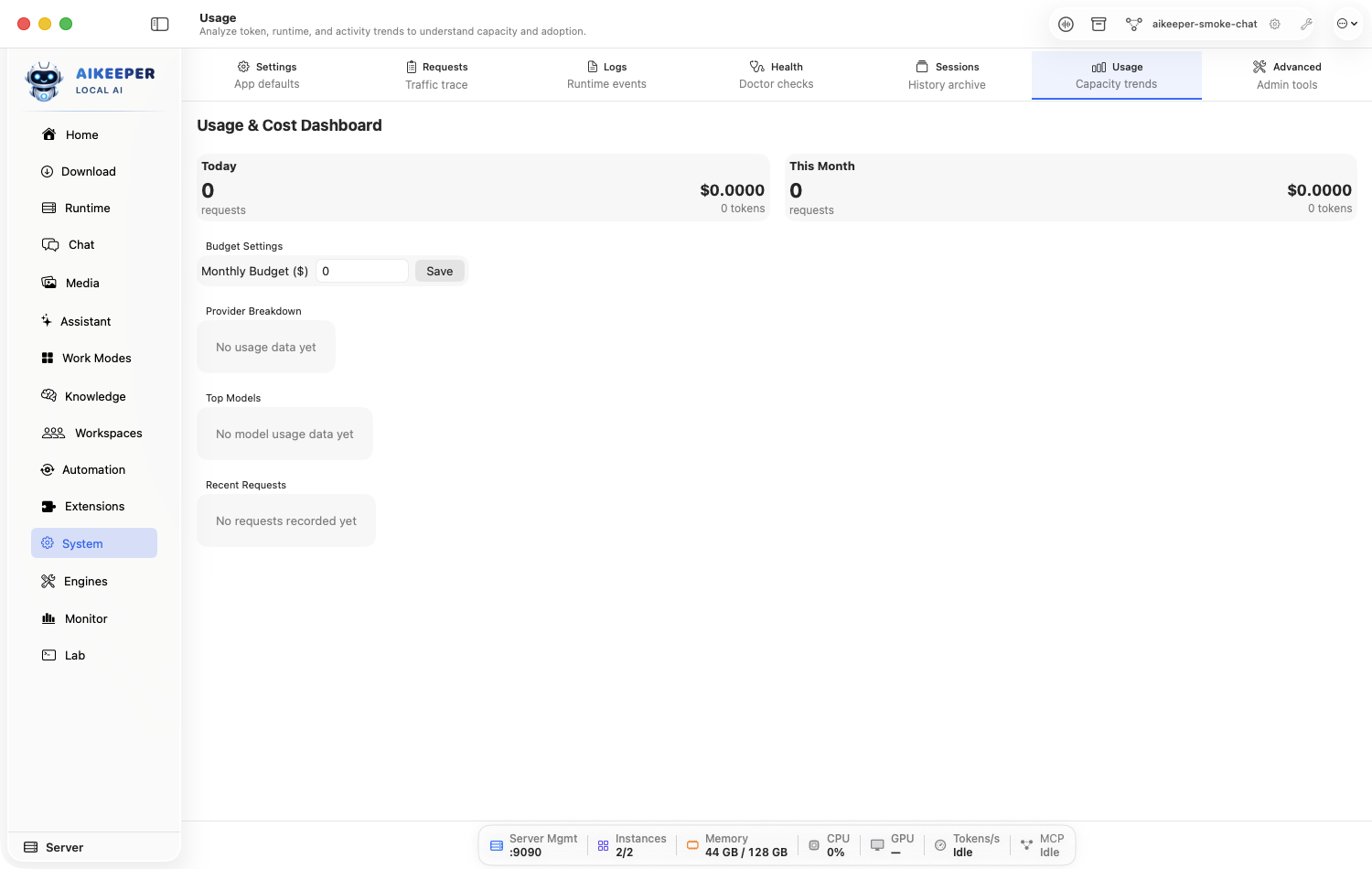
Find which models, providers, or workflows consume the most capacity.
Before you start
- Enough recorded activity for a meaningful range.
Open Activity > Usage and choose a relevant time range.
Compare request count, input/output tokens, runtime activity, and provider cost where available.
Filter by model/provider/workflow and identify one clear outlier.
Trace the outlier to an automation, long context, retry loop, or user workload before changing limits.
Apply one correction and review the next comparable period.
You are done when
You can name the top consumer and the evidence-backed reason, plus one targeted correction.Archive and restore a session
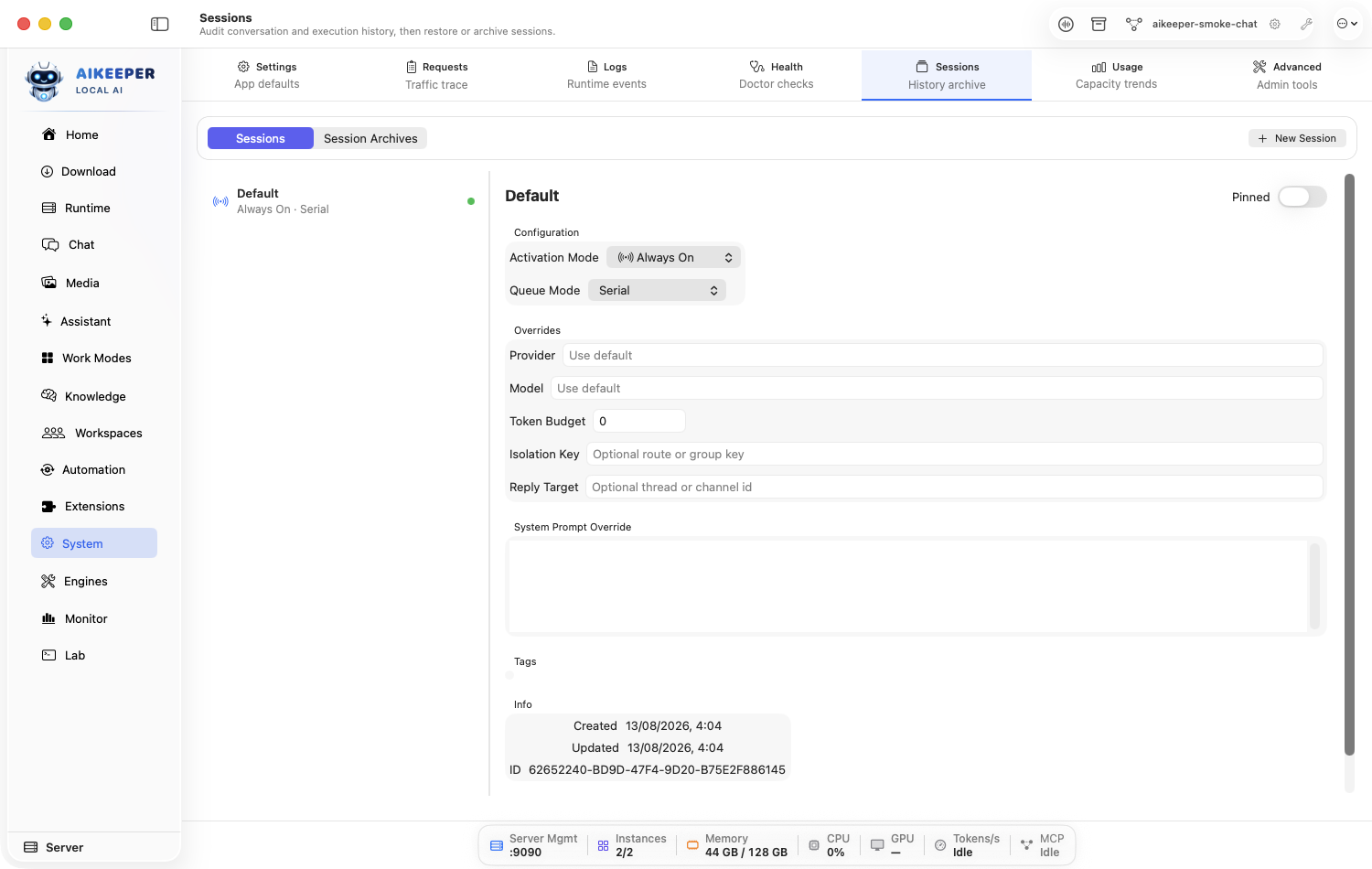
Move old conversation/execution history out of active views without deleting it.
Before you start
- A session no longer needed in active work.
Open Activity > Sessions and locate the session by title, type, or date.
Open it and confirm it is the intended record.
Choose Archive. Switch to the Archives view and locate it again.
Use Restore as a test, then archive it again if desired.
You are done when
The session moves between active and archived views without losing its content.Create and test a backup
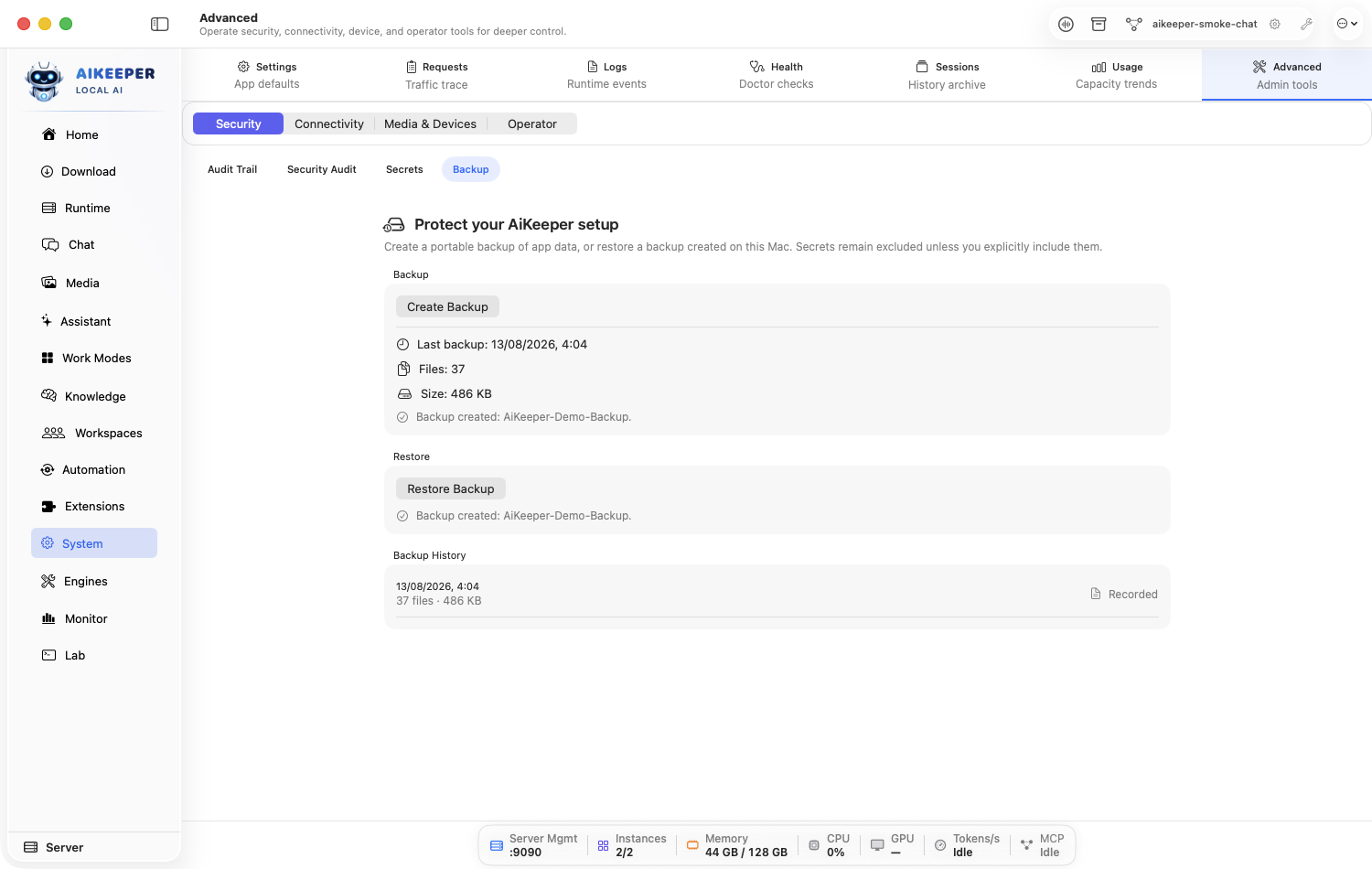
Snapshot app state, sessions, knowledge, and configurations, then prove the file can be inspected/restored through the guarded flow.
Before you start
- A trusted destination with enough space.
- Understanding of whether secrets are included or referenced.
Open Settings > Backup and review included categories and encryption options.
Create a snapshot to a clearly dated file on a different disk or protected backup location.
Wait for completion and inspect the app's manifest/summary rather than assuming the file is valid because it exists.
Use the restore preview/validation action to see what would change. Do not overwrite current state for a casual test.
Record the backup date and keep at least one older known-good copy.
You are done when
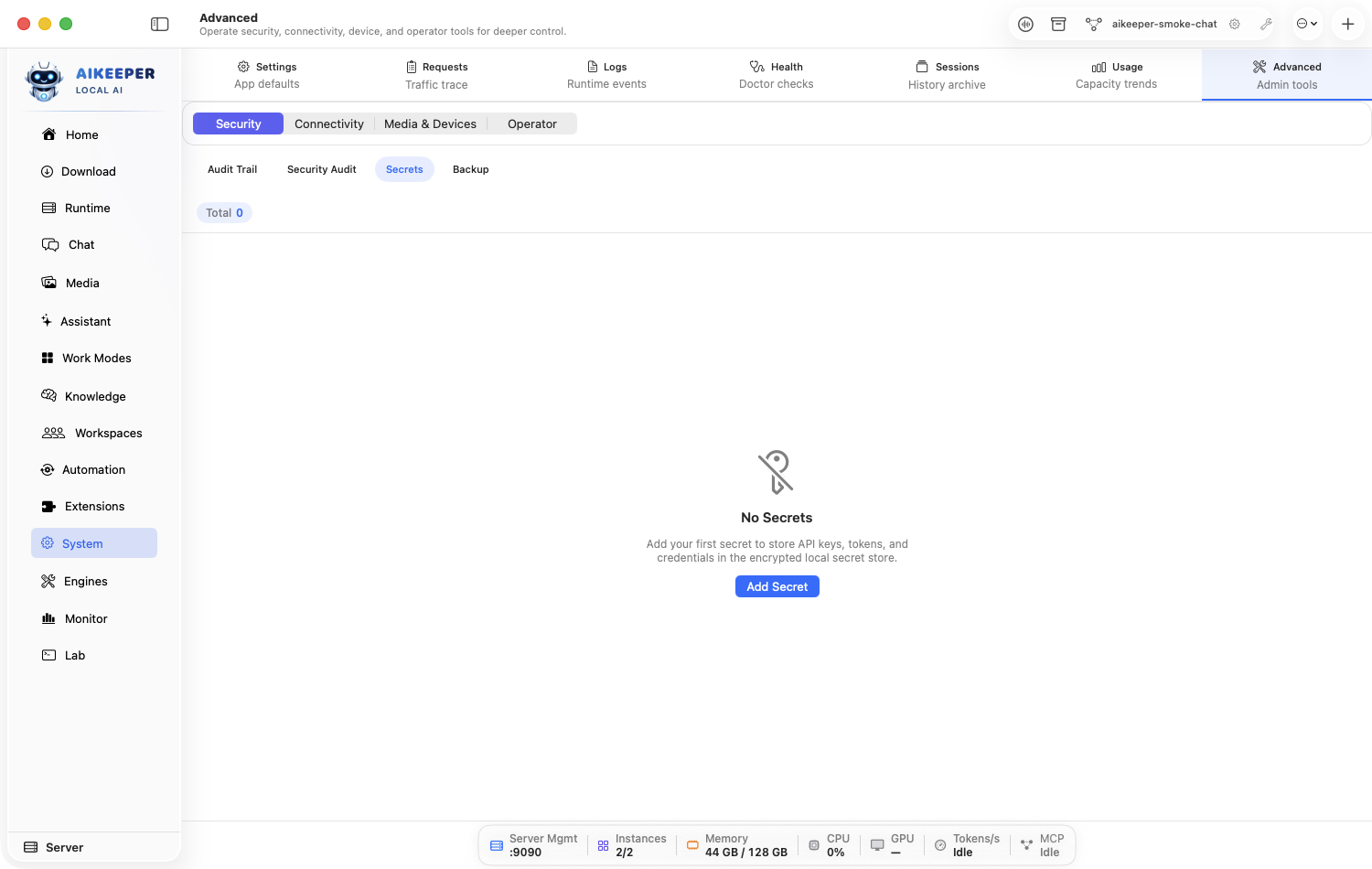
The app validates the backup and restore preview lists the expected categories with no corruption warning.Store and rotate a secret
Keep provider keys, bot tokens, and connector credentials out of prompts and plain configuration.
Before you start
- A credential from its official provider.
- A dependent provider/connector to test.
Open Settings > Secrets and create an entry with a clear service/purpose name.
Paste the value only into the protected secret field and save. Use its reference in the provider, webhook, MCP, or channel configuration.
Run a harmless connectivity test.
Generate a replacement at the provider, update the stored secret, test again, then revoke the old value.
Review Audit Trail for the rotation event without expecting the secret value to appear.
You are done when
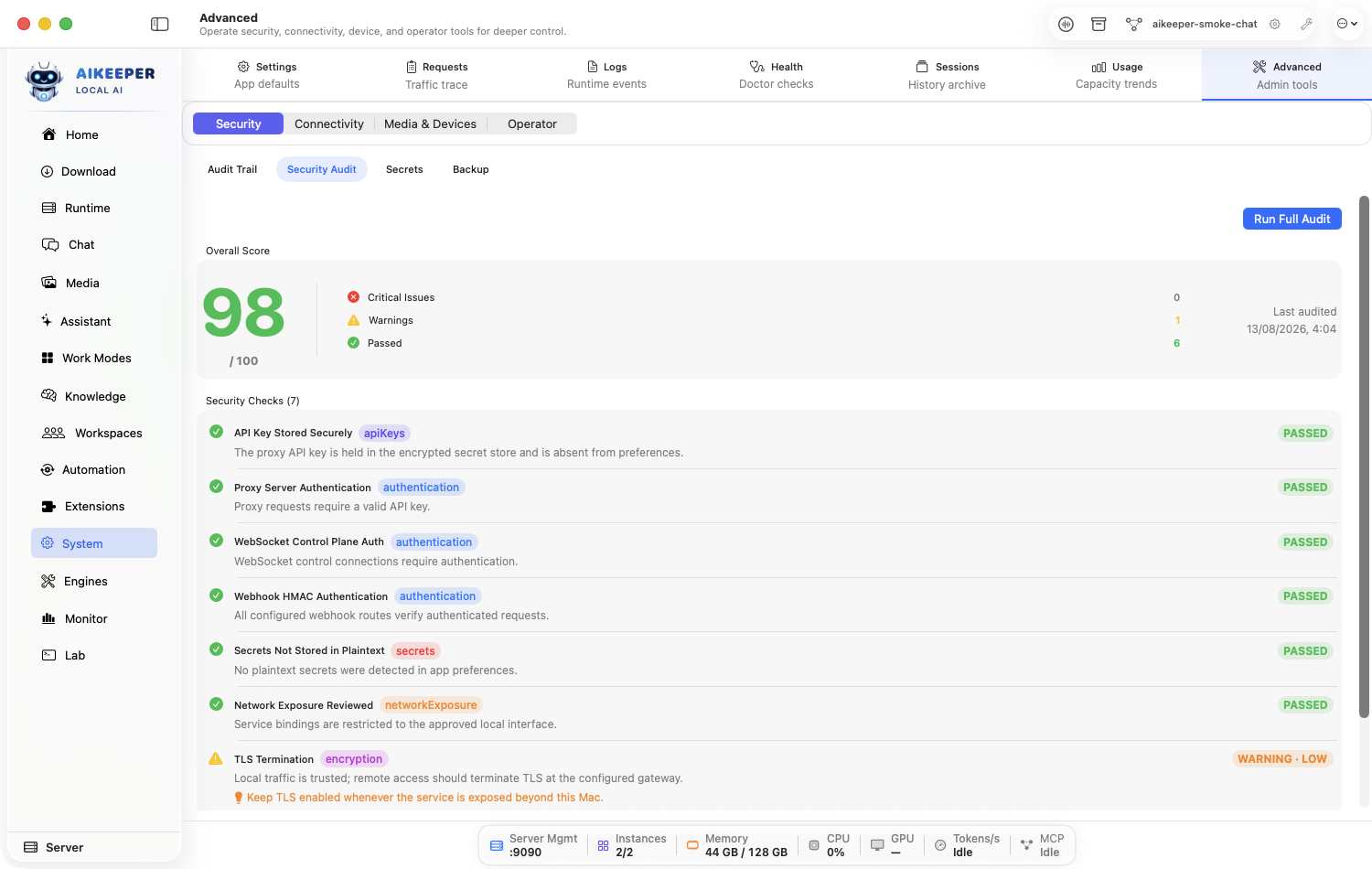
The dependent integration works with the new value, the old value is revoked, and logs/audits do not reveal either secret.Run a security posture audit
Check listeners, authentication, allowlists, secret hygiene, and default-deny gaps after configuration changes.
Before you start
- Especially useful after enabling Remote Access, channels, MCP, plugins, or automation.
Open Settings > Security Audit and run a fresh scan.
Address exposed unauthenticated ports, weak/default keys, overly broad tool access, missing allowlists, and secret hygiene first.
Use each finding's destination link and correct the exact configuration.
Rerun the audit and document any accepted residual warning with owner and reason.
You are done when
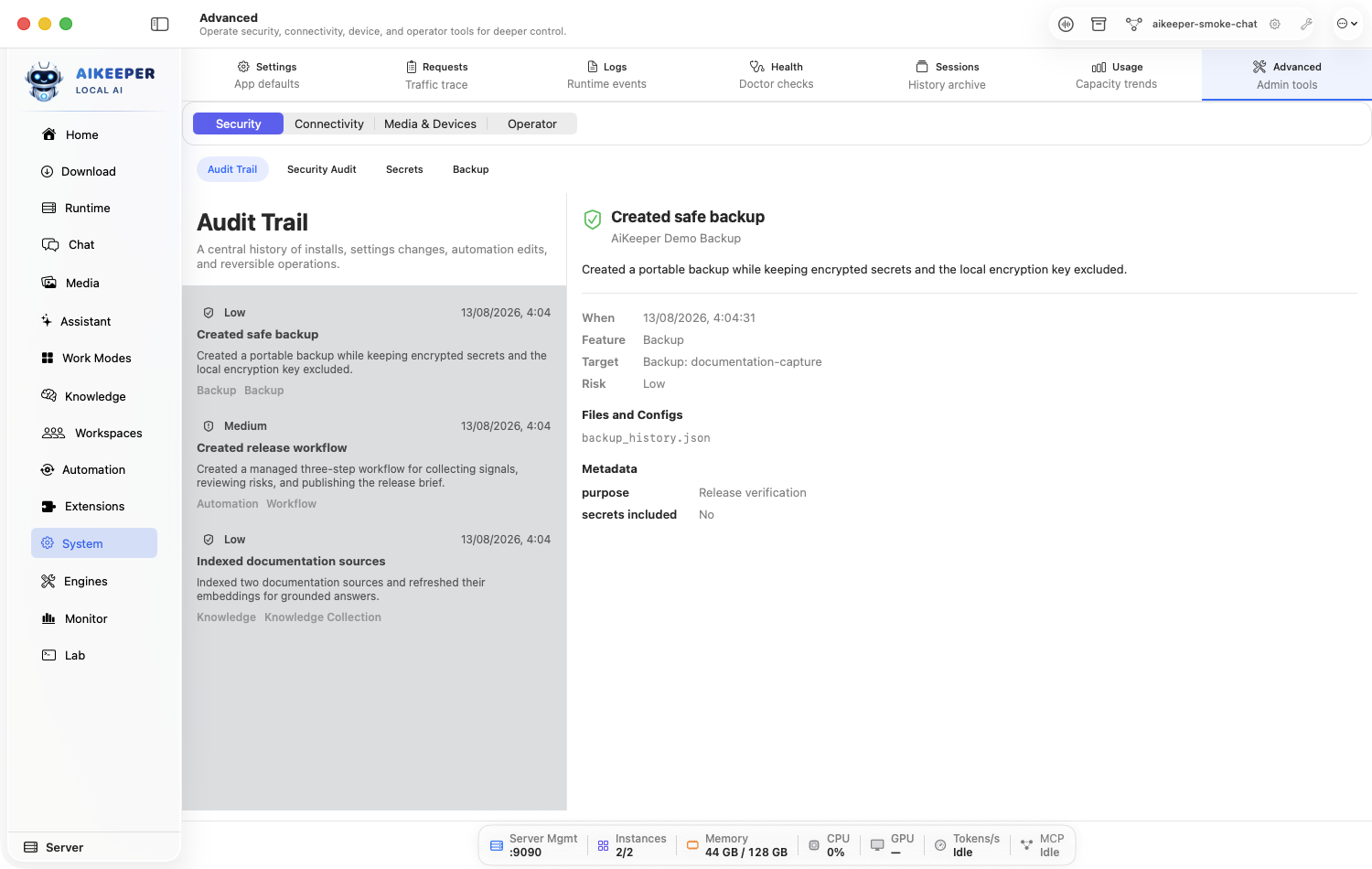
No unexplained critical/high finding remains, and accepted warnings have a deliberate rationale.Review the Audit Trail after a tool action
Trace who/what invoked a tool, the approval decision, target, result, and related session.
Before you start
- A recent chat, agent, channel, exec, or automation action.
Open Settings > Audit Trail.
Filter by time, tool/action type, agent/session, channel, or approval state.
Open the event and review caller identity, arguments summary, approval, target, result, and correlation IDs.
Follow correlation to Requests/Logs/Session when deeper evidence is needed.
Export only the filtered events required for review.
You are done when
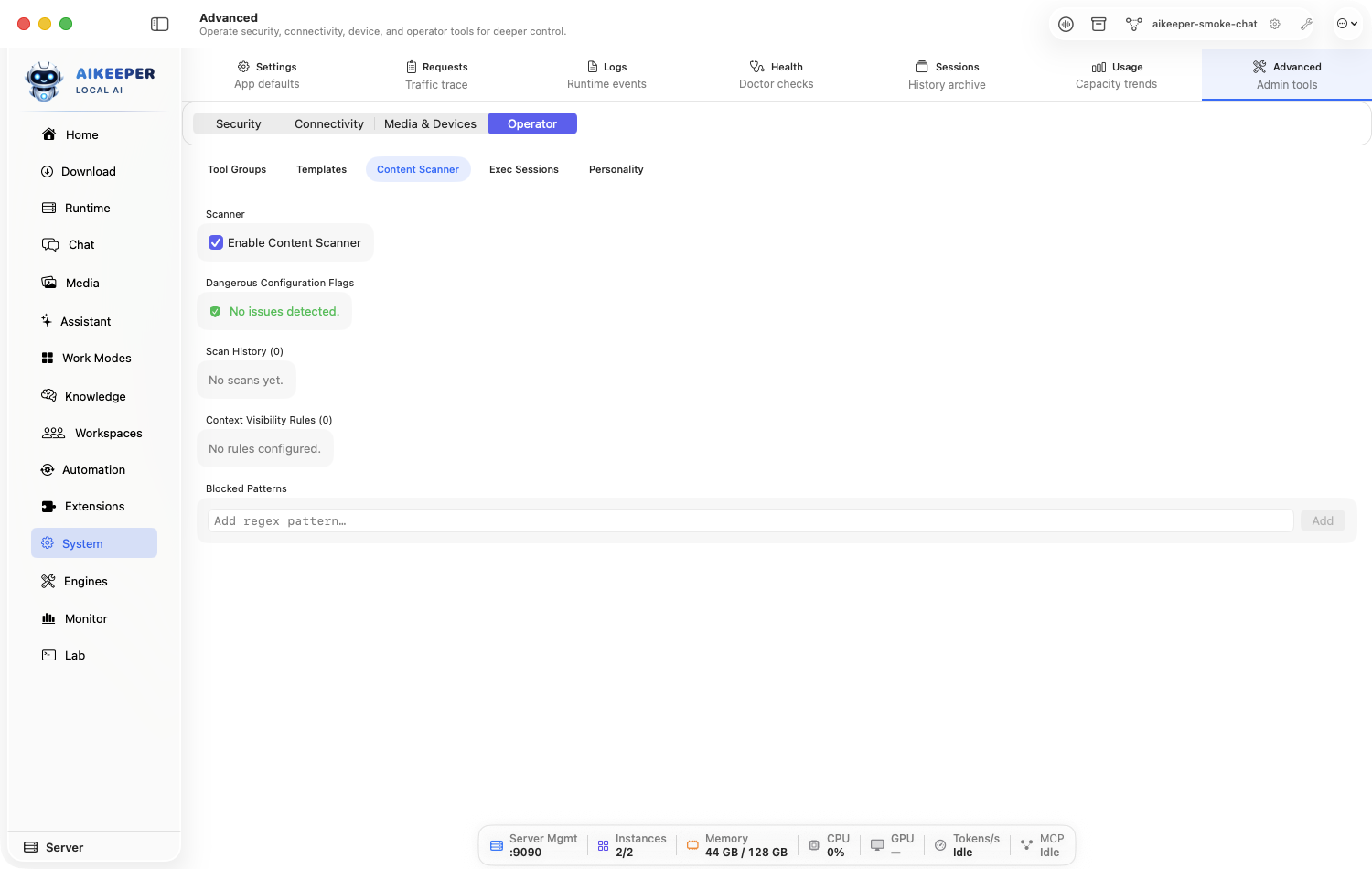
You can answer who initiated the action, what was approved, what target changed, and whether it succeeded.Test the Content Scanner
Check a harmless known test string/file and verify the scanner's policy before relying on it in automation.
Before you start
- A non-sensitive benign sample and a documented harmless scanner test case.
Open Settings > Content Scanner and review enabled policies/actions.
Scan the benign sample and confirm it passes.
Scan the documented harmless test case and confirm the expected warning/block/quarantine behavior.
Inspect the audit record and tune only the policy that produced an incorrect result.
Repeat both samples after the change.
You are done when
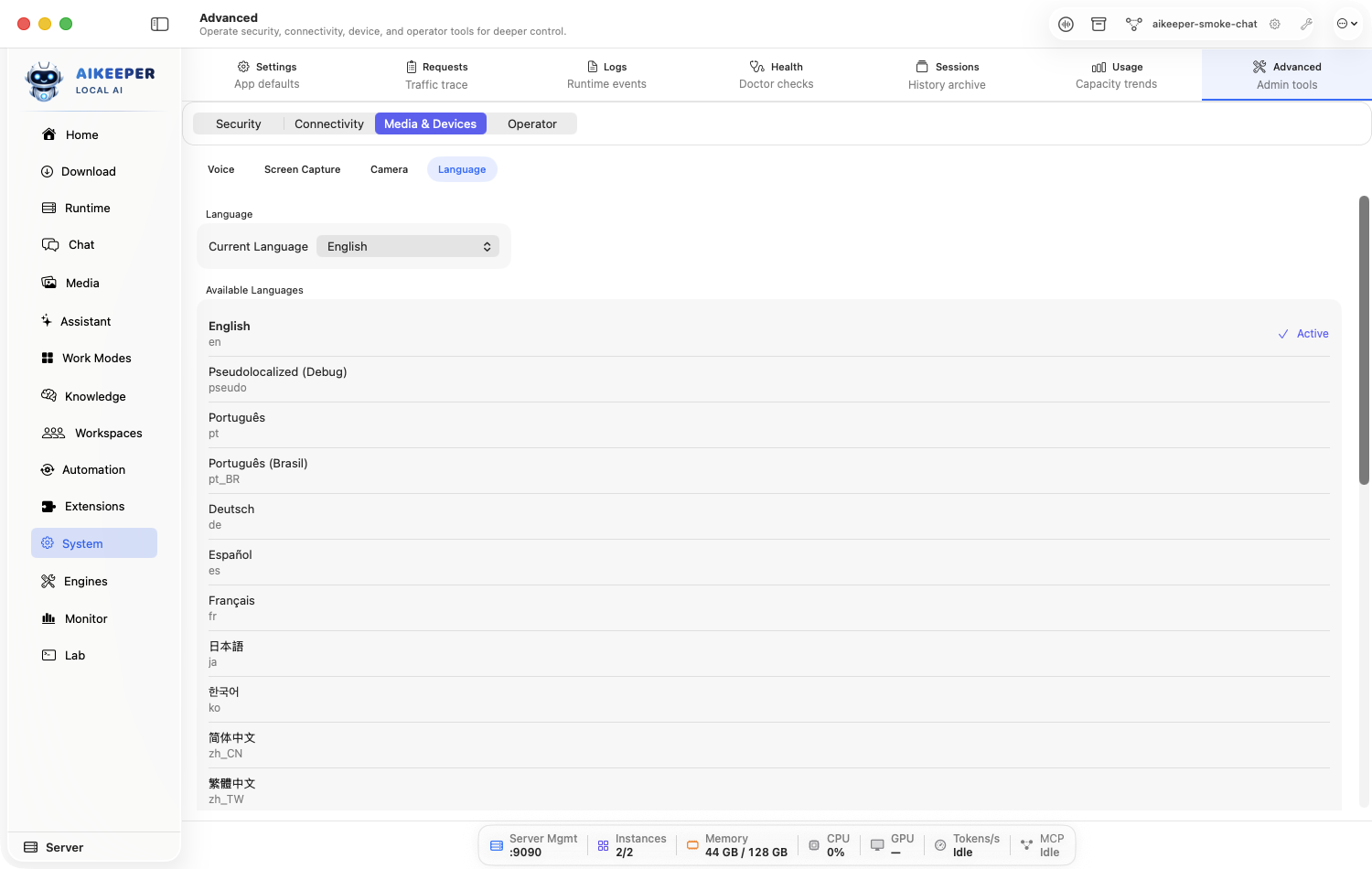
The safe sample still passes and the test case still triggers the intended policy with an audit record.Change the app language
Switch localization and confirm main windows, sheets, and formatted ports/numbers remain correct.
Before you start
- Ai Keeper supports the selected language.
Open Settings > Language and choose the language.
Apply/restart if requested.
Open the sidebar, a settings page, Chat's model picker, and an agent sheet.
Check that labels are translated consistently and port numbers are not shown with thousands separators.
You are done when
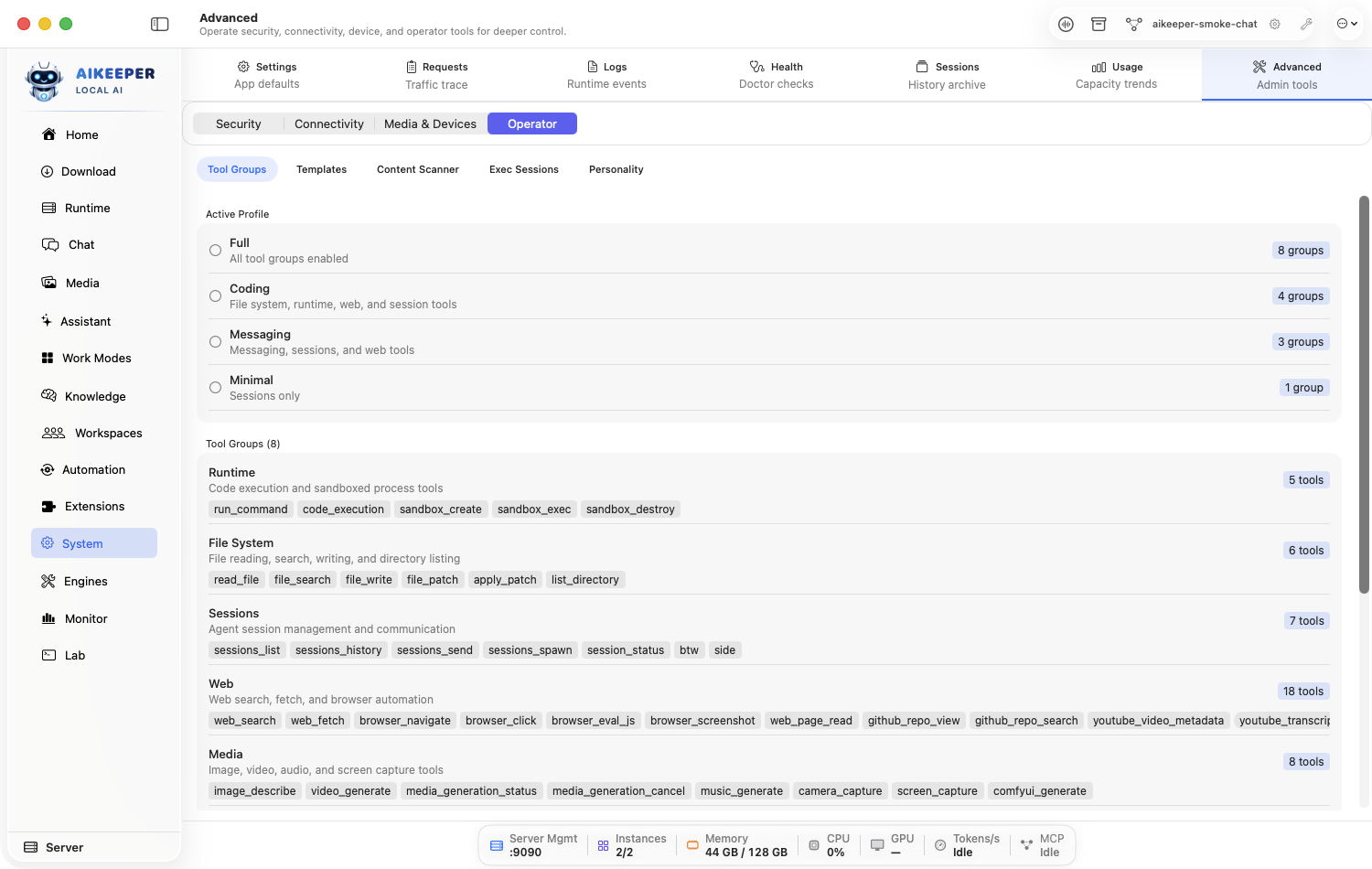
Primary hubs and modal sheets use the chosen app language, and technical identifiers/ports remain correctly formatted.Create Tool Groups, Templates, and Personality
Centralize reusable capability bundles and prompt context without duplicating them in every agent.
Before you start
- At least one repeated tool set or prompt/persona requirement.
Open Settings > Tool Groups and create a narrowly named group from reviewed tools.
Open Templates and create a compact reusable bootstrap/context template with a clear scope.
Open Personality and write durable voice/tone guidance only; keep task instructions in agents/skills/templates.
Assign the group/template/personality to one test agent and preview its assembled prompt/tool list.
Run a test, then remove any duplicated context.
You are done when
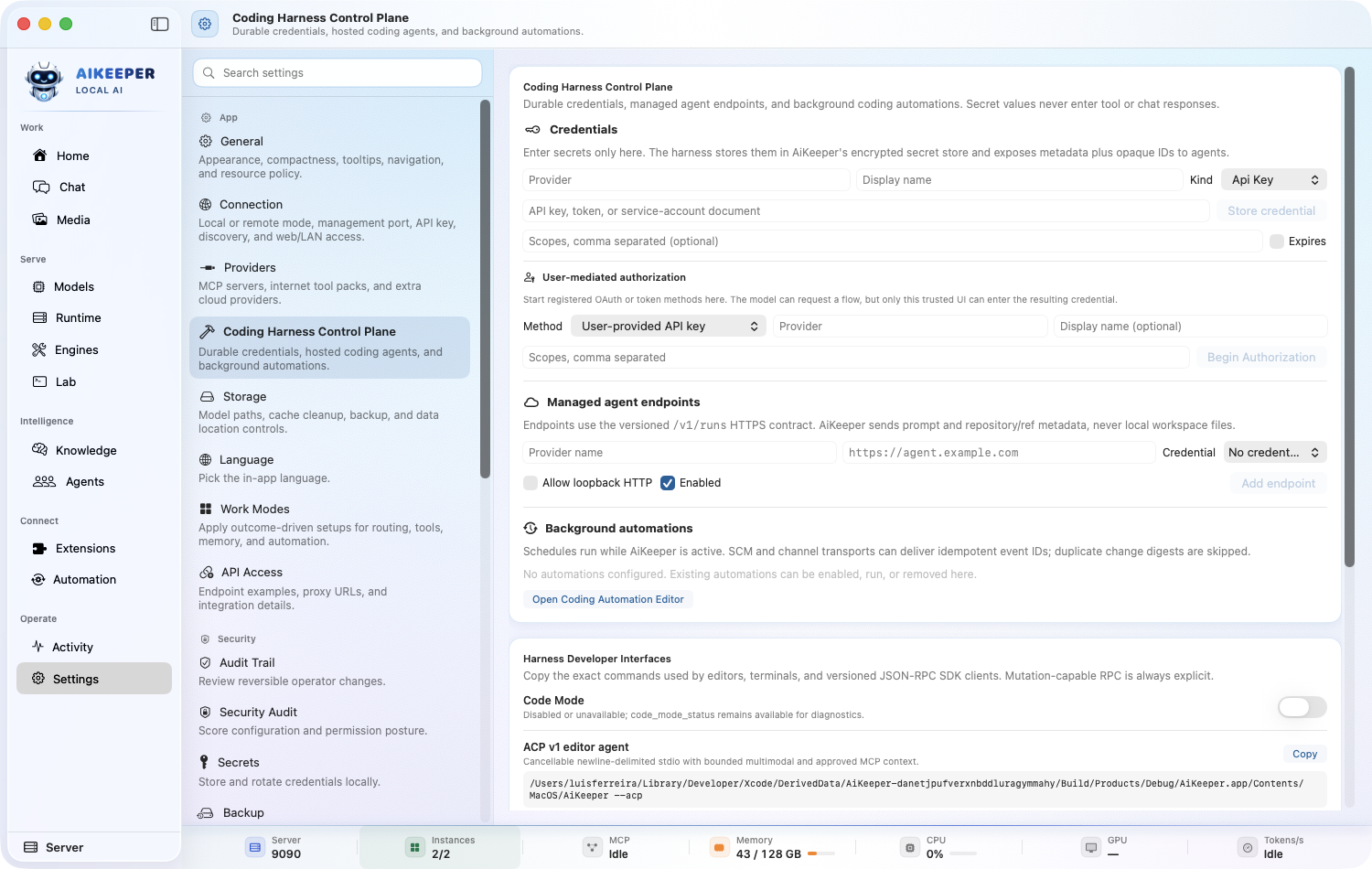
The agent receives the intended tools and prompt components once, and changing a shared component has a visible reviewed effect.Configure providers, internet tool packs, and coding control plane
Keep external routes and developer interfaces explicit, testable, and separate from ordinary local defaults.
Before you start
- Credentials for any provider you intend to enable.
- A concrete coding or internet-tool workflow to test.
Open Settings > Providers. Review MCP settings, Internet Tool Packs, and additional cloud providers separately; none of these are implied by local-model setup.
Install or enable only the commands and providers needed for the task. Run each bounded status/sample probe, then add reviewed runtime commands to the exact-match exec allowlist only when required.
Store provider credentials in Secrets and verify one request in Activity > Requests plus Flight Recorder egress.
Open Settings > Coding Harness Control Plane and review desktop automation, permission rules, durable credentials, mediated authorization, hosted providers, Code Mode, network TUI, SDK/ACP/JSON-RPC interfaces, and Exec Sessions.
Enable one interface at a time, run its harmless readiness check, and confirm the corresponding permission/audit record before adding another.
You are done when
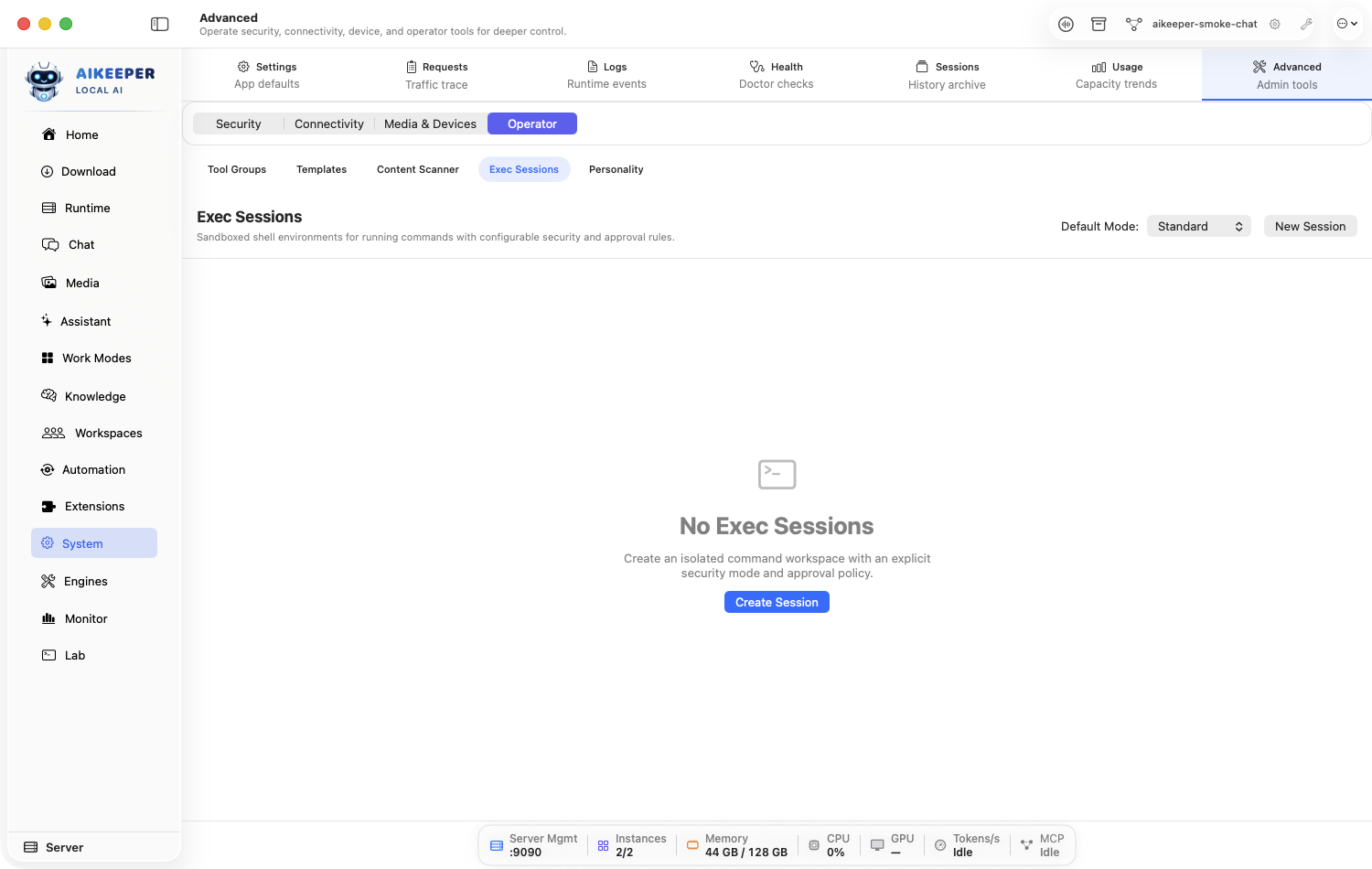
The chosen provider/tool returns a bounded test result, its egress and audit attribution are visible, and every unused coding interface remains disabled.Create and close an Exec Session
Use a persistent shell/REPL handle with a bounded lifetime and strict command policy.
Before you start
- A task that truly benefits from persistent command state.
- Approved executable and working directory within policy.
Open Activity > Exec Sessions and create a session with an explicit executable, safe working directory, and lifetime.
Keep the exec allowlist and PTY restrictions unchanged. Do not use the session to bypass normal tool policy.
Run a harmless command that creates only in-session state, then a second command that proves the same session retained it.
Review its audit entries and attach it only to the intended agent/workflow.
Close the session and confirm its process ends.