Find a control, understand its effect and check the result.
Start with Settings search, then open the named topic page. Plain-English lines explain the outcome; operator detail explains scope, overrides and evidence. Instance tuning belongs to that model’s Runtime settings and does not become a new global default.
Reviewed against the current app source on 18 November 2026. Settings opens in the main hub or its own window with ⌘,. Show advanced controls changes the interface only; it does not change model tuning.
Start with the change you want
You can leave most settings at their saved defaults. Use Settings search to find a control by name, then change one thing and repeat the same task.
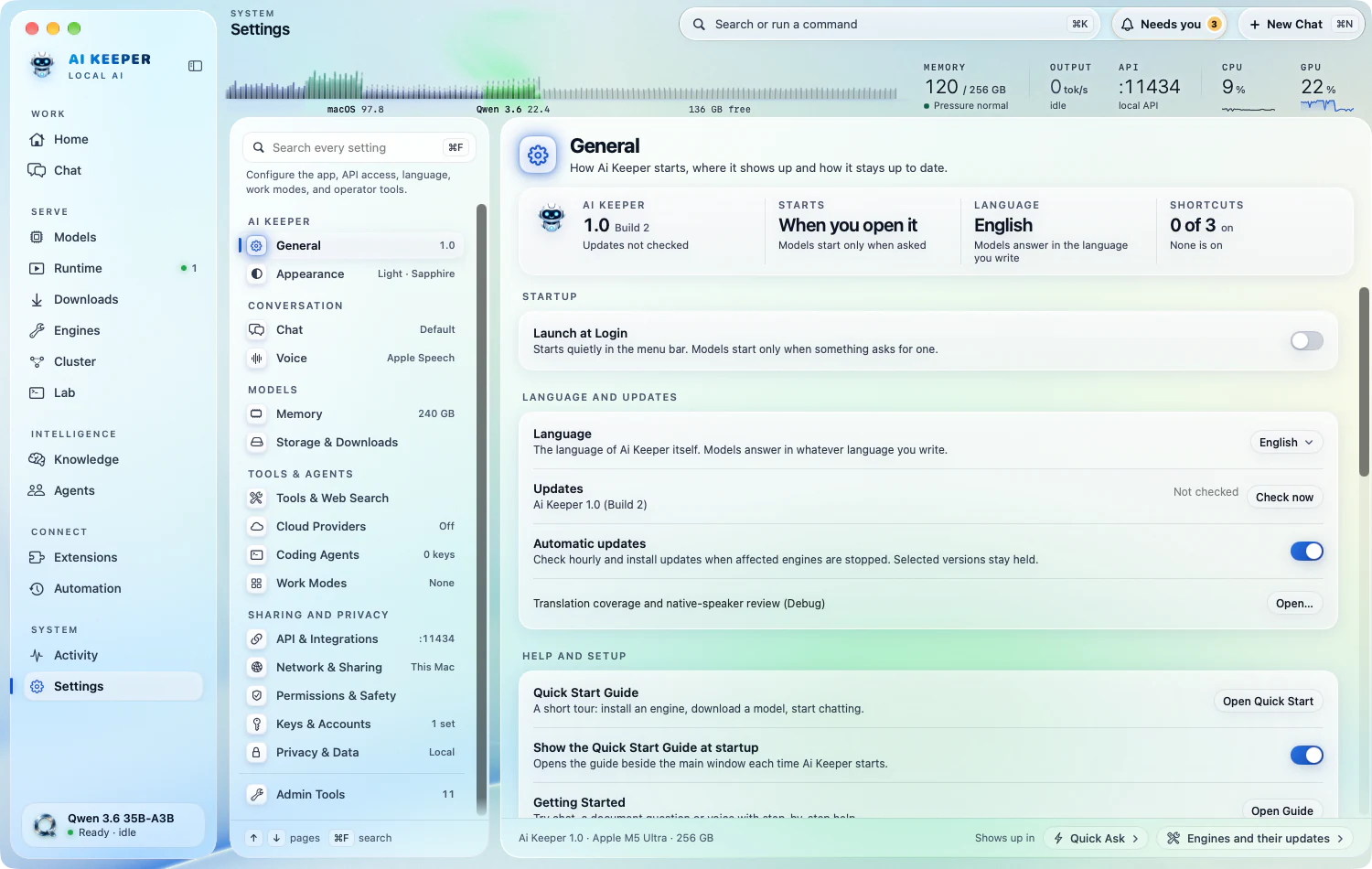
General and Appearance
Choose Settings > General for startup, updates, shortcuts, notifications and language. Appearance contains theme, text, spacing and interface detail.
 Open full size

 Open full size

Starts Ai Keeper with your Mac when enabled.
Useful for a host serving models or automations. Runtime Start mode still determines which saved models start with the app.
The Ai Keeper row shows the installed version with Check for Updates. Automatic updates, on by default, keeps engines and tools current.
Engine automatic updates check hourly and install when affected engines are stopped. Selected held versions remain held; release availability does not certify quality or speed.
Three switches, each with its own shortcut: Quick Ask (ask from any app, ⌃⇧A; off until you turn it on), Selection Actions (rewrite, summarize, translate or explain selected text, ⌃⇧Space; on by default) and Dictation Anywhere (⌃⇧D; on by default). Click a shortcut to record a different one.
Quick Ask needs no Accessibility permission. Selection Actions and Dictation Anywhere need Ai Keeper enabled under System Settings > Privacy & Security > Accessibility; the row shows whether it is authorized. Selection Actions has its own Model picker (Automatic by default). Dictation Anywhere uses the Speech Recognition chosen in Settings > Voice. A warning under a shortcut means another app already registered it. None of this grants desktop automation access.
Six switches, all on by default: A chat finishes or needs you, A model is ready or crashes, A download finishes, Memory runs low, A runtime's port is busy or had to change and An automation fails. If macOS notification permission reads Not requested, press Request Access first.
macOS notification authorization and System Settings can still suppress them. Verify permission plus the app’s selected categories with a small completed task.
Changes the app’s interface language.
It does not change the selected model or force an answer language. Use an explicit prompt for response language.
Theme is Dark, Light or Auto (Auto follows macOS; Light is the default). Below it, pick one of eight palettes: Aurora (the default), Glacier, Borealis, Graphite, Sapphire, Sunset, Sand or Mono.
Appearance only. Model colors and status meanings remain distinct from theme choices.
Text Size is Standard, Comfortable or Larger. Compact Mode tightens spacing in lists, cards and panels (off by default). Tooltips explain a control when you point at it (on by default).
Interface preferences. Compact Mode changes padding; it does not reduce context or engine memory.
Reveal extra controls when you need them, then hide them for simpler work.
Shared with Chat’s advanced-control choice and command. Existing model settings are retained when controls are hidden.
One switch per sidebar group (Work, Serve, Intelligence, Connect). Turn a group off to hide all its screens. The Operate group, with Activity and Settings, cannot be hidden.
Settings remains visible as the recovery path. Availability also depends on Server/Client mode; hiding a hub does not uninstall or disable its feature.
One switch, Limit menu bar model list to favorites (off by default), shortens the model list under the menu-bar icon to the models you starred.
Changes list presentation, not model residency, readiness or inference routing.
Open this group for the moving background: How much it moves (Still, Calm or Full), Light follows your models, Depth follows the pointer, Film grain, Starting a model (Brief or Off), Title sequence at first launch, Interface sounds (Off, Subtle or Full), Trackpad taps and Effects yield to models.
System Reduce Motion overrides scene motion. Scene cost readings describe the interface’s current rendering work, not model-inference throughput.
Chat
Settings > Chat controls shared presentation, drafts, prompt selection and conversation compaction.
 Open full size

On by default. Puts the model, reasoning and permission controls beside Send and the Chat, Code, Image, Video and Audio switch above the conversation list. Turn it off for the previous layout.
Tools and settings open in the inspector with ⌥⌘I. The toggle changes layout, preserving conversation and instance values.
Follow streaming replies, and choose how much of a working turn opens by itself. Compact shows one status line. Standard, the default, adds the last four steps, one line each. Detailed opens thinking, tool input and output while a step runs. Verbose also keeps steps open after the turn.
Scrolling up pauses following. Every level keeps each step one click away, and none changes what tools execute. Work details replaces the earlier Start tool activity collapsed switch and keeps its saved choice.
Off by default: each image from the web waits until you click to load it, because loading one tells its website that you opened the reply. Turn it on to load them automatically.
Loading an external URL is a network action with its own privacy scope; a locally generated image is a different path.
Keeps unfinished input with the conversation it belongs to.
Drafts, imports, attachments and queued turns have conversation/turn ownership. Recovered outgoing work requires explicit Resume, Edit or Cancel; there is no Saved drafts archive.
Opens tool-created documents in their default Mac app after indexing.
This presentation action is separate from creating or approving the file. Review the file itself before sharing it.
Makes a long tool-using turn stop after the time you pick, say where it stands and offer Continue. Choose Off, 10, 20, 30, 45 or 60 min; Off is the default.
Counts only turns that use tools, and only checks in at a step that follows tool results. Time spent waiting for your approval is not counted. It is a pause for review, not a cap on the work: Continue resumes the same turn.
Choose the shared prompt you want chats to use.
Write/edit prompts under Knowledge > More > Prompts & Personality. Avoid repeating tool schemas or oversized instructions that consume the request window.
Summarizes older messages so a long conversation can continue.
Compaction preserves archives and replaces older active context with a marker. A summary can lose details; exact earlier history may be available through history_recall after compaction/eviction.
Controls how full context becomes before summarization starts.
The slider runs from 50% to 95% in 5% steps and starts at 85%. It is disabled while Auto-compact is off. Lower triggers earlier; the effective request must still reserve reply/tool space.
Choose the runtime that writes the summary. The default, Use active chat model, uses whichever model the chat is talking to.
A cloud selection can receive conversation content. Choose by speed, fidelity and privacy rather than assuming the cheapest route is always suitable.
Experimental, and on by default: a long answer pauses at a complete paragraph before it reaches a limit, then continues.
Applies to native Chat including Agent mode. This is not a guarantee of an unlimited reply or proof that an interrupted task completed.
Inspect when summaries happened and how much context was reduced.
Use Inspect… to review recorded counts/reason. Token estimates and durable archived content have different purposes.
Voice and capture
Settings > Voice owns recognition, end-of-speech and spoken replies. Screen and camera controls are separate operator surfaces.
 Open full size

Choose the recognizer used for Talk Mode and dictation.
Three choices: Apple Speech (the default, nothing to download), WhisperKit (local) and Parakeet (local). Parakeet’s first load downloads about 480 MB and covers 25 European languages; WhisperKit downloads the model you name. Press Download / Load Model before the first Talk Mode session. Dictation Anywhere uses this choice too.
Choose Hands-Free (the app decides when you stopped speaking) or Push to Talk, then press Start Talk Mode.
Hands-Free is the default and reveals End-of-Speech Detection, Silence Timeout and Silence Sensitivity. Talk Mode sends what you say to the active chat and reads each reply with the Text-to-Speech voice on the same page.
Turn on Enable wake word detection to start listening when you say the wake word, “Hey Keeper” unless you change it.
Off by default. It matches on-device speech transcripts, so it is approximate rather than a dedicated keyword spotter. It needs macOS Speech Recognition permission; press Authorize if the card says it is not authorized.
Shows the input device and whether the microphone and recognizer are ready, with Check Devices, Test Playback and Calibrate.
Calibrate records a short local sample of your room; Play Calibration Recording appears once one exists. Run it before changing Silence Sensitivity.
Select the model used to turn recordings and voice inputs into text.
Used for voice messages, microphone capture and the audio_transcribe tool. Parakeet v3 (local) is the default. The list also has Whisper Tiny, Base, Small, Medium and Large v3 Turbo, and Running speech-to-text instance to use a model loaded in Runtime. Check accuracy on a short recording in your language.
Controls when hands-free Talk Mode decides you stopped speaking.
Shown while Input Mode is Hands-Free. Choices are Silero VAD (the default, about 1 MB; load it with Download / Load Model) and Level threshold. Until Silero is loaded the level threshold is used and a notice says so. Silence Timeout (0.5 to 4.0 s, default 1.5 s) is how long a pause ends your turn. Silence Sensitivity (−60 to −20 dB, default −40 dB) applies to Level threshold only. Test with pauses and interruptions, not only a quiet sentence.
Choose how the app speaks replies.
The Provider menu has System (built into macOS, offline, no setup), TTSKit (Qwen3-TTS), OpenAI API, LocalAI Streaming and Custom. TTSKit (Qwen3-TTS) is used when no preference is saved; its first load downloads about 1.1 GB and Speed and Pitch do not apply to it. OpenAI API takes any /v1/audio/speech server, such as a Kokoro runtime; Detect finds a running one.
Streams spoken replies from a speech model on your configured LocalAI server.
Under Settings > Voice > Text-to-Speech, choose LocalAI Streaming, then enter LocalAI Server, Speech Model, any Voice ID and the optional API Key. Use Test Voice before a long reply. Start speech at clause boundaries is optional. A remote server receives the text sent for speech; speech setup is separate from the LocalAI chat route.
Pick the voice, adjust how it sounds, and choose whether every reply is read aloud. Test Voice speaks a sample line.
Auto-read is off by default; replies are still read in Talk Mode and when you choose Listen on a reply. Speed and Pitch are disabled for TTSKit (Qwen3-TTS), which has a Language menu instead. The OpenAI API and Custom providers add Server URL, Model, Output Format and an optional API Key, which is stored with your other keys.
Adds speaker labels to a recording’s transcript. The switch is in Chat > Audio > Transcribe audio, not on the Settings > Voice page.
Speaker diarization is separate from recognizing the words. Default-on unless saved off; first use downloads small local assets. Speaker IDs are labels, not verified identities.
Lets supported tools inspect or control visible apps after you grant permission.
Open Screen Capture through Admin Tools. Screenshot grounding needs a selected local grounding instance and is separate from an Accessibility tree. The model must be downloaded/created/started explicitly.
Lets a supported vision workflow capture from your camera.
Admin Tools > Camera and macOS camera permission control access. Installing a vision model does not grant camera permission.
Network & Sharing
Use the current display title Network & Sharing. It groups app role, listener reach, keys, client sharing and web access.
 Open full size

Choose whether this Mac owns compute or connects to another server.
Dedicated products can lock the role. Client credentials and URLs address the remote management plane, not the inference proxy.
Choose who can reach each listed service.
Inference, management and companion/ACP are separate listeners. Changing reach restarts affected services. LAN access needs the appropriate key before enabling it.
The switch turns the address other apps use on or off. Port is 11434 unless you change it; apps on this Mac use http://127.0.0.1 and that port, followed by /v1.
On by default and reachable from This Mac only, like every listener on a new install. Choosing Local network needs a Proxy API Key; if none exists the row offers Generate Key and Enable. The OpenAI, Anthropic Messages, Responses, Ollama and MCP addresses on API & Integrations all use this port.
The port for the management API and web dashboard, used by other Macs, the browser dashboard and device pairing. It is 9090 unless you change it.
Copy the displayed URL and avoid conflicts. Management authentication is required even on loopback.
Protects inference calls made by external apps.
LAN proxy authentication is enforced. Loopback can have an additional key requirement; a management credential is not interchangeable with the proxy key.
Protects remote-control operations and the browser dashboard.
Keep its distribution narrower than an inference-only key. Web/client/tool-execution switches still apply after authentication.
Controls reach for companion and ACP services.
The companion/ACP network preference is shared; pairing/TLS rules still apply. TLS setup failure does not silently downgrade to plaintext.
Allows supported external apps to drive Chat sessions.
Port 9101; reach follows the management API. Require auth token from every client is on by default and should stay on: it stops another process on this Mac from posing as a control client. A browser client served from another origin must be listed under Trusted browser origins, then Apply. Open Connection details for the address and token.
Shows whether any runtime’s own port can be reached from beyond this Mac, with Review in Runtime to change it. It reads “This Mac” when none can.
Direct callers bypass proxy admission/routing policy. Beyond-loopback engine startup can require its own API key; inference proxy URLs are usually the preferred client target.
Copies a usable host address and opens the trusted-device flow.
Use the active interface address and verify the device challenge/identity. Pairing does not imply every client has unrestricted mutation authority.
In Client mode: type the server’s address in Server URL, enter the code from the server’s Device Pairing screen in Native Pairing Code and press Pair Securely. Pairing fills in API Key for you; then press Connect.
Use the https address the server lists under Share with Clients (port 9090 by default). Pairing creates a revocable credential and pins the server certificate; Connect stays disabled until one is pinned. Paste QR/Link fills both fields from a copied invitation. On the client, localhost means the client itself. The row below shows the connection state and the time of the last sync.
Choose which authenticated remote surfaces may be used.
Authentication is necessary but does not authorize all mutations. Host execution routes have an additional policy gate; verify one intended operation rather than assuming broad access.
Extra names this Mac’s API answers to once it is open to the local network, such as the name of a reverse proxy.
Comma-separated, for example proxy.example.com, studio.local. This Mac’s own Bonjour name is always included. The list has no effect while the API is set to This Mac.
Lets other Macs running Ai Keeper find this server on the local network by name.
Off by default. In Client mode the same switch looks for servers instead, with Auto-connect to discovered host beside it. Discovery only shares the address; pairing and keys still apply.
Open goes to the tool for reaching this Mac from outside your network.
It sets up Tailscale Serve or Funnel, or an SSH tunnel. The tool is also a tile under Admin Tools > Connectivity.
API & Integrations
Copy endpoints from the app, then test one simple request before adding tools, images or streaming.
 Open full size

Under Supported API Formats, copy the address for OpenAI, Anthropic Messages, Responses API, Ollama, MCP or Management clients. Available Runtimes below lists each running model with its own address.
The configurable proxy commonly uses port 11434. Use the live model list and avoid adding /v1 twice. Compatible route shapes do not implement every provider feature.
Gives one app its own key. Type a Client name, press Issue Key and copy the key at once; it is shown only that one time.
Open Key policy before issuing to limit the key by endpoint family, allowed model aliases, requests per minute (RPM), tokens per minute (TPM), concurrent requests and expiry (Never, 7, 30 or 90 days). Ai Keeper stores only the key’s SHA-256 digest. Revoke a client from its row. The administrator Proxy API Key keeps working unchanged. Settings > Network & Sharing > Keys > Manage… opens the same place.
Lets Claude Desktop use a local model. Pick a Model, press Write Configuration, then quit and reopen Claude Desktop and choose the third-party option on its sign-in screen. Remove undoes it.
Different from adding an MCP server. Launch can prepare an absent Ai Keeper gateway profile when Claude Desktop and the proxy are present; managed/existing applied profiles remain unchanged.
Each coding agent has a Model picker, a ready-made Terminal command with Copy command, and Launch. Pick a running model first.
Launch writes that agent’s configuration to point at the Ai Keeper proxy before starting it. Each running runtime under Available Runtimes also has shortcut buttons such as Set in VS Code, Set in Pi, Set in OpenCode, Set in Codex, Launch Claude Code and Launch Copilot. Claude Code has Local and Cloud modes and one model per Opus, Sonnet and Haiku tier. A runtime’s Use in other apps list starts with Thinking in coding agents: Pi, OpenCode, Hermes and DeepSeek Harness get answers without thinking unless a thinking level is chosen in the agent (Off, the default), or each runtime’s own Thinking setting.
Shows the MCP and event URLs to copy into a compatible host.
The MCP endpoint shares the proxy port. Live initialize/tools/resources/prompts discovery defines support; native feature parity is not automatic.
Adds OAuth authorization for external MCP clients.
Opt-in, separate from proxy LAN credential enforcement. Configure a supported client’s authorization flow before relying on it; consult the host’s own current setup syntax.
Shows optional interactive views attached to compatible MCP tools.
Tool/resource/link actions need confirmation; camera, microphone, location and clipboard writes remain denied. Messages/context stay in the originating conversation.
Can delegate supported review prompts or summaries to a connected MCP client.
Opt-in elicitation/sampling bridges have local fallback on error, timeout or missing capability. They do not grant broader tools or silently approve actions.
Rejects supported file/terminal operations outside declared roots when enabled.
This specific MCP setting is opt-in. Off means warn-only for that declared-root check; other workspace, tool and process restrictions still apply. Review actual launch/sandbox settings separately.
Tools & Web Search and Cloud Providers
Tools & Web Search owns search providers, internet tool packs and local data analysis. Cloud Providers owns extended provider configuration.
 Open full size

 Open full size

Choose DuckDuckGo (the default, no setup), Brave Search (paste an API key and press Store) or SearXNG (enter the Server URL of an instance you run).
Brave’s key uses a protected stored field. SearXNG needs JSON output; Ai Keeper does not install or host it. Use Test after changing endpoint/auth.
Fall back to DuckDuckGo when the provider fails appears once you choose Brave Search or SearXNG and is on by default: if that provider fails, the search runs on DuckDuckGo instead.
Fallback results are labeled. Disable it when the provider/network/privacy policy must stay exclusive.
Four optional packs, all off until you switch them on: Research Basics (low risk), Agent-Reach Safe Check and MCP Search Bridges (medium risk) and Social Research (high risk; it uses browser cookies). Press Run Setup for a pack before you enable it.
Each pack lists the command-line tools it needs and which are missing. Run Setup goes through the normal command approval. Doctor and Live Check test the tools, Copy Setup and Terminal give you the install commands, and Allow Commands adds the installed commands to the exact-match exec allowlist. Enabling a pack only exposes its tools; credentials, rate limits and tool approvals stay separate.
Analyze workspace CSV/TSV/JSON/Parquet with local SQL.
DuckDB installs in a separate managed environment. data_query is confined, read-only and network-disabled; check SQL/values before trusting a chart.
Settings > Cloud Providers lists OpenAI-compatible and AWS providers used by packages and automations. Switch one on, choose its Auth type, fill in Base URL, Model prefix and the key, then press Test. To chat with a cloud model, add it in Runtime with New Runtime > Cloud provider instead.
These configuration records are distinct from Runtime provider instances and hosted coding-agent providers. Verify the owner and available model ID before use.
Coding Agents
Configure durable agent credentials, supported hosted providers and the container runtime. Commands/edit permissions live under Permissions & Safety.
 Open full size

Stores reviewed credentials used by coding-agent workflows.
Scopes, expiry, renewal and credential kind belong to the saved record. Secret values do not enter chat/tool responses; a connectivity test does not grant every scope.
Connects supported managed coding-agent endpoints and their automation definitions.
Review endpoint URL, credential, capability probe and execution approval. These are separate from a simple OpenAI-compatible inference endpoint.
Chooses the installed container system for supported sandboxes.
Apple container is the unset-choice preference when ready; otherwise Docker can be the initial choice. Saved choices remain and there is no silent fallback between runtimes.
Open Hosted agents and automations to find Harness Developer Interfaces: the Code Mode switch and copyable launch commands for editor and terminal clients.
Code Mode lets a model call tools from inside a small program; Code only hides every other tool from chat models and Parallel reads per program caps concurrent reads. Copy gives the exact command for the ACP v1 editor agent (--acp), the interactive agent terminal (--agent-tui), and JSON-RPC inspection (--harness-rpc, read-only) or mutations (--harness-rpc --allow-mutations). The TCP status terminal has its own Start/Stop and Exec Sessions opens Activity. None of these grants Full Access; workspace, trust and confirmation policy still apply.
Work Modes
Settings > Work Modes applies a ready-made setup for one kind of work. The app works without one. This page is shown in Server mode.
 Open full size

Shows the mode in use, or “Nothing is active yet.” with Create Mode. An active mode has Apply Again and Customize.
A work mode steers the prompt, memory and starter workflow defaults. When applying one would change existing settings, an Apply Work Mode? confirmation lists each change first. The four tiles at the top (Profiles, Models, Memory, Web Tools) summarize the current setup.
Pick a starting point by outcome. Recommended shows the best fits for this Mac. Mode Families lists ten groups, from Developer Copilot and Research & Knowledge to Data Analyst and Local AI Endpoint.
Each family offers three modes, for example Secure Coder, Full-Stack Builder and Refactoring Agent under Developer Copilot. Families map onto the models, tools, memory, permissions and automations you already have; read the Apply confirmation to see exactly what a mode will change.
Your saved modes, each with Apply, Edit, Clone and Delete.
Deleting a saved mode keeps the agents, workspaces and automations it created. Manage those in Agents and Automation.
Permissions & Safety, Keys & Accounts, Privacy & Data
Review action authority, credentials and off-device data separately. A budget warning is not a hard spending limit.
 Open full size

 Open full size

 Open full size

Holds actions that change things for your review when enabled.
Applies across chats and shares Chat’s independence-menu switch. A review can refuse a call, but cannot bypass confirmations or grant full access.
Saves a folder snapshot before supported write/patch actions.
Enables /rollback recovery for that scope and costs more in large folders. It does not undo a completed external message or remote-system change.
Add a rule: choose Capability (Command or Path edit), type a pattern such as swift test * or Sources/**, choose Decision (Allow, Ask or Deny) and press Add. With no rules, the normal approval policy applies.
Rules are ordered globs and the later matching rule wins. Allow skips the ordinary prompt only when no project or agent rule is stricter; Ask always prompts; Deny blocks the call. Staging and workspace confinement stay active whatever the rules say. Removing a rule asks for confirmation.
On until you turn it off. Lets a model see the screen and use the real mouse and keyboard of this Mac; every click, keystroke and screenshot still asks you first.
Password fields are refused, and credential and messaging apps are blocked outright. macOS asks for Accessibility and Screen Recording permission the first time a tool runs. While the switch is off the desktop tools are hidden from the model entirely, so it cannot attempt them. Turning it on does not download a screenshot-grounding model.
Warns as recorded cloud spending approaches your chosen amount.
Warnings at 50%, 75%, 90% and 100%; never blocks requests. 0 means no budget warning. Provider-side billing controls are separate.
Chooses a backup route after supported failures.
The conversation fallback can route a next message after primary failure; ordered failover chains have their own policy. Review cloud privacy/cost before including backups.
Stops an agent from “answering” a Telegram, Slack or other channel message with an empty reply.
Off by default. When on, an empty or whitespace-only reply is blocked at the channel boundary and reported, so a turn cannot finish silently.
Enables selected tool families and can block individual tools.
Open Choose… under Permissions & Safety. Group membership influences multiple consumers; re-review dependent agents when broadening it.
Shows stored credentials and the service each protects.
The page has three lists: This Mac’s own keys (Proxy API Key, Management API Key, Scoped client keys), Model providers and tools (Hugging Face token, Extended Cloud Providers, Coding agent credentials, Web search provider, Text-to-Speech) and Secrets you added. Each row shows Set or Not set and a Change… or Open button that jumps to the page where the value is edited; no value is shown here. Keys are protected automatically for the current macOS user: there is no passphrase to set, unlock or rotate. Rotating one key does not revoke another service’s token.
Adds or rotates a named secret using a protected field.
Use references where the integration supports them. Provider-side revocation is still necessary when a credential was leaked; do not store credentials as Memory facts.
On by default. Before a request leaves this Mac for a cloud or remote model, emails, phone numbers, card numbers, IBANs, IP addresses and API keys become placeholders; the reply gets the originals back. Local models are never filtered.
Default-on when unset, preserving saved choices. Detection is not comprehensive anonymization or a global block on tool egress.
Uses an optional local Presidio analyzer for selected entities.
An enabled analyzer failure blocks remote dispatch. Configure/test it with fabricated content and verify restoration; repair rather than silently bypassing intended protection.
Chooses what supported session data may be shared.
Disabled, Feedback only and Full session events have different scopes. Trace/OTLP export and ordinary provider requests remain separate sharing paths.
Sends diagnostic traces to an OpenTelemetry or Langfuse service you choose.
Open the group and enter an OTLP trace endpoint and, optionally, an OTLP metrics endpoint, or fill in the Langfuse URL, public key and secret key and press Save Langfuse Connection. Test Connection checks the destination and Export Now sends at once. Harness traces contain metadata only; Coding Session Telemetry decides whether session content is added.
Creates or restores a snapshot of selected app data.
Default exports exclude Secrets and the local encryption key; explicitly including them requires password protection. Restore validates the manifest, makes a safety backup and stages state for Quit and reopen. Keep the passphrase and review the selected scope.
Deletes every conversation and its attachments, pinned ones included. You must type DELETE to confirm, and it cannot be undone.
It deletes conversations and their attachments only; it is not a reset of settings, models or runtimes, and there are no categories to pick. Typing anything other than DELETE cancels with “Nothing was deleted”. The app then opens Chat. Create a backup first if you might want the history back, and do not use it to repair an isolated load/save error.
Storage & Downloads
Choose deliberate model/data paths and review each cache’s purpose before cleanup.
 Open full size

The card at the top shows free space on the disk that holds your models and how much Ai Keeper uses, split into Models, Download Cache, Engine caches and Tool Output Cache. Free Up Space… opens one sheet to review every cleanup.
The card is named after the volume that holds the Download Folder. The same Free Up Space sheet opens from Models and from the Downloads dock. Sizes are measured when the page opens and again after the sheet closes.
Download Folder is where new downloads go: ~/.aikeeper/models unless you press Change…. Other Model Folders lists extra folders that are scanned for models with Add…; nothing is downloaded into them.
Changing the download folder moves nothing: if the old folder has content it joins Other Model Folders, so its models stay listed, and running downloads keep the destination they started with. Remove from List hides a folder’s models without deleting any file. Use Default Folder appears while a custom folder is set, and a folder that is missing, such as one on an unplugged drive, is marked “Folder not found”.
Where supported app state is stored.
Some encrypted state requires the original key. Failed load/save banners preserve original stores and require a successful Retry rather than writing blank replacements.
Allows downloads the account is entitled to access.
Stored through protected credential UI under Storage & Downloads. Gated repositories still require accepted licenses/account access; never paste the token into Chat.
Checks Hugging Face from time to time for newer versions of the models you have. On by default.
Each check sends the model IDs of your local models to Hugging Face. It only reports that an update exists; you start the update from the model’s panel in Models, and it cannot start while a runtime of that model is running.
Delete All Cache removes the Hugging Face download caches; a model re-downloads if it is needed again. Clear under Tool Output Cache removes saved copies of long tool results; the chat messages stay. Each asks you to confirm.
Check active work and derived vs authoritative files. Saved spilled tool-result links can become unavailable after cleanup; cache clearing is not model deletion.
Delete oMLX Cache empties oMLX’s cache folder (~/.omlx/cache); oMLX rebuilds it on next use. The disk card at the top shows the total for all engines under Engine caches.
Generated KV/model cache paths differ by engine. Live processes/requests can own files; stop or use the owning guarded cleanup rather than deleting arbitrary folders.
Memory and new-instance preferences
Global memory policy is distinct from one model’s context, cache and start settings.
 Open full size

Under Started by a request: a runtime whose start mode is “On the first request” unloads after it has been idle this long. Choose 1 to 60 minutes; the default is 60.
The shared request-started TTL is edited in Settings > Memory and corresponding Runtime/Chat controls. It does not apply as the same rule to manually started models.
Can free idle request-started models before loading a new one.
Answering instances are not evicted by this policy. Read the affected-model list; manually started/warm choices remain separate.
How long a manually/startup-started model must sit unused before critical-pressure unloading considers it.
Under Started by you. The stepper runs from 5 to 240 minutes in steps of 5 and starts at 30. Requests through the proxy and agent runs reset the timer. It applies only under critical memory pressure; it is not a normal idle timer.
Stops eligible idle models when macOS reports critical pressure.
On for new profiles unless changed; off offers a click-to-free notification. Active work and residency intent still matter.
Frees the active local model when Chat is hidden/closed and no generation is running.
Stops the instance process; cloud and Apple Foundation models are excluded. Check whether other workflows depend on that local route.
Provide starting values for a new local instance.
Local context starts at up to 65,536 tokens within model/memory capacity. Existing saved tuning is retained; the starting preference is not a permanent 64K ceiling.
Engines: install and version controls
Engines owns software installation, release selection and runtime checks. Use the current installed executable as the source of CLI support.
Installs recommended tools when they are missing, or a specialist you choose from More engine actions.
Install Recommended appears when core tools are missing; features can also request their tools when used. Install Optional… and Output Log are in the overflow menu. Review the actual installed environment; adding every engine rarely helps a first chat.
Check Now looks for new engine versions. The Automatic updates switch, also available in Settings › General, checks every hour.
Automatic updates install only while the affected engine is stopped, and an engine held on a chosen version stays on it. The chips All, Needs you, Installed and Not installed filter the list, and each row shows its Version, Track (for example Latest release or Latest source) and Status.
Select an engine and open Versions… to choose Stable, Latest release or Latest source where offered, or Hold one version. Global Release Tracks actions apply to several engines.
Release Tracks offers All Stable… and All Prerelease / Latest Source… with a review before applying to all; that action releases affected version holds. Per-engine Latest Release includes prereleases, and Latest Source is offered where supported. Older reviewed versions remain explicit choices; companion app tags are not engine packages. Availability is separate from tuning qualification.
Installs software, changes a version, repairs an environment or verifies the current state.
Read Output Log on failure. A version/source/CLI check is not certification of model answer quality or performance.
Keeps the selected verified runtime rather than many old installations.
Failed activation preserves the working runtime; files owned by live processes are collected after exit. Selecting an older release can reinstall it.
Runtime instance settings
Select a runtime in Runtime and open its Settings tab. Settings are grouped as Basics, Start & memory, Context & cache, Replies, Tools & reasoning, Speed, Access & network, Engine and Advanced, with Search every setting above them. Essentials shows the settings most people change; Show Everything shows the rest. The same groups open from More Settings… in the New Runtime sheet. Search also finds a setting by its engine term, such as “temperature” or “kv cache”.
Names the saved setup and selects its actual model or provider.
Keep artifact identity/role accurate. Reusing a media runtime after its model identity changed is rejected rather than silently generating with another model.
Where that instance listens.
Prefer localhost through the proxy for a first setup. Direct engine ports have separate auth/reach behavior and bypass Ai Keeper proxy admission.
Under Access & network. API Key is a secret that apps must send to use this runtime’s own port. Rate Limit (req/min) caps how many requests one client may send per minute; 0 means no limit.
Clients send the key as a Bearer token. Leave it empty and any device that can reach the port may connect without a key, so set one before changing Host away from this Mac. Both are passed to the engine when it starts, so they protect the runtime’s own port; the Ai Keeper proxy has its own keys under Settings > Network & Sharing.
Under Tools & reasoning. Chooses when this runtime pauses before running a tool: Confirm changes, Confirm when needed or Confirmations off.
Confirm changes asks before edits, commands, internet access and external tools. Confirm when needed runs routine actions and asks for potentially unsafe ones. Confirmations off runs tools without asking; the session sandbox and system boundaries still apply, and Review before running in Settings > Permissions & Safety still holds changes for you.
Keep the engine marked Recommended unless you have a reason to pick another. Engines that cannot open the model say why, for example “Can’t open MLX files. It needs the GGUF version of this model.”
Compatibility comes from artifact, architecture, capability and installed-engine evidence; an upstream throughput claim alone does not replace a reviewed default.
When you press Start, On the first request, or When Ai Keeper opens.
Determines persistence/residency intent. Only explicit startup/warm choices start eagerly after relaunch; request-started routes use shared idle-unload policy.
Balances how much history fits and how long a reply may be.
Prompt plus reply reserve must fit effective capacity. Dedicated host-side propose/apply handles remote resizing; do not blindly change a client-local context value.
Press Tune… on the runtime’s Overview tab. It measures a few settings and offers the fastest as a separate runtime; your runtime keeps its settings and pauses while the test runs.
Complete matching evidence can seed new instances; model artifacts, engine build, hardware, tuning and workload must align. Saved explicit tuning is preserved.
Restores the scoped value or keeps a choice from automatic optimization.
Reset to Recommended applies the engine and settings recommended for this model and your Mac. Reset Everything also clears your manual changes, custom arguments and chat template, but keeps API keys. Both keep any setting you locked with its padlock; an engine change keeps locked values too. A dot marks settings that differ from what Reset to Recommended would set.
Allows suitable concurrency or one request at a time.
Automatic llama.cpp can share one configured context pool across slots; dedicated/serial modes remain. Engine capabilities and request countability constrain actual admission.
Controls how many prompt tokens the engine processes at a time.
Engine automatic is a deliberate fresh default for some engines. Smaller chunks can smooth pauses but hurt overall speed; compare the same prompt.
Controls memory available for supported runtime caches.
Units and semantics vary by engine; cache entries, bytes, KV capacity and disk cache are different. A larger allocation is not always faster or safer.
Turn it on to let Ai Keeper retry when this engine crashes. It starts off for new runtimes.
Ai Keeper can try up to three times. Press Stop to cancel retries, and use Diagnostics and Logs to check why the engine exited.
Adds supported engine CLI arguments when built-in fields are insufficient.
Verify the installed --help output and exact launch log. Unsupported/conflicting flags can fail startup; custom args do not bypass capability or safety validation.
Generation, reasoning and tool behavior
Begin with the model-aware preset, then change one value using a repeatable prompt. Support is model/engine-specific.
How much randomness sampling introduces.
Lower can improve repeatability; higher can vary phrasing. It does not directly measure truthfulness or replace a model’s recommended profile.
Different ways to restrict candidate next tokens.
They interact with temperature and engine support. Keep a known preset until a paired task check justifies a change.
Discourages some repeated tokens or themes.
Can distort technical text, code and exact quotations. Values and support differ; test the intended workload rather than assuming larger penalties are better.
Makes suitable comparisons more repeatable.
A fixed seed does not guarantee byte-identical output across engines, versions or concurrent scheduling. Benchmark Mode and seeded sampling are distinct choices.
Controls supported reasoning behavior and its time/token cost.
Auto is engine/model/task-aware; first Agent requests commonly use medium and tool rounds low. Named effort and enforceable caps are not supported identically everywhere.
Enables compatible structured actions and parses their responses.
Use the model/engine-aware setting unless a reproducible failure requires a change. Prompted plain text that resembles a tool is not proof of an executed action.
Constrains a reply to a supported JSON/schema contract.
Support differs by backend/schema scope. Validate the returned object; schema shape does not prove semantic correctness.
Routes chat, vision, embeddings, reranking and speech to appropriate instances.
Changing the tag cannot create a capability absent from the checkpoint. Test the role-specific request after configuration.
How long to wait for real model output or tool-argument progress.
Timeout (s), under Speed, is the ceiling for a whole request: 30 to 3600 s, 900 s by default. Expert stream timeouts has three phases that stay on Auto unless you tick Custom: First output (300 s), Ordinary stream idle (90 s) and Tool stream idle (900 s). Heartbeats do not count as model progress, and the total request timeout always remains the ceiling.
Backend-specific controls
The setting catalog exposes controls appropriate to the selected engine. Their presence does not qualify a speed or quality change.
Trades cache memory against precision or speed.
Weight quantization is separate. Fresh defaults use scoped measured evidence where available; preserve existing user choices and compare answer quality plus latency.
Lets a supported model/engine propose tokens more quickly.
Compatibility and benefit depend on model family and workload. Dense and qualified MoE defaults differ; most unqualified MoE paths remain opt-in.
Applies a compatible trained adapter to supported inference.
Confirm base-model/artifact identity and supported serving path. An adapter is not automatically portable to every engine or quantization.
Changes how a supported engine handles large model computation/storage.
Do not assume two network Macs become one model-memory pool. Some controls target MoE experts, device topology or local SSD paths with specific CLI contracts.
Inspect supported live cache, model and runtime information.
The public inference proxy refuses backend administrative/control/cache/model-load routes. Use the owning Runtime controls rather than forwarding privileged endpoints through inference.
Image, Video and Audio controls
Use Chat > Image, Video or Audio and their creation/Gallery surfaces. Start from the operation you need, then follow its model and engine requirements.
Install the software in Engines, download the assets in Models, then create a saved Runtime.
Models > Create saves and opens Runtime without starting. Existing instances offer Start; configured stopped instances can be selected and started through the managed workflow.
Choose what to create and the compatible model settings.
The turn captures model/runtime identity and options. Supported dimensions, frames, masks, LoRAs, lyrics and speech/video operations depend on actual capabilities.
Inspect generated output and stop a job you no longer want.
Gallery retains supported completed outputs; open or reveal the file to inspect it. Stop a job from its conversation or running-work controls. A partial output or failed job is not a completed result.
Use supported edits, references and enhancement on the selected image/media.
An operation may share an instance’s weights or use a built-in path. Downloaded checkpoints alone do not prove all operations are available; missing assets point to Downloads.
Follow the specific engine/model’s readiness guidance.
FFmpeg is required only for paths that need it; it is not universal. A compatible mlx-serve LTX-2.5 pack can create supported video without the separate LTX Video engine or FFmpeg.
Models: downloads and trust
Model files and engine releases have separate ownership. Review the actual checkpoint and complete transfer before launch.
Choose the format, role and size that fit your use.
Primary checkpoint files govern classification; projector/draft GGUFs do not replace main metadata. One quantization plan can be downloaded without the whole repository.
Controls the chosen transfer without changing other sizes’ downloads.
Original destination, pinned revision and selected file plan persist. Recovered updates restore paused and require explicit resume.
Shows which model files a new source revision changes.
Review which files change and the download amount before updating. Stop runtimes using those model files first. A failed update should be investigated before you replace a working setup.
Review where the checkpoint came from, how you may use it and which files were downloaded.
Use the current model card and Library detail. The current interface does not offer the former dedicated Trust scan/receipt workflow; a downloaded status is not proof of safety or answer quality.
Knowledge controls
Use the owning Knowledge screen for source/context settings. Skills are managed in Extensions > More > Skills.
Stores useful facts and shows what context is used.
Memory and Audit are panes of Knowledge > Memory. Review source, scope and relevance; do not store secrets as personal facts.
Turns documents into searchable vectors.
Indexed Documents need a configured embedding instance; Chat documents have separate multilingual/native/runtime behavior. Embedder identity is recorded and mismatched vectors are not mixed.
Changes passage size, overlap and how many candidates retrieval considers.
Ingestion changes require reindexing; top-K does not override the model’s prompt budget. Compare known-answer collection tests.
Preserves tables, headings and source locations where possible.
Configure it in Documents when tables or headings are lost in extraction. Reindex after changing import settings, then check the extracted text against the original file.
Adds optional vision-model interpretations alongside literal evidence.
Both opt-in, requiring a selected running local vision instance. Reindex after changes and compare generated interpretation with the original page.
Changes how candidate passages are found or ordered.
USearch approximate, Exact SQLite and existing TurboVec choices differ; saved choices remain. Rerank needs its running model; contextual ingestion can use a chat runtime.
Includes nearby same-section sentences to support an answer.
Opt-in expansion stays inside the existing excerpt budget and retains offsets. It does not add a larger context window.
Controls deterministic Dreaming activity summaries.
Ordinary cycles do not call/train an LLM or extract personal facts. Selected activity-topic prompt context and explicit promotion are separate behaviors.
Connects reviewed knowledge sources and vaults.
Knowledge > More > Sources owns these panes. Review proposed source changes and any conflicts before accepting an update; connected files are not automatically personal memories.
Automation and workspace controls
Review actual available fields; a prompt that asks for limits cannot substitute for an executable policy.
Schedules a tested prompt using a readable next-run preview.
Read local timezone/DST preview. Catch-up policy can run one missed occurrence per eligible task with bounded launch/wake starts; unfinished sessions record failure and are not repeated as a whole task.
Read-only, Standard or Trusted access for supported background work.
Underlying filesystem confinement, command allowlists and credentials still apply. Raise the tier only for specific reviewed tools.
Reacts to events, applies standing instructions and presents review requests.
They are separate tabs. An authority instruction is not a blanket tool-access grant; inspect the exact action and scope in the approval queue.
A graph of prompts, tools, conditions and other supported steps.
Supports approval gates, parallel steps, delay, sub-workflow, input/output and transforms. Test normal/failure paths and partial side effects.
Repeats a chosen agent/session using HEARTBEAT.md and Turn Interval.
The editor has enable, agent/session, interval, prompt and recent/manual turns. It has no max-recurrence field; turn it off when the check is no longer needed.
Queues a task away from the foreground.
Quick form: Name, Target Port, Cost, Prompt and Require approval before start. Copy the actual target port; use its owning workflow for deeper configuration.
Selects a saved team, optional orchestrator, project folder and confirmations.
Sequential (Managed) vs Parallel (Mirrored) changes dependencies/concurrency. Review tool-specific confirmations and file ownership before running workers.
Agents > Tasks saves what you want done, who should do it and how you will judge the result.
Set a title, brief and acceptance criteria, then assign an agent or team. Resume or end an unfinished attempt before changing its assignment. Run history stays attached to each attempt. Accept result completes the task; Request changes records feedback for another attempt.
Bounds child/session work and leaves inspectable partial outcomes.
Keep an explicit step budget appropriate to the task. Inspect an incomplete or interrupted result before continuing it; Stopping means cancellation is still settling. Raising a budget does not fix an unavailable model or a denied tool.
Admin Tools: connectivity
Open Settings > Admin Tools or search for the named tool. Its tiles are grouped as Security, Connectivity, Media & Devices and Operator. Device Pairing, Secrets, Backup and Tool Groups have moved to their topic pages (Network & Sharing, Keys & Accounts, Privacy & Data, Permissions & Safety); Admin Tools keeps a link to each under “Moved into Settings pages”. The Failover tile is described above under Fallback instance / Failover Chains….
 Open full size

Creates and stops reviewed Tailscale/SSH reachability paths.
Use the actual local service port and verify auth from the other device. Tailscale Serve and public Funnel have different exposure; a tunnel does not replace service credentials.
Limits concurrent work per traffic lane.
Operator scheduling policy. Verify lane assignment and queue outcomes rather than treating it as a model or hardware limit.
Configures supported editor-agent and peer coordination.
Review listener, credentials/pairing and live discovery. Client/server/peer roles are distinct from raw model serving.
Adds or removes trusted devices.
Compare challenge/identity and selected scope; remove retired devices and rotate any independent credentials they held.
Accepts supported external events.
Owned by Automation > Webhooks. Generic bearer authentication and provider-specific SCM signatures differ; HTTP acceptance is not final task completion.
Admin Tools: security and operations
Diagnostics and activity own evidence; operator tools own their reviewed configuration changes.
Reviews changes, configuration posture and suspicious content.
Tools under Admin Tools. A clean scan is scoped evidence, not a guarantee of safety. Fix the exact reported issue and recheck.
Seeds starter workspace or heartbeat content.
Read/customize the template before applying or enabling it. Installation/prompt preparation is separate from action approval.
Manages sandboxed retained command workspaces.
Open it from Activity > More > Exec Sessions; it has no Admin Tools tile. Coding Agents > Harness Developer Interfaces also has an Exec Sessions button. Persistent process state does not bypass API PTY rejection or the owning command/filesystem policy.
Keeps prompt tone, people context and connected vaults in their owning Knowledge screens.
Open Knowledge > More for Prompts & Personality, Contacts or Sources. Sources shows Where your documents come from and Add a source…; it also opens Obsidian vault management.
Activity and recovery
Activity groups jobs, request inspection, traces, logs, health, usage, sessions and processes.
Follows work in progress and inspects a request’s route and outcome.
Jobs is part of the redesigned layout. Correlate request ID, timestamp and actual model/engine; partial output is retained on failure and is not marked success.
Traces timing and egress with selectable capture and export.
Prefer metadata-only for diagnosis. Full content and external trace export have additional data-sharing scope; review sanitized output and retention.
Diagnoses readiness and reads the first causal error.
Package/CLI health is not a model quality test. Use relevant runtime/app/crash evidence with matching version/time.
Shows process-family memory and CPU and offers reviewed termination.
Managed runtime charge sums max(resident size, physical footprint) per owned process. Whole-Mac memory and model budget are different; shared pages across processes can still be counted twice.
Reviews capacity/cost and preserved conversation history.
Local tokens do not imply provider billing. Archive is reversible and separate from permanent deletion; encrypted transcript/catalog recovery preserves original data on failure.
Explains a failed settings or instance load/write and offers Retry.
Original stores are preserved; valid partial records may be read-only. Retry Save must succeed before changes are durable. Fix the named store/key rather than resetting unrelated systems.
How to check a setting change
- Record the old value and the outcome you want.
- Change one control and save; restart only when that control requires it.
- Repeat the same prompt, file or read-only request.
- Check the concrete result, route, memory and error state. Use operations guides for evidence and recovery.
For images, video, agents and documents, follow the specific tutorial. A green installation or connection badge proves that check; it does not certify every feature, answer or performance tradeoff.