Agents and workspaces
Define focused roles, give each the minimum tools and context, combine them into repeatable sequential or parallel workspaces, and review every run.
Find one workflow
Filter this collection by name, outcome, provider, engine, channel, mode, or command.
Create your first agent
Make one named role with a clear job, model, prompt, and no unnecessary tools.
Before you start
- A Ready model.
- One narrow job for the agent.
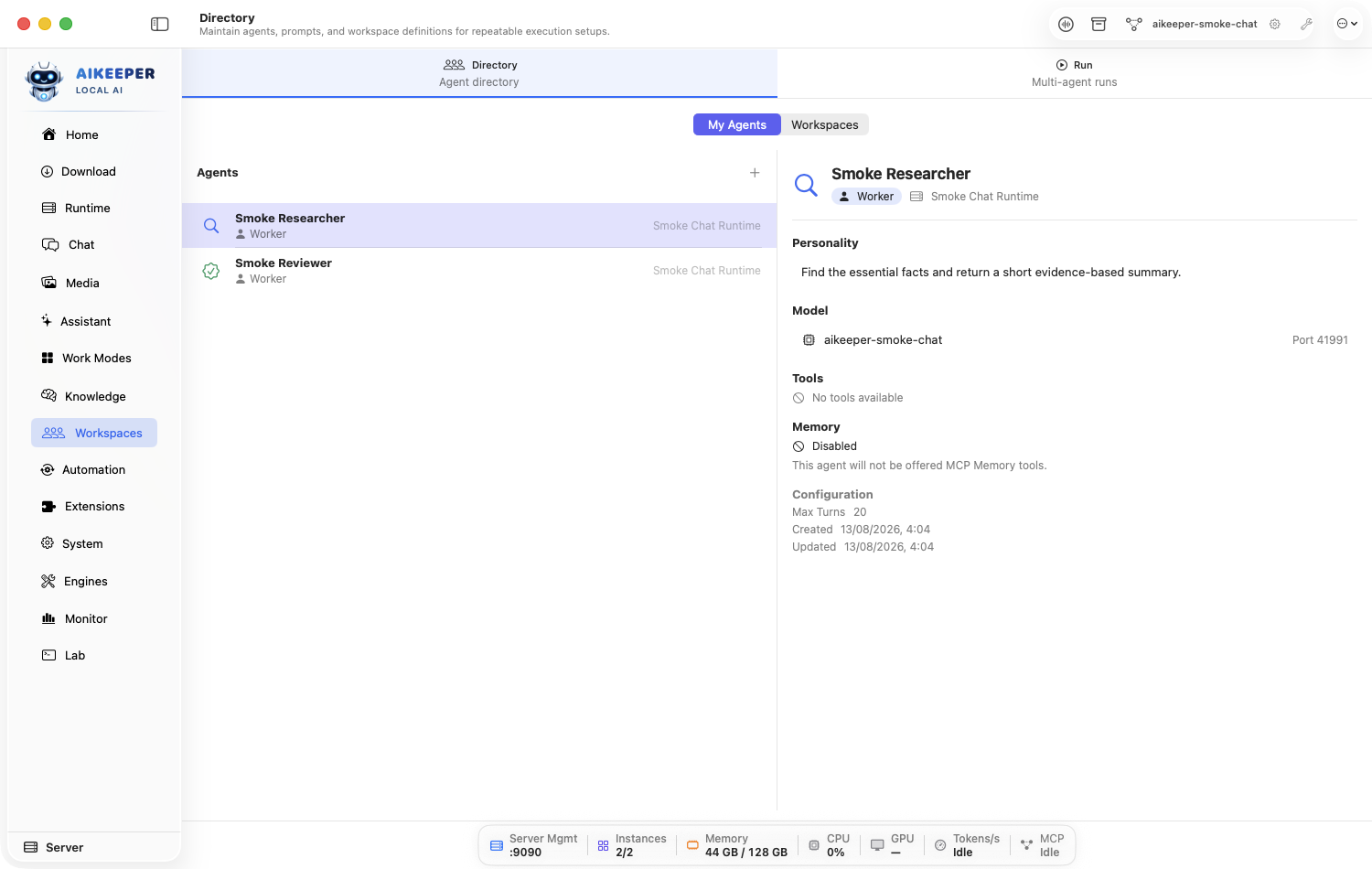
Open Agents > Agents and click the new-agent action.
Give the agent a role-based name and one-sentence objective. The wizard should preselect an available runtime.
Write a compact role prompt covering responsibility, output format, and boundaries.
Leave tools at None for the first save. Add memory scope, skills, personality, standing orders, or hooks only when the role needs them.
Preview the assembled prompt, save, and reopen the agent.
You are done when
The agent appears in Directory with the intended model and prompt, and no tools are enabled by accident.Give an agent the minimum safe tools
Use individual tools or Tool Groups and preserve approval gates for actions with side effects.
Before you start
- An existing agent.
- A written list of actions the role truly needs.
Open the agent in Agents > Agents and inspect Tool Access.
Choose explicit tools or a reviewed Tool Group. Avoid broad shell, file-write, browser, channel-send, or external-system access unless essential.
Set the tool policy so sensitive actions require confirmation.
Save and run a small task that needs one allowed tool and one harmless request for a disallowed tool.
Confirm the allowed call works and the disallowed call is refused or requires a policy change.
You are done when
Only intended tools appear in the run, and sensitive calls still produce approval requests.Build a sequential workspace
Pass work through ordered stages when each agent depends on the previous result.
Before you start
- Two or more agents with distinct dependent roles.
In Agents > Workspaces, create a workspace and choose sequential execution.
Add stages in dependency order, for example Researcher → Analyst → Writer → Reviewer.
For each stage, state what input it receives and what output the next stage needs.
Set stop/retry behavior and approval policy. Save.
Preview the workspace to check there is no circular or missing handoff.
You are done when
The workspace shows the intended ordered stages, and each stage has a role and clear handoff.Build a parallel workspace
Run independent specialists at the same time and combine their outputs afterward.
Before you start
- Two or more tasks that do not depend on each other's output.
- Enough model capacity for concurrent work.
Create a workspace and choose parallel/mirrored execution.
Add agents that can work from the same original task, such as security reviewer, UX reviewer, and performance reviewer.
Give every branch the same scope and a structured result format so outputs can be compared.
Add a final synthesis/reviewer stage if the workspace supports combining results.
Save and check Monitor before launching a resource-heavy local run.
You are done when
The run view shows independent branches active together and produces separately attributable outputs.Run, approve, stop, and resume a workspace
Launch a task, follow agent messages, decide tool confirmations, and recover a failed stage.
Before you start
- A saved workspace with healthy agent routes.
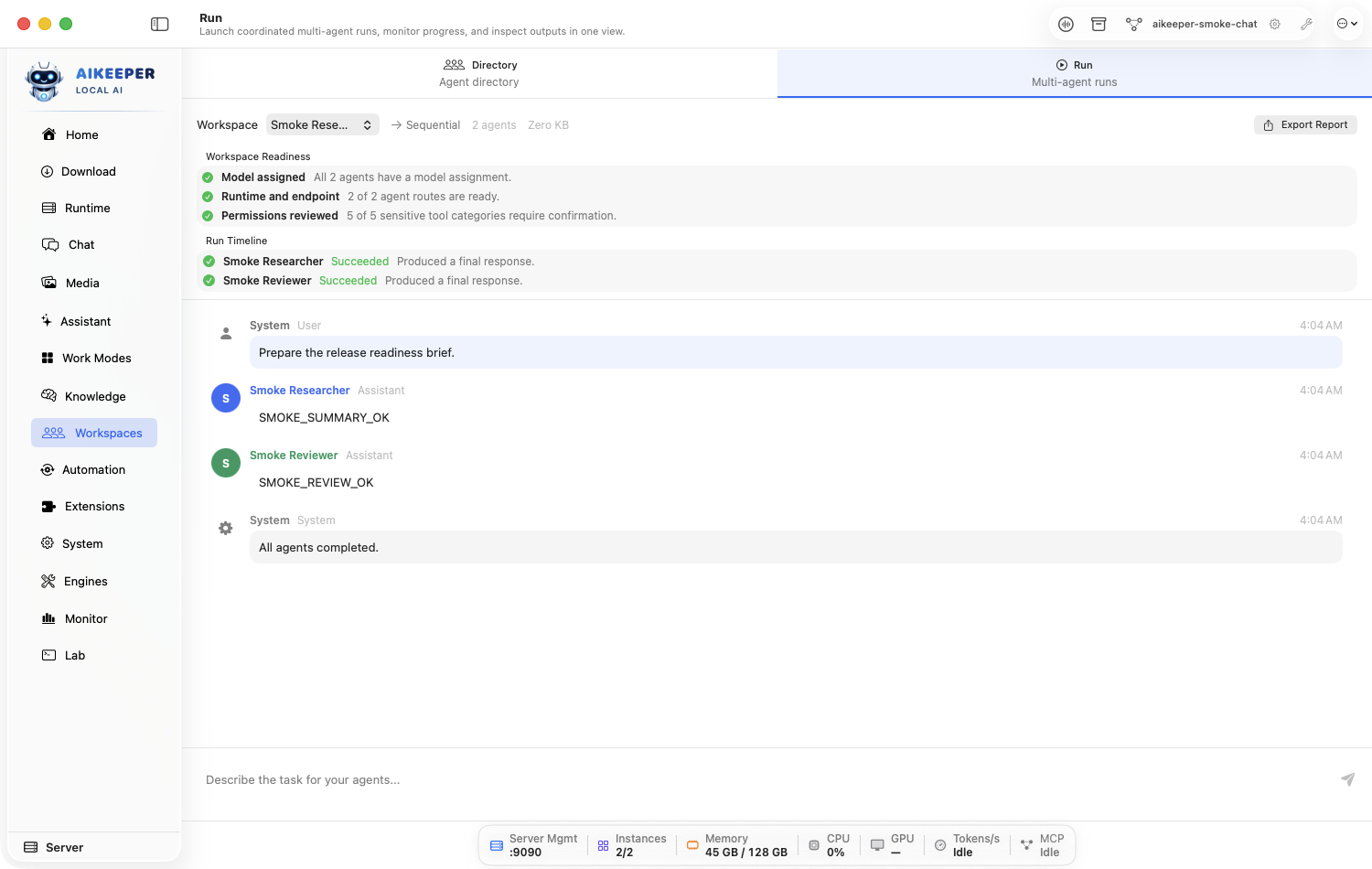
Open Agents > Run, choose the workspace, and enter a task with a concrete deliverable.
Start the run and watch stage status and messages. Do not leave a sensitive approval waiting unattended.
For each confirmation, inspect the agent, tool, arguments, and affected target before approving or rejecting.
Use Stop if the scope is wrong or the run loops. Correct the task, tool policy, or route.
If one stage fails, use its retry/resume action so later skipped stages continue after recovery.
You are done when
Every stage reaches a terminal state, approvals are accounted for, and the final output matches the task rather than merely reporting internal activity.Export and review a workspace run report
Create a deterministic record of stages, messages, approvals, errors, and results.
Before you start
- A completed, stopped, or failed workspace run.
Open the run in Agents > Run and review its summary first.
Use Export Report and choose a destination outside temporary/cache folders.
Open the exported report and check the workspace identity, task, stage order, statuses, approvals, errors, and final output.
Redact secrets or personal data before sharing the report outside your trusted team.
You are done when
The report is readable, stable on repeated export, and contains enough detail to explain the outcome without opening the live run.Spawn and supervise a sub-agent
Hand one slice of work to a short-lived helper agent that reports back, without giving it your whole toolset.
Before you start
- A working agent session with a Ready model or provider route.
- One small, well-defined task you could describe in a sentence.
- A disposable working folder if the task touches files.
Understand what a sub-agent is before you spawn one. It is a child session with its own prompt, its own tool allowance, and its own budget — not another workspace member. It runs, reports, and ends.
Use a sub-agent for a side quest inside one conversation. Use a workspace when you want a repeatable team you run again next week.
In an agent-mode chat, ask for the work to be delegated, or call the
sessions_spawntool directly. Give it a name and the prompt — the task itself.Restrict its tools. The spawn accepts either Only allow these tools or Block these tools — prefer the allow list and name the two or three tools the task genuinely needs.
A sub-agent inherits nothing by accident when you set an allow list. This is the single most useful safety control here.
Set a timeout. The default is 300 seconds. Lower it for a quick lookup; raise it only when you have watched the task take longer.
A timed-out spawn is marked
timedOutand stops. That is the intended outcome for a task that stalls — not a failure you need to debug.Optionally override the model or provider for this one spawn, and set a token budget, so a cheap helper does not run on your most expensive route.
Watch the status. A spawn moves through
queued→running→ one ofcompleted,failed,timedOut, orcancelled. On spawn you will see a line like Sub-agent 'research' queued (depth 1).Read the returned result in the parent conversation before acting on it. Treat it as a proposal from a helper, not a verified fact.
The parent session is where approvals and your judgement live. The sub-agent's output arrives as content, not as an executed decision.
If it misbehaves, cancel it from the parent. A cancelled spawn is recorded as Cancelled by parent.
You are done when
The spawn reachescompleted, its result appears in the parent conversation, and it never used a tool outside the allow list you set.Use an orchestrator to delegate across worker agents
Put one agent in charge of planning and synthesis while others do the work, and choose whether they run one at a time or all at once.
Before you start
- At least two agents with genuinely different jobs — see Create your first agent.
- Enough memory headroom if the workers will run concurrently on local models.
- A task where you can tell a good result from a bad one.
Decide whether you need an orchestrator at all. A plain sequential workspace already runs agents in order. An orchestrator adds a coordinator that plans, dispatches work, and synthesizes the results into one answer.
If your stages are fixed and always run in the same order, a plain workspace is simpler and easier to audit.
Open Agents > Agents and nominate one agent as the orchestrator. Give it planning instructions — how to split work and how to combine results — not domain instructions.
Give the workers narrow roles and the minimum tools each needs. The orchestrator does not need their tools; it needs to be able to reason and delegate.
Choose the execution mode. Sequential (Managed) runs each step after the previous one completes. Parallel (Mirrored) dispatches all steps to their targets simultaneously.
Choose Sequential when a later step needs an earlier step's output. Choose Parallel only when the workers are genuinely independent — otherwise you get fast, confidently wrong work.
Start the run from Agents > Run and watch the progress messages. You will see Orchestrator … is thinking, then Queued delegated job … or Delegated … in parallel, then Agent … is working, and finally Orchestrator is synthesizing.
Keep approvals on for the first few runs. Approve each side-effecting tool call yourself and read what the worker was actually about to do.
Parallel mode means several agents can ask for approval at once. That is exactly when it is easiest to approve something you did not read.
Wait for Orchestration complete, then judge the synthesized answer against the workers' individual outputs — not instead of them.
Cancel cleanly if it goes wrong. A cancelled delegation is recorded as Delegated job cancelled, and the run report keeps the partial history.
You are done when
The run reaches Orchestration complete, every worker's contribution is visible in the run history, and the synthesized answer is traceable to real worker output rather than invented by the orchestrator.Inspect delegated jobs and collect their results
Find out what each worker actually did, filter to one worker or one job, and gather finished output without re-running anything.
Before you start
- A delegated or orchestrated run that has started at least one worker job.
Open the run in Agents > Run. The job list is the record of what was dispatched — read it before drawing conclusions from the final answer.
Use the inspection tool, which exists to inspect delegated worker jobs and collect finished results. Call it with no filter first to see the whole picture.
Narrow down when the list is long: filter by worker id to follow one agent, or pass a job id to open a single job.
Match each job to a status. Anything not finished has not contributed to the final answer, however convincing that answer reads.
Collect the finished results you actually need, then export the run report so the evidence survives the session.
See Export and review a workspace run report — the live run is not a durable record.
You are done when
Every dispatched job is accounted for as finished, still running, cancelled, or failed — and the final answer only cites work that actually completed.Keep a long-running agent from running away
Set the queue behaviour and the stop conditions before an agent runs unattended, so a loop costs you minutes instead of a night.
Before you start
- An agent or workspace you have already run manually at least once.
- A rough idea of how long one honest iteration should take.
Run the task by hand first and time one iteration. You cannot set a sane bound on a task you have never watched.
Almost every runaway agent is a task that was automated before anyone knew what normal looked like.
Choose how queued requests behave with
/queue. serial processes one at a time in order; parallel allows concurrent requests; dropNew discards new requests while one is in flight; replaceInFlight cancels the running request when a new one arrives.For an unattended agent, serial or dropNew is almost always right. Parallel multiplies both speed and damage.
For a recurring agent, configure it under Automation > Heartbeat rather than leaving a chat running, and set an explicit iteration bound.
Keep approvals required for anything that writes files, runs commands, sends messages, or touches the network. An unattended agent with blanket approval is an unattended script with a language model attached.
Learn the stop controls before you need them:
/stopends the current generation,/killterminates a running agent session or background task, and/steerredirects it to a different agent or mode instead of killing it outright.Let it run once while you watch, then check Activity > Requests and the Audit Trail for what it actually did — not what it said it did.
You are done when
The agent completes a bounded run, you can stop it on demand with/stop or /kill, and the Audit Trail shows no action you did not intend to authorize./stop did not end it/stop ends the current generation, not the session. Use /kill for the session or background task.