Automation
Turn a proven prompt or workspace into a scheduled job, cron rule, heartbeat, background task, multi-step flow, or signed webhook trigger with bounded retries.
Find one workflow
Filter this collection by name, outcome, provider, engine, channel, mode, or command.
Create and test a scheduled task
Run a known-safe prompt or agent job at a chosen time.
Before you start
- A prompt/agent that already works manually.
- A route expected to be available at run time.
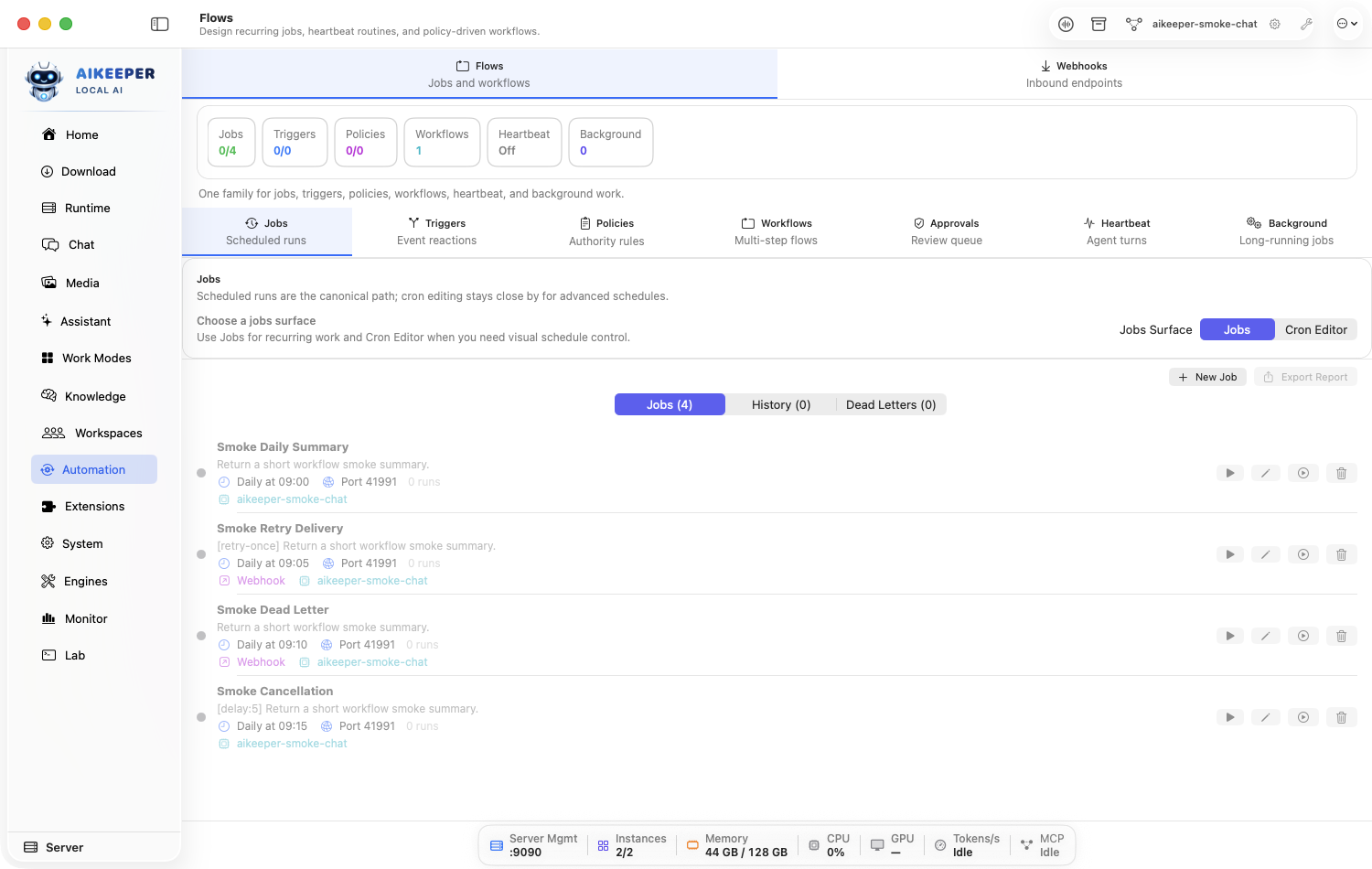
Open Automation > Jobs and create a scheduled task.
Name the outcome, choose the route/agent, and enter the exact prompt. Describe the schedule in plain language—for example every weekday at 9am—then read the green interpretation and click Use.
Confirm the authoritative Next run, relative time, local time-zone identifier, and daylight-saving note before saving.
Set output, timeout, and retries. If tools are enabled, choose Read-only by default, Standard for reviewed writes/network/media, or Trusted only when the task genuinely needs shell or MCP. Underlying confinement and allowlists still apply.
Click Test Job. Read the actual result, not only a green connectivity badge.
Enable the task and confirm its next-run time and timezone.
You are done when
The test produces the intended deliverable, the task is enabled, and the displayed next run and autonomy level match what you meant.Create a cron schedule
Use the Cron Editor for a precise recurring cadence and preview future run times.
Before you start
- Know the desired local time and days.
Open Automation > Jobs and open the Cron Editor.
Build the expression with the form controls or enter it carefully. Prefer the visual controls if cron syntax is unfamiliar.
Inspect the next several calculated run times, including weekday/weekend and daylight-saving boundaries.
Attach the schedule to the intended job and save.
You are done when
At least the next three previewed times match the dates you would write down manually.Build a multi-step workflow
Chain prompts, agents, tools, and conditions into a repeatable flow.
Before you start
- Each individual step works on its own.
- A defined input and final output.
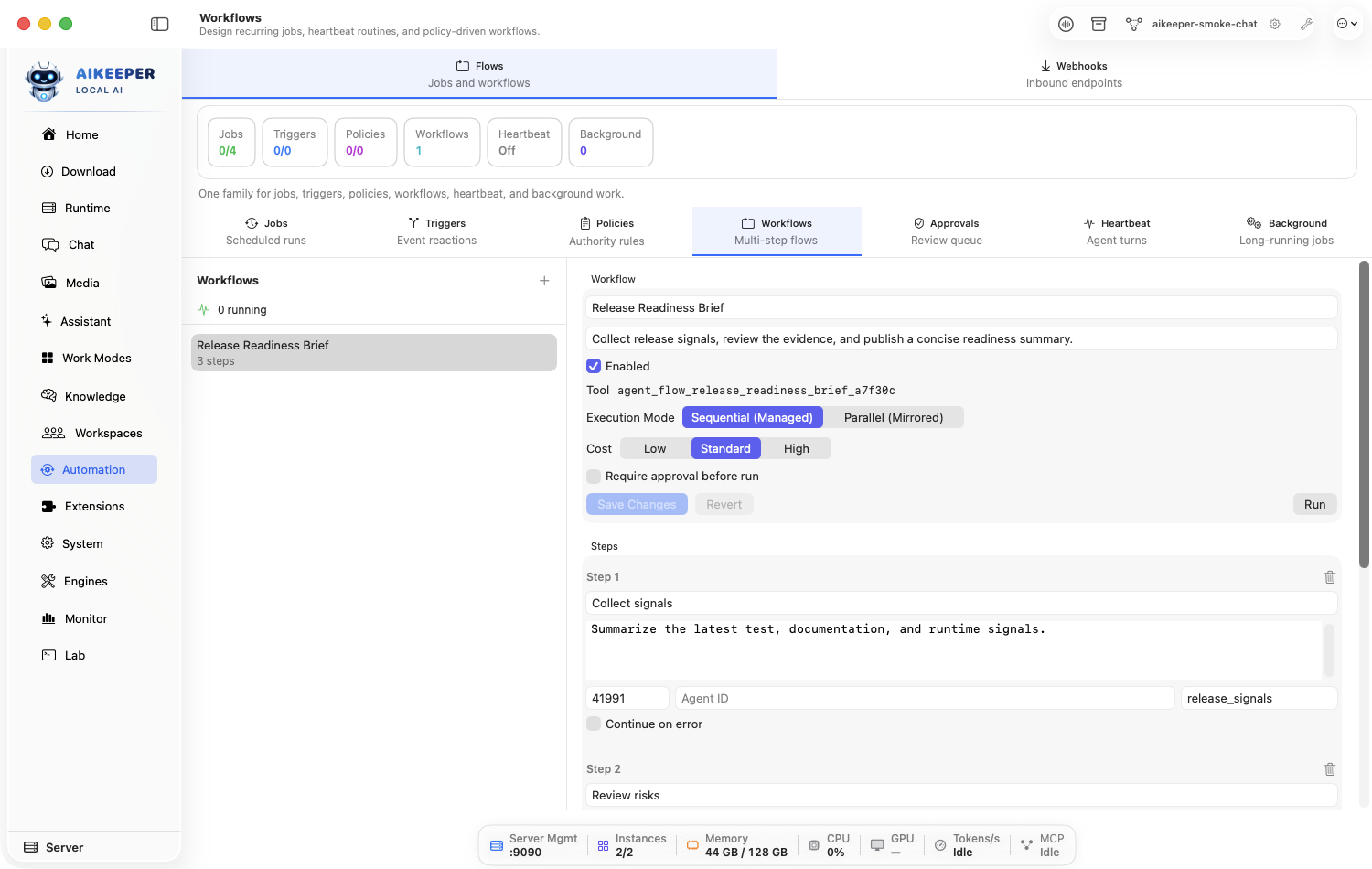
In Automation > Workflows, create a workflow and name its final deliverable.
Add the smallest ordered steps. Define the input, success output, failure behavior, and side effects for each.
Add conditions only where a real decision exists. Keep the default path obvious.
Set timeouts, cancellation, retry budget, and approvals per side-effecting step.
Test with a harmless input that exercises the normal path, then another that exercises one failure/alternate path.
You are done when
Both tests end in the expected branch, with bounded retries and a clear final result or error.Create a bounded heartbeat
Wake an agent regularly to check state, while preventing an endless autonomous loop.
Before you start
- A check that genuinely benefits from recurring model judgment.
Open Automation > Heartbeat and create a heartbeat.
Write a check-only prompt with an explicit no-change outcome, such as If there is nothing actionable, record no action and stop.
Set interval, maximum iterations, timeout, and stop conditions. Never leave iterations unbounded.
Keep side-effecting tools approval-gated and run one manual test.
Enable it and inspect the first scheduled result.
You are done when
The heartbeat records a useful check, respects max iterations, and stops cleanly when there is nothing to do.Run and cancel a background task
Send longer work out of the foreground and verify cancellation leaves a clear terminal state.
Before you start
- A long-running but interruptible job.
Create a task under Automation > Background.
Set its model/agent, prompt, maximum duration, and output destination.
Start the task and confirm its status becomes running without blocking the whole app.
For a test, cancel before completion. Inspect the final state and any partial output.
Run again and allow a small task to complete.
You are done when
Cancellation does not leave the task stuck as running, and a normal run produces its final result.Create a signed webhook trigger
Let an external system start one automation through an authenticated, replay-resistant endpoint.
Before you start
- A trusted external sender that can sign requests.
- A tested automation to trigger.
Open Automation > Webhooks. Under Webhook Endpoints, note the Port — webhooks listen on their own port, not the proxy port — then add a route by filling Path and Label and confirming.
Paths are entered under
/webhook/, so a path of/webhook/deploybecomes the full route below.Generate/store its secret through the protected secret flow. Copy the full value with the button next to Token: — the row only displays the first 16 characters.
Configure signature, timestamp/replay window, and idempotency requirements at the same time. Treat the token like a password.
Send one harmless test payload. The app shows this exact command under Test with cURL with your real port and token filled in.
curl -X POST http://localhost:YOUR-WEBHOOK-PORT/webhook/test \ -H "Authorization: Bearer YOUR-WEBHOOK-TOKEN" \ -H "Content-Type: application/json" \ -d '{"message": "Hello from webhook"}'shellWatch the received-payloads list on the same screen. It shows the response code for each delivery, and reads No payloads received yet until the first one lands.
If nothing appears, the request never reached the app — check the port and that the route path matches exactly.
Confirm authentication actually bites: send the same request with a wrong token and check that it is rejected rather than run.
-iprints the status line. Never skip this — an endpoint that accepts anything is an open remote trigger.curl -i -X POST http://localhost:YOUR-WEBHOOK-PORT/webhook/test \ -H "Authorization: Bearer definitely-not-the-token" \ -H "Content-Type: application/json" \ -d '{"message": "should be refused"}'shellSend the exact same idempotency key again and confirm it does not duplicate the action.
You are done when
A valid unique request starts exactly one run; invalid signature, stale timestamp, or duplicate idempotency key is rejected.Retry, recover, or export a failed automation
Diagnose trends, inspect encrypted dead letters, and resume only after the cause is fixed.
Before you start
- A failed job, webhook delivery, or workflow item.
Open the failed automation and read its summarized error, attempt count, and failure trend.
Inspect the relevant System request/log entry to identify auth, routing, timeout, payload, or tool-policy cause.
Fix the cause before retrying. For side effects, confirm the original action did not already complete.
Open the dead-letter/recovery action, decrypt through the app's authorized flow, and retry or discard the exact item.
Export the failure report when another operator needs evidence.