Knowledge, memory, and RAG
Give chats and agents durable facts, searchable files, time-aware claims, reviewed source reconciliation, behavior skills, relationship context, and Obsidian notes with clear provenance.
Find one workflow
Filter this collection by name, outcome, provider, engine, channel, mode, or command.
Add a fact to persistent memory
Save a preference or durable constraint that should survive new conversations.
Before you start
- The fact is appropriate to store persistently.
Open Knowledge > Memory and click Add Fact.
Write one precise fact, choose the closest category, and avoid combining unrelated details.
Save. Start a new Chat and ask a question that should use the fact.
Open Knowledge > Audit to see whether and why the fact was injected.
You are done when
The fact appears in Memory, and the Audit tab records its injection when it is relevant.Review or delete auto-extracted memory
Check what the assistant remembered and remove stale or overly personal facts.
Before you start
- Memory extraction has produced one or more facts.
Open Knowledge > Memory and filter or search for the person, project, or preference.
Open each fact and inspect its content, category, source, and update time.
Edit imprecise but useful facts. Delete facts that are wrong, expired, duplicated, secret, or unnecessary.
Use Knowledge > Audit to review recent prompt injections and confirm the cleaned fact set is what reaches models.
You are done when
Search no longer returns removed facts, and new prompt-audit entries show only the intended memory.Index a PDF or text document
Add a source to RAG so answers retrieve only relevant passages instead of stuffing the whole file into each prompt.
Before you start
- A readable PDF, text, Markdown, or supported document.
- A Ready Embedding instance selected for Documents.
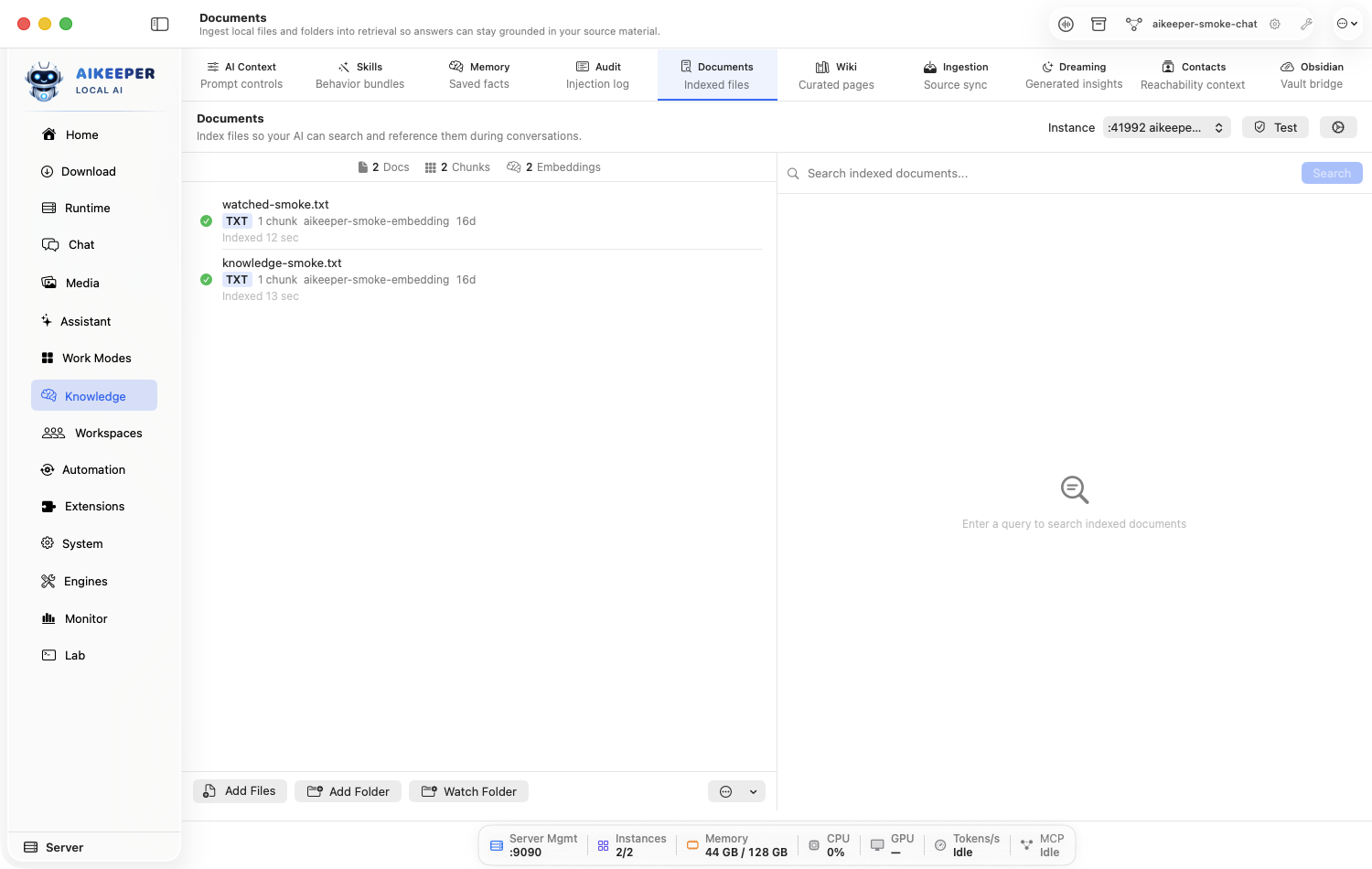
Open Knowledge > Documents and select the intended Embedding instance.
Click the add/import file action and choose one small representative document first.
Review chunking options if shown; use defaults until you have a measured retrieval problem.
Wait for indexing to complete without errors.
Use the Documents search box with a phrase whose answer exists in the file.
You are done when
The document shows indexed status and search returns a passage from the correct source with provenance.Keep a folder synchronized
Index a changing folder and let watched-folder reconciliation add, update, and remove document entries.
Before you start
- A stable local folder you control.
- A Ready Embedding instance.
Open Knowledge > Documents and add a folder source.
Choose the folder, review included file types and recursion, and exclude build/cache/private subfolders when offered.
Start the initial index and wait for it to settle.
Add or edit one harmless test file inside the folder. Return to Documents and wait for the watched-folder event or reconciliation.
Search for a unique phrase from the test file, then remove the test when finished.
You are done when
The new/changed file appears without re-adding the folder, and its unique phrase is retrievable.Answer a question using indexed documents
Ask for a grounded answer and verify that retrieved sources actually support it.
Before you start
- At least one indexed document with successful search results.
- A Ready chat model.
Start a clean Chat and enable the relevant document/RAG context if it is not already part of the active Work Mode.
Ask a specific question and request source names or quoted evidence.
Inspect the retrieval/tool panel to see which chunks were supplied.
Open the original source and check that the answer's important claims are supported.
If retrieval is weak, improve the source, query, or indexing before changing the language model.
You are done when
Retrieved chunks come from the intended source and support the answer; unsupported claims are clearly qualified.Create and link a Wiki page
Write a curated internal reference page with tags, links, backlinks, and edit history.
Before you start
- A topic that benefits from a maintained canonical page.
Open Knowledge > Wiki and create a page with a clear, unique title.
Write the stable facts, decisions, owner, and last-reviewed date. Add focused tags.
Link another relevant wiki page using the editor's supported link syntax or picker.
Save, open the linked page, and confirm the backlink appears.
Make a small test edit and inspect history so you know how to recover an earlier version.
You are done when
The page opens by title, tags work, link and backlink connect the pages, and an edit-history entry exists.Classify legacy Wiki claims without losing history
Preview and migrate older claims into timeless facts, dated snapshots, or pointers to current truth while preserving the original revision.
Before you start
- An existing Wiki created before temporal claim metadata was introduced.
- A backup if the Wiki contains irreplaceable manual edits.
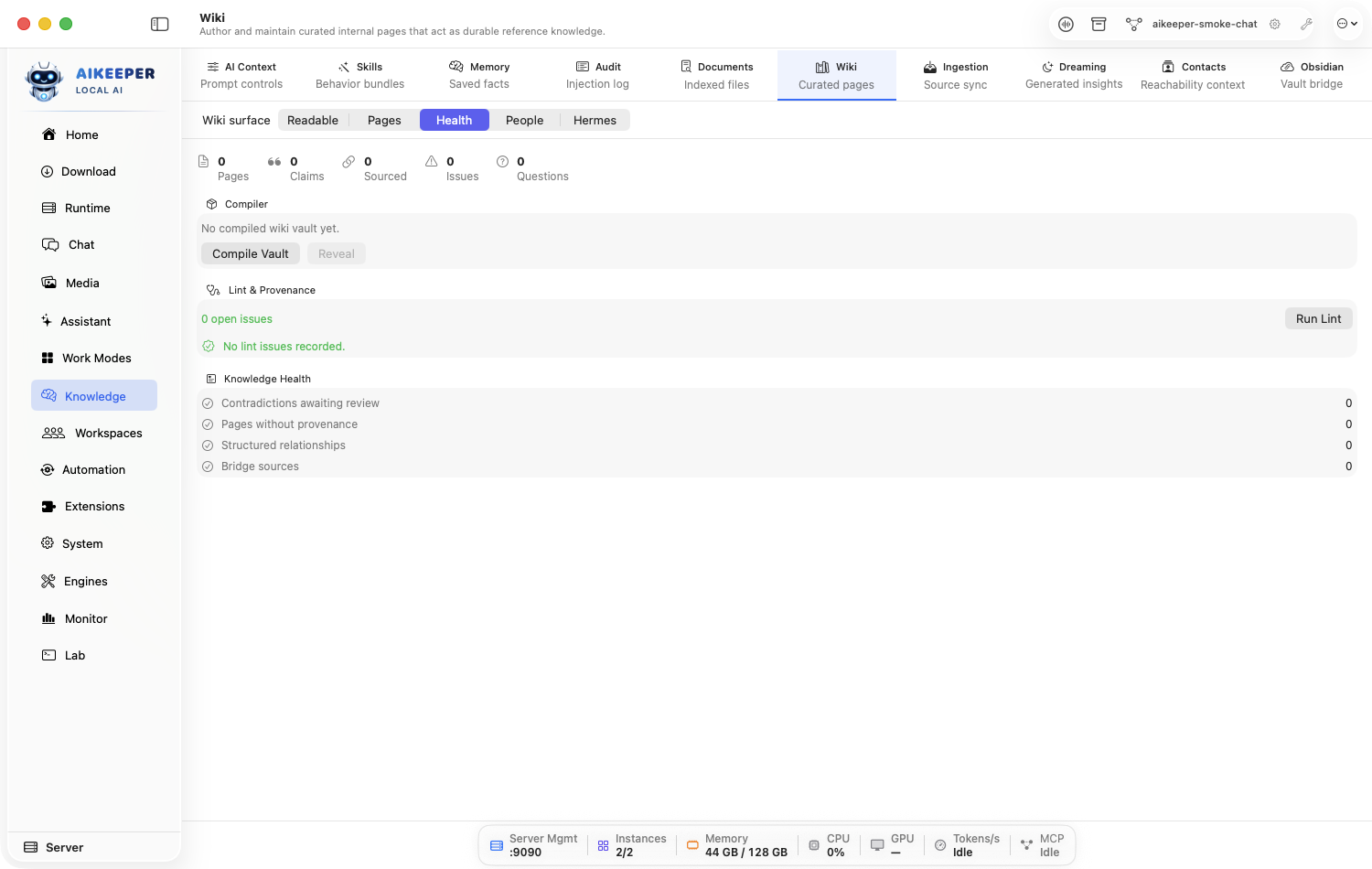
Open Knowledge > Wiki > Health and find Legacy temporal classification. Read the preview counts for timeless, snapshot, and pointer claims before changing anything.
Interpret the proposed classes: stable facts become timeless; potentially volatile facts become 30-day snapshots; source-backed claims become pointers to their current source.
Choose Review & Migrate. Read the confirmation, then choose Apply Classification only when the proposed rules fit this Wiki.
Run Lint after migration and open one claim of each available kind. Check its Observed/validity information, freshness window, or Current truth pointer.
Inspect the migrated claim's revision history. The pre-migration claim must still be present as a closed revision rather than overwritten.
You are done when
Health no longer offers legacy classification for the migrated claims, lint reports their real freshness issues, and the original values remain in revision history.Resolve stale or invalid Wiki claims
Use Wiki Health to find undated volatile claims, stale observations, and broken current-truth pointers before they reach retrieval.
Before you start
- At least one Wiki page with claims.
- Access to the source when re-observing or creating a pointer.
Open Knowledge > Wiki > Health and click Run Lint. Review groups for missing temporal metadata, missing observation dates, stale observations, and invalid source pointers.
Open an affected page from the lint result. Inspect the claim's temporal kind, Observed and validity dates, freshness window, Current truth pointer, evidence, and prior revisions.
Choose exactly one resolution: Re-observe now after checking the source; Use source pointer when a stable current-truth location is available; or Retire when the claim should no longer be active.
Run Lint again. Search Documents/Wiki for the claim and test a grounded Chat question if the claim should remain retrievable.
For a retired claim, confirm it remains in revision/history evidence but is excluded from normal current search and retrieval.
You are done when
The selected issue disappears after lint, active claims resolve to current evidence, and retired/stale/unresolved claims are not supplied as current retrieval context.Turn inbox sources into an approved wiki digest
Use the Ingestion tab to review connector material before it becomes durable knowledge.
Before you start
- At least one supported connector inbox source.
- Permission to retain the selected messages as knowledge.
Open Knowledge > Ingestion and select the source or time window.
Run or preview the digest. Review included messages, provenance, proposed title, temporal snapshot dates, and sensitive content.
Expand Review proposed changes. Inspect every source create/replace/no-op, page enrichment, contradiction, synthesis, and claim-retirement change, including its before/after preview and match confidence.
Remove irrelevant or private items and correct the summary before approval. Do not approve a low-confidence page match until you have checked the target.
Choose Approve. If a target page changed after your review, the app refreshes the proposal instead of applying it; review the new proposal and approve a second time.
Open the resulting Wiki pages and confirm their source links, content hashes, temporal metadata, contradiction/retirement state, and revision history.
You are done when
Only the reviewed proposal is applied, unchanged sources are no-ops, and every changed page retains provenance and revision history for the intended connector items.Install, draft, and test a Skill
Add reusable instructions without granting executable plugin privileges.
Before you start
- A repeatable behavior you can describe as instructions.
- A test prompt with an observable expected result.
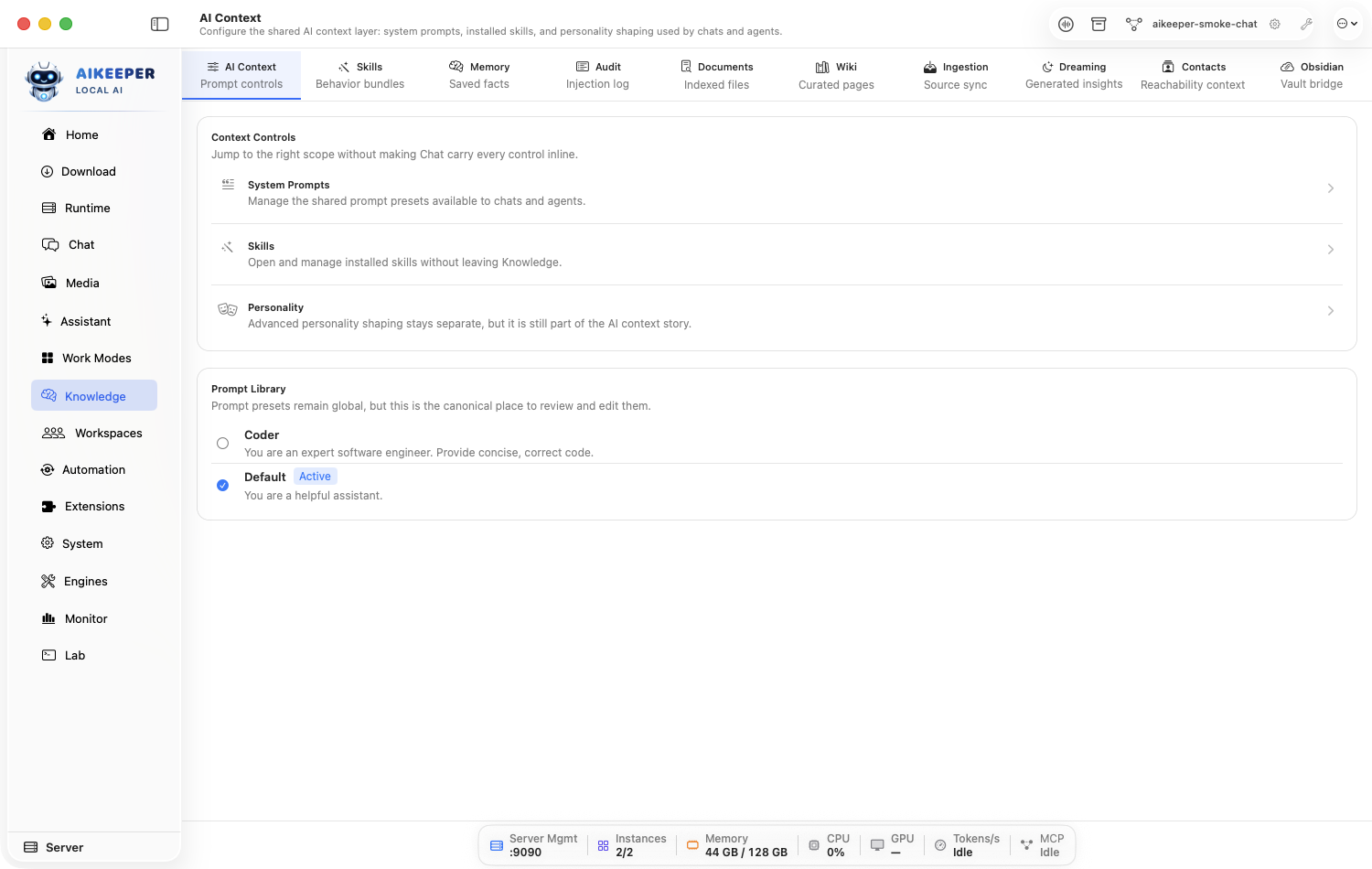
Open Knowledge > AI Context, then Skills, to manage active prompt bundles. Use Extensions > Skills for installation and registry discovery.
Inspect an installed skill's instructions and metadata before enabling it, or create a draft with one narrow purpose.
Enable the skill for the intended chat/agent scope, not globally unless every workflow needs it.
Run the test prompt with the skill on, then off. Compare whether it produces the intended behavior without unwanted side effects.
Revise or disable the skill if it duplicates system context or conflicts with another active skill.
You are done when
The enabled skill produces a repeatable, visible behavior change and does not require executable permissions.Connect an Obsidian vault
Reference existing notes alongside native Ai Keeper memory without copying an entire vault blindly.
Before you start
- A local Obsidian vault folder.
- Permission for Ai Keeper to read it.
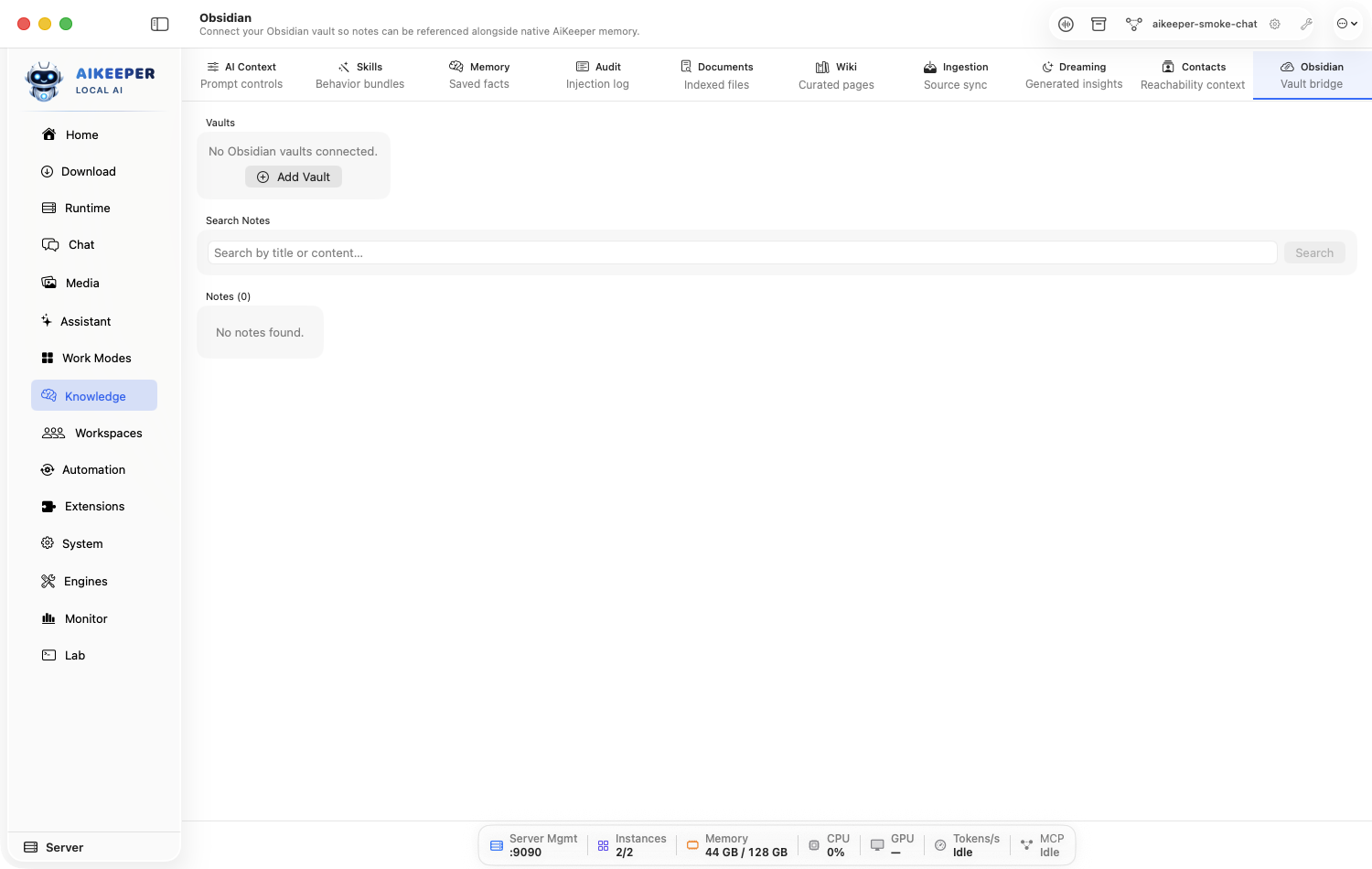
Open Knowledge > Obsidian and choose the vault folder.
Review the detected vault name and note scope. Exclude private subtrees if the UI offers scope controls.
Connect, then search for a unique note title or phrase.
Open the result and confirm it points to the expected file. Import only notes you truly want copied into native knowledge.
You are done when
Search returns the expected note and its source path belongs to the selected vault.Keep Obsidian and Memory Wiki reconciled
Mirror selected vault notes into source-backed Wiki pages, detect edits/renames/deletions, and optionally write reviewed changes back without overwriting a newer note.
Before you start
- A connected local Obsidian vault.
- A harmless test note that can be edited, renamed, and deleted.
Open Knowledge > Obsidian. In the vault settings, set ignored folders and maximum file size, enable Sync all notes to Memory Wiki, and choose Save Settings.
Choose Reconcile Wiki Now for the first controlled pass. Confirm the status reports changed, unchanged, and failed counts; run it again without editing the vault and expect unchanged/no duplicate pages.
Enable Watch and schedule and choose the fallback interval. Edit and rename the test note; wait for the filesystem watcher or periodic pass, then confirm its Wiki page keeps the same identity while the source path/hash and snapshot update.
Delete the test note and reconcile. Confirm the source page is marked deleted/retired and disappears from normal current search without erasing its Wiki history.
Optional: enable Allow conflict-checked write-back, edit an imported Wiki page, and choose Write Back to Obsidian from its detail view. If the note changed since the last imported hash, sync and review instead of forcing the write.
You are done when
An unchanged pass is a no-op, edits and renames update one stable page, deletion retires current retrieval, and write-back succeeds only when the source hash still matches.Add contact context and review Dreaming insights
Maintain people/reachability context and treat idle-generated insights as suggestions, not facts.
Before you start
- For Contacts, only store information you are entitled to retain.
- For Dreaming, enough past conversation context to synthesize.
Open Knowledge > Contacts, add a person, and record only useful name, relationship, reachability, group, or tags.
Search for that person and confirm the correct record opens.
Open Knowledge > Dreaming to review diary entries, memory-palace pages, or generated insights.
Promote or copy only insights you have checked. Delete irrelevant or overly personal output.