APIs, providers, and external clients
Use Ai Keeper as one OpenAI-, Anthropic-, or Ollama-shaped endpoint, add cloud or CLI routes, and inspect every request through the proxy.
Find one workflow
Filter this collection by name, outcome, provider, engine, channel, mode, or command.
Connect an OpenAI-compatible app
Point a coding tool, script, or SDK at Ai Keeper's proxy instead of a raw model port.
Before you start
- At least one Ready model.
- An external client that accepts a custom OpenAI base URL.
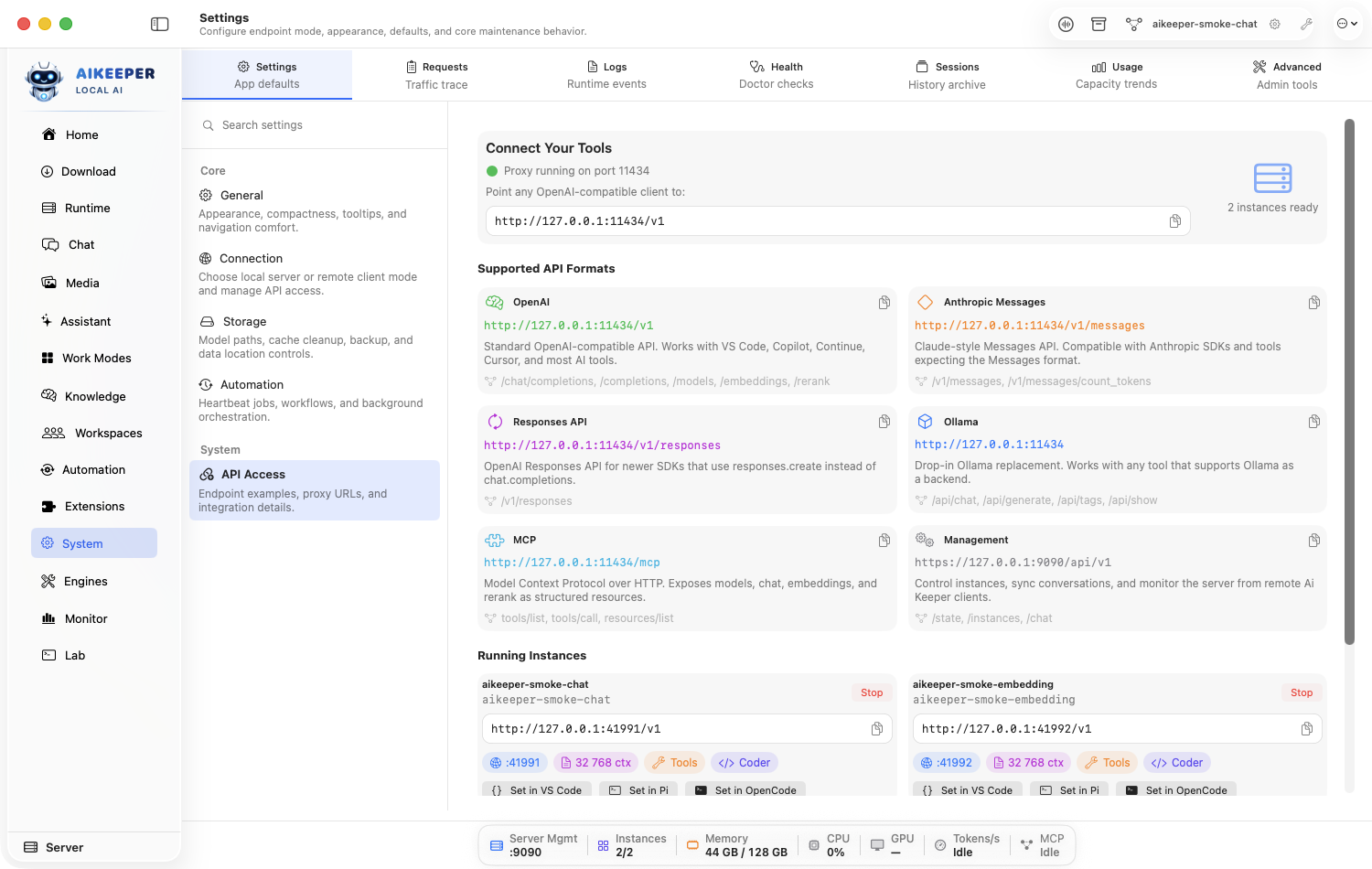
Open Settings > API Access.
Copy the displayed OpenAI-compatible base URL and one of the ready model IDs. Do not copy a raw instance port unless you intentionally want to bypass routing and policy.
The proxy defaults to port 11434, so the base URL is normally
http://127.0.0.1:11434/v1. Confirm the number in API Access — it is a setting, not a constant. Going straight to an instance port skips routing, tool policy, and the request log.If API-key protection is enabled, create or copy a client key from the same protected setup flow.
Check the connection from Terminal first. This lists the model IDs the proxy is willing to serve — copy one exactly as it appears.
If key protection is off, drop the
-Hline entirely. Doing this before touching the other app tells you whether a later failure is Ai Keeper's fault or the client's.curl http://127.0.0.1:11434/v1/models \ -H "Authorization: Bearer $AIKEEPER_API_KEY"
shellSend one real completion. Replace the model value with an ID from the previous step.
curl http://127.0.0.1:11434/v1/chat/completions \ -H "Content-Type: application/json" \ -H "Authorization: Bearer $AIKEEPER_API_KEY" \ -d '{ "model": "YOUR-MODEL-ID", "messages": [{"role": "user", "content": "Say hello in five words."}] }'shellFor a script, the official OpenAI SDK works unchanged — only
base_urlchanges.Most tools that say “OpenAI-compatible” — VS Code extensions, Cursor, Continue, LangChain — expose exactly these two fields. Paste the same base URL and key there.
from openai import OpenAI client = OpenAI( base_url="http://127.0.0.1:11434/v1", api_key="YOUR-KEY-OR-ANY-STRING", ) reply = client.chat.completions.create( model="YOUR-MODEL-ID", messages=[{"role": "user", "content": "Say hello in five words."}], ) print(reply.choices[0].message.content)pythonOpen Activity > Requests to confirm the call arrived at the proxy.
You are done when
The client gets a response and the request log shows the expected model, status 200, route, and latency.Connect an Anthropic-compatible client
Use the Messages API shape for Claude-style tools and SDKs.
Before you start
- A client that permits a custom Anthropic base URL.
- A Ready route compatible with the requested features.
Open Settings > API Access and copy the displayed Anthropic-compatible address and model ID.
Configure the client's base URL and key. Keep its API-version header at the value the client normally sends unless API Access says otherwise.
The Messages API authenticates with an
x-api-keyheader and ananthropic-versionheader — not theAuthorization: Bearerheader the OpenAI routes use.Send a plain text request first. Add tools or images only after the basic request succeeds.
max_tokensis required by the Messages API — leaving it out returns an error even when the same prompt works on the OpenAI route.curl http://127.0.0.1:11434/v1/messages \ -H "Content-Type: application/json" \ -H "x-api-key: $AIKEEPER_API_KEY" \ -H "anthropic-version: 2023-06-01" \ -d '{ "model": "YOUR-MODEL-ID", "max_tokens": 64, "messages": [{"role": "user", "content": "Say hello in five words."}] }'shellTo point Claude Code at this Mac instead of the cloud, set its base URL environment variable before launching it.
omlx and mlx-optiq answer the Anthropic shape natively, so a Claude-style client can run fully local.
export ANTHROPIC_BASE_URL="http://127.0.0.1:11434"
export ANTHROPIC_API_KEY="YOUR-KEY-OR-ANY-STRING"
claude
shellInspect Activity > Requests > Inspector to see whether Ai Keeper routed natively or transformed the request.
You are done when
A Messages request succeeds and the response content is returned in the format the client expects.Connect an Ollama-compatible app
Keep software that speaks Ollama working while Ai Keeper owns model routing.
Before you start
- An Ollama-compatible client with a configurable host.
- A Ready chat model.
Open Settings > API Access and locate the Ollama-compatible routes.
Set the client's Ollama host to the Ai Keeper address shown there, not to a guessed default port.
Ai Keeper’s proxy already defaults to 11434 — the same port Ollama uses — so most Ollama clients connect with no configuration at all. Only set the host explicitly if you changed the proxy port.
List what the Ollama-shaped route reports, and pick a name from it.
curl http://127.0.0.1:11434/api/tags
shellSend a small chat request. Set
streamto false for the first test so you get one clean JSON object back.curl http://127.0.0.1:11434/api/chat \ -H "Content-Type: application/json" \ -d '{ "model": "YOUR-MODEL-ID", "messages": [{"role": "user", "content": "Say hello in five words."}], "stream": false }'shellIf the app points at an
OLLAMA_HOSTenvironment variable instead of a settings field, set that and relaunch it.export OLLAMA_HOST="http://127.0.0.1:11434"
shellCheck Activity > Requests — the route should read
/api/chat.
You are done when
The external app receives a response and Ai Keeper logs an Ollama-shaped route such as /api/chat.Add a cloud, CLI, Lemonade, or custom provider
Use one of 16 provider routes when a job should not run on a local managed model.
Before you start
- An API key for API providers, or an authenticated installed CLI for ChatGPT Codex/Claude Code.
- Know whether sending data off-device is acceptable for this task.
Open Runtime > Instances and create a provider/external instance.
Choose ChatGPT Codex, Claude Code, OpenAI, Anthropic, Google Gemini, Groq, Mistral, DeepSeek, xAI, OpenRouter, Together AI, Perplexity, Fireworks AI, Cerebras, Lemonade, or Custom.
Store required credentials through Settings > Secrets; do not paste them into prompts or plain notes. CLI providers use their own installed authentication.
Enter or select the model ID and, for Custom/Lemonade when needed, the base URL. Set tool/vision policy to what the endpoint actually supports.
Save, run its readiness test, then send a harmless prompt in Chat.
You are done when
The provider instance reports available, answers a test prompt, and Activity > Requests identifies the chosen route.Add Ollama, LM Studio, vLLM, or another existing server
Register a Generic External OpenAI-compatible endpoint without letting Ai Keeper manage its process.
Before you start
- The external server is already running.
- Its OpenAI-compatible base URL and optional key.
Test the external server's own /v1/models endpoint outside Ai Keeper or with Lab > Playground.
Create an instance in Runtime > Instances and choose External OpenAI-compatible.
Enter the base URL, optional API key reference, public model ID, and real feature policy.
Save and verify. Ai Keeper should treat this as an externally owned endpoint, so Start/Stop process controls do not apply.
Use Chat or API Access to send a request through Ai Keeper.
You are done when
The instance is available without a managed child process, and requests reach the external server through the Ai Keeper proxy.Create and test a failover chain
Try a preferred local route first, then controlled backups when it is unavailable.
Before you start
- At least two working instances/providers.
- A clear cost, privacy, and quality order.
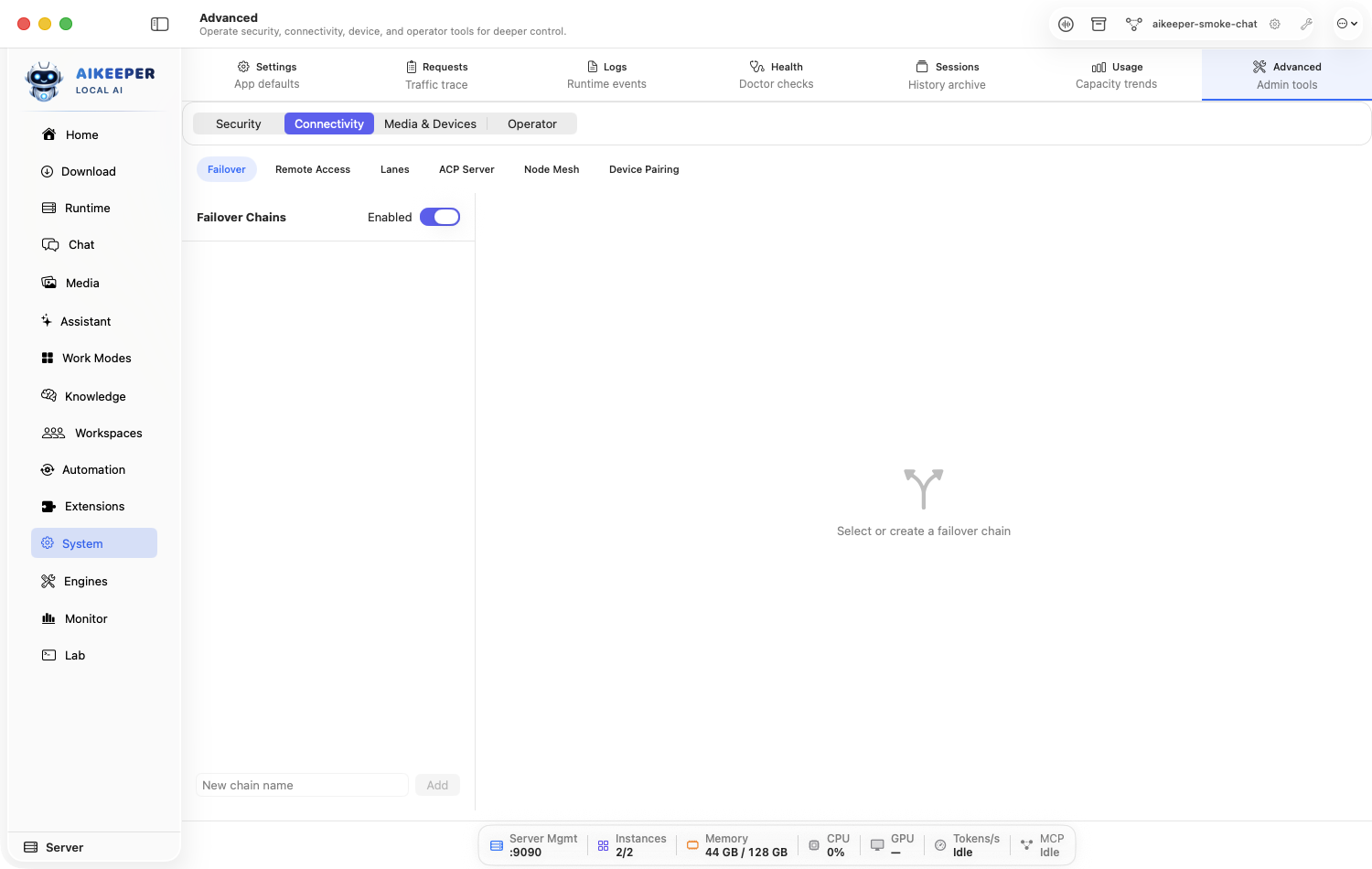
Open Settings > Failover and create a chain.
Put the preferred route first. Add backups in the exact order you are willing to use them.
Configure retry/cooldown and key rotation conservatively. Avoid endless loops or silently switching private work to cloud.
Attach the chain to the intended route or policy and run a normal test.
Temporarily stop or invalidate the first test route, send another harmless request, and inspect Requests to prove the second route was used. Restore the first route afterward.
You are done when
The first request uses the preferred target; the controlled failure uses the next target once, with the event visible in traffic/logs.Connect ChatGPT Codex
Create and test the ChatGPT Codex cli route without exposing credentials in prompts or notes.
Before you start
- Authenticate in the installed Codex CLI.
- Permission to send the test prompt to this provider or service.
- A known provider model ID or a discoverable model list.
Install ChatGPT Codex's supported command-line tool, complete its own sign-in flow, and prove the CLI can list or use a model.
Open Runtime > Instances, create a cloud/external instance, and choose ChatGPT Codex.
Select a model exposed by the authenticated CLI. Leave the API-key field empty.
Review the route note: No API key is entered in Ai Keeper; choose a model reported by the CLI.
Save the instance, send the harmless prompt Reply with exactly: provider route ready, then inspect Activity > Requests.
You are done when
The ChatGPT Codex request succeeds once, the selected instance is named in the request trace, and no credential appears in the prompt or logs.Connect Claude Code
Create and test the Claude Code cli route without exposing credentials in prompts or notes.
Before you start
- Authenticate in the installed Claude Code CLI.
- Permission to send the test prompt to this provider or service.
- A known provider model ID or a discoverable model list.
Install Claude Code's supported command-line tool, complete its own sign-in flow, and prove the CLI can list or use a model.
Open Runtime > Instances, create a cloud/external instance, and choose Claude Code.
Select a model exposed by the authenticated CLI. Leave the API-key field empty.
Review the route note: No API key is entered in Ai Keeper; requests use the Anthropic message format.
Save the instance, send the harmless prompt Reply with exactly: provider route ready, then inspect Activity > Requests.
You are done when
The Claude Code request succeeds once, the selected instance is named in the request trace, and no credential appears in the prompt or logs.Connect OpenAI
Create and test the OpenAI api route without exposing credentials in prompts or notes.
Before you start
- Create an OpenAI API key and store it in Secrets.
- Permission to send the test prompt to this provider or service.
- A known provider model ID or a discoverable model list.
Create the required credential outside Ai Keeper, then save it in Settings > Secrets. Never paste it into Chat.
Open Runtime > Instances, create a cloud/external instance, and choose OpenAI.
Select the saved secret and enter or choose the exact model ID enabled for the account.
Review the route note: Use an exact model ID available to the account.
Save the instance, send the harmless prompt Reply with exactly: provider route ready, then inspect Activity > Requests.
You are done when
The OpenAI request succeeds once, the selected instance is named in the request trace, and no credential appears in the prompt or logs.Connect Anthropic
Create and test the Anthropic api route without exposing credentials in prompts or notes.
Before you start
- Create an Anthropic API key and store it in Secrets.
- Permission to send the test prompt to this provider or service.
- A known provider model ID or a discoverable model list.
Create the required credential outside Ai Keeper, then save it in Settings > Secrets. Never paste it into Chat.
Open Runtime > Instances, create a cloud/external instance, and choose Anthropic.
Select the saved secret and enter or choose the exact model ID enabled for the account.
Review the route note: Ai Keeper applies the Anthropic key and version headers automatically.
Save the instance, send the harmless prompt Reply with exactly: provider route ready, then inspect Activity > Requests.
You are done when
The Anthropic request succeeds once, the selected instance is named in the request trace, and no credential appears in the prompt or logs.Connect Google Gemini
Create and test the Google Gemini api route without exposing credentials in prompts or notes.
Before you start
- Create a Gemini API key in Google AI Studio and store it in Secrets.
- Permission to send the test prompt to this provider or service.
- A known provider model ID or a discoverable model list.
Create the required credential outside Ai Keeper, then save it in Settings > Secrets. Never paste it into Chat.
Open Runtime > Instances, create a cloud/external instance, and choose Google Gemini.
Select the saved secret and enter or choose the exact model ID enabled for the account.
Review the route note: Use a model exposed through Google's OpenAI-compatible endpoint.
Save the instance, send the harmless prompt Reply with exactly: provider route ready, then inspect Activity > Requests.
You are done when
The Google Gemini request succeeds once, the selected instance is named in the request trace, and no credential appears in the prompt or logs.Connect Groq
Create and test the Groq api route without exposing credentials in prompts or notes.
Before you start
- Create a Groq API key and store it in Secrets.
- Permission to send the test prompt to this provider or service.
- A known provider model ID or a discoverable model list.
Create the required credential outside Ai Keeper, then save it in Settings > Secrets. Never paste it into Chat.
Open Runtime > Instances, create a cloud/external instance, and choose Groq.
Select the saved secret and enter or choose the exact model ID enabled for the account.
Review the route note: Choose a model currently enabled for the Groq account.
Save the instance, send the harmless prompt Reply with exactly: provider route ready, then inspect Activity > Requests.
You are done when
The Groq request succeeds once, the selected instance is named in the request trace, and no credential appears in the prompt or logs.Connect Mistral
Create and test the Mistral api route without exposing credentials in prompts or notes.
Before you start
- Create a Mistral API key and store it in Secrets.
- Permission to send the test prompt to this provider or service.
- A known provider model ID or a discoverable model list.
Create the required credential outside Ai Keeper, then save it in Settings > Secrets. Never paste it into Chat.
Open Runtime > Instances, create a cloud/external instance, and choose Mistral.
Select the saved secret and enter or choose the exact model ID enabled for the account.
Review the route note: Use the provider's exact public model identifier.
Save the instance, send the harmless prompt Reply with exactly: provider route ready, then inspect Activity > Requests.
You are done when
The Mistral request succeeds once, the selected instance is named in the request trace, and no credential appears in the prompt or logs.Connect DeepSeek
Create and test the DeepSeek api route without exposing credentials in prompts or notes.
Before you start
- Create a DeepSeek API key and store it in Secrets.
- Permission to send the test prompt to this provider or service.
- A known provider model ID or a discoverable model list.
Create the required credential outside Ai Keeper, then save it in Settings > Secrets. Never paste it into Chat.
Open Runtime > Instances, create a cloud/external instance, and choose DeepSeek.
Select the saved secret and enter or choose the exact model ID enabled for the account.
Review the route note: Cloud DeepSeek is separate from the local ds4 backend.
Save the instance, send the harmless prompt Reply with exactly: provider route ready, then inspect Activity > Requests.
You are done when
The DeepSeek request succeeds once, the selected instance is named in the request trace, and no credential appears in the prompt or logs.Connect xAI
Create and test the xAI api route without exposing credentials in prompts or notes.
Before you start
- Create an xAI API key and store it in Secrets.
- Permission to send the test prompt to this provider or service.
- A known provider model ID or a discoverable model list.
Create the required credential outside Ai Keeper, then save it in Settings > Secrets. Never paste it into Chat.
Open Runtime > Instances, create a cloud/external instance, and choose xAI.
Select the saved secret and enter or choose the exact model ID enabled for the account.
Review the route note: Confirm the selected Grok model is enabled for the account.
Save the instance, send the harmless prompt Reply with exactly: provider route ready, then inspect Activity > Requests.
You are done when
The xAI request succeeds once, the selected instance is named in the request trace, and no credential appears in the prompt or logs.Connect OpenRouter
Create and test the OpenRouter api route without exposing credentials in prompts or notes.
Before you start
- Create an OpenRouter API key and store it in Secrets.
- Permission to send the test prompt to this provider or service.
- A known provider model ID or a discoverable model list.
Create the required credential outside Ai Keeper, then save it in Settings > Secrets. Never paste it into Chat.
Open Runtime > Instances, create a cloud/external instance, and choose OpenRouter.
Select the saved secret and enter or choose the exact model ID enabled for the account.
Review the route note: Model IDs normally include the upstream provider namespace.
Save the instance, send the harmless prompt Reply with exactly: provider route ready, then inspect Activity > Requests.
You are done when
The OpenRouter request succeeds once, the selected instance is named in the request trace, and no credential appears in the prompt or logs.Connect Together AI
Create and test the Together AI api route without exposing credentials in prompts or notes.
Before you start
- Create a Together API key and store it in Secrets.
- Permission to send the test prompt to this provider or service.
- A known provider model ID or a discoverable model list.
Create the required credential outside Ai Keeper, then save it in Settings > Secrets. Never paste it into Chat.
Open Runtime > Instances, create a cloud/external instance, and choose Together AI.
Select the saved secret and enter or choose the exact model ID enabled for the account.
Review the route note: Copy the model ID from Together rather than guessing it.
Save the instance, send the harmless prompt Reply with exactly: provider route ready, then inspect Activity > Requests.
You are done when
The Together AI request succeeds once, the selected instance is named in the request trace, and no credential appears in the prompt or logs.Connect Perplexity
Create and test the Perplexity api route without exposing credentials in prompts or notes.
Before you start
- Create a Perplexity API key and store it in Secrets.
- Permission to send the test prompt to this provider or service.
- A known provider model ID or a discoverable model list.
Create the required credential outside Ai Keeper, then save it in Settings > Secrets. Never paste it into Chat.
Open Runtime > Instances, create a cloud/external instance, and choose Perplexity.
Select the saved secret and enter or choose the exact model ID enabled for the account.
Review the route note: This provider uses its own OpenAI-compatible base path.
Save the instance, send the harmless prompt Reply with exactly: provider route ready, then inspect Activity > Requests.
You are done when
The Perplexity request succeeds once, the selected instance is named in the request trace, and no credential appears in the prompt or logs.Connect Fireworks AI
Create and test the Fireworks AI api route without exposing credentials in prompts or notes.
Before you start
- Create a Fireworks API key and store it in Secrets.
- Permission to send the test prompt to this provider or service.
- A known provider model ID or a discoverable model list.
Create the required credential outside Ai Keeper, then save it in Settings > Secrets. Never paste it into Chat.
Open Runtime > Instances, create a cloud/external instance, and choose Fireworks AI.
Select the saved secret and enter or choose the exact model ID enabled for the account.
Review the route note: Use the full Fireworks account/model identifier when required.
Save the instance, send the harmless prompt Reply with exactly: provider route ready, then inspect Activity > Requests.
You are done when
The Fireworks AI request succeeds once, the selected instance is named in the request trace, and no credential appears in the prompt or logs.Connect Cerebras
Create and test the Cerebras api route without exposing credentials in prompts or notes.
Before you start
- Create a Cerebras API key and store it in Secrets.
- Permission to send the test prompt to this provider or service.
- A known provider model ID or a discoverable model list.
Create the required credential outside Ai Keeper, then save it in Settings > Secrets. Never paste it into Chat.
Open Runtime > Instances, create a cloud/external instance, and choose Cerebras.
Select the saved secret and enter or choose the exact model ID enabled for the account.
Review the route note: Pick a model listed for the current Cerebras account.
Save the instance, send the harmless prompt Reply with exactly: provider route ready, then inspect Activity > Requests.
You are done when
The Cerebras request succeeds once, the selected instance is named in the request trace, and no credential appears in the prompt or logs.Connect Lemonade
Create and test the Lemonade local service route without exposing credentials in prompts or notes.
Before you start
- Start Lemonade Server; a local instance may not need a key.
- Permission to send the test prompt to this provider or service.
- A known provider model ID or a discoverable model list.
Start Lemonade locally and confirm its health or models endpoint responds before configuring Ai Keeper.
Open Runtime > Instances, create a cloud/external instance, and choose Lemonade.
Enter the exact base URL, API format, optional secret reference, and public model ID. Do not append the same /v1 path twice.
Review the route note: The default route is http://127.0.0.1:8000/api/v1; change it only when the server differs.
Save the instance, send the harmless prompt Reply with exactly: provider route ready, then inspect Activity > Requests.
You are done when
The Lemonade request succeeds once, the selected instance is named in the request trace, and no credential appears in the prompt or logs.Connect Custom
Create and test the Custom custom endpoint route without exposing credentials in prompts or notes.
Before you start
- Provide an OpenAI- or Anthropic-compatible base URL and optional secret.
- Permission to send the test prompt to this provider or service.
- A known provider model ID or a discoverable model list.
Create the required credential outside Ai Keeper, then save it in Settings > Secrets. Never paste it into Chat.
Open Runtime > Instances, create a cloud/external instance, and choose Custom.
Enter the exact base URL, API format, optional secret reference, and public model ID. Do not append the same /v1 path twice.
Review the route note: Declare only capabilities the endpoint truly supports; custom headers come from reviewed configuration.
Save the instance, send the harmless prompt Reply with exactly: provider route ready, then inspect Activity > Requests.