Chat and Assistant
Use ordinary chat or the dedicated Code, Image, Video and Audio sections. Keep project access, tools, context, runtime evidence and recoverable changes visible.
Follow the numbered steps for the everyday path. Open Advanced details for compatibility, settings, technical limits, and deeper checks. Times are estimates; large downloads and model loading can take longer.
Screenshots show the real app with illustrative sample data. They show where controls are; example answers, jobs and telemetry are not measured results. Open any image at full size to follow along.
Find one workflow
Filter this collection by name, outcome, provider, engine, channel, mode, or command.
Start a clean conversation
Pick a Ready model, send a clear request, and keep the conversation easy to find.
Before you start
- At least one Ready Chat/LLM instance or configured provider.
Open Chat for a normal conversation. Code, Image, Video and Audio keep their own task-oriented conversations.
Click New Chat above the conversation list. The first chip beside Send names the model that will answer and its state (for example Qwen 3.6 35B-A3B Ready); click it to pick another model. Check that name before sending private material.
Write the goal, necessary context, output format and constraints, then Send. For example: Explain this idea in plain words, then add an expert note and one example.
Wait for completion and read the result. Rename or organize the conversation when you expect to return.
To keep a good answer as a reusable check, right-click the finished reply and choose Save as test…. Review what the test captures before saving it.
You are done when
Text arrives progressively, the model chip still shows the model you chose, and the conversation appears in the Conversations list.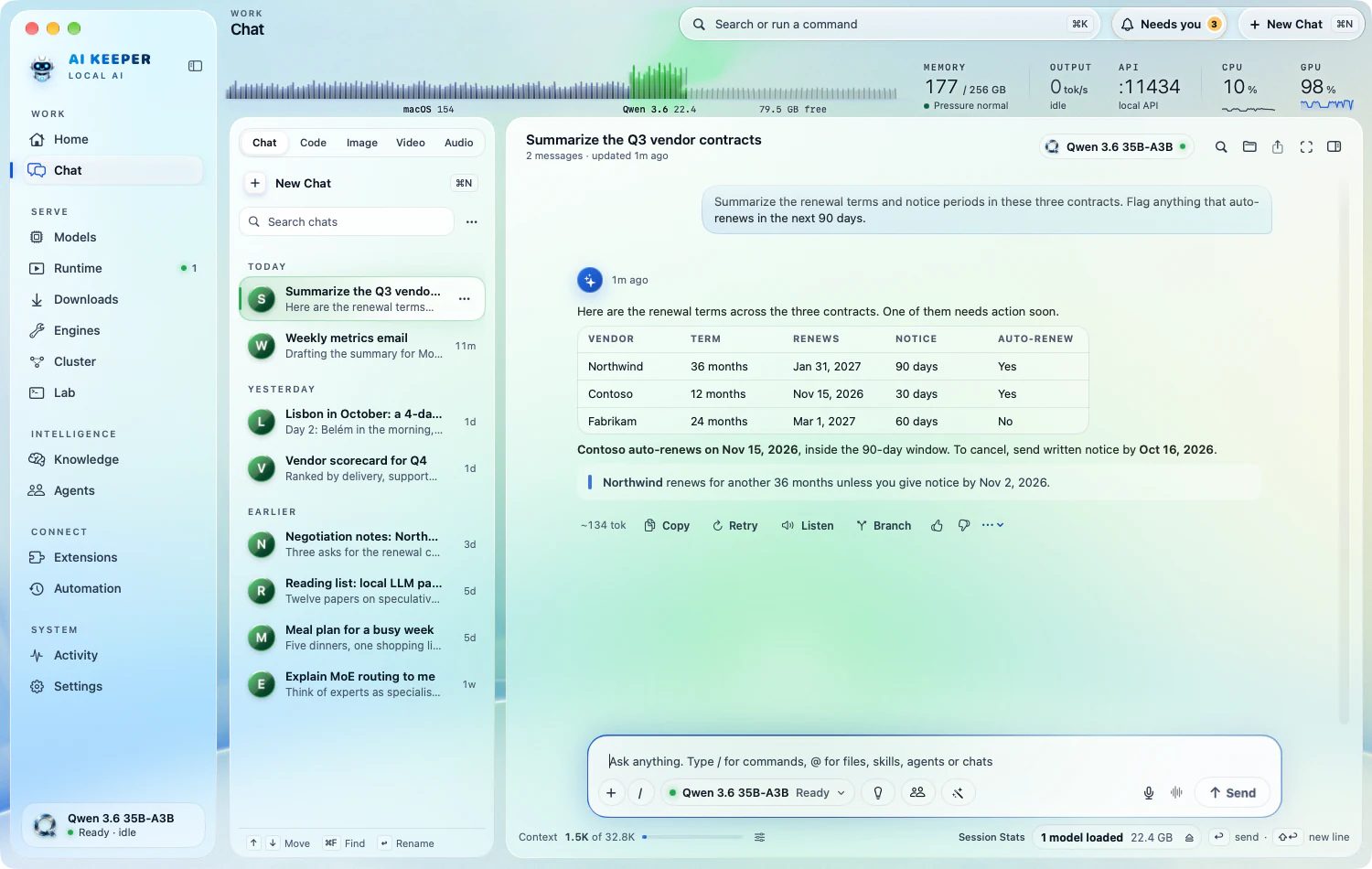

Advanced details
A conversation retains its chosen section and configuration. Media generation uses a creation model/engine directly; you do not need an extra text model merely to render an image.
A model identifier describes routing, not privacy by itself. Inspect the route/provider and actual request evidence when local-only handling matters.
If something looks wrong
Choose the model, thinking and permissions for the next reply
The three chips beside Send decide which model answers, how hard it thinks and how much it may do without asking.
Before you start
- At least one model in Runtime or a configured provider.
Open Chat. Beside Send are three chips. The first names the model for the next reply and its state, for example Qwen 3.6 35B-A3B Ready. Click it to pick another model.
If the chosen model is not loaded, the button reads Start & Send: sending starts the model first, so the first reply takes longer.
Click the second chip (Model default) to open Response settings. Under Reasoning effort keep Model default or pick a level; higher levels may take longer. The change applies to your next message.
Click the third chip (Ask when risky) to choose how much it may do on its own. Ask before changes asks before every edit, command or internet access. Ask when risky runs routine actions and asks before potentially unsafe ones. Never ask runs tools without confirmation. Answer only and Plan first need a project folder.
Type the message and press Return. While a reply is being written, Send becomes Stop; if you type another message meanwhile it becomes Queue, and the message is sent when the reply ends.
You are done when
The chips show your choices before you send, and the reply comes from the model named on the first chip.
Advanced details
The permission level applies to this chat; new chats follow the model instance’s setting. Review before running at the bottom of the same chooser is one switch for every chat.
Show advanced controls in Response settings switches the interface between simple and expert detail; it changes what is shown, not model settings. Model selection can let Ai Keeper choose another loaded local model using task evaluations.
Everything else about the chat (tools, context budget, system prompt, skills, per-chat sampling) is in Chat settings and tools (⌥⌘I).
If something looks wrong
Ask about a file or image
Attach temporary material to one conversation without adding it to permanent knowledge.
Before you start
- A readable local file.
- For images, a vision-capable model or route.
In Chat, click + (Add attachments) beside the message box and choose Attach File…, Upload Image… or Paste Image from Clipboard. The image choices appear only when the selected model can see images.
For a PDF, an Attach PDF box asks for Pages: leave auto to read the text of every page, or type page numbers such as
2-5,12, then click Attach. Wait until the attachment is listed above the message box and remove any accidental file before sending.Ask a specific question such as Summarize this PDF in five bullets and cite the page for each bullet.
For an image, confirm the selected model supports vision. For repeated future use, index the source under Knowledge instead of attaching it every time.
You are done when
The answer discusses details that are present in the attachment, and any tool/attachment status finishes without error.
Advanced details
Documents may be extracted/OCR-processed rather than transmitted as the original binary. Check a small known detail and citation; extraction can omit charts, equations or scanned text.
A single attachment is conversation material. Knowledge indexing creates reusable chunks and embeddings for retrieval; changing/removing one does not implicitly clean the other.
Chat originals retain image bytes/dimensions rather than an app-wide thumbnail reduction. The selected vision backend owns tiling and pixel/token settings; there is no universal local-VLM pixel ceiling. Preview/tool compact policies are separate.
For PDFs, Auto reads text from every page and can use local OCR; the original is retained. Enter selected page numbers/ranges for rendered vision pages where offered. Figures still need a vision model, and OCR/citations should be checked against the original.
If something looks wrong
Let Chat use tools safely
Enable only the tools needed for the task and review sensitive calls before they run.
Before you start
- A model or external route with tool-calling enabled.
- At least one relevant built-in or MCP tool.
In Chat, click Chat settings and tools at the top right of the conversation (⌥⌘I) and, under Tools, open Choose Tools. Typing
/toolslists the tools this chat can use.Switch on only the tools the task needs and click Done. A tool you switch on is always included; one you switch off is removed; tools you leave alone are chosen for each message (Clear Manual Overrides returns to that). Do not switch on shell, browser, file-write or messaging tools for a question that only needs the date or time.
Ask for an action that clearly needs one enabled tool.
When a Run Tool? card appears, read the tool name and its arguments. Under After this approval keep Run Once (the other choices allow the same action or tool for the rest of the session) and click Run Once. Otherwise click Reject; text typed in Reason if rejecting is returned to the model.
Wait for the assistant's follow-up after the tool result. A raw tool result alone is not the finished answer.
You are done when
The transcript contains assistant tool call, tool result, and a final assistant response; Settings > Admin Tools > Audit Trail records the action.
Advanced details
Tool availability, workspace sandbox scope, per-chat confirmation policy and the app-wide Review before running switch are independent. Tool-calling support does not authorize a tool action.
The review layer may hold or deny a non-safe call. It cannot grant Full Access or convert review approval into broader host permission. Minimize the exposed catalog to relevant tools and inspect the actual arguments.
If something looks wrong
Use slash commands
Discover and run built-in session, context, tool, agent, approval, and export actions from the composer.
Before you start
- A Chat conversation is open.
Type
/in the message box to see matching commands, or click the / button (Slash commands) beside +. Choosing a writing helper such as/explainputs its opening words in the box for you to finish. Choosing any other command runs it at once with no arguments./commandslists every command with a one-line description.Use
/statusfor runtime state,/contextfor effective prompt/policies and/toolsfor the active catalog.Use
/compactto summarize older messages,/export-sessionto export, and/stopto stop the reply being written./reset,/clearand/newall leave this conversation saved in the list and open an empty chat. Read each description first.Confirm the visible report or state change. A prompt-insert command may prepare text for you to finish and send rather than execute immediately.
You are done when
The command is recognized as an action/report rather than sent as ordinary prompt text.
Advanced details
Built-ins include prompt helpers, local reports, session changes and external actions. Several act with no argument: /rollback restores the newest snapshot of the project folder, /restart restarts the model this chat is using, and /kill stops the reply being written. /restart and /kill instance also fall back to this chat’s model when the name you typed matches nothing. Give /send and /exec an explicit target every time.
With Show advanced controls switched off (in Response settings, the Model default chip beside Send), the / list shows 21 everyday built-ins plus your own commands; the other 46 still run when typed in full. Custom prompt, skill and plugin commands appear in the same list and in /commands.
If something looks wrong
Keep a long conversation going
Check context use and compact older messages before the model runs out of room.
Before you start
- A conversation with useful earlier context.
Under the message box, click Context or the sliders icon beside the token count (for example 1.5K / 32.8K). The same sheet opens from Chat settings and tools (⌥⌘I) → Context and instructions → Context budget. Read the model’s maximum and this chat’s budget.
Choose an appropriate budget with the slider or exact token field and click Apply. Opening or dragging alone does not commit it; an increase may require restart confirmation.
To shrink older history now, click Compact now beside the meter or type
/compactwhile no reply is being written. Wait for the summary; a short conversation reports Nothing to compact. If you do nothing, Ai Keeper compacts by itself when the chat reaches 85% of its budget (Settings → Chat → Auto-compact when context fills up).Check that key goals/constraints remain and restate any important omitted detail before continuing.
Keep authoritative material in source files or Knowledge. Start a new chat when the subject changes substantially.
You are done when
Context use drops, a compacted summary is present, and the next response still respects the important goals and constraints.
Advanced details
The budget covers instructions, history, tool definitions/results and the reply. It affects outgoing trimming/compaction without deleting saved messages, and forks retain it within the serving instance’s capacity.
Compaction is lossy summarization. Saved checkpoints preserve the earlier transcript; raising context later does not automatically recover detail lost from the working summary.
If something looks wrong
Retry, branch, export, import or restore a conversation
Preserve useful work and branch experiments without damaging the original conversation.
Before you start
- An existing conversation.
Click Retry under the latest reply (or Chat → Regenerate in the menu bar) for another answer to the same prompt. The arrows beside the reply switch between the answers.
Click Branch under a reply to continue from that point in a new chat; the original stays as it is. Check the new chat’s model and tools before continuing.
Open the Export menu at the top right of the conversation and choose Export as Markdown, Export as JSON, Export as ShareGPT or Export as PDF, then pick where to save it. JSON is the format that can be imported again.
/export-session markdownand/export-session jsondo the same from the keyboard.To bring a conversation back from a file, choose Import Conversation in the same Export menu (or type
/import-session) and select an exported JSON file. Read the imported transcript and check its tools before continuing.A deleted conversation moves to Recently Deleted at the end of the conversation list, where Restore brings it back for 30 days. Activity → More → Sessions → Session Archives only lists conversations that automatic cleanup archived; there you can search them, Export Transcript or Delete.
You are done when
The original remains intact, the fork or regenerated branch is distinct, or the exported file opens and contains the expected transcript.
Advanced details
Portable transcript export is not a full app backup or a guarantee that external files, browser state and credentials travel with it. Use Settings → Privacy & Data → Backup for supported app-state backup.
Forked/imported text cannot establish tool authorization. Validate workspace bindings and secrets separately before Agent work.
If something looks wrong
Find, organize and recover conversations
Search the list, group chats in folders or workspaces, and bring back a conversation you deleted.
Before you start
- A few saved conversations.
Open Chat. The tabs above the list (Chat, Code, Image, Video, Audio) each keep their own conversations. Type in Search conversations… to filter the list.
Click the conversation’s title at the top of the chat and choose Rename, Move to Workspace or Delete. Right-clicking a conversation in the list offers the same, plus Move to Folder.
Click New Folder above the list, type a name and click Create, then move conversations into it.
Use Search Messages (the magnifier at the top right) to find text inside the open conversation, and Focus to show only this conversation without the list and panels.
To get a deleted conversation back, open Recently Deleted at the end of the list and click Restore. It can be restored for 30 days; Delete Permanently cannot be undone.
You are done when
The conversation sits in the folder or workspace you chose, search finds it, and a restored conversation opens with its messages.
Advanced details
The title menu also offers Conversation Tree, Compare Chats and Export.
Optional automatic cleanup can archive old conversations before deleting them; those are listed under Activity → More → Sessions → Session Archives with Export Transcript.
If something looks wrong
Use the dedicated or floating Assistant
Keep quick help available without mixing it into an audited multi-agent workspace.
Before you start
- A Ready conversational model or provider route.
Open Chat, click Chat settings and tools (⌥⌘I) and choose Panels → Assistant, or use Navigate → More → Assistant in the menu bar. Under Quick Actions, pick the model in Runtime.
Click Test One Turn to send a minimal prompt through that model and confirm it answers. The panel has no message box of its own; Open Chat returns to the conversation.
Click Detach to Floating Window to open the floating Quick Ask window. It has its own model picker and message box and stays above other windows while Always on top is on. Questions asked there are saved in Chat.
Return to the main Chat conversation for carefully managed sessions or Agents for structured multi-agent runs.
You are done when
The Assistant responds, and detaching creates a usable floating presence without closing the main app.

Advanced details
Assistant, Browser and Canvas are Chat session panels. Voice and Talk Mode settings are available through Assistant; they no longer form a separate primary sidebar hub.
Hands-free speech depends on actual microphone signal, selected on-device recognition locale and playback route. A healthy panel alone does not verify acoustic quality.
If something looks wrong
Ask, rewrite or dictate from any app
Turn on three system-wide shortcuts: a floating Quick Ask window, actions on selected text and dictation into any text field.
Before you start
- A chat model; Selection Actions need a local one that is running.
- For Selection Actions and Dictation Anywhere: macOS Accessibility permission for Ai Keeper.
Open Settings → General and find System-Wide Shortcuts. All three shortcuts are off until you turn them on.
Turn on Quick Ask. Click the button beside Shortcut and press the keys you want, then press them in any app, or click Open Quick Ask. Quick Ask needs no Accessibility permission.
In the Quick Ask window choose the model, type in Ask a question or follow up… and press Return. Attach adds files, Context chooses a workspace and which knowledge is used, and Open in Chat continues the same conversation in the main window.
Turn on Selection Actions. If the status reads Accessibility not authorized, click Request Access and allow Ai Keeper in System Settings. Select text in another app, press the shortcut and choose Rewrite, Summarize, Explain or Translate; then Replace the selection or Insert Below.
Turn on Dictation Anywhere. Tap its shortcut to start and stop, or hold it while you talk; the words are typed into the app in front.
You are done when
Each enabled shortcut shows Active beside it, Quick Ask answers from another app, and the conversation appears in Chat.

Advanced details
Quick Ask questions and replies are saved in Chat, and a reply continues if you close the window. The menu-bar icon also offers Quick Ask, and Detach to Floating Window in the Assistant panel opens the same window.
Selection Actions run only on a local model on this Mac, never on a cloud or remote route. Automatic uses the first local chat model that is running; a model you pick must be running or the action is refused. Password fields are refused.
If something looks wrong
Choose Ask, Plan, or Agent for coding
Match coding authority to the task, review a plan before implementation, and keep read-only work read-only.
Before you start
- A project workspace selected in Chat.
- A conversational model capable of coding and tool use.
Open Chat → Code and choose Choose project folder…. Read the exact folder name/path.
Select Ask to inspect/search/explain with project files unchanged, or Plan to design a change before implementation.
When the plan is ready, a Review Implementation Plan card appears in the conversation. Type what should change and click Revise, or click Approve and Implement. The same choice is in the coding inspector’s Tasks pane as Request Changes and Start Implementation.
Select Agent to let it edit files and run commands. The menu beside Send then sets how often it asks: Ask before changes, Ask when risky or Never ask. To see exactly what it may do, open Chat settings and tools → Work with Files → Folder access → Review Permissions….
Inspect changed files, command results and verification. Switch to Ask for the next read-only question if editing is no longer needed.
You are done when
Ask and Plan do not write to the workspace; an approved Plan transitions into implementation; Agent changes remain visible in the review surface.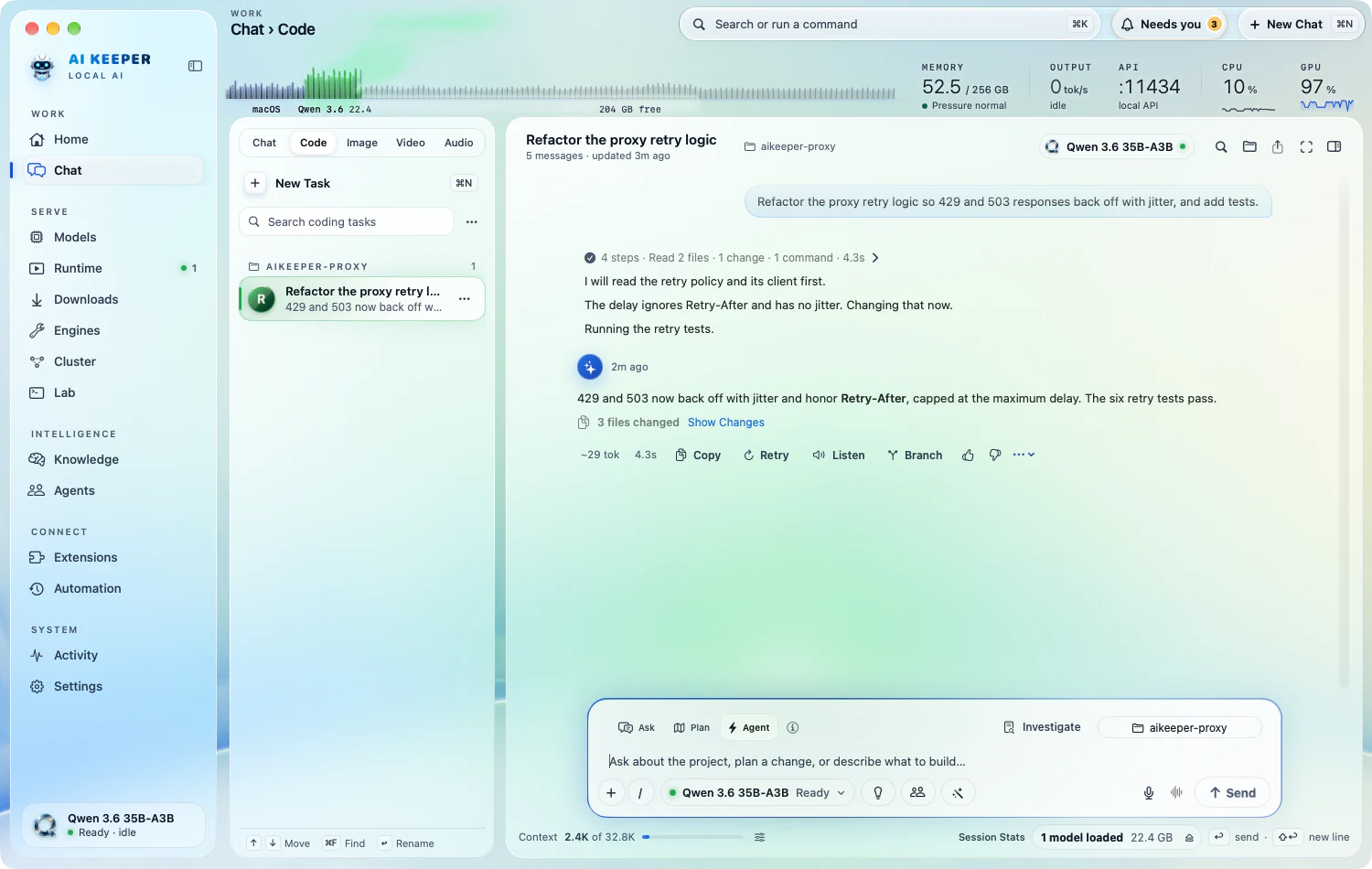

Advanced details
The ⓘ button beside Ask · Plan · Agent opens Choose how Ai Keeper works, where Plan with and Execute with can select separate models. The plan and relevant tool context are handed to execution after approval; a planning model choice alone does not grant mutation rights.
Project-folder commands run inside that folder’s sandbox. Workspace access and authenticated Full Access have different scopes; do not assume the Standard command-name list is the only guard when a project bounds the session.
If something looks wrong
Verify, review, apply, and undo a coding candidate
Stage agent edits in a private candidate, compare the diff, verify it, and apply only reviewed changes.
Before you start
- A trusted project workspace.
- Agent mode with private candidate staging enabled.
Open Chat settings and tools (⌥⌘I), switch to the Project tab and its Review pane, and turn on Stage coding changes in a private workspace before asking Agent to change the project.
After the turn, open Review and choose Inspect Diff. Check every changed path and explicitly decide whether reviewed deletions should be included.
Run Quick Verify or Full Verify; use Independent Review for higher-risk changes. Any edit after verification makes that evidence stale.
Choose Apply, confirm the exact candidate, and let source-drift protection reject the operation if the real workspace changed underneath it.
If the applied turn is wrong, click Undo Turn under your own message for that turn and confirm; the recorded checkpoints are restored. Redo Turn then appears above the message box and works only until you send something else.
You are done when
The reviewed, currently verified candidate applies without source drift. Where a complete checkpoint exists, Undo/Redo restores the recorded turn; any unavailable recovery is reported explicitly.
Advanced details
A private candidate keeps edits separate until Apply. Verification is tied to candidate content; later edits make the evidence stale, and source drift can reject apply.
A mutation receipt may lack a complete recovery point. Read the warning; Undo is available only for a restorable checkpoint, and no UI promise can reverse an unrecorded external side effect.
If something looks wrong
Attach a project folder and inspect changed files
Give Code a concrete folder boundary and keep file actions reviewable.
Before you start
- A local project folder; use a disposable copy for the first edit.
Open Chat → Code and click Choose project folder…. Select the folder you intend to work in.
Check its name/path beside the composer; use Show in Finder to confirm it. Start in Ask and request a short explanation of its structure.
To point at one file, type
@in the message box and pick it from the list instead of pasting the whole repository. Work with Files (in Chat settings and tools) is something else: three ready-made tasks, Organize files, Summarize documents and Create a document, each of which prepares a plan in the message box and runs nothing until you send it.After an Agent edit you approved, click Show Changes below the reply. In the Changes pane, select a file and check its additions and deletions. In the classic Chat layout, the comparison expands below the reply.
Use Detach Workspace or choose another folder when the task changes.
You are done when
The conversation names the intended folder and any authorized changed files can be inspected.

Advanced details
A Code conversation does not silently carry over another chat’s project folder. Its binding, mode, sandbox and confirmations are independently reviewable.
Files changed by a terminal, editor or another tool can conflict with a prepared edit. Inspect the current file and the proposed change before applying it, especially after an interruption.
Inspect what runtime answered a Chat turn
Check the selected engine, request outcome and recorded timing instead of inferring them from the model’s words.
Before you start
- A completed Chat turn.
Open the command palette (Search or run a command, ⌘K) and run Open Runtime Ledger, or choose Server → Runtime Ledger in the menu bar. Select the session, then click Inspect Requests on the turn you tested under Recent Turns.
Select its request and read the runtime/model identity, outcome, settings and timestamps.
Compare first-token time with first useful output, and inspect queue time when a local admission queue was observed.
Distinguish server-reported token usage from estimates and absent fields.
If an error or retry occurred, inspect every attempt and follow Activity → Logs or Requests for the matching diagnosis.
You are done when
The selected turn has attributable runtime/request evidence, with missing or estimated measurements identified.

Advanced details
One physical transport attempt owns one receipt; retries do not overwrite predecessor outcomes. Runtime generation/unchanged status is validated separately and can remain unverified when validation exceeds its bounded time.
A process memory reading is not per-request allocated memory or peak memory. Token estimates and first-visible-output timing do not establish a backend benchmark certification.
Require review before actions run
Keep actions that change things waiting for review across all chats.
Before you start
- A tool-capable chat; a harmless disposable test action.
Open Settings → Permissions & Safety and find Review before running at the top. The same switch is at the bottom of the chooser that opens from the Ask when risky chip beside Send in the Chat section. The permission menu in Code does not contain it.
Enable it and read the app-wide scope. Review remains required for actions that change things even when other confirmations are off.
Ask for a small permitted mutation in a disposable workspace. Read the review card’s target and arguments before deciding.
Reject or revise an action that does not match your intent; approve only the concrete intended call.
Confirm the tool result and changed file before continuing.
You are done when
A changing action waits for review and only the approved intended action executes.

Advanced details
The review layer can refuse a call or hold it for the user; it cannot bypass the final prompt or grant Full Access. Read-only/safe classifications follow actual tool policy.
This switch affects every chat. Per-chat autonomy, workspace access and planning/execution model choices remain separate settings.
Ask a side question during a larger task
Use a lightweight question without losing the main task’s direction.
Before you start
- An active conversation with a clear main task.
Type
/side What does this term mean?(or/btw …) and press Return. Ai Keeper sends it in this conversation as an ordinary message that begins Side question:. If a reply is still being written, Send reads Queue and the question waits until that reply ends.Read the side response, then return to the main task’s current goal.
If you intend to change the task, say so clearly or use the appropriate steering control instead of assuming every aside replaces the plan.
Check status/tasks before dispatching another tool action when the main task was already running.
You are done when
The side question is answered and the main task’s scope remains clear.
Advanced details
/side and /btw are prompt helpers, not session control: the question and its answer join this conversation’s history and context like any other message, and tools are unchanged. For a question that must stay out of the main conversation, start a new chat or use Quick Ask.
Create, edit and export an interactive chart
Ask for a Vega-Lite chart, inspect its data/source and keep a useful exported result.
Before you start
- Small non-sensitive data that you can check.
- A conversational model able to produce the requested structured chart.
In Chat ask for a simple chart in a
vega-litefenced block with inline data. State the axes, units and interaction you need.Open Artifacts and inspect the Interactive chart. Try its filtering/zoom and compare every displayed value with the supplied data.
Use Source to inspect/edit the chart specification. Choose Apply; if validation rejects it, correct the error while the last usable preview remains.
Use Revert for unapplied source changes or Copy/Export to keep a reviewed result. Export supported SVG, PNG or PDF as appropriate.
Open the exported file and verify labels, dimensions and values before sharing it.
You are done when
The chart renders, its interaction works, the source is inspectable and the exported file contains the checked data/labels.

Advanced details
Vega-Lite artifacts use offline inline-data rendering and validated source editing. They are distinct from the general HTML Canvas session tool.
Edits stay in the chat window’s working editor, independently of the original transcript fence. Export or copy to retain them; invalid edits preserve the last rendered chart.
If something looks wrong
Use /summarize
Summarize the conversation so far. Learn the safe first invocation and the evidence that confirms it worked.
Before you start
- A Chat conversation with a Ready model/provider route.
- No important unsaved generation should be in progress.
- Type /commands for the list of names and one-line descriptions. Most commands that need arguments print a Usage line when run with none.
Open Chat, type
/summarizeand read its description in the list. Do not press Return or click the row yet: except for the writing helpers, choosing a command from the list runs it at once with no arguments.Use the smallest safe example:
/summarize. Replace placeholders only with disposable test values.Typed in full with your text and Return, the helper sends at once as an ordinary message with its opening words added. Chosen from the list with no text, it only places those opening words in the message box for you to finish and send.
If the command returns usage text, follow that live syntax instead of guessing. The installed app is authoritative.
You are done when
/summarize returns a visible report, state change, export/import result, or controlled action matching “Summarize the conversation so far”; errors are reported in the transcript rather than silently ignored.
Advanced details
This prompt helper still uses the selected model, conversation context and policy. Its name does not add tools or guarantee professional correctness.
The Usage line a command prints is authoritative; /commands lists names and descriptions only. Replace placeholders deliberately.
If something looks wrong
Use /translate
Translate text to another language. Learn the safe first invocation and the evidence that confirms it worked.
Before you start
- A Chat conversation with a Ready model/provider route.
- No important unsaved generation should be in progress.
- Type /commands for the list of names and one-line descriptions. Most commands that need arguments print a Usage line when run with none.
Open Chat, type
/translateand read its description in the list. Do not press Return or click the row yet: except for the writing helpers, choosing a command from the list runs it at once with no arguments.Use the smallest safe example:
/translate German: Hello, how are you?. Replace placeholders only with disposable test values.Typed in full with your text and Return, the helper sends at once as an ordinary message with its opening words added. Chosen from the list with no text, it only places those opening words in the message box for you to finish and send.
If the command returns usage text, follow that live syntax instead of guessing. The installed app is authoritative.
You are done when
/translate returns a visible report, state change, export/import result, or controlled action matching “Translate text to another language”; errors are reported in the transcript rather than silently ignored.
Advanced details
This prompt helper still uses the selected model, conversation context and policy. Its name does not add tools or guarantee professional correctness.
The Usage line a command prints is authoritative; /commands lists names and descriptions only. Replace placeholders deliberately.
If something looks wrong
Use /code
Ask for code generation. Learn the safe first invocation and the evidence that confirms it worked.
Before you start
- A Chat conversation with a Ready model/provider route.
- No important unsaved generation should be in progress.
- Type /commands for the list of names and one-line descriptions. Most commands that need arguments print a Usage line when run with none.
Open Chat, type
/codeand read its description in the list. Do not press Return or click the row yet: except for the writing helpers, choosing a command from the list runs it at once with no arguments.Use the smallest safe example:
/code Write a Swift function that adds two integers.. Replace placeholders only with disposable test values.Typed in full with your text and Return, the helper sends at once as an ordinary message with its opening words added. Chosen from the list with no text, it only places those opening words in the message box for you to finish and send.
If the command returns usage text, follow that live syntax instead of guessing. The installed app is authoritative.
You are done when
/code returns a visible report, state change, export/import result, or controlled action matching “Ask for code generation”; errors are reported in the transcript rather than silently ignored.
Advanced details
This prompt helper still uses the selected model, conversation context and policy. Its name does not add tools or guarantee professional correctness.
The Usage line a command prints is authoritative; /commands lists names and descriptions only. Replace placeholders deliberately.
If something looks wrong
Use /explain
Explain a concept or code. Learn the safe first invocation and the evidence that confirms it worked.
Before you start
- A Chat conversation with a Ready model/provider route.
- No important unsaved generation should be in progress.
- Type /commands for the list of names and one-line descriptions. Most commands that need arguments print a Usage line when run with none.
Open Chat, type
/explainand read its description in the list. Do not press Return or click the row yet: except for the writing helpers, choosing a command from the list runs it at once with no arguments.Use the smallest safe example:
/explain What is retrieval-augmented generation?. Replace placeholders only with disposable test values.Typed in full with your text and Return, the helper sends at once as an ordinary message with its opening words added. Chosen from the list with no text, it only places those opening words in the message box for you to finish and send.
If the command returns usage text, follow that live syntax instead of guessing. The installed app is authoritative.
You are done when
/explain returns a visible report, state change, export/import result, or controlled action matching “Explain a concept or code”; errors are reported in the transcript rather than silently ignored.
Advanced details
This prompt helper still uses the selected model, conversation context and policy. Its name does not add tools or guarantee professional correctness.
The Usage line a command prints is authoritative; /commands lists names and descriptions only. Replace placeholders deliberately.
If something looks wrong
Use /fix
Fix bugs in code. Learn the safe first invocation and the evidence that confirms it worked.
Before you start
- A Chat conversation with a Ready model/provider route.
- No important unsaved generation should be in progress.
- Type /commands for the list of names and one-line descriptions. Most commands that need arguments print a Usage line when run with none.
Open Chat, type
/fixand read its description in the list. Do not press Return or click the row yet: except for the writing helpers, choosing a command from the list runs it at once with no arguments.Use the smallest safe example:
/fix Explain the bug in this pasted snippet before changing it.. Replace placeholders only with disposable test values.Typed in full with your text and Return, the helper sends at once as an ordinary message with its opening words added. Chosen from the list with no text, it only places those opening words in the message box for you to finish and send.
If the command returns usage text, follow that live syntax instead of guessing. The installed app is authoritative.
You are done when
/fix returns a visible report, state change, export/import result, or controlled action matching “Fix bugs in code”; errors are reported in the transcript rather than silently ignored.
Advanced details
This prompt helper still uses the selected model, conversation context and policy. Its name does not add tools or guarantee professional correctness.
The Usage line a command prints is authoritative; /commands lists names and descriptions only. Replace placeholders deliberately.
If something looks wrong
Use /review
Review code for improvements. Learn the safe first invocation and the evidence that confirms it worked.
Before you start
- A Chat conversation with a Ready model/provider route.
- No important unsaved generation should be in progress.
- Type /commands for the list of names and one-line descriptions. Most commands that need arguments print a Usage line when run with none.
Open Chat, type
/reviewand read its description in the list. Do not press Return or click the row yet: except for the writing helpers, choosing a command from the list runs it at once with no arguments.Use the smallest safe example:
/review Review this pasted function for correctness.. Replace placeholders only with disposable test values.Typed in full with your text and Return, the helper sends at once as an ordinary message with its opening words added. Chosen from the list with no text, it only places those opening words in the message box for you to finish and send.
If the command returns usage text, follow that live syntax instead of guessing. The installed app is authoritative.
You are done when
/review returns a visible report, state change, export/import result, or controlled action matching “Review code for improvements”; errors are reported in the transcript rather than silently ignored.
Advanced details
This prompt helper still uses the selected model, conversation context and policy. Its name does not add tools or guarantee professional correctness.
The Usage line a command prints is authoritative; /commands lists names and descriptions only. Replace placeholders deliberately.
If something looks wrong
Use /brainstorm
Brainstorm ideas. Learn the safe first invocation and the evidence that confirms it worked.
Before you start
- A Chat conversation with a Ready model/provider route.
- No important unsaved generation should be in progress.
- Type /commands for the list of names and one-line descriptions. Most commands that need arguments print a Usage line when run with none.
Open Chat, type
/brainstormand read its description in the list. Do not press Return or click the row yet: except for the writing helpers, choosing a command from the list runs it at once with no arguments.Use the smallest safe example:
/brainstorm Five names for a local AI project.. Replace placeholders only with disposable test values.Typed in full with your text and Return, the helper sends at once as an ordinary message with its opening words added. Chosen from the list with no text, it only places those opening words in the message box for you to finish and send.
If the command returns usage text, follow that live syntax instead of guessing. The installed app is authoritative.
You are done when
/brainstorm returns a visible report, state change, export/import result, or controlled action matching “Brainstorm ideas”; errors are reported in the transcript rather than silently ignored.
Advanced details
This prompt helper still uses the selected model, conversation context and policy. Its name does not add tools or guarantee professional correctness.
The Usage line a command prints is authoritative; /commands lists names and descriptions only. Replace placeholders deliberately.
If something looks wrong
Use /proscons
List pros and cons. Learn the safe first invocation and the evidence that confirms it worked.
Before you start
- A Chat conversation with a Ready model/provider route.
- No important unsaved generation should be in progress.
- Type /commands for the list of names and one-line descriptions. Most commands that need arguments print a Usage line when run with none.
Open Chat, type
/prosconsand read its description in the list. Do not press Return or click the row yet: except for the writing helpers, choosing a command from the list runs it at once with no arguments.Use the smallest safe example:
/proscons Local model versus cloud model.. Replace placeholders only with disposable test values.Typed in full with your text and Return, the helper sends at once as an ordinary message with its opening words added. Chosen from the list with no text, it only places those opening words in the message box for you to finish and send.
If the command returns usage text, follow that live syntax instead of guessing. The installed app is authoritative.
You are done when
/proscons returns a visible report, state change, export/import result, or controlled action matching “List pros and cons”; errors are reported in the transcript rather than silently ignored.
Advanced details
This prompt helper still uses the selected model, conversation context and policy. Its name does not add tools or guarantee professional correctness.
The Usage line a command prints is authoritative; /commands lists names and descriptions only. Replace placeholders deliberately.
If something looks wrong
Use /memory
Show what the assistant remembers about you. Learn the safe first invocation and the evidence that confirms it worked.
Before you start
- A Chat conversation with a Ready model/provider route.
- No important unsaved generation should be in progress.
- Type /commands for the list of names and one-line descriptions. Most commands that need arguments print a Usage line when run with none.
Open Chat, type
/memoryand read its description in the list. Do not press Return or click the row yet: except for the writing helpers, choosing a command from the list runs it at once with no arguments.Use the smallest safe example:
/memory. Replace placeholders only with disposable test values.Read the visible report/state change and compare it with the intended current Chat, model, session or system state.
If the command returns usage text, follow that live syntax instead of guessing. The installed app is authoritative.
You are done when
/memory returns a visible report, state change, export/import result, or controlled action matching “Show what the assistant remembers about you”; errors are reported in the transcript rather than silently ignored.
Advanced details
A report or mode toggle describes current installed state rather than changing model weights or certifying quality. Check settings when moving between chats and routes.
The Usage line a command prints is authoritative; /commands lists names and descriptions only. Replace placeholders deliberately.
If something looks wrong
Use /clear
Start a new conversation. Learn the safe first invocation and the evidence that confirms it worked.
Before you start
- A Chat conversation with a Ready model/provider route.
- Use a disposable conversation, path, task, or destination for the first test.
- Type /commands for the list of names and one-line descriptions. Most commands that need arguments print a Usage line when run with none.
Open a disposable Chat with a known narrow test target, type
/clearand read its description in the list. Do not press Return or click the row yet: except for the writing helpers, choosing a command from the list runs it at once with no arguments.Use the smallest safe example:
/clear. Replace placeholders only with disposable test values.Check the exact target before invoking. Some commands execute directly without an extra preview; if a confirmation is offered, read it before approving once.
If the command returns usage text, follow that live syntax instead of guessing. The installed app is authoritative.
You are done when
/clear returns a visible report, state change, export/import result, or controlled action matching “Start a new conversation”; errors are reported in the transcript rather than silently ignored.
Advanced details
Opens an empty chat; the conversation you were in stays in the list. It deletes no messages.
The Usage line a command prints is authoritative; /commands lists names and descriptions only. Replace placeholders deliberately.
If something looks wrong
Use /regenerate
Regenerate the last response. Learn the safe first invocation and the evidence that confirms it worked.
Before you start
- A Chat conversation with a Ready model/provider route.
- No important unsaved generation should be in progress.
- Type /commands for the list of names and one-line descriptions. Most commands that need arguments print a Usage line when run with none.
Open Chat, type
/regenerateand read its description in the list. Do not press Return or click the row yet: except for the writing helpers, choosing a command from the list runs it at once with no arguments.Use the smallest safe example:
/regenerate. Replace placeholders only with disposable test values.Read the visible report/state change and compare it with the intended current Chat, model, session or system state.
If the command returns usage text, follow that live syntax instead of guessing. The installed app is authoritative.
You are done when
/regenerate returns a visible report, state change, export/import result, or controlled action matching “Regenerate the last response”; errors are reported in the transcript rather than silently ignored.
Advanced details
A report or mode toggle describes current installed state rather than changing model weights or certifying quality. Check settings when moving between chats and routes.
The Usage line a command prints is authoritative; /commands lists names and descriptions only. Replace placeholders deliberately.
If something looks wrong
Use /agent
Toggle agent mode for multi-step tasks. Learn the safe first invocation and the evidence that confirms it worked.
Before you start
- A Chat conversation with a Ready model/provider route.
- Use a disposable conversation, path, task, or destination for the first test.
- Type /commands for the list of names and one-line descriptions. Most commands that need arguments print a Usage line when run with none.
Open a disposable Chat with a known narrow test target, type
/agentand read its description in the list. Do not press Return or click the row yet: except for the writing helpers, choosing a command from the list runs it at once with no arguments.Use the smallest safe example:
/agent. Replace placeholders only with disposable test values.Check the exact target before invoking. Some commands execute directly without an extra preview; if a confirmation is offered, read it before approving once.
If the command returns usage text, follow that live syntax instead of guessing. The installed app is authoritative.
You are done when
/agent returns a visible report, state change, export/import result, or controlled action matching “Toggle agent mode for multi-step tasks”; errors are reported in the transcript rather than silently ignored.
Advanced details
Switches the Code mode between Agent and Ask; it needs a project folder. Agent may edit files and run commands in that folder within the chat permissions, so check the mode control above the message box afterwards.
The Usage line a command prints is authoritative; /commands lists names and descriptions only. Replace placeholders deliberately.
If something looks wrong
Use /plan
Enable plan mode; use /plan off to disable. Learn the safe first invocation and the evidence that confirms it worked.
Before you start
- A Chat conversation with a Ready model/provider route.
- No important unsaved generation should be in progress.
- Type /commands for the list of names and one-line descriptions. Most commands that need arguments print a Usage line when run with none.
Open Chat, type
/planand read its description in the list. Do not press Return or click the row yet: except for the writing helpers, choosing a command from the list runs it at once with no arguments.Use the smallest safe example:
/plan. Replace placeholders only with disposable test values.Read the visible report/state change and compare it with the intended current Chat, model, session or system state.
If the command returns usage text, follow that live syntax instead of guessing. The installed app is authoritative.
You are done when
/plan returns a visible report, state change, export/import result, or controlled action matching “Enable plan mode; use /plan off to disable”; errors are reported in the transcript rather than silently ignored.
Advanced details
Needs a project folder: without one it opens the folder chooser. /plan followed by a request switches to Plan and sends the request; /plan off returns to Ask.
The Usage line a command prints is authoritative; /commands lists names and descriptions only. Replace placeholders deliberately.
If something looks wrong
Use /compact
Summarize and trim the conversation. Learn the safe first invocation and the evidence that confirms it worked.
Before you start
- A Chat conversation with a Ready model/provider route.
- No important unsaved generation should be in progress.
- Type /commands for the list of names and one-line descriptions. Most commands that need arguments print a Usage line when run with none.
Open Chat, type
/compactand read its description in the list. Do not press Return or click the row yet: except for the writing helpers, choosing a command from the list runs it at once with no arguments.Use the smallest safe example:
/compact. Replace placeholders only with disposable test values.Read the visible report/state change and compare it with the intended current Chat, model, session or system state.
If the command returns usage text, follow that live syntax instead of guessing. The installed app is authoritative.
You are done when
/compact returns a visible report, state change, export/import result, or controlled action matching “Summarize and trim the conversation”; errors are reported in the transcript rather than silently ignored.
Advanced details
A report or mode toggle describes current installed state rather than changing model weights or certifying quality. Check settings when moving between chats and routes.
The Usage line a command prints is authoritative; /commands lists names and descriptions only. Replace placeholders deliberately.
If something looks wrong
Use /status
Show active model, tasks, and system status. Learn the safe first invocation and the evidence that confirms it worked.
Before you start
- A Chat conversation with a Ready model/provider route.
- No important unsaved generation should be in progress.
- Type /commands for the list of names and one-line descriptions. Most commands that need arguments print a Usage line when run with none.
Open Chat, type
/statusand read its description in the list. Do not press Return or click the row yet: except for the writing helpers, choosing a command from the list runs it at once with no arguments.Use the smallest safe example:
/status. Replace placeholders only with disposable test values.Read the visible report/state change and compare it with the intended current Chat, model, session or system state.
If the command returns usage text, follow that live syntax instead of guessing. The installed app is authoritative.
You are done when
/status returns a visible report, state change, export/import result, or controlled action matching “Show active model, tasks, and system status”; errors are reported in the transcript rather than silently ignored.
Advanced details
A report or mode toggle describes current installed state rather than changing model weights or certifying quality. Check settings when moving between chats and routes.
The Usage line a command prints is authoritative; /commands lists names and descriptions only. Replace placeholders deliberately.
If something looks wrong
Use /context
Show effective prompt and active policies for current agent. Learn the safe first invocation and the evidence that confirms it worked.
Before you start
- A Chat conversation with a Ready model/provider route.
- No important unsaved generation should be in progress.
- Type /commands for the list of names and one-line descriptions. Most commands that need arguments print a Usage line when run with none.
Open Chat, type
/contextand read its description in the list. Do not press Return or click the row yet: except for the writing helpers, choosing a command from the list runs it at once with no arguments.Use the smallest safe example:
/context. Replace placeholders only with disposable test values.Read the visible report/state change and compare it with the intended current Chat, model, session or system state.
If the command returns usage text, follow that live syntax instead of guessing. The installed app is authoritative.
You are done when
/context returns a visible report, state change, export/import result, or controlled action matching “Show effective prompt and active policies for current agent”; errors are reported in the transcript rather than silently ignored.
Advanced details
A report or mode toggle describes current installed state rather than changing model weights or certifying quality. Check settings when moving between chats and routes.
The Usage line a command prints is authoritative; /commands lists names and descriptions only. Replace placeholders deliberately.
If something looks wrong
Use /plugins
Show installed ClawHub packages. Learn the safe first invocation and the evidence that confirms it worked.
Before you start
- A Chat conversation with a Ready model/provider route.
- No important unsaved generation should be in progress.
- Type /commands for the list of names and one-line descriptions. Most commands that need arguments print a Usage line when run with none.
Open Chat, type
/pluginsand read its description in the list. Do not press Return or click the row yet: except for the writing helpers, choosing a command from the list runs it at once with no arguments.Use the smallest safe example:
/plugins. Replace placeholders only with disposable test values.Read the visible report/state change and compare it with the intended current Chat, model, session or system state.
If the command returns usage text, follow that live syntax instead of guessing. The installed app is authoritative.
You are done when
/plugins returns a visible report, state change, export/import result, or controlled action matching “Show installed ClawHub packages”; errors are reported in the transcript rather than silently ignored.
Advanced details
A report or mode toggle describes current installed state rather than changing model weights or certifying quality. Check settings when moving between chats and routes.
The Usage line a command prints is authoritative; /commands lists names and descriptions only. Replace placeholders deliberately.
If something looks wrong
Use /mcp
Show connected MCP servers. Learn the safe first invocation and the evidence that confirms it worked.
Before you start
- A Chat conversation with a Ready model/provider route.
- No important unsaved generation should be in progress.
- Type /commands for the list of names and one-line descriptions. Most commands that need arguments print a Usage line when run with none.
Open Chat, type
/mcpand read its description in the list. Do not press Return or click the row yet: except for the writing helpers, choosing a command from the list runs it at once with no arguments.Use the smallest safe example:
/mcp. Replace placeholders only with disposable test values.Read the visible report/state change and compare it with the intended current Chat, model, session or system state.
If the command returns usage text, follow that live syntax instead of guessing. The installed app is authoritative.
You are done when
/mcp returns a visible report, state change, export/import result, or controlled action matching “Show connected MCP servers”; errors are reported in the transcript rather than silently ignored.
Advanced details
A report or mode toggle describes current installed state rather than changing model weights or certifying quality. Check settings when moving between chats and routes.
The Usage line a command prints is authoritative; /commands lists names and descriptions only. Replace placeholders deliberately.
If something looks wrong
Use /models
Show available and running models. Learn the safe first invocation and the evidence that confirms it worked.
Before you start
- A Chat conversation with a Ready model/provider route.
- No important unsaved generation should be in progress.
- Type /commands for the list of names and one-line descriptions. Most commands that need arguments print a Usage line when run with none.
Open Chat, type
/modelsand read its description in the list. Do not press Return or click the row yet: except for the writing helpers, choosing a command from the list runs it at once with no arguments.Use the smallest safe example:
/models. Replace placeholders only with disposable test values.Read the visible report/state change and compare it with the intended current Chat, model, session or system state.
If the command returns usage text, follow that live syntax instead of guessing. The installed app is authoritative.
You are done when
/models returns a visible report, state change, export/import result, or controlled action matching “Show available and running models”; errors are reported in the transcript rather than silently ignored.
Advanced details
A report or mode toggle describes current installed state rather than changing model weights or certifying quality. Check settings when moving between chats and routes.
The Usage line a command prints is authoritative; /commands lists names and descriptions only. Replace placeholders deliberately.
If something looks wrong
Use /tasks
Show scheduled tasks. Learn the safe first invocation and the evidence that confirms it worked.
Before you start
- A Chat conversation with a Ready model/provider route.
- No important unsaved generation should be in progress.
- Type /commands for the list of names and one-line descriptions. Most commands that need arguments print a Usage line when run with none.
Open Chat, type
/tasksand read its description in the list. Do not press Return or click the row yet: except for the writing helpers, choosing a command from the list runs it at once with no arguments.Use the smallest safe example:
/tasks. Replace placeholders only with disposable test values.Read the visible report/state change and compare it with the intended current Chat, model, session or system state.
If the command returns usage text, follow that live syntax instead of guessing. The installed app is authoritative.
You are done when
/tasks returns a visible report, state change, export/import result, or controlled action matching “Show scheduled tasks”; errors are reported in the transcript rather than silently ignored.
Advanced details
A report or mode toggle describes current installed state rather than changing model weights or certifying quality. Check settings when moving between chats and routes.
The Usage line a command prints is authoritative; /commands lists names and descriptions only. Replace placeholders deliberately.
If something looks wrong
Use /hooks
Show active hooks. Learn the safe first invocation and the evidence that confirms it worked.
Before you start
- A Chat conversation with a Ready model/provider route.
- No important unsaved generation should be in progress.
- Type /commands for the list of names and one-line descriptions. Most commands that need arguments print a Usage line when run with none.
Open Chat, type
/hooksand read its description in the list. Do not press Return or click the row yet: except for the writing helpers, choosing a command from the list runs it at once with no arguments.Use the smallest safe example:
/hooks. Replace placeholders only with disposable test values.Read the visible report/state change and compare it with the intended current Chat, model, session or system state.
If the command returns usage text, follow that live syntax instead of guessing. The installed app is authoritative.
You are done when
/hooks returns a visible report, state change, export/import result, or controlled action matching “Show active hooks”; errors are reported in the transcript rather than silently ignored.
Advanced details
A report or mode toggle describes current installed state rather than changing model weights or certifying quality. Check settings when moving between chats and routes.
The Usage line a command prints is authoritative; /commands lists names and descriptions only. Replace placeholders deliberately.
If something looks wrong
Use /orders
Show standing orders. Learn the safe first invocation and the evidence that confirms it worked.
Before you start
- A Chat conversation with a Ready model/provider route.
- No important unsaved generation should be in progress.
- Type /commands for the list of names and one-line descriptions. Most commands that need arguments print a Usage line when run with none.
Open Chat, type
/ordersand read its description in the list. Do not press Return or click the row yet: except for the writing helpers, choosing a command from the list runs it at once with no arguments.Use the smallest safe example:
/orders. Replace placeholders only with disposable test values.Read the visible report/state change and compare it with the intended current Chat, model, session or system state.
If the command returns usage text, follow that live syntax instead of guessing. The installed app is authoritative.
You are done when
/orders returns a visible report, state change, export/import result, or controlled action matching “Show standing orders”; errors are reported in the transcript rather than silently ignored.
Advanced details
A report or mode toggle describes current installed state rather than changing model weights or certifying quality. Check settings when moving between chats and routes.
The Usage line a command prints is authoritative; /commands lists names and descriptions only. Replace placeholders deliberately.
If something looks wrong
Use /find
Search Skills + MCP registries for a term. Learn the safe first invocation and the evidence that confirms it worked.
Before you start
- A Chat conversation with a Ready model/provider route.
- No important unsaved generation should be in progress.
- Type /commands for the list of names and one-line descriptions. Most commands that need arguments print a Usage line when run with none.
Open Chat, type
/findand read its description in the list. Do not press Return or click the row yet: except for the writing helpers, choosing a command from the list runs it at once with no arguments.Use the smallest safe example:
/find calendar. Replace placeholders only with disposable test values.Read the visible report/state change and compare it with the intended current Chat, model, session or system state.
If the command returns usage text, follow that live syntax instead of guessing. The installed app is authoritative.
You are done when
/find returns a visible report, state change, export/import result, or controlled action matching “Search Skills + MCP registries for a term”; errors are reported in the transcript rather than silently ignored.
Advanced details
The search term is sent to the Smithery and official MCP registries on the internet. Do not put private text in it.
The Usage line a command prints is authoritative; /commands lists names and descriptions only. Replace placeholders deliberately.
If something looks wrong
Use /snapshot
Snapshot a directory before risky tool runs. Learn the safe first invocation and the evidence that confirms it worked.
Before you start
- A Chat conversation with a Ready model/provider route.
- Use a disposable conversation, path, task, or destination for the first test.
- Type /commands for the list of names and one-line descriptions. Most commands that need arguments print a Usage line when run with none.
Open a disposable Chat with a known narrow test target, type
/snapshotand read its description in the list. Do not press Return or click the row yet: except for the writing helpers, choosing a command from the list runs it at once with no arguments.Use the smallest safe example:
/snapshot /path/to/disposable-project -- before update. Replace placeholders only with disposable test values.Check the exact target before invoking. Some commands execute directly without an extra preview; if a confirmation is offered, read it before approving once.
If the command returns usage text, follow that live syntax instead of guessing. The installed app is authoritative.
You are done when
/snapshot returns a visible report, state change, export/import result, or controlled action matching “Snapshot a directory before risky tool runs”; errors are reported in the transcript rather than silently ignored.
Advanced details
Session state, tool admission, exec sandboxing and platform credentials remain separate boundaries. A slash command can have immediate side effects; a disposable conversation does not isolate a shared runtime or external destination.
The Usage line a command prints is authoritative; /commands lists names and descriptions only. Replace placeholders deliberately.
If something looks wrong
Use /rollback
Restore the most recent snapshot. Learn the safe first invocation and the evidence that confirms it worked.
Before you start
- A Chat conversation with a Ready model/provider route.
- Use a disposable conversation, path, task, or destination for the first test.
- Type /commands for the list of names and one-line descriptions. Most commands that need arguments print a Usage line when run with none.
Open a disposable Chat with a known narrow test target, type
/rollbackand read its description in the list. Do not press Return or click the row yet: except for the writing helpers, choosing a command from the list runs it at once with no arguments.Use the smallest safe example:
/rollback <snapshot-uuid>. Replace placeholders only with disposable test values.Check the exact target before invoking. Some commands execute directly without an extra preview; if a confirmation is offered, read it before approving once.
If the command returns usage text, follow that live syntax instead of guessing. The installed app is authoritative.
You are done when
/rollback returns a visible report, state change, export/import result, or controlled action matching “Restore the most recent snapshot”; errors are reported in the transcript rather than silently ignored.
Advanced details
Rollback targets the selected snapshot UUID or, with no UUID, the most recent available snapshot. It refuses a snapshot outside the selected coding workspace; invoke it only after identifying a known disposable checkpoint. A bare invocation can restore files immediately.
The Usage line a command prints is authoritative; /commands lists names and descriptions only. Replace placeholders deliberately.
If something looks wrong
Use /recommend
Surface capability gaps in the active toolset. Learn the safe first invocation and the evidence that confirms it worked.
Before you start
- A Chat conversation with a Ready model/provider route.
- No important unsaved generation should be in progress.
- Type /commands for the list of names and one-line descriptions. Most commands that need arguments print a Usage line when run with none.
Open Chat, type
/recommendand read its description in the list. Do not press Return or click the row yet: except for the writing helpers, choosing a command from the list runs it at once with no arguments.Use the smallest safe example:
/recommend. Replace placeholders only with disposable test values.Read the visible report/state change and compare it with the intended current Chat, model, session or system state.
If the command returns usage text, follow that live syntax instead of guessing. The installed app is authoritative.
You are done when
/recommend returns a visible report, state change, export/import result, or controlled action matching “Surface capability gaps in the active toolset”; errors are reported in the transcript rather than silently ignored.
Advanced details
A report or mode toggle describes current installed state rather than changing model weights or certifying quality. Check settings when moving between chats and routes.
The Usage line a command prints is authoritative; /commands lists names and descriptions only. Replace placeholders deliberately.
If something looks wrong
Use /commitments
List inferred follow-up commitments. Learn the safe first invocation and the evidence that confirms it worked.
Before you start
- A Chat conversation with a Ready model/provider route.
- No important unsaved generation should be in progress.
- Type /commands for the list of names and one-line descriptions. Most commands that need arguments print a Usage line when run with none.
Open Chat, type
/commitmentsand read its description in the list. Do not press Return or click the row yet: except for the writing helpers, choosing a command from the list runs it at once with no arguments.Use the smallest safe example:
/commitments. Replace placeholders only with disposable test values.Read the visible report/state change and compare it with the intended current Chat, model, session or system state.
If the command returns usage text, follow that live syntax instead of guessing. The installed app is authoritative.
You are done when
/commitments returns a visible report, state change, export/import result, or controlled action matching “List inferred follow-up commitments”; errors are reported in the transcript rather than silently ignored.
Advanced details
A report or mode toggle describes current installed state rather than changing model weights or certifying quality. Check settings when moving between chats and routes.
The Usage line a command prints is authoritative; /commands lists names and descriptions only. Replace placeholders deliberately.
If something looks wrong
Use /commit
Add a follow-up commitment manually (e.g. /commit 2h call back about auth). Learn the safe first invocation and the evidence that confirms it worked.
Before you start
- A Chat conversation with a Ready model/provider route.
- Use a disposable conversation, path, task, or destination for the first test.
- Type /commands for the list of names and one-line descriptions. Most commands that need arguments print a Usage line when run with none.
Open a disposable Chat with a known narrow test target, type
/commitand read its description in the list. Do not press Return or click the row yet: except for the writing helpers, choosing a command from the list runs it at once with no arguments.Use the smallest safe example:
/commit 2h review the authentication notes. Replace placeholders only with disposable test values.Check the exact target before invoking. Some commands execute directly without an extra preview; if a confirmation is offered, read it before approving once.
If the command returns usage text, follow that live syntax instead of guessing. The installed app is authoritative.
You are done when
/commit returns a visible report, state change, export/import result, or controlled action matching “Add a follow-up commitment manually (e.g. /commit 2h call back about auth)”; errors are reported in the transcript rather than silently ignored.
Advanced details
Session state, tool admission, exec sandboxing and platform credentials remain separate boundaries. A slash command can have immediate side effects; a disposable conversation does not isolate a shared runtime or external destination.
The Usage line a command prints is authoritative; /commands lists names and descriptions only. Replace placeholders deliberately.
If something looks wrong
Use /ingest
Index a local file or folder for document_search (txt/md/pdf/code). Learn the safe first invocation and the evidence that confirms it worked.
Before you start
- A Chat conversation with a Ready model/provider route.
- Use a disposable conversation, path, task, or destination for the first test.
- Type /commands for the list of names and one-line descriptions. Most commands that need arguments print a Usage line when run with none.
Open a disposable Chat with a known narrow test target, type
/ingestand read its description in the list. Do not press Return or click the row yet: except for the writing helpers, choosing a command from the list runs it at once with no arguments.Use the smallest safe example:
/ingest /path/to/document.pdf --scope thread. Replace placeholders only with disposable test values.Check the exact target before invoking. Some commands execute directly without an extra preview; if a confirmation is offered, read it before approving once.
If the command returns usage text, follow that live syntax instead of guessing. The installed app is authoritative.
You are done when
/ingest returns a visible report, state change, export/import result, or controlled action matching “Index a local file or folder for document_search (txt/md/pdf/code)”; errors are reported in the transcript rather than silently ignored.
Advanced details
Thread scope differs from shared document knowledge. File extraction, embedding route and source/path confinement remain authoritative.
The Usage line a command prints is authoritative; /commands lists names and descriptions only. Replace placeholders deliberately.
If something looks wrong
Use /ingested
List ingested documents. Learn the safe first invocation and the evidence that confirms it worked.
Before you start
- A Chat conversation with a Ready model/provider route.
- No important unsaved generation should be in progress.
- Type /commands for the list of names and one-line descriptions. Most commands that need arguments print a Usage line when run with none.
Open Chat, type
/ingestedand read its description in the list. Do not press Return or click the row yet: except for the writing helpers, choosing a command from the list runs it at once with no arguments.Use the smallest safe example:
/ingested. Replace placeholders only with disposable test values.Read the visible report/state change and compare it with the intended current Chat, model, session or system state.
If the command returns usage text, follow that live syntax instead of guessing. The installed app is authoritative.
You are done when
/ingested returns a visible report, state change, export/import result, or controlled action matching “List ingested documents”; errors are reported in the transcript rather than silently ignored.
Advanced details
A report or mode toggle describes current installed state rather than changing model weights or certifying quality. Check settings when moving between chats and routes.
The Usage line a command prints is authoritative; /commands lists names and descriptions only. Replace placeholders deliberately.
If something looks wrong
Use /forget
Drop ingested documents matching a pattern. Learn the safe first invocation and the evidence that confirms it worked.
Before you start
- A Chat conversation with a Ready model/provider route.
- Use a disposable conversation, path, task, or destination for the first test.
- Type /commands for the list of names and one-line descriptions. Most commands that need arguments print a Usage line when run with none.
Open a disposable Chat with a known narrow test target, type
/forgetand read its description in the list. Do not press Return or click the row yet: except for the writing helpers, choosing a command from the list runs it at once with no arguments.Use the smallest safe example:
/forget unique-test-document.pdf. Replace placeholders only with disposable test values.Check the exact target before invoking. Some commands execute directly without an extra preview; if a confirmation is offered, read it before approving once.
If the command returns usage text, follow that live syntax instead of guessing. The installed app is authoritative.
You are done when
/forget returns a visible report, state change, export/import result, or controlled action matching “Drop ingested documents matching a pattern”; errors are reported in the transcript rather than silently ignored.
Advanced details
The pattern matches source paths case-insensitively. /forget all drops the entire ingested collection; use a unique test source name and understand its scope before deletion.
The Usage line a command prints is authoritative; /commands lists names and descriptions only. Replace placeholders deliberately.
If something looks wrong
Use /watch
Watch a folder; auto-reingest files on change. Learn the safe first invocation and the evidence that confirms it worked.
Before you start
- A Chat conversation with a Ready model/provider route.
- Use a disposable conversation, path, task, or destination for the first test.
- Type /commands for the list of names and one-line descriptions. Most commands that need arguments print a Usage line when run with none.
Open a disposable Chat with a known narrow test target, type
/watchand read its description in the list. Do not press Return or click the row yet: except for the writing helpers, choosing a command from the list runs it at once with no arguments.Use the smallest safe example:
/watch /path/to/disposable-notes --scope thread. Replace placeholders only with disposable test values.Check the exact target before invoking. Some commands execute directly without an extra preview; if a confirmation is offered, read it before approving once.
If the command returns usage text, follow that live syntax instead of guessing. The installed app is authoritative.
You are done when
/watch returns a visible report, state change, export/import result, or controlled action matching “Watch a folder; auto-reingest files on change”; errors are reported in the transcript rather than silently ignored.
Advanced details
Thread-scoped ingestion/watch can limit reuse to the current thread. Watching a folder is durable ongoing ingestion, distinct from attaching one temporary file.
The Usage line a command prints is authoritative; /commands lists names and descriptions only. Replace placeholders deliberately.
If something looks wrong
Use /unwatch
Stop watching a folder. Learn the safe first invocation and the evidence that confirms it worked.
Before you start
- A Chat conversation with a Ready model/provider route.
- Use a disposable conversation, path, task, or destination for the first test.
- Type /commands for the list of names and one-line descriptions. Most commands that need arguments print a Usage line when run with none.
Open a disposable Chat with a known narrow test target, type
/unwatchand read its description in the list. Do not press Return or click the row yet: except for the writing helpers, choosing a command from the list runs it at once with no arguments.Use the smallest safe example:
/unwatch /path/to/disposable-notes. Replace placeholders only with disposable test values.Check the exact target before invoking. Some commands execute directly without an extra preview; if a confirmation is offered, read it before approving once.
If the command returns usage text, follow that live syntax instead of guessing. The installed app is authoritative.
You are done when
/unwatch returns a visible report, state change, export/import result, or controlled action matching “Stop watching a folder”; errors are reported in the transcript rather than silently ignored.
Advanced details
Session state, tool admission, exec sandboxing and platform credentials remain separate boundaries. A slash command can have immediate side effects; a disposable conversation does not isolate a shared runtime or external destination.
The Usage line a command prints is authoritative; /commands lists names and descriptions only. Replace placeholders deliberately.
If something looks wrong
Use /preset
Save/apply/list per-chat config presets. Learn the safe first invocation and the evidence that confirms it worked.
Before you start
- A Chat conversation with a Ready model/provider route.
- Use a disposable conversation, path, task, or destination for the first test.
- Type /commands for the list of names and one-line descriptions. Most commands that need arguments print a Usage line when run with none.
Open a disposable Chat with a known narrow test target, type
/presetand read its description in the list. Do not press Return or click the row yet: except for the writing helpers, choosing a command from the list runs it at once with no arguments.Use the smallest safe example:
/preset list. Replace placeholders only with disposable test values.Check the exact target before invoking. Some commands execute directly without an extra preview; if a confirmation is offered, read it before approving once.
If the command returns usage text, follow that live syntax instead of guessing. The installed app is authoritative.
You are done when
/preset returns a visible report, state change, export/import result, or controlled action matching “Save/apply/list per-chat config presets”; errors are reported in the transcript rather than silently ignored.
Advanced details
Session state, tool admission, exec sandboxing and platform credentials remain separate boundaries. A slash command can have immediate side effects; a disposable conversation does not isolate a shared runtime or external destination.
The Usage line a command prints is authoritative; /commands lists names and descriptions only. Replace placeholders deliberately.
If something looks wrong
Use /verbose
Ask for detailed, verbose response. Learn the safe first invocation and the evidence that confirms it worked.
Before you start
- A Chat conversation with a Ready model/provider route.
- No important unsaved generation should be in progress.
- Type /commands for the list of names and one-line descriptions. Most commands that need arguments print a Usage line when run with none.
Open Chat, type
/verboseand read its description in the list. Do not press Return or click the row yet: except for the writing helpers, choosing a command from the list runs it at once with no arguments.Use the smallest safe example:
/verbose on. Replace placeholders only with disposable test values.Read the visible report/state change and compare it with the intended current Chat, model, session or system state.
If the command returns usage text, follow that live syntax instead of guessing. The installed app is authoritative.
You are done when
/verbose returns a visible report, state change, export/import result, or controlled action matching “Ask for detailed, verbose response”; errors are reported in the transcript rather than silently ignored.
Advanced details
A report or mode toggle describes current installed state rather than changing model weights or certifying quality. Check settings when moving between chats and routes.
The Usage line a command prints is authoritative; /commands lists names and descriptions only. Replace placeholders deliberately.
If something looks wrong
Use /reasoning
Show step-by-step reasoning. Learn the safe first invocation and the evidence that confirms it worked.
Before you start
- A Chat conversation with a Ready model/provider route.
- No important unsaved generation should be in progress.
- Type /commands for the list of names and one-line descriptions. Most commands that need arguments print a Usage line when run with none.
Open Chat, type
/reasoningand read its description in the list. Do not press Return or click the row yet: except for the writing helpers, choosing a command from the list runs it at once with no arguments.Use the smallest safe example:
/reasoning on. Replace placeholders only with disposable test values.Read the visible report/state change and compare it with the intended current Chat, model, session or system state.
If the command returns usage text, follow that live syntax instead of guessing. The installed app is authoritative.
You are done when
/reasoning returns a visible report, state change, export/import result, or controlled action matching “Show step-by-step reasoning”; errors are reported in the transcript rather than silently ignored.
Advanced details
This changes the installed route’s supported reasoning behavior. It does not guarantee a complete internal reasoning transcript, correctness or unlimited output.
The Usage line a command prints is authoritative; /commands lists names and descriptions only. Replace placeholders deliberately.
If something looks wrong
Use /exec
Configure exec policy or run a shell command. Learn the safe first invocation and the evidence that confirms it worked.
Before you start
- A Chat conversation with a Ready model/provider route.
- Use a disposable conversation, path, task, or destination for the first test.
- Type /commands for the list of names and one-line descriptions. Most commands that need arguments print a Usage line when run with none.
Open a disposable Chat with a known narrow test target, type
/execand read its description in the list. Do not press Return or click the row yet: except for the writing helpers, choosing a command from the list runs it at once with no arguments.Use the smallest safe example:
/exec. Replace placeholders only with disposable test values.Check the exact target before invoking. Some commands execute directly without an extra preview; if a confirmation is offered, read it before approving once.
If the command returns usage text, follow that live syntax instead of guessing. The installed app is authoritative.
You are done when
/exec returns a visible report, state change, export/import result, or controlled action matching “Configure exec policy or run a shell command”; errors are reported in the transcript rather than silently ignored.
Advanced details
With no argument /exec reports syntax/current security. Other text can run a command or change exec policy; /exec status would attempt a command named status. Use only a deliberately allowed command in the intended sandbox.
The Usage line a command prints is authoritative; /commands lists names and descriptions only. Replace placeholders deliberately.
If something looks wrong
Use /new
Start a new conversation. Learn the safe first invocation and the evidence that confirms it worked.
Before you start
- A Chat conversation with a Ready model/provider route.
- Use a disposable conversation, path, task, or destination for the first test.
- Type /commands for the list of names and one-line descriptions. Most commands that need arguments print a Usage line when run with none.
Open a disposable Chat with a known narrow test target, type
/newand read its description in the list. Do not press Return or click the row yet: except for the writing helpers, choosing a command from the list runs it at once with no arguments.Use the smallest safe example:
/new. Replace placeholders only with disposable test values.Check the exact target before invoking. Some commands execute directly without an extra preview; if a confirmation is offered, read it before approving once.
If the command returns usage text, follow that live syntax instead of guessing. The installed app is authoritative.
You are done when
/new returns a visible report, state change, export/import result, or controlled action matching “Start a new conversation”; errors are reported in the transcript rather than silently ignored.
Advanced details
Session state, tool admission, exec sandboxing and platform credentials remain separate boundaries. A slash command can have immediate side effects; a disposable conversation does not isolate a shared runtime or external destination.
The Usage line a command prints is authoritative; /commands lists names and descriptions only. Replace placeholders deliberately.
If something looks wrong
Use /reset
Reset agent session context. Learn the safe first invocation and the evidence that confirms it worked.
Before you start
- A Chat conversation with a Ready model/provider route.
- Use a disposable conversation, path, task, or destination for the first test.
- Type /commands for the list of names and one-line descriptions. Most commands that need arguments print a Usage line when run with none.
Open a disposable Chat with a known narrow test target, type
/resetand read its description in the list. Do not press Return or click the row yet: except for the writing helpers, choosing a command from the list runs it at once with no arguments.Use the smallest safe example:
/reset. Replace placeholders only with disposable test values.Check the exact target before invoking. Some commands execute directly without an extra preview; if a confirmation is offered, read it before approving once.
If the command returns usage text, follow that live syntax instead of guessing. The installed app is authoritative.
You are done when
/reset returns a visible report, state change, export/import result, or controlled action matching “Reset agent session context”; errors are reported in the transcript rather than silently ignored.
Advanced details
Like /clear and /new, this leaves the current conversation saved in the list and opens an empty chat, then shows “Session reset. Context cleared.” It does not empty the conversation you were in.
The Usage line a command prints is authoritative; /commands lists names and descriptions only. Replace placeholders deliberately.
If something looks wrong
Use /stop
Stop current generation. Learn the safe first invocation and the evidence that confirms it worked.
Before you start
- A Chat conversation with a Ready model/provider route.
- No important unsaved generation should be in progress.
- Type /commands for the list of names and one-line descriptions. Most commands that need arguments print a Usage line when run with none.
Open Chat, type
/stopand read its description in the list. Do not press Return or click the row yet: except for the writing helpers, choosing a command from the list runs it at once with no arguments.Use the smallest safe example:
/stop. Replace placeholders only with disposable test values.Read the visible report/state change and compare it with the intended current Chat, model, session or system state.
If the command returns usage text, follow that live syntax instead of guessing. The installed app is authoritative.
You are done when
/stop returns a visible report, state change, export/import result, or controlled action matching “Stop current generation”; errors are reported in the transcript rather than silently ignored.
Advanced details
A report or mode toggle describes current installed state rather than changing model weights or certifying quality. Check settings when moving between chats and routes.
The Usage line a command prints is authoritative; /commands lists names and descriptions only. Replace placeholders deliberately.
If something looks wrong
Use /session
Show or edit current session and thread bindings. Learn the safe first invocation and the evidence that confirms it worked.
Before you start
- A Chat conversation with a Ready model/provider route.
- No important unsaved generation should be in progress.
- Type /commands for the list of names and one-line descriptions. Most commands that need arguments print a Usage line when run with none.
Open Chat, type
/sessionand read its description in the list. Do not press Return or click the row yet: except for the writing helpers, choosing a command from the list runs it at once with no arguments.Use the smallest safe example:
/session. Replace placeholders only with disposable test values.Read the visible report/state change and compare it with the intended current Chat, model, session or system state.
If the command returns usage text, follow that live syntax instead of guessing. The installed app is authoritative.
You are done when
/session returns a visible report, state change, export/import result, or controlled action matching “Show or edit current session and thread bindings”; errors are reported in the transcript rather than silently ignored.
Advanced details
A report or mode toggle describes current installed state rather than changing model weights or certifying quality. Check settings when moving between chats and routes.
The Usage line a command prints is authoritative; /commands lists names and descriptions only. Replace placeholders deliberately.
If something looks wrong
Use /tools
Show available tools for current agent. Learn the safe first invocation and the evidence that confirms it worked.
Before you start
- A Chat conversation with a Ready model/provider route.
- No important unsaved generation should be in progress.
- Type /commands for the list of names and one-line descriptions. Most commands that need arguments print a Usage line when run with none.
Open Chat, type
/toolsand read its description in the list. Do not press Return or click the row yet: except for the writing helpers, choosing a command from the list runs it at once with no arguments.Use the smallest safe example:
/tools. Replace placeholders only with disposable test values.Read the visible report/state change and compare it with the intended current Chat, model, session or system state.
If the command returns usage text, follow that live syntax instead of guessing. The installed app is authoritative.
You are done when
/tools returns a visible report, state change, export/import result, or controlled action matching “Show available tools for current agent”; errors are reported in the transcript rather than silently ignored.
Advanced details
A report or mode toggle describes current installed state rather than changing model weights or certifying quality. Check settings when moving between chats and routes.
The Usage line a command prints is authoritative; /commands lists names and descriptions only. Replace placeholders deliberately.
If something looks wrong
Use /commands
Show all available slash commands. Learn the safe first invocation and the evidence that confirms it worked.
Before you start
- A Chat conversation with a Ready model/provider route.
- No important unsaved generation should be in progress.
- Type /commands for the list of names and one-line descriptions. Most commands that need arguments print a Usage line when run with none.
Open Chat, type
/commandsand read its description in the list. Do not press Return or click the row yet: except for the writing helpers, choosing a command from the list runs it at once with no arguments.Use the smallest safe example:
/commands. Replace placeholders only with disposable test values.Read the visible report/state change and compare it with the intended current Chat, model, session or system state.
If the command returns usage text, follow that live syntax instead of guessing. The installed app is authoritative.
You are done when
/commands returns a visible report, state change, export/import result, or controlled action matching “Show all available slash commands”; errors are reported in the transcript rather than silently ignored.
Advanced details
Lists every built-in, custom and plugin command with a one-line description. It shows no syntax.
The Usage line a command prints is authoritative; /commands lists names and descriptions only. Replace placeholders deliberately.
If something looks wrong
Use /agents
Show configured agents and active agent sessions. Learn the safe first invocation and the evidence that confirms it worked.
Before you start
- A Chat conversation with a Ready model/provider route.
- No important unsaved generation should be in progress.
- Type /commands for the list of names and one-line descriptions. Most commands that need arguments print a Usage line when run with none.
Open Chat, type
/agentsand read its description in the list. Do not press Return or click the row yet: except for the writing helpers, choosing a command from the list runs it at once with no arguments.Use the smallest safe example:
/agents. Replace placeholders only with disposable test values.Read the visible report/state change and compare it with the intended current Chat, model, session or system state.
If the command returns usage text, follow that live syntax instead of guessing. The installed app is authoritative.
You are done when
/agents returns a visible report, state change, export/import result, or controlled action matching “Show configured agents and active agent sessions”; errors are reported in the transcript rather than silently ignored.
Advanced details
A report or mode toggle describes current installed state rather than changing model weights or certifying quality. Check settings when moving between chats and routes.
The Usage line a command prints is authoritative; /commands lists names and descriptions only. Replace placeholders deliberately.
If something looks wrong
Use /think
Toggle step-by-step reasoning mode. Learn the safe first invocation and the evidence that confirms it worked.
Before you start
- A Chat conversation with a Ready model/provider route.
- No important unsaved generation should be in progress.
- Type /commands for the list of names and one-line descriptions. Most commands that need arguments print a Usage line when run with none.
Open Chat, type
/thinkand read its description in the list. Do not press Return or click the row yet: except for the writing helpers, choosing a command from the list runs it at once with no arguments.Use the smallest safe example:
/think quick. Replace placeholders only with disposable test values.Read the visible report/state change and compare it with the intended current Chat, model, session or system state.
If the command returns usage text, follow that live syntax instead of guessing. The installed app is authoritative.
You are done when
/think returns a visible report, state change, export/import result, or controlled action matching “Toggle step-by-step reasoning mode”; errors are reported in the transcript rather than silently ignored.
Advanced details
Thinking effort/budget depends on the selected model/engine; requested effort can be mapped to supported values. Inspect actual submitted settings and timing.
The Usage line a command prints is authoritative; /commands lists names and descriptions only. Replace placeholders deliberately.
If something looks wrong
Use /fast
Use concise, fast response mode. Learn the safe first invocation and the evidence that confirms it worked.
Before you start
- A Chat conversation with a Ready model/provider route.
- No important unsaved generation should be in progress.
- Type /commands for the list of names and one-line descriptions. Most commands that need arguments print a Usage line when run with none.
Open Chat, type
/fastand read its description in the list. Do not press Return or click the row yet: except for the writing helpers, choosing a command from the list runs it at once with no arguments.Use the smallest safe example:
/fast on. Replace placeholders only with disposable test values.Read the visible report/state change and compare it with the intended current Chat, model, session or system state.
If the command returns usage text, follow that live syntax instead of guessing. The installed app is authoritative.
You are done when
/fast returns a visible report, state change, export/import result, or controlled action matching “Use concise, fast response mode”; errors are reported in the transcript rather than silently ignored.
Advanced details
A report or mode toggle describes current installed state rather than changing model weights or certifying quality. Check settings when moving between chats and routes.
The Usage line a command prints is authoritative; /commands lists names and descriptions only. Replace placeholders deliberately.
If something looks wrong
Use /elevated
Use expert-level detailed mode. Learn the safe first invocation and the evidence that confirms it worked.
Before you start
- A Chat conversation with a Ready model/provider route.
- Use a disposable conversation, path, task, or destination for the first test.
- Type /commands for the list of names and one-line descriptions. Most commands that need arguments print a Usage line when run with none.
Open a disposable Chat with a known narrow test target, type
/elevatedand read its description in the list. Do not press Return or click the row yet: except for the writing helpers, choosing a command from the list runs it at once with no arguments.Use the smallest safe example:
/elevated off. Replace placeholders only with disposable test values.Check the exact target before invoking. Some commands execute directly without an extra preview; if a confirmation is offered, read it before approving once.
If the command returns usage text, follow that live syntax instead of guessing. The installed app is authoritative.
You are done when
/elevated returns a visible report, state change, export/import result, or controlled action matching “Use expert-level detailed mode”; errors are reported in the transcript rather than silently ignored.
Advanced details
Despite its description, /elevated switches the elevated-tools mode, not a writing style. With no argument (or on) it raises the mode for the next turn; ask sets exec security to standard and full sets it to permissive until that turn ends; off clears it. Use /elevated off to be sure nothing is armed.
The Usage line a command prints is authoritative; /commands lists names and descriptions only. Replace placeholders deliberately.
If something looks wrong
Use /focus
Suppress unrelated work and focus on a task. Learn the safe first invocation and the evidence that confirms it worked.
Before you start
- A Chat conversation with a Ready model/provider route.
- No important unsaved generation should be in progress.
- Type /commands for the list of names and one-line descriptions. Most commands that need arguments print a Usage line when run with none.
Open Chat, type
/focusand read its description in the list. Do not press Return or click the row yet: except for the writing helpers, choosing a command from the list runs it at once with no arguments.Use the smallest safe example:
/focus. Replace placeholders only with disposable test values.Read the visible report/state change and compare it with the intended current Chat, model, session or system state.
If the command returns usage text, follow that live syntax instead of guessing. The installed app is authoritative.
You are done when
/focus returns a visible report, state change, export/import result, or controlled action matching “Suppress unrelated work and focus on a task”; errors are reported in the transcript rather than silently ignored.
Advanced details
A report or mode toggle describes current installed state rather than changing model weights or certifying quality. Check settings when moving between chats and routes.
The Usage line a command prints is authoritative; /commands lists names and descriptions only. Replace placeholders deliberately.
If something looks wrong
Use /unfocus
Exit focus mode. Learn the safe first invocation and the evidence that confirms it worked.
Before you start
- A Chat conversation with a Ready model/provider route.
- No important unsaved generation should be in progress.
- Type /commands for the list of names and one-line descriptions. Most commands that need arguments print a Usage line when run with none.
Open Chat, type
/unfocusand read its description in the list. Do not press Return or click the row yet: except for the writing helpers, choosing a command from the list runs it at once with no arguments.Use the smallest safe example:
/unfocus. Replace placeholders only with disposable test values.Read the visible report/state change and compare it with the intended current Chat, model, session or system state.
If the command returns usage text, follow that live syntax instead of guessing. The installed app is authoritative.
You are done when
/unfocus returns a visible report, state change, export/import result, or controlled action matching “Exit focus mode”; errors are reported in the transcript rather than silently ignored.
Advanced details
A report or mode toggle describes current installed state rather than changing model weights or certifying quality. Check settings when moving between chats and routes.
The Usage line a command prints is authoritative; /commands lists names and descriptions only. Replace placeholders deliberately.
If something looks wrong
Use /queue
Switch queue mode or queue a background task. Learn the safe first invocation and the evidence that confirms it worked.
Before you start
- A Chat conversation with a Ready model/provider route.
- Use a disposable conversation, path, task, or destination for the first test.
- Type /commands for the list of names and one-line descriptions. Most commands that need arguments print a Usage line when run with none.
Open a disposable Chat with a known narrow test target, type
/queueand read its description in the list. Do not press Return or click the row yet: except for the writing helpers, choosing a command from the list runs it at once with no arguments.Use the smallest safe example:
/queue. Replace placeholders only with disposable test values.Check the exact target before invoking. Some commands execute directly without an extra preview; if a confirmation is offered, read it before approving once.
If the command returns usage text, follow that live syntax instead of guessing. The installed app is authoritative.
You are done when
/queue returns a visible report, state change, export/import result, or controlled action matching “Switch queue mode or queue a background task”; errors are reported in the transcript rather than silently ignored.
Advanced details
With no argument /queue reports usage. A recognized mode changes queue behavior; any other text becomes a background task description. /queue status is not a read-only status query.
The Usage line a command prints is authoritative; /commands lists names and descriptions only. Replace placeholders deliberately.
If something looks wrong
Use /side
Ask a side question without interrupting the main task. Learn the safe first invocation and the evidence that confirms it worked.
Before you start
- A Chat conversation with a Ready model/provider route.
- No important unsaved generation should be in progress.
- Type /commands for the list of names and one-line descriptions. Most commands that need arguments print a Usage line when run with none.
Open Chat, type
/sideand read its description in the list. Do not press Return or click the row yet: except for the writing helpers, choosing a command from the list runs it at once with no arguments.Use the smallest safe example:
/side What does this term mean?. Replace placeholders only with disposable test values.Typed in full with your text and Return, the helper sends at once as an ordinary message with its opening words added. Chosen from the list with no text, it only places those opening words in the message box for you to finish and send.
If the command returns usage text, follow that live syntax instead of guessing. The installed app is authoritative.
You are done when
/side returns a visible report, state change, export/import result, or controlled action matching “Ask a side question without interrupting the main task”; errors are reported in the transcript rather than silently ignored.
Advanced details
A prompt helper: it sends your text in the same conversation with the words “Side question:” in front. It opens no separate thread, and a message sent while a reply is being written waits in the queue.
The Usage line a command prints is authoritative; /commands lists names and descriptions only. Replace placeholders deliberately.
If something looks wrong
Use /btw
Alias for /side. Learn the safe first invocation and the evidence that confirms it worked.
Before you start
- A Chat conversation with a Ready model/provider route.
- No important unsaved generation should be in progress.
- Type /commands for the list of names and one-line descriptions. Most commands that need arguments print a Usage line when run with none.
Open Chat, type
/btwand read its description in the list. Do not press Return or click the row yet: except for the writing helpers, choosing a command from the list runs it at once with no arguments.Use the smallest safe example:
/btw What does this term mean?. Replace placeholders only with disposable test values.Typed in full with your text and Return, the helper sends at once as an ordinary message with its opening words added. Chosen from the list with no text, it only places those opening words in the message box for you to finish and send.
If the command returns usage text, follow that live syntax instead of guessing. The installed app is authoritative.
You are done when
/btw returns a visible report, state change, export/import result, or controlled action matching “Alias for /side”; errors are reported in the transcript rather than silently ignored.
Advanced details
Same as /side: a prompt helper that sends your text in the same conversation with “Side question:” in front.
The Usage line a command prints is authoritative; /commands lists names and descriptions only. Replace placeholders deliberately.
If something looks wrong
Use /id
Alias for /whoami. Learn the safe first invocation and the evidence that confirms it worked.
Before you start
- A Chat conversation with a Ready model/provider route.
- No important unsaved generation should be in progress.
- Type /commands for the list of names and one-line descriptions. Most commands that need arguments print a Usage line when run with none.
Open Chat, type
/idand read its description in the list. Do not press Return or click the row yet: except for the writing helpers, choosing a command from the list runs it at once with no arguments.Use the smallest safe example:
/id. Replace placeholders only with disposable test values.Read the visible report/state change and compare it with the intended current Chat, model, session or system state.
If the command returns usage text, follow that live syntax instead of guessing. The installed app is authoritative.
You are done when
/id returns a visible report, state change, export/import result, or controlled action matching “Alias for /whoami”; errors are reported in the transcript rather than silently ignored.
Advanced details
A report or mode toggle describes current installed state rather than changing model weights or certifying quality. Check settings when moving between chats and routes.
The Usage line a command prints is authoritative; /commands lists names and descriptions only. Replace placeholders deliberately.
If something looks wrong
Use /whoami
Show current identity, channel, and session info. Learn the safe first invocation and the evidence that confirms it worked.
Before you start
- A Chat conversation with a Ready model/provider route.
- No important unsaved generation should be in progress.
- Type /commands for the list of names and one-line descriptions. Most commands that need arguments print a Usage line when run with none.
Open Chat, type
/whoamiand read its description in the list. Do not press Return or click the row yet: except for the writing helpers, choosing a command from the list runs it at once with no arguments.Use the smallest safe example:
/whoami. Replace placeholders only with disposable test values.Read the visible report/state change and compare it with the intended current Chat, model, session or system state.
If the command returns usage text, follow that live syntax instead of guessing. The installed app is authoritative.
You are done when
/whoami returns a visible report, state change, export/import result, or controlled action matching “Show current identity, channel, and session info”; errors are reported in the transcript rather than silently ignored.
Advanced details
A report or mode toggle describes current installed state rather than changing model weights or certifying quality. Check settings when moving between chats and routes.
The Usage line a command prints is authoritative; /commands lists names and descriptions only. Replace placeholders deliberately.
If something looks wrong
Use /allowlist
Show or edit DM/channel allowlists. Learn the safe first invocation and the evidence that confirms it worked.
Before you start
- A Chat conversation with a Ready model/provider route.
- No important unsaved generation should be in progress.
- Type /commands for the list of names and one-line descriptions. Most commands that need arguments print a Usage line when run with none.
Open Chat, type
/allowlistand read its description in the list. Do not press Return or click the row yet: except for the writing helpers, choosing a command from the list runs it at once with no arguments.Use the smallest safe example:
/allowlist. Replace placeholders only with disposable test values.Read the visible report/state change and compare it with the intended current Chat, model, session or system state.
If the command returns usage text, follow that live syntax instead of guessing. The installed app is authoritative.
You are done when
/allowlist returns a visible report, state change, export/import result, or controlled action matching “Show or edit DM/channel allowlists”; errors are reported in the transcript rather than silently ignored.
Advanced details
A report or mode toggle describes current installed state rather than changing model weights or certifying quality. Check settings when moving between chats and routes.
The Usage line a command prints is authoritative; /commands lists names and descriptions only. Replace placeholders deliberately.
If something looks wrong
Use /usage
Show current runtime usage and limits. Learn the safe first invocation and the evidence that confirms it worked.
Before you start
- A Chat conversation with a Ready model/provider route.
- No important unsaved generation should be in progress.
- Type /commands for the list of names and one-line descriptions. Most commands that need arguments print a Usage line when run with none.
Open Chat, type
/usageand read its description in the list. Do not press Return or click the row yet: except for the writing helpers, choosing a command from the list runs it at once with no arguments.Use the smallest safe example:
/usage. Replace placeholders only with disposable test values.Read the visible report/state change and compare it with the intended current Chat, model, session or system state.
If the command returns usage text, follow that live syntax instead of guessing. The installed app is authoritative.
You are done when
/usage returns a visible report, state change, export/import result, or controlled action matching “Show current runtime usage and limits”; errors are reported in the transcript rather than silently ignored.
Advanced details
A report or mode toggle describes current installed state rather than changing model weights or certifying quality. Check settings when moving between chats and routes.
The Usage line a command prints is authoritative; /commands lists names and descriptions only. Replace placeholders deliberately.
If something looks wrong
Use /activation
Show or edit channel activation policy. Learn the safe first invocation and the evidence that confirms it worked.
Before you start
- A Chat conversation with a Ready model/provider route.
- No important unsaved generation should be in progress.
- Type /commands for the list of names and one-line descriptions. Most commands that need arguments print a Usage line when run with none.
Open Chat, type
/activationand read its description in the list. Do not press Return or click the row yet: except for the writing helpers, choosing a command from the list runs it at once with no arguments.Use the smallest safe example:
/activation. Replace placeholders only with disposable test values.Read the visible report/state change and compare it with the intended current Chat, model, session or system state.
If the command returns usage text, follow that live syntax instead of guessing. The installed app is authoritative.
You are done when
/activation returns a visible report, state change, export/import result, or controlled action matching “Show or edit channel activation policy”; errors are reported in the transcript rather than silently ignored.
Advanced details
A report or mode toggle describes current installed state rather than changing model weights or certifying quality. Check settings when moving between chats and routes.
The Usage line a command prints is authoritative; /commands lists names and descriptions only. Replace placeholders deliberately.
If something looks wrong
Use /send
Send a message to a channel target. Learn the safe first invocation and the evidence that confirms it worked.
Before you start
- A Chat conversation with a Ready model/provider route.
- Use a disposable conversation, path, task, or destination for the first test.
- Type /commands for the list of names and one-line descriptions. Most commands that need arguments print a Usage line when run with none.
Open a disposable Chat with a known narrow test target, type
/sendand read its description in the list. Do not press Return or click the row yet: except for the writing helpers, choosing a command from the list runs it at once with no arguments.Use the smallest safe example:
/send channel=<connector-uuid> platform=<platform> content=Ai Keeper connection test. Replace placeholders only with disposable test values.Check the exact target before invoking. Some commands execute directly without an extra preview; if a confirmation is offered, read it before approving once.
If the command returns usage text, follow that live syntax instead of guessing. The installed app is authoritative.
You are done when
/send returns a visible report, state change, export/import result, or controlled action matching “Send a message to a channel target”; errors are reported in the transcript rather than silently ignored.
Advanced details
Send needs connector identity, platform and final content or an explicit broadcast target list. It is an external action; confirm the account/destination and never use a placeholder target in a real channel.
The Usage line a command prints is authoritative; /commands lists names and descriptions only. Replace placeholders deliberately.
If something looks wrong
Use /restart
Restart the active local runtime. Learn the safe first invocation and the evidence that confirms it worked.
Before you start
- A Chat conversation with a Ready model/provider route.
- Use a disposable conversation, path, task, or destination for the first test.
- Type /commands for the list of names and one-line descriptions. Most commands that need arguments print a Usage line when run with none.
Open a disposable Chat with a known narrow test target, type
/restartand read its description in the list. Do not press Return or click the row yet: except for the writing helpers, choosing a command from the list runs it at once with no arguments.Use the smallest safe example:
/restart instance=<disposable-instance-uuid>. Replace placeholders only with disposable test values.Check the exact target before invoking. Some commands execute directly without an extra preview; if a confirmation is offered, read it before approving once.
If the command returns usage text, follow that live syntax instead of guessing. The installed app is authoritative.
You are done when
/restart returns a visible report, state change, export/import result, or controlled action matching “Restart the active local runtime”; errors are reported in the transcript rather than silently ignored.
Advanced details
Restart stops and starts a local backend, waiting up to 30 seconds for it to stop. With no argument it restarts the model this chat is using, and it does the same when instance=, port= or model= matches nothing, so check that the reply names the model you meant. It interrupts other work on that runtime and cannot restart a cloud-managed route.
The Usage line a command prints is authoritative; /commands lists names and descriptions only. Replace placeholders deliberately.
If something looks wrong
Use /vc
Show or manage voice-channel status. Learn the safe first invocation and the evidence that confirms it worked.
Before you start
- A Chat conversation with a Ready model/provider route.
- No important unsaved generation should be in progress.
- Type /commands for the list of names and one-line descriptions. Most commands that need arguments print a Usage line when run with none.
Open Chat, type
/vcand read its description in the list. Do not press Return or click the row yet: except for the writing helpers, choosing a command from the list runs it at once with no arguments.Use the smallest safe example:
/vc status. Replace placeholders only with disposable test values.Read the visible report/state change and compare it with the intended current Chat, model, session or system state.
If the command returns usage text, follow that live syntax instead of guessing. The installed app is authoritative.
You are done when
/vc returns a visible report, state change, export/import result, or controlled action matching “Show or manage voice-channel status”; errors are reported in the transcript rather than silently ignored.
Advanced details
A report or mode toggle describes current installed state rather than changing model weights or certifying quality. Check settings when moving between chats and routes.
The Usage line a command prints is authoritative; /commands lists names and descriptions only. Replace placeholders deliberately.
If something looks wrong
Use /approve
Approve or deny pending exec/tool approvals. Learn the safe first invocation and the evidence that confirms it worked.
Before you start
- A Chat conversation with a Ready model/provider route.
- Use a disposable conversation, path, task, or destination for the first test.
- Type /commands for the list of names and one-line descriptions. Most commands that need arguments print a Usage line when run with none.
Open a disposable Chat with a known narrow test target, type
/approveand read its description in the list. Do not press Return or click the row yet: except for the writing helpers, choosing a command from the list runs it at once with no arguments.Use the smallest safe example:
/approve list. Replace placeholders only with disposable test values.Check the exact target before invoking. Some commands execute directly without an extra preview; if a confirmation is offered, read it before approving once.
If the command returns usage text, follow that live syntax instead of guessing. The installed app is authoritative.
You are done when
/approve returns a visible report, state change, export/import result, or controlled action matching “Approve or deny pending exec/tool approvals”; errors are reported in the transcript rather than silently ignored.
Advanced details
List pending approvals first and decide one explicit ID. An approval is not a broader workspace/host permission and imported content is not authorization.
The Usage line a command prints is authoritative; /commands lists names and descriptions only. Replace placeholders deliberately.
If something looks wrong
Use /subagents
List, spawn, or manage sub-agents. Learn the safe first invocation and the evidence that confirms it worked.
Before you start
- A Chat conversation with a Ready model/provider route.
- Use a disposable conversation, path, task, or destination for the first test.
- Type /commands for the list of names and one-line descriptions. Most commands that need arguments print a Usage line when run with none.
Open a disposable Chat with a known narrow test target, type
/subagentsand read its description in the list. Do not press Return or click the row yet: except for the writing helpers, choosing a command from the list runs it at once with no arguments.Use the smallest safe example:
/subagents list. Replace placeholders only with disposable test values.Check the exact target before invoking. Some commands execute directly without an extra preview; if a confirmation is offered, read it before approving once.
If the command returns usage text, follow that live syntax instead of guessing. The installed app is authoritative.
You are done when
/subagents returns a visible report, state change, export/import result, or controlled action matching “List, spawn, or manage sub-agents”; errors are reported in the transcript rather than silently ignored.
Advanced details
Lists sub-agents (also with list or status); clear removes archived ones. It cannot spawn one: the app points to the Subagents panel for that.
The Usage line a command prints is authoritative; /commands lists names and descriptions only. Replace placeholders deliberately.
If something looks wrong
Use /kill
Terminate a running agent session or background task. Learn the safe first invocation and the evidence that confirms it worked.
Before you start
- A Chat conversation with a Ready model/provider route.
- Use a disposable conversation, path, task, or destination for the first test.
- Type /commands for the list of names and one-line descriptions. Most commands that need arguments print a Usage line when run with none.
Open a disposable Chat with a known narrow test target, type
/killand read its description in the list. Do not press Return or click the row yet: except for the writing helpers, choosing a command from the list runs it at once with no arguments.Use the smallest safe example:
/kill spawn <disposable-spawn-id>. Replace placeholders only with disposable test values.Check the exact target before invoking. Some commands execute directly without an extra preview; if a confirmation is offered, read it before approving once.
If the command returns usage text, follow that live syntax instead of guessing. The installed app is authoritative.
You are done when
/kill returns a visible report, state change, export/import result, or controlled action matching “Terminate a running agent session or background task”; errors are reported in the transcript rather than silently ignored.
Advanced details
With no argument it stops the reply being written. /kill instance followed by a name stops that model, and stops this chat’s model instead when the name matches nothing. /kill spawn followed by an id cancels one sub-agent.
The Usage line a command prints is authoritative; /commands lists names and descriptions only. Replace placeholders deliberately.
If something looks wrong
Use /steer
Redirect conversation to a different agent or mode. Learn the safe first invocation and the evidence that confirms it worked.
Before you start
- A Chat conversation with a Ready model/provider route.
- Use a disposable conversation, path, task, or destination for the first test.
- Type /commands for the list of names and one-line descriptions. Most commands that need arguments print a Usage line when run with none.
Open a disposable Chat with a known narrow test target, type
/steerand read its description in the list. Do not press Return or click the row yet: except for the writing helpers, choosing a command from the list runs it at once with no arguments.Use the smallest safe example:
/steer agent:<agent-name>. Replace placeholders only with disposable test values.Check the exact target before invoking. Some commands execute directly without an extra preview; if a confirmation is offered, read it before approving once.
If the command returns usage text, follow that live syntax instead of guessing. The installed app is authoritative.
You are done when
/steer returns a visible report, state change, export/import result, or controlled action matching “Redirect conversation to a different agent or mode”; errors are reported in the transcript rather than silently ignored.
Advanced details
Session state, tool admission, exec sandboxing and platform credentials remain separate boundaries. A slash command can have immediate side effects; a disposable conversation does not isolate a shared runtime or external destination.
The Usage line a command prints is authoritative; /commands lists names and descriptions only. Replace placeholders deliberately.
If something looks wrong
Use /acp
Show or configure Agent Communication Protocol policies. Learn the safe first invocation and the evidence that confirms it worked.
Before you start
- A Chat conversation with a Ready model/provider route.
- No important unsaved generation should be in progress.
- Type /commands for the list of names and one-line descriptions. Most commands that need arguments print a Usage line when run with none.
Open Chat, type
/acpand read its description in the list. Do not press Return or click the row yet: except for the writing helpers, choosing a command from the list runs it at once with no arguments.Use the smallest safe example:
/acp status. Replace placeholders only with disposable test values.Read the visible report/state change and compare it with the intended current Chat, model, session or system state.
If the command returns usage text, follow that live syntax instead of guessing. The installed app is authoritative.
You are done when
/acp returns a visible report, state change, export/import result, or controlled action matching “Show or configure Agent Communication Protocol policies”; errors are reported in the transcript rather than silently ignored.
Advanced details
A report or mode toggle describes current installed state rather than changing model weights or certifying quality. Check settings when moving between chats and routes.
The Usage line a command prints is authoritative; /commands lists names and descriptions only. Replace placeholders deliberately.
If something looks wrong
Use /export-session
Export session transcript as markdown or JSON. Learn the safe first invocation and the evidence that confirms it worked.
Before you start
- A Chat conversation with a Ready model/provider route.
- No important unsaved generation should be in progress.
- Type /commands for the list of names and one-line descriptions. Most commands that need arguments print a Usage line when run with none.
Open Chat, type
/export-sessionand read its description in the list. Do not press Return or click the row yet: except for the writing helpers, choosing a command from the list runs it at once with no arguments.Use the smallest safe example:
/export-session markdown. Replace placeholders only with disposable test values.Read the visible report/state change and compare it with the intended current Chat, model, session or system state.
If the command returns usage text, follow that live syntax instead of guessing. The installed app is authoritative.
You are done when
/export-session returns a visible report, state change, export/import result, or controlled action matching “Export session transcript as markdown or JSON”; errors are reported in the transcript rather than silently ignored.
Advanced details
Markdown is readable output; JSON is the supported portable conversation format. Export does not automatically bundle live external services, credentials or a complete app backup.
The Usage line a command prints is authoritative; /commands lists names and descriptions only. Replace placeholders deliberately.
If something looks wrong
Use /import-session
Import a conversation from an exported JSON file. Learn the safe first invocation and the evidence that confirms it worked.
Before you start
- A Chat conversation with a Ready model/provider route.
- Use a disposable conversation, path, task, or destination for the first test.
- Type /commands for the list of names and one-line descriptions. Most commands that need arguments print a Usage line when run with none.
Open a disposable Chat with a known narrow test target, type
/import-sessionand read its description in the list. Do not press Return or click the row yet: except for the writing helpers, choosing a command from the list runs it at once with no arguments.Use the smallest safe example:
/import-session. Replace placeholders only with disposable test values.Check the exact target before invoking. Some commands execute directly without an extra preview; if a confirmation is offered, read it before approving once.
If the command returns usage text, follow that live syntax instead of guessing. The installed app is authoritative.
You are done when
/import-session returns a visible report, state change, export/import result, or controlled action matching “Import a conversation from an exported JSON file”; errors are reported in the transcript rather than silently ignored.
Advanced details
The supported import is an exported JSON conversation, not arbitrary Markdown. Inspect imported text and reset/review current workspace/tool policy before running tools.
The Usage line a command prints is authoritative; /commands lists names and descriptions only. Replace placeholders deliberately.