Models, engines, and runtimes
Acquire model files, install the software that serves them, create instances, choose roles, tune safely, and clean up without breaking active work.
Find one workflow
Filter this collection by name, outcome, provider, engine, channel, mode, or command.
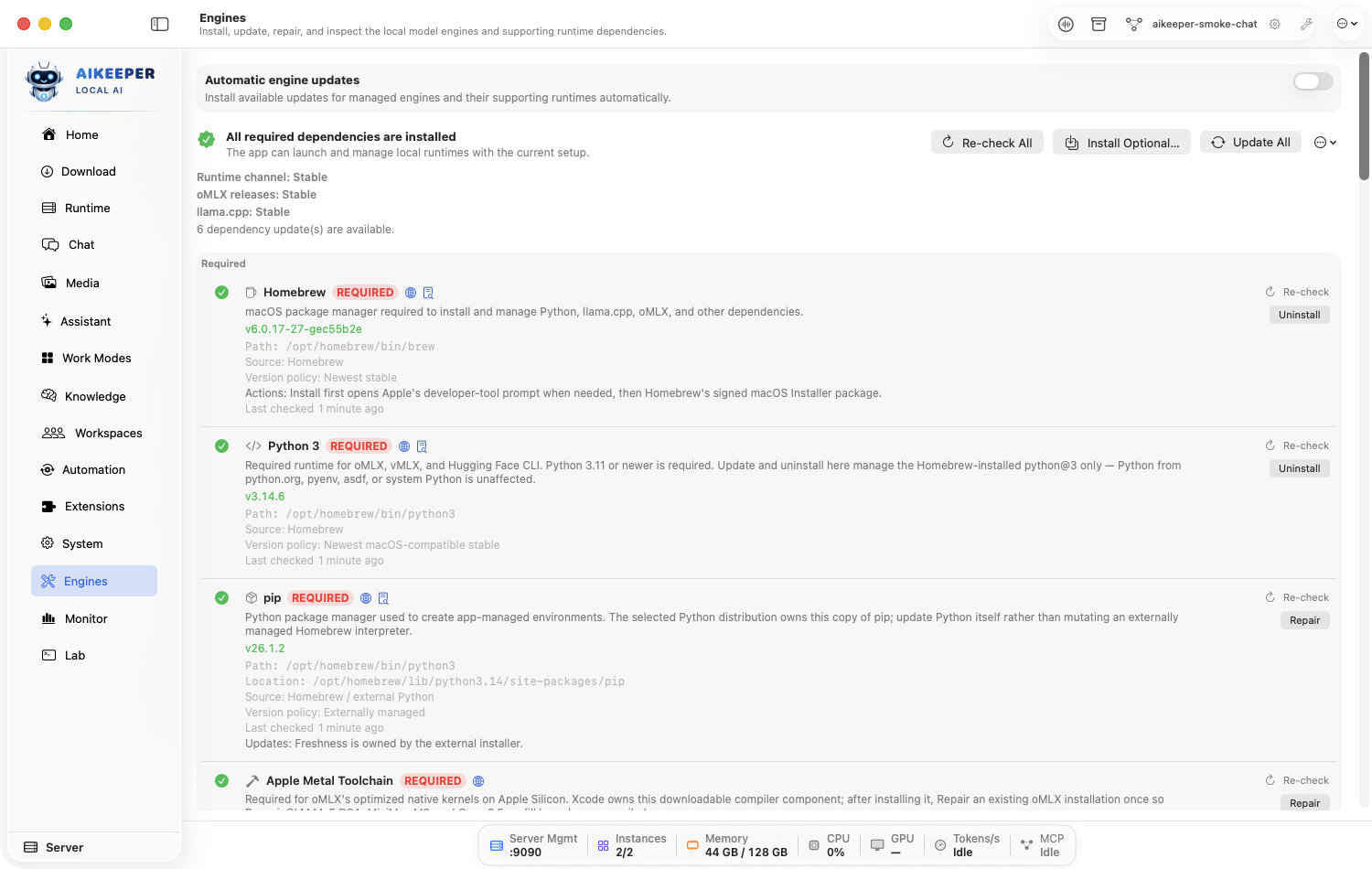
Install or repair required engines
Let Ai Keeper install the supported command-line pieces used to run local models.
Before you start
- Internet access.
- Enough disk space for managed tools.
Open Engines.
Click Fix Required. Keep the app open while each required row installs or verifies.
If one row fails, expand Output Log, read the last specific error, then use that row's Repair.
Click Re-check after fixing an external requirement such as Xcode command-line tools.
You are done when
No required row shows Missing, Broken, or Fix Required.Install an optional specialist engine
Add mlx-serve, mlx-optiq, ds4, MTPLX, vmlx, TurboQuant, llama-diffusion, or another specialist only when a model or feature needs it.
Before you start
- Know why Automatic is insufficient for this model.
- Read the engine description and machine requirements first.
Open Engines and click Install Optional….
Select only the engine you need. For example, ds4 is a high-memory DeepSeek V4 specialist; mlx-vlm is for multimodal MLX; llama.cpp engines require GGUF.
Choose Stable unless you are intentionally testing a pre-release, then install.
Open its row after completion and run Re-check.
You are done when
The engine row shows an installed version and a healthy resolved executable or environment.Review model trust before first launch
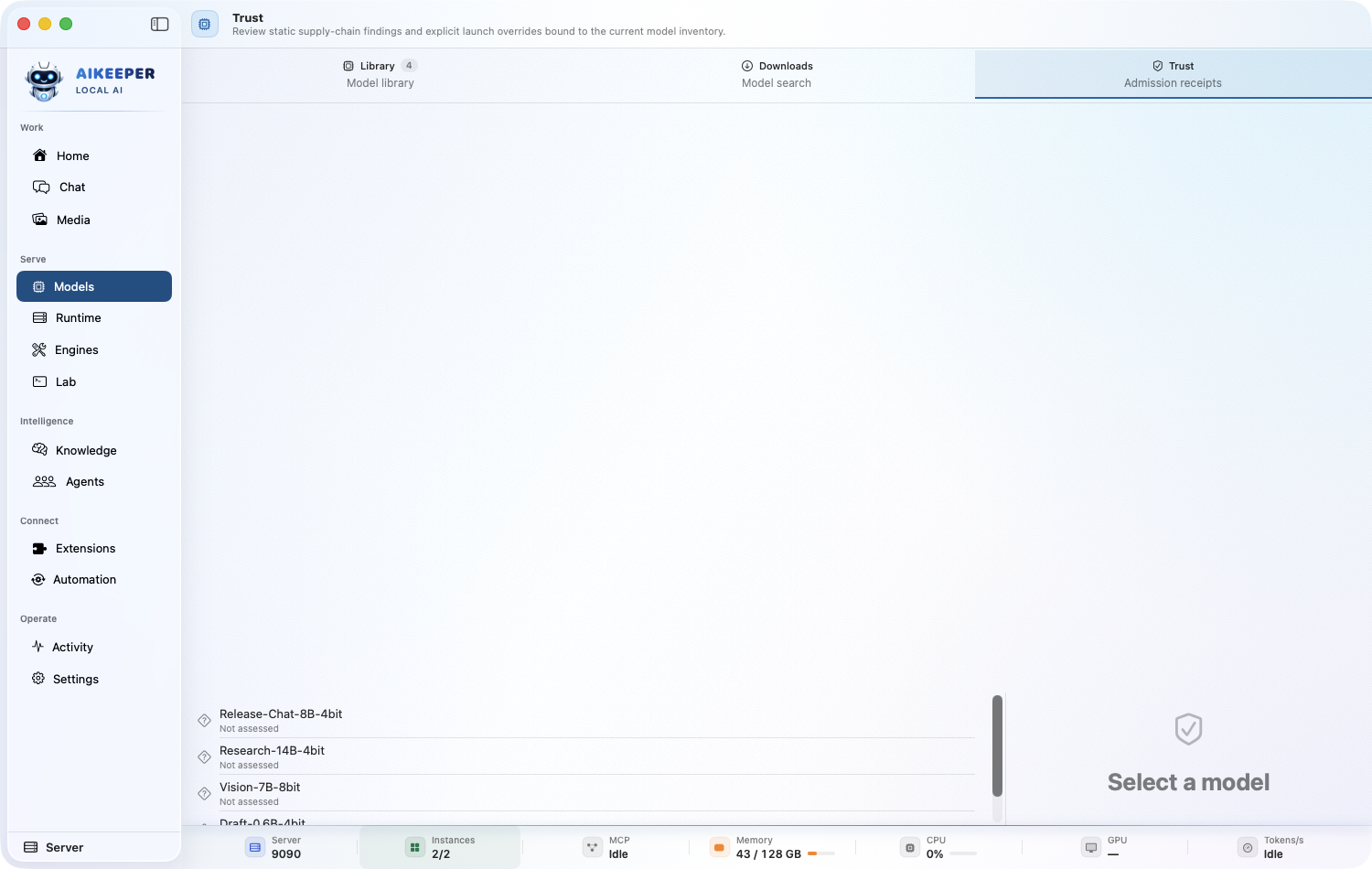
Inspect static supply-chain findings and record an explicit, inventory-bound admission decision.
Before you start
- A downloaded model in Models > Library.
- Enough context to judge its publisher, format, and intended role.
Open Models > Trust and select the downloaded model.
Review its origin, file inventory, detected format, suspicious-file findings, and the exact fingerprint to which the assessment applies.
Resolve or remove a model with unexplained executable content, symlinks, or format mismatches instead of overriding the warning.
When a reviewed warning is acceptable, create the explicit launch override and record the reason. Do not reuse an old receipt after the files change.
Return to Runtime and start only the admitted model.
You are done when
Trust shows a current receipt for the model's present inventory, and Runtime no longer blocks launch for an unresolved admission finding.Download a model from Hugging Face
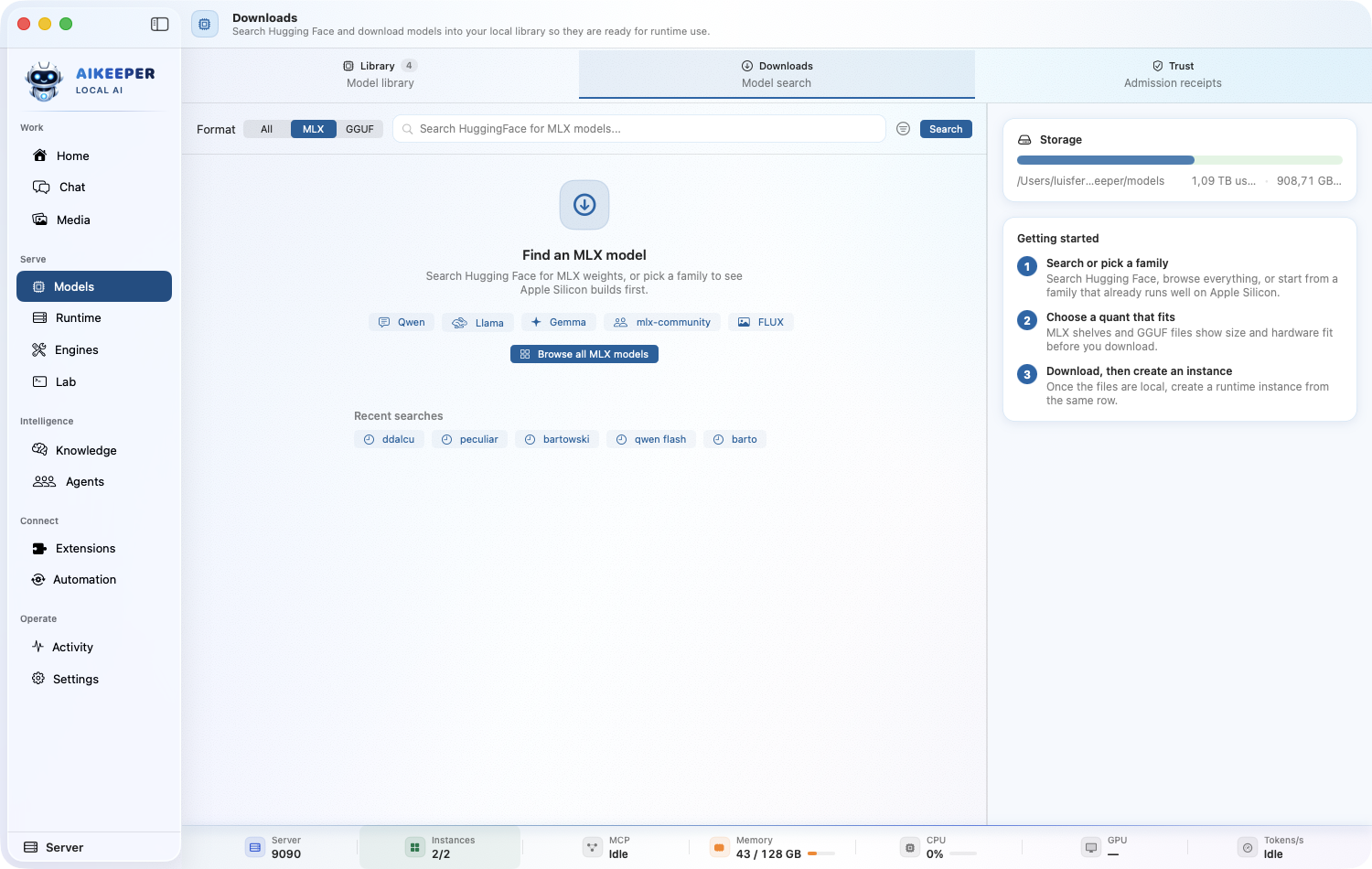
Search Hugging Face when you know the repository, format, role, or quantization you need.
Before you start
- Know whether you need MLX or GGUF.
- For gated models, have the required Hugging Face access.
Open Models > Downloads and search by organization, model family, or repository name.
Filter for MLX when you want Apple-Silicon-native repositories, or GGUF when you want llama.cpp. Sort and inspect rather than downloading the first name match.
Open the model card. Check parameter count, quantization, disk size, license, and whether the model is chat, vision, embedding, reranking, STT, or TTS.
Choose a destination and start the download. If a GGUF repository offers many files, select one quantization file rather than every variant.
After completion, open Models > Library and confirm the detected role and format.
You are done when
The model has a real local path, non-zero size, detected format, and no incomplete-download warning.Create and start a runtime instance
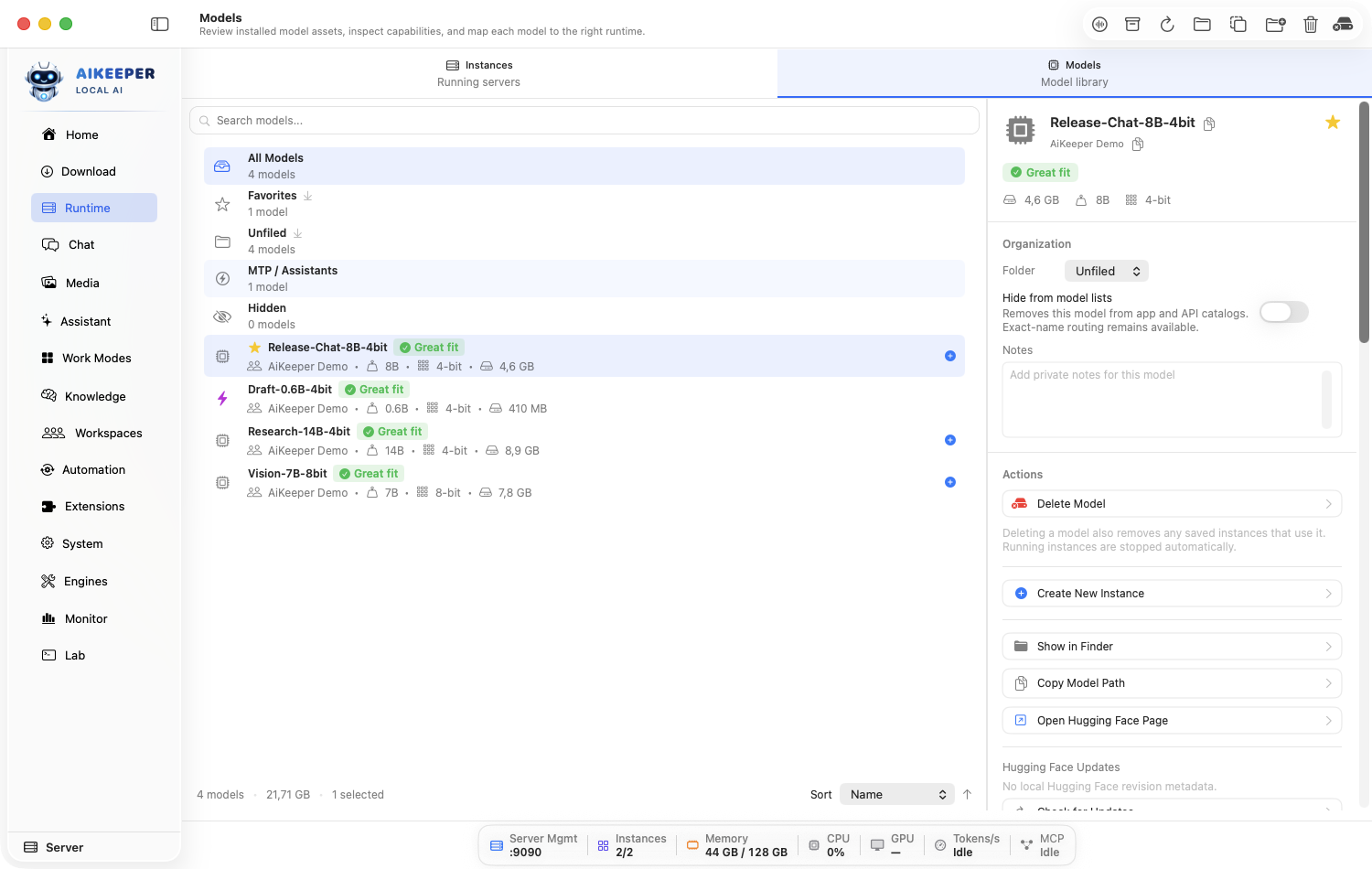
Turn an installed model file into a listening local server that Chat and the proxy can use.
Before you start
- A complete model under Models > Library.
- Required engine dependencies are healthy.
Open Runtime > Instances and choose New Instance.
Select the model and confirm its runtime role. Use Chat/LLM for ordinary conversation; choose Embedding, Reranker, Vision, STT, or TTS only for matching models.
Leave Backend Selection on Automatic. Keep Host on localhost for a private first run, and accept the suggested free port.
Run Optimize if offered, save the instance, then click Start.
Wait for Ready. If it fails, use Diagnose before editing random fields.
You are done when
The instance shows Ready, a listening local endpoint, and the correct role; it also appears in the relevant model picker.Optimize and tune an instance safely
Let the app choose a baseline, then change one measurable setting at a time.
Before you start
- A stopped or editable instance.
- A repeatable prompt or benchmark for comparison.
Open the instance detail and click Optimize. Review the chosen engine and memory/context recommendations.
Choose a Speed/Quality profile before touching individual sampling controls.
Change only one area at a time: context window, output limit, cache/KV choice, or sampling. Save and restart when the UI says a restart is required.
Open Lab > Benchmark or repeat the same Chat prompt. Record TTFT, tokens/second, memory, and whether output quality stayed acceptable.
Use Reset if several changes made the result worse.
You are done when
The instance starts repeatedly, stays within comfortable memory pressure, and improves the metric you actually care about.Set up embedding, reranker, vision, STT, or TTS roles
Create specialist instances so routing sends each job to a model designed for it.
Before you start
- A model built for the chosen specialist role.
- A compatible engine installed.
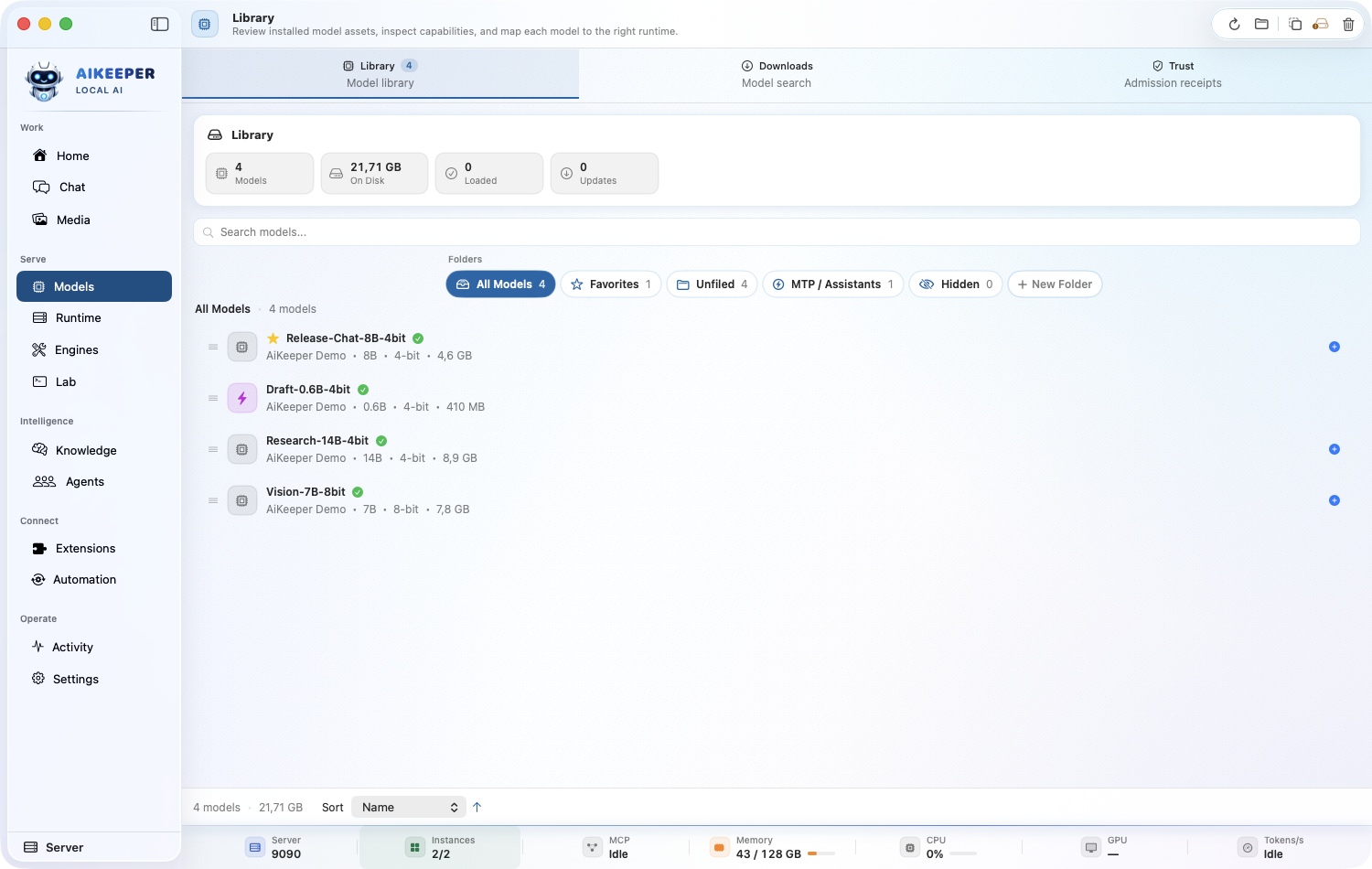
In Models > Library, inspect the model's detected capabilities and read its model card.
Create a new instance and choose the matching role: Embedding for vectors, Reranker for ordering results, Vision for image input, STT for transcription, or TTS for speech output.
Leave the engine Automatic unless the model requires a specialist path. Save and start.
Test the matching feature: index a tiny document, run a rerank request in Playground, attach an image in Chat, transcribe a short clip, or synthesize one sentence.
You are done when
The role-specific action returns the expected type of output and the instance is not offered as an ordinary chat model unless it truly supports chat.Stop, reveal, or delete models safely
Free memory or disk space without removing files still used by running instances.
Before you start
- Know which conversations or automations depend on the model.
To free memory only, open Runtime > Instances, select the running instance, and click Stop.
To inspect disk use, open Models > Library, select the model, and use Show in Finder.
Before deletion, review the model's dependent instances. Remove or repoint those instances first.
Use the model's Delete action and confirm the exact path and size. Clear download cache separately under Settings > Storage if needed.
You are done when
The stopped process disappears from Activity > Monitor, or the deleted model disappears from Models > Library and no remaining instance references it.Run a model with oMLX
The default local engine for most Apple Silicon chat and tool-calling models. This walkthrough covers the primary MLX route.
Before you start
- A model compatible with MLX.
- Enough free storage and unified memory for the selected model.
- Ai Keeper is running in Server mode.
Open Engines, find oMLX, and run Install or Repair until its health check passes.
The model file and the serving engine are separate requirements.
Open Models > Downloads and acquire one model explicitly compatible with MLX. Read the model card before downloading a quantization, then review its receipt in Models > Trust.
Open Runtime > Instances, create an instance for that model, then select oMLX as the engine. Use a manual choice only because this walkthrough is testing this exact backend.
Run Optimize, review the proposed settings, and keep unsupported or model-specific switches at their defaults.
Click Start. Wait for Ready, then open Chat and ask: Reply with the engine name and one short sentence.
You are done when
Runtime shows oMLX as Ready, Chat returns a streamed answer, and the instance diagnostics show no unsupported launch flag.Run a model with mlx-serve
A native Zig server with OpenAI and Anthropic APIs, prompt lookup, and chunked prefill. This walkthrough covers the specialist MLX route.
Before you start
- A model compatible with MLX.
- Enough free storage and unified memory for the selected model.
- Ai Keeper is running in Server mode.
Open Engines, find mlx-serve, and run Install or Repair until its health check passes.
The model file and the serving engine are separate requirements.
Open Models > Downloads and acquire one model explicitly compatible with MLX. Read the model card before downloading a quantization, then review its receipt in Models > Trust.
Open Runtime > Instances, create an instance for that model, then select mlx-serve as the engine. Use a manual choice only because this walkthrough is testing this exact backend.
Run Optimize, review the proposed settings, and keep unsupported or model-specific switches at their defaults.
Click Start. Wait for Ready, then open Chat and ask: Reply with the engine name and one short sentence.
You are done when
Runtime shows mlx-serve as Ready, Chat returns a streamed answer, and the instance diagnostics show no unsupported launch flag.Run a model with mlx-optiq
OptiQ quantized models, mixed-precision KV cache, MTP, adapters, and Gemma 4 vision sidecars. This walkthrough covers the specialist MLX / OptiQ route.
Before you start
- A model compatible with MLX / OptiQ.
- Enough free storage and unified memory for the selected model.
- Ai Keeper is running in Server mode.
Open Engines, find mlx-optiq, and run Install or Repair until its health check passes.
The model file and the serving engine are separate requirements.
Open Models > Downloads and acquire one model explicitly compatible with MLX / OptiQ. Read the model card before downloading a quantization, then review its receipt in Models > Trust.
Open Runtime > Instances, create an instance for that model, then select mlx-optiq as the engine. Use a manual choice only because this walkthrough is testing this exact backend.
Run Optimize, review the proposed settings, and keep unsupported or model-specific switches at their defaults.
Click Start. Wait for Ready, then open Chat and ask: Reply with the engine name and one short sentence.
You are done when
Runtime shows mlx-optiq as Ready, Chat returns a streamed answer, and the instance diagnostics show no unsupported launch flag.Run a model with ds4 (DwarfStar)
DeepSeek V4 Flash/PRO GGUF serving with DSML tools and compressed disk-backed cache. This walkthrough covers the specialist DeepSeek V4 GGUF route.
Before you start
- A model compatible with DeepSeek V4 GGUF.
- Enough free storage and unified memory for the selected model.
- Ai Keeper is running in Server mode.
Open Engines, find ds4 (DwarfStar), and run Install or Repair until its health check passes.
The model file and the serving engine are separate requirements.
Open Models > Downloads and acquire one model explicitly compatible with DeepSeek V4 GGUF. Read the model card before downloading a quantization, then review its receipt in Models > Trust.
Open Runtime > Instances, create an instance for that model, then select ds4 (DwarfStar) as the engine. Use a manual choice only because this walkthrough is testing this exact backend.
Run Optimize, review the proposed settings, and keep unsupported or model-specific switches at their defaults.
Click Start. Wait for Ready, then open Chat and ask: Reply with the engine name and one short sentence.
You are done when
Runtime shows ds4 (DwarfStar) as Ready, Chat returns a streamed answer, and the instance diagnostics show no unsupported launch flag.Run a model with vMLX
JANG-family support, continuous batching, multimodal controls, adapters, and native Anthropic messages. This walkthrough covers the specialist MLX / JANG route.
Before you start
- A model compatible with MLX / JANG.
- Enough free storage and unified memory for the selected model.
- Ai Keeper is running in Server mode.
Open Engines, find vMLX, and run Install or Repair until its health check passes.
The model file and the serving engine are separate requirements.
Open Models > Downloads and acquire one model explicitly compatible with MLX / JANG. Read the model card before downloading a quantization, then review its receipt in Models > Trust.
Open Runtime > Instances, create an instance for that model, then select vMLX as the engine. Use a manual choice only because this walkthrough is testing this exact backend.
Run Optimize, review the proposed settings, and keep unsupported or model-specific switches at their defaults.
Click Start. Wait for Ready, then open Chat and ask: Reply with the engine name and one short sentence.
You are done when
Runtime shows vMLX as Ready, Chat returns a streamed answer, and the instance diagnostics show no unsupported launch flag.Run a model with mlx-vlm
Direct multimodal MLX serving for vision-language models. This walkthrough covers the manual escape hatch Multimodal MLX route.
Before you start
- A model compatible with Multimodal MLX.
- Enough free storage and unified memory for the selected model.
- Ai Keeper is running in Server mode.
Open Engines, find mlx-vlm, and run Install or Repair until its health check passes.
The model file and the serving engine are separate requirements.
Open Models > Downloads and acquire one model explicitly compatible with Multimodal MLX. Read the model card before downloading a quantization, then review its receipt in Models > Trust.
Open Runtime > Instances, create an instance for that model, then select mlx-vlm as the engine. Use a manual choice only because this walkthrough is testing this exact backend.
Run Optimize, review the proposed settings, and keep unsupported or model-specific switches at their defaults.
Click Start. Wait for Ready, then open Chat and ask: Reply with the engine name and one short sentence.
You are done when
Runtime shows mlx-vlm as Ready, Chat returns a streamed answer, and the instance diagnostics show no unsupported launch flag.Run a model with mlx-flash
Low-memory weight streaming and optional disk-backed KV cache. This walkthrough covers the manual escape hatch MLX route.
Before you start
- A model compatible with MLX.
- Enough free storage and unified memory for the selected model.
- Ai Keeper is running in Server mode.
Open Engines, find mlx-flash, and run Install or Repair until its health check passes.
The model file and the serving engine are separate requirements.
Open Models > Downloads and acquire one model explicitly compatible with MLX. Read the model card before downloading a quantization, then review its receipt in Models > Trust.
Open Runtime > Instances, create an instance for that model, then select mlx-flash as the engine. Use a manual choice only because this walkthrough is testing this exact backend.
Run Optimize, review the proposed settings, and keep unsupported or model-specific switches at their defaults.
Click Start. Wait for Ready, then open Chat and ask: Reply with the engine name and one short sentence.
You are done when
Runtime shows mlx-flash as Ready, Chat returns a streamed answer, and the instance diagnostics show no unsupported launch flag.Run a model with llama.cpp
The general GGUF engine with Metal offload, grammar, adapters, and broad model compatibility. This walkthrough covers the primary GGUF route.
Before you start
- A model compatible with GGUF.
- Enough free storage and unified memory for the selected model.
- Ai Keeper is running in Server mode.
Open Engines, find llama.cpp, and run Install or Repair until its health check passes.
The model file and the serving engine are separate requirements.
Open Models > Downloads and acquire one model explicitly compatible with GGUF. Read the model card before downloading a quantization, then review its receipt in Models > Trust.
Open Runtime > Instances, create an instance for that model, then select llama.cpp as the engine. Use a manual choice only because this walkthrough is testing this exact backend.
Run Optimize, review the proposed settings, and keep unsupported or model-specific switches at their defaults.
Click Start. Wait for Ready, then open Chat and ask: Reply with the engine name and one short sentence.
You are done when
Runtime shows llama.cpp as Ready, Chat returns a streamed answer, and the instance diagnostics show no unsupported launch flag.Run a model with llama.cpp TurboQuant
TurboQuant KV/weight compression and compatible MTP draft models. This walkthrough covers the specialist GGUF route.
Before you start
- A model compatible with GGUF.
- Enough free storage and unified memory for the selected model.
- Ai Keeper is running in Server mode.
Open Engines, find llama.cpp TurboQuant, and run Install or Repair until its health check passes.
The model file and the serving engine are separate requirements.
Open Models > Downloads and acquire one model explicitly compatible with GGUF. Read the model card before downloading a quantization, then review its receipt in Models > Trust.
Open Runtime > Instances, create an instance for that model, then select llama.cpp TurboQuant as the engine. Use a manual choice only because this walkthrough is testing this exact backend.
Run Optimize, review the proposed settings, and keep unsupported or model-specific switches at their defaults.
Click Start. Wait for Ready, then open Chat and ask: Reply with the engine name and one short sentence.
You are done when
Runtime shows llama.cpp TurboQuant as Ready, Chat returns a streamed answer, and the instance diagnostics show no unsupported launch flag.Run a model with MTPLX
Native multi-token prediction for compatible Qwen3-Next-style MTP models. This walkthrough covers the specialist MTP-marker MLX route.
Before you start
- A model compatible with MTP-marker MLX.
- Enough free storage and unified memory for the selected model.
- Ai Keeper is running in Server mode.
Open Engines, find MTPLX, and run Install or Repair until its health check passes.
The model file and the serving engine are separate requirements.
Open Models > Downloads and acquire one model explicitly compatible with MTP-marker MLX. Read the model card before downloading a quantization, then review its receipt in Models > Trust.
Open Runtime > Instances, create an instance for that model, then select MTPLX as the engine. Use a manual choice only because this walkthrough is testing this exact backend.
Run Optimize, review the proposed settings, and keep unsupported or model-specific switches at their defaults.
Click Start. Wait for Ready, then open Chat and ask: Reply with the engine name and one short sentence.
You are done when
Runtime shows MTPLX as Ready, Chat returns a streamed answer, and the instance diagnostics show no unsupported launch flag.Run a model with Rapid-MLX
Fast serving with parser auto-detection, PFlash prompt compression, bounded caches, DSpark, multimodal routes, and request constraints. This walkthrough covers the manual escape hatch MLX route.
Before you start
- A model compatible with MLX.
- Enough free storage and unified memory for the selected model.
- Ai Keeper is running in Server mode.
Open Engines, find Rapid-MLX, and run Install or Repair until its health check passes.
The model file and the serving engine are separate requirements.
Open Models > Downloads and acquire one model explicitly compatible with MLX. Read the model card before downloading a quantization, then review its receipt in Models > Trust.
Open Runtime > Instances, create an instance for that model, then select Rapid-MLX as the engine. Use a manual choice only because this walkthrough is testing this exact backend.
Run Optimize, review the proposed settings, and keep unsupported or model-specific switches at their defaults.
Click Start. Wait for Ready, then open Chat and ask: Reply with the engine name and one short sentence.
You are done when
Runtime shows Rapid-MLX as Ready, Chat returns a streamed answer, and the instance diagnostics show no unsupported launch flag.Run a model with llama-diffusion
A managed adapter for masked or diffusion language models in GGUF format. This walkthrough covers the specialist Diffusion-LM GGUF route.
Before you start
- A model compatible with Diffusion-LM GGUF.
- Enough free storage and unified memory for the selected model.
- Ai Keeper is running in Server mode.
Open Engines, find llama-diffusion, and run Install or Repair until its health check passes.
The model file and the serving engine are separate requirements.
Open Models > Downloads and acquire one model explicitly compatible with Diffusion-LM GGUF. Read the model card before downloading a quantization, then review its receipt in Models > Trust.
Open Runtime > Instances, create an instance for that model, then select llama-diffusion as the engine. Use a manual choice only because this walkthrough is testing this exact backend.
Run Optimize, review the proposed settings, and keep unsupported or model-specific switches at their defaults.
Click Start. Wait for Ready, then open Chat and ask: Reply with the engine name and one short sentence.