Lab and evaluation
Compare answers, turn real text tasks into reusable tests, inspect baselines and measure repeated performance. API Tester covers form and raw JSON requests; transcription and agent Diagnostics open from their current Chat/Agents destinations.
Follow the numbered steps for the everyday path. Open Advanced details for compatibility, settings, technical limits, and deeper checks. Times are estimates; large downloads and model loading can take longer.
Screenshots show the real app with illustrative sample data. They show where controls are; example answers, jobs and telemetry are not measured results. Open any image at full size to follow along.
Find one workflow
Filter this collection by name, outcome, provider, engine, channel, mode, or command.
Test a request in API Tester
Use the request form first, then Edit JSON when you need exact advanced payload control.
Before you start
- A Ready route.
- Know which capability you are testing.
Open Lab → API Tester → Requests. Choose the Method, the Endpoint and a Runtime. Only runtimes that are running appear in the list.
Use the form for chat, completion, embeddings or reranking. Start with a short known test and the matching runtime role.
Choose Edit JSON when you need exact payload fields. Preserve a working example before adding tool definitions or advanced metadata.
Send and inspect status, body and timing. Check the contextual guidance for authentication, validation, busy-runtime and backend errors.
Click Copy cURL to copy the working request, or choose Templates → Save Current as Template… to keep it. The copied command carries the same address and authentication headers that Send used.
You are done when
The response has the expected status and schema for the selected endpoint, and Activity > Requests shows the same call.

Advanced details
Advanced JSON remains intact when it cannot be fully represented by the form. Returning to form requires a complete round trip, including message metadata and document boundaries.
cURL export includes prepared authentication headers and shell quoting. Treat saved/copied commands as credential-bearing material where applicable, and redact them before sharing.
If something looks wrong
Test the stateful Responses API
Exercise response state, compacted history, and WebSocket transport against a local runtime.
Before you start
- A Ready compatible route.
- Basic chat completion already works.
Open Lab → API Tester → Responses & streaming. Leave Target on Ai Keeper Proxy, or choose Instance and pick a Runtime.
Send a first request and inspect its response/state identifier and events.
Copy the
idshown under Frames / Response, paste it into the previous_response_id field and send a follow-up. The field is not filled in for you.To try the other transports, set Mode to Compact or WebSocket, or load the matching example from Templates. Use them only when the selected route supports them.
After restart or configuration change, inspect generation-bound state and start a fresh stateful session when necessary.
You are done when
The follow-up remembers the first turn, compacted input is accepted, and WebSocket events complete without crossing to a stale process.

Advanced details
Stateful API continuity is separate from saved Chat transcript continuity. Runtime restart can invalidate generation-pinned state.
A local proxy compatibility route can translate payloads; successful basic Chat Completions does not certify every Responses event or WebSocket operation.
If something looks wrong
Compare two models side by side
Run a real task on two or more configured runtimes, optionally hide their identities and inspect the submitted settings.
Before you start
- Two or more configured chat runtimes; parallel mode requires them running.
- A representative text task and clear success criteria.
Open Lab → Compare, use Add Model to pick two to six runtimes, then type a standalone text task.
Under Execution choose Sequential to load one model at a time (safest for memory) or Parallel when every chosen runtime is already running. Turn on Blind comparison to hide the model names until you judge. Then click Run Both (Run All for three or more).
Run and read every completed answer. Judge correctness, useful detail, instruction following and format before speed.
Under each answer read First response, Speed, Tokens and Memory, and click Request settings to see what was sent. The app retains each runtime’s saved settings rather than secretly matching them.
Click Reveal models, or choose a model or Tie under Pick a winner (which also reveals the names). Use Save as test… for repeatable evaluation, Continue in New Chat for follow-up or Recent comparisons → Prepare another run to review a rerun.
You are done when
You can explain the choice using observed criteria and more than one prompt, not a single subjective impression.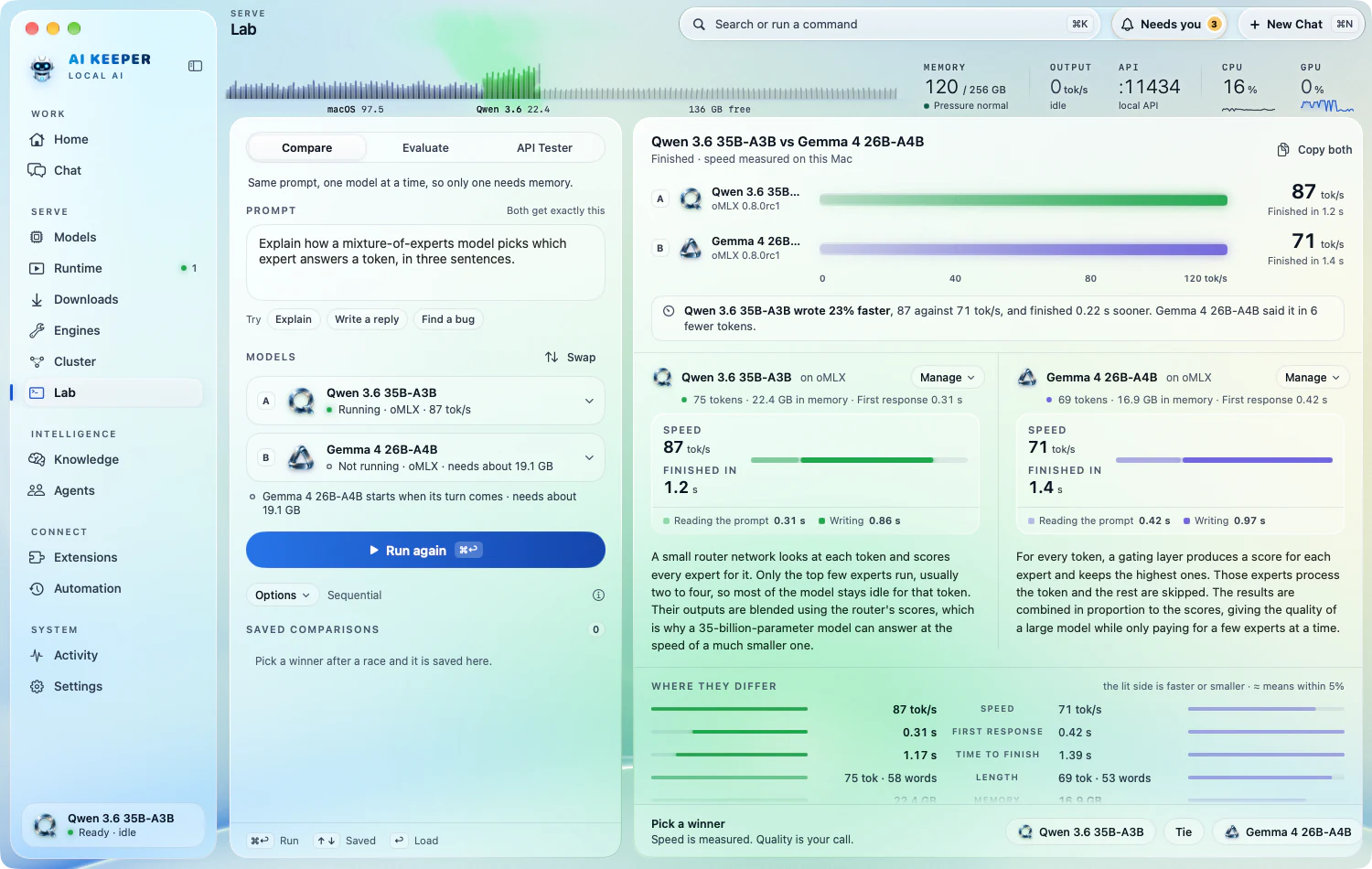

Advanced details
Blind comparison randomizes execution order/labels until reveal or preference; training comparisons preserve base/candidate order. Markdown and raw answers remain inspectable.
If sampling, reasoning/output limits or context differ, this is a comparison of configurations rather than an isolated model-only experiment. Observed process memory is neither peak nor per-request allocation.
If something looks wrong
Measure reply speed and time to the first token
Use the same task to compare how long each setup takes to start and finish answering.
Before you start
- A stable Ready instance.
- No unrelated heavy workloads if you want comparable numbers.
Open Lab › Evaluate, select the runtime in the left pane, and choose Speed on this Mac in the right pane. Click Measure speed….
Choose Quality checks or My prompt. Select any extra measures you need, such as Several requests at once. Time to start from cold restarts a supported local model, so run it when the model is free.
Click Measure for the selected runtime. Open Activity › More › Monitor if you need to check memory pressure or concurrent load.
Read the run in the list below the chart. Compare how long the first token took, how fast the rest arrived, and total time. Check whether the run also produced a useful answer.
After changing one setting, repeat the same prompt and options. Open Manage › Measurement setup… for full checks and configuration sweeps.
You are done when
Repeated warm runs are in a reasonably consistent range and comparisons use the same prompt/output settings.

Advanced details
Performance retains Optimize/configuration sweeps and qualified Apply/Revert. A timing observation for one task is different from a repeated benchmark.
Prompt length, output limit, cache warmth, concurrent requests, power/hardware and model/engine versions affect comparability. Keep quality tests alongside speed measurements.
If something looks wrong
Find faster settings with a Configuration Sweep
Let Ai Keeper try several launch settings for one local model and keep the fastest one that still passes its quality check.
Before you start
- A local runtime that is running (not a cloud route or Apple Intelligence).
- Free time and memory: the runtime is stopped during the sweep and restarted afterwards.
Open Lab → Evaluate. In the Runs area beneath the speed chart, choose Manage → Measurement setup…. In the setup sheet, choose the running local model under Runtime.
Scroll inside the setup sheet to Configuration Sweep and click Run Configuration Sweep. Your saved runtime is stopped to free memory; its settings are not edited.
Wait while each variant is tried. Stop Sweep cancels the run.
Read the list of variants. Speed counts only for a variant that passed the built-in quality check.
If a winner is offered, click Create Winner Instance to add it as a new runtime. Compare it with your original in Lab → Compare before you switch.
You are done when
The original runtime is running again with its settings unchanged, and any winner exists as a separate runtime.
Advanced details
The sweep tests the exact Create Instance default plus non-default scheduling, KV-cache, MTP/assistant and draft-depth variants.
A result applies to this model, engine version and Mac. Run the sweep again after an engine update before relying on it.
If something looks wrong
Create and inspect a managed browser session
Open a page, review the visible state, perform one action, and audit what the model did.
Before you start
- A web task that is allowed by the site and your policy.
- No need to expose credentials to the model unless explicitly approved.
Open Chat, click Chat settings and tools at the top right of the conversation, then choose Panels → Browser. (Or press ⌘K and run Open Browser.) Choose a Profile, or click New Profile.
Type a harmless address in the address field and press Return. Check that the page shown is the one you expected before letting the model act.
Run one simple action such as following a link or filling a non-sensitive test field.
Click Show or hide action log in the Browser toolbar and read LLM Actions to confirm what the model did.
When finished, open the ⋯ menu beside New Profile and choose Reset Profile Data if the profile should not keep its cookies, then click Close Browser.
You are done when
The visible page reflects the intended single action and the action log attributes it correctly.

Advanced details
Chat browser tools are bound to that conversation’s managed browser. Deleting a conversation removes that scope; browser profile/session cookies should be treated as private state.
The built-in WebKit route can open HTML confined to the project folder. Chrome backends accept http(s) only and reject file/data URLs; an arbitrary host file is not granted by merely supplying its path.
If something looks wrong
Preview and edit a Canvas artifact
Let the model send HTML, a chart or an interactive page to the Canvas panel, run it, and correct its source yourself.
Before you start
- A tool-capable chat model with the canvas tools enabled. The panel stays empty until the model sends something to it.
Open Chat, click Chat settings and tools at the top right, then choose Panels → Canvas. Ask the model to put something on the canvas, for example a small HTML page or a chart. You cannot paste source into an empty Canvas.
Click Run preview so the page’s scripts can run, then try its controls. Until you click it, content from the model is displayed with scripts switched off. Stop preview switches them off again.
Click Source, correct the HTML and click Apply. Revert throws away edits you have not applied yet.
Before you change a working artifact, open Source, select all and copy it somewhere safe. Snapshot only takes a picture of the canvas for the model; it does not save a version you can return to. Reset empties the Canvas and cannot be undone.
To keep the artifact, paste the copied source into a file of your own. The Canvas panel has no export button.
You are done when
The artifact renders, its controls work after Run preview, an edit made in Source appears after Apply, and you hold your own copy of the working source.

Advanced details
A visual artifact is executable HTML/script. Review source and external resource destinations before using or sharing it.
The Snapshot button and the canvas_snapshot tool capture an image of the rendered page, held in memory only; Reset discards it. Earlier pushes are kept in a short in-memory history that the model can list with canvas_history; the panel has no control to go back to one. The Canvas web view uses a non-persistent data store, and page scripts stay off until Run preview.
If something looks wrong
Create a reusable quality test
Define the behavior you care about, choose a concrete success check and retain the result without changing runtime settings.
Before you start
- A ready OpenAI-compatible chat runtime.
- A harmless stable task and an assessable expected result.
Open Lab › Evaluate. In the left pane, click New check to write your own or choose Manage › Add starter checks…. In the editor, choose an existing collection or create one.
Under Success check choose I will review the answer, or an automatic rule such as Contains expected information, Exact answer, Matches JSON schema, Number in range or Calls the expected tool, and type the expected value.
Open Reference answer and conversation context to check what was captured, then click Save test. A reference is guidance for your review, not automatically correct. There is no output limit to set here: each run uses the chosen runtime’s own settings and records them.
Choose a model in the left pane and click Run all (or Start & run for a stopped model). Select a check under Results by model to read the reply and its verdict. For a check that needs judgment, review the answer and record your assessment.
Try one deliberately different expected value to see the check fail, then restore the original expected value and run again. Use Use as baseline to save a known result for later comparison.
You are done when
The saved task runs, its concrete assertion/manual review is inspectable, and errors or incomplete outputs are identified rather than counted as passes.

Advanced details
Tool-call checks submit schemas and grade predicted name/arguments; no tool is executed. Saved-test runs require OpenAI-compatible chat, even when other routes work elsewhere in the app.
Malformed/empty/incomplete/stalled streams and missing usage needed for token-limit checks stay Incomplete with absent quality scores. A 200 status or fast transport alone cannot pass an answer-quality assertion.
If something looks wrong
Transcribe, review, and promote local audio
Import, record, or capture audio; review timestamped segments; and move durable material into Knowledge.
Before you start
- The local transcription model selected in Settings.
- Microphone or Screen Recording permission only for the capture method that needs it.
For a quick transcript inside a conversation, open Chat → Audio → Transcribe and Choose audio file….
For the full workspace use Transcribe audio in the Audio toolbar. Choose Import Audio, microphone recording or supported system-audio capture.
Click Stop & Transcribe, wait for local transcription and play a timestamped segment to check alignment.
Correct text/speaker labels before generating chapters, summaries or action items. With Identify speakers ticked, a local model (about 11 MB, downloaded the first time) tells the voices apart. It separates speakers; it does not know who they are.
Export the offered text/Markdown/JSON/SRT/WebVTT format, or click Add All to Knowledge (Add Selected to Knowledge after ticking segments) when future conversations should retrieve it.
You are done when
The audio plays, timestamps seek correctly, edits persist after reopening the document, and an added transcript becomes searchable in Knowledge.

Advanced details
Quick transcription appends a text exchange to the conversation; it does not send the recording to the conversational model as part of transcription. Sending a later summary prompt still follows that chat’s route.
The full workspace retains audio, model identity, waveform, segments and chapter organization. Capture permission differs for microphone versus system audio; verify a short non-sensitive sample first.
More example screens


If something looks wrong
Inspect Harness experiments, traces, and context budgets
Use one evidence surface to connect a regression case to prompt composition, timing spans, tool contracts, and runtime environment state.
Before you start
- At least one Chat or agent request; richer pages appear after experiments and tools have run.
Open Agents → Diagnostics and start at Overview for cases, traces, prompt manifests, contracts, environments and rule status.
Use Experiments to inspect a named case’s runs and outcomes.
Open Context to inspect system/memory/skills/tools/files token shares and whether they are estimates or tokenizer counts.
Follow Causal Traces for duration/error spans. Export Completed to OTel sends finished traces to the telemetry destination you configured, so check that destination first.
Inspect Tool Contracts and Environments before assigning the failure to a model or prompt.
You are done when
You can name the failing case, exact context composition, error span, tool-contract status, and environment fingerprint from recorded evidence.

Advanced details
These pages contain recorded evidence only after the matching request/experiment/tool synchronization occurs. Empty state is not proof of failure or success.
Environment fingerprints and context evidence help explain reproducibility. A trace records observed execution; it does not establish causal model-quality superiority by itself.
If something looks wrong
Review learned rules and use a disposable scratch workspace
Keep feedback-derived behavior provisional and prototype risky work outside the real project until explicitly saved.
Before you start
- An open Chat session for scratch creation.
- Evidence attached to any proposed learned rule.
Open Agents → Diagnostics → Rule Drafts and review body, evidence count and sensitive warnings.
Click Approve 90 Days for a useful rule, or Reject; do not promote one weak observation into an unreviewed enduring policy.
Open Scratch with an active Chat session, label the prototype and create the managed disposable workspace.
Inspect its path/preview. Use Save As… for a deliberate copy worth keeping; otherwise Discard that exact scratch workspace.
Confirm the draft’s reviewed/expiry state and that abandoned scratch work is removed.
You are done when
The rule has an explicit reviewed state and expiry, while the scratch prototype is either saved to a chosen path or removed from the disposable list.
Advanced details
Approved learned rules expire rather than silently becoming permanent. Source evidence remains more important than an isolated correction.
Scratch belongs to a session and its managed disposable folder. Save a copy before discard; keep the real project’s candidate/apply and verification workflow separate.
If something looks wrong
Save a real Chat answer as a test
Turn an everyday task into a repeatable check without assuming hidden context or tool effects will replay.
Before you start
- A completed text Chat answer or comparison result.
Right-click a finished answer in Chat and choose Save as test…, or click Save as test… under an answer in Lab → Compare.
Review the captured user task and visible conversation text before it. Give the test a name based on the outcome you care about.
Write a reference/check only when you can assess it; choose manual review when an exact automatic answer would be misleading.
Choose a collection under Save to (or name a New test collection) and click Save test. It then appears under Lab → Evaluate → Results by model.
Run it once and compare the captured answer/settings with what the original task needed.
You are done when
A saved test has the intended visible task/context and a reviewed success rule.
Advanced details
Chat capture keeps visible text before the selected user turn. Attachments, hidden instructions, tools and their previous side effects are not replayed. A complex agent workflow cannot be certified by this text capture alone.
Editing a task/check changes its workload fingerprint. Results from different saved workloads must not be treated as equivalent comparison evidence.
Run your tests across several runtimes
Compare the same saved collection across available models/engines and retain failures and incomplete results.
Before you start
- A saved test collection and ready OpenAI-compatible chat runtimes.
Open Lab › Evaluate. Choose the collection in the left pane, then open a check and click Review answers.
Use Run collection to test the selected runtime. For several, open Compare multiple runtimes, choose each running runtime and click Run on N runtimes.
Wait for results and inspect every target. Stop ends the run; targets that did not run are not counted as passes.
Review manual-answer tasks and automatic assertions separately; open transport/protocol errors and incomplete streams.
Click Export results to save a CSV file that includes each run’s request settings and engine version.
You are done when
Every dispatched target has an inspectable result, error or Incomplete outcome tied to the same reviewed task collection.
Advanced details
The service owns the run across navigation, and a matrix keeps one owner through all targets. Switching screens does not establish that it stopped; use Cancel deliberately.
A tool contract probe grades a predicted call without executing it. This matrix does not prove live file, browser, shell, MCP or external messaging side effects.
Compare a new run with a saved baseline
Separate quality changes, changed workload evidence and timing that cannot be fairly compared.
Before you start
- A complete saved evaluation result or run and a repeatable test collection.
Open Lab › Evaluate and select the collection. Save the current comparable result with Use as baseline, or open Review answers and choose an earlier complete run to Use this run as baseline.
Run the same saved collection on the new runtime or configuration.
Read the summary line (improved · regressed · cannot be compared) and the notes under each result, such as Runtime settings differ or Engine version changed.
Read comparability guidance: changed/missing tasks prevent a quality comparison; changed hardware/OS prevents relative timing claims.
Choose a new baseline only when you intentionally want to replace the reference. Use this runtime opens Runtime controls for your decision.
You are done when
The report identifies comparable results, unanswered checks and relevant setting/environment differences.
Advanced details
Fingerprints include task, visible context, tool definitions, grading rules and output allowance. Sampling/model differences may be intentional, but they must be disclosed.
A baseline choice does not change runtime defaults or restrict available engine versions. Keep repeated Performance evidence for timing claims and avoid turning a small suite into blanket certification.