Lab and evaluation
Send raw requests, exercise stateful Responses, compare models, benchmark performance, keep regression checks in QA Lab, transcribe audio, and inspect Harness evidence. Browser and Canvas evaluation workflows open from Chat.
Find one workflow
Filter this collection by name, outcome, provider, engine, channel, mode, or command.
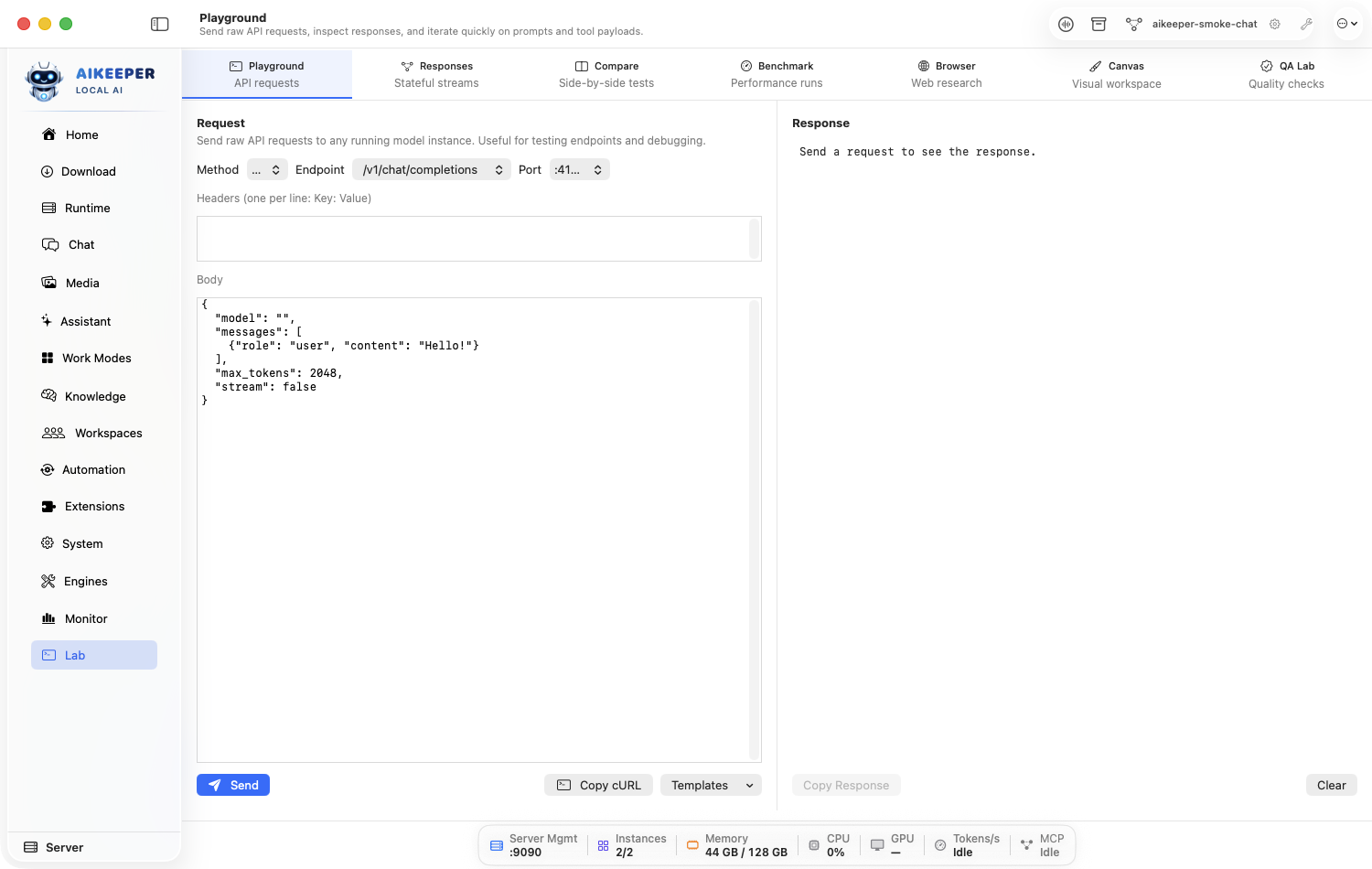
Send a raw request in Playground
Test an endpoint and payload without writing a separate script.
Before you start
- A Ready route.
- Know which capability you are testing.
Open Lab > Playground and choose the target instance/model and endpoint type.
Start with the generated example payload. Change only the prompt and one parameter.
Send and inspect status, headers, body, timing, and streaming events if enabled.
For embeddings or reranking, choose the matching specialist instance and verify vector/ranking output rather than chat text.
Copy a working request only after it succeeds here.
You are done when
The response has the expected status and schema for the selected endpoint, and Activity > Requests shows the same call.Test the stateful Responses API
Exercise response state, compacted history, and WebSocket transport against a local runtime.
Before you start
- A Ready compatible route.
- Basic chat completion already works.
Open Lab > Responses and select the model.
Send a first request and record the response/state identifier shown by the UI.
Send a follow-up linked to the previous response instead of resending the whole history.
Test compacted-history payload handling with the built-in example, then switch transport to WebSocket when available.
Inspect events and ensure the response remains tied to the same process generation.
You are done when
The follow-up remembers the first turn, compacted input is accepted, and WebSocket events complete without crossing to a stale process.Compare two models side by side
Run one prompt with matched settings and judge quality, format, and behavior fairly.
Before you start
- Two Ready chat models/routes.
- One representative prompt and success criteria.
Open Lab > Compare and choose model A and model B.
Use the same system context, prompt, output limit, temperature/profile, and tool availability for both.
Run the prompt and wait for both sides to finish.
Score correctness, instruction following, useful detail, format, latency, and any tool behavior. Do not choose only by writing style.
Repeat with at least one different representative prompt before changing a production route.
You are done when
You can explain the choice using observed criteria and more than one prompt, not a single subjective impression.Benchmark TTFT, throughput, and latency
Measure repeatable performance after warm-up and watch memory pressure while the run executes.
Before you start
- A stable Ready instance.
- No unrelated heavy workloads if you want comparable numbers.
Open Lab > Benchmark, choose the instance, prompt size, output size, and repeat count.
Run one warm-up that you do not treat as the final number.
Run the repeat set while watching Monitor for memory/CPU pressure.
Record time to first token, tokens per second, and end-to-end latency together.
After a tuning change, rerun the exact same benchmark and environment.
You are done when
Repeated warm runs are in a reasonably consistent range and comparisons use the same prompt/output settings.Create and inspect a managed browser session
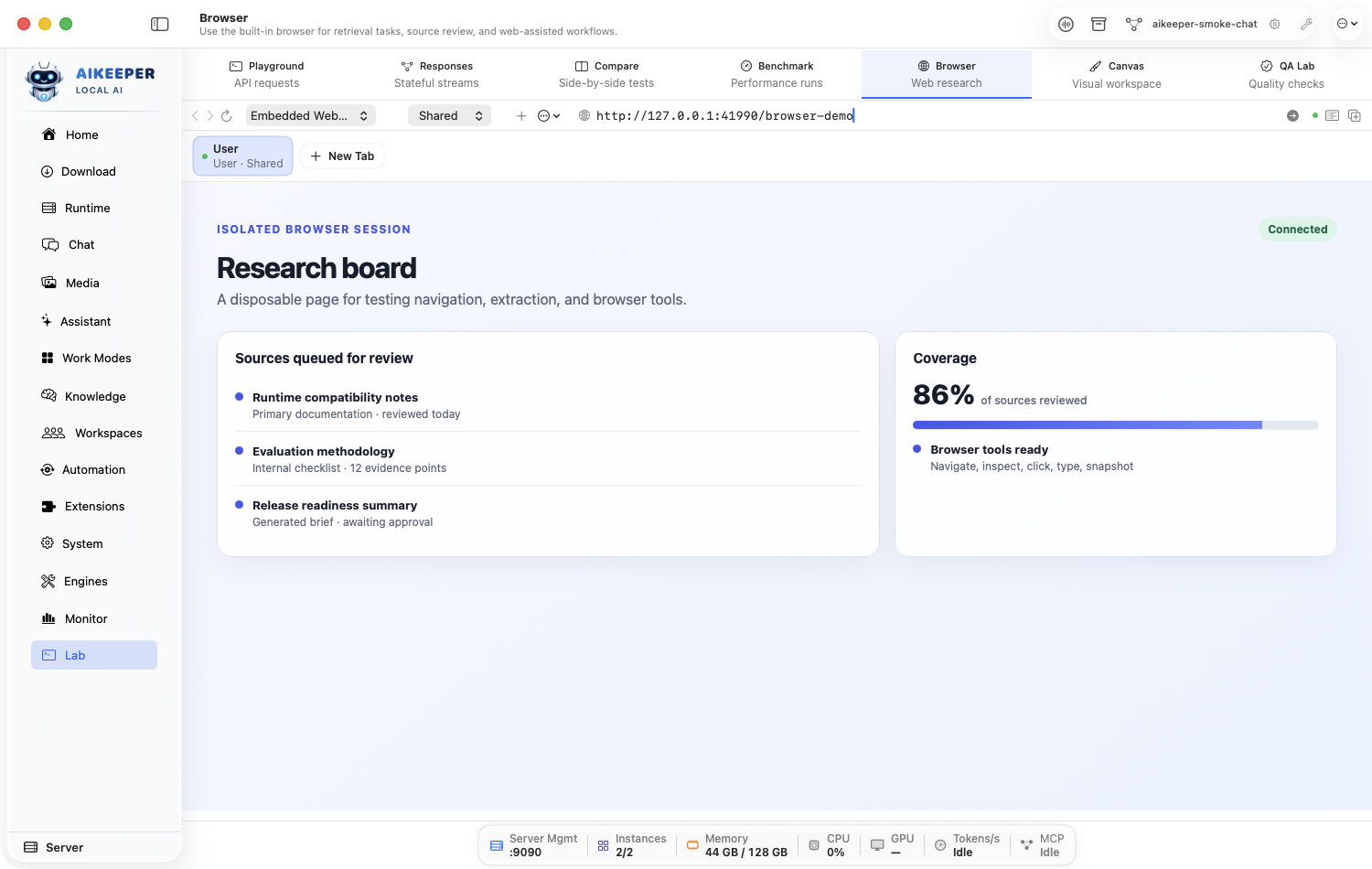
Open a page, review the visible state, perform one action, and audit what the model did.
Before you start
- A web task that is allowed by the site and your policy.
- No need to expose credentials to the model unless explicitly approved.
Open Chat and choose Browser from the session tools; create or select a browser profile and session.
Navigate to a harmless page and inspect the preview/DOM state before acting.
Run one simple action such as following a link or filling a non-sensitive test field.
Review the LLM action log and screenshot/preview to confirm what changed.
Stop or reset the session when finished.
You are done when
The visible page reflects the intended single action and the action log attributes it correctly.Create and snapshot a Canvas artifact
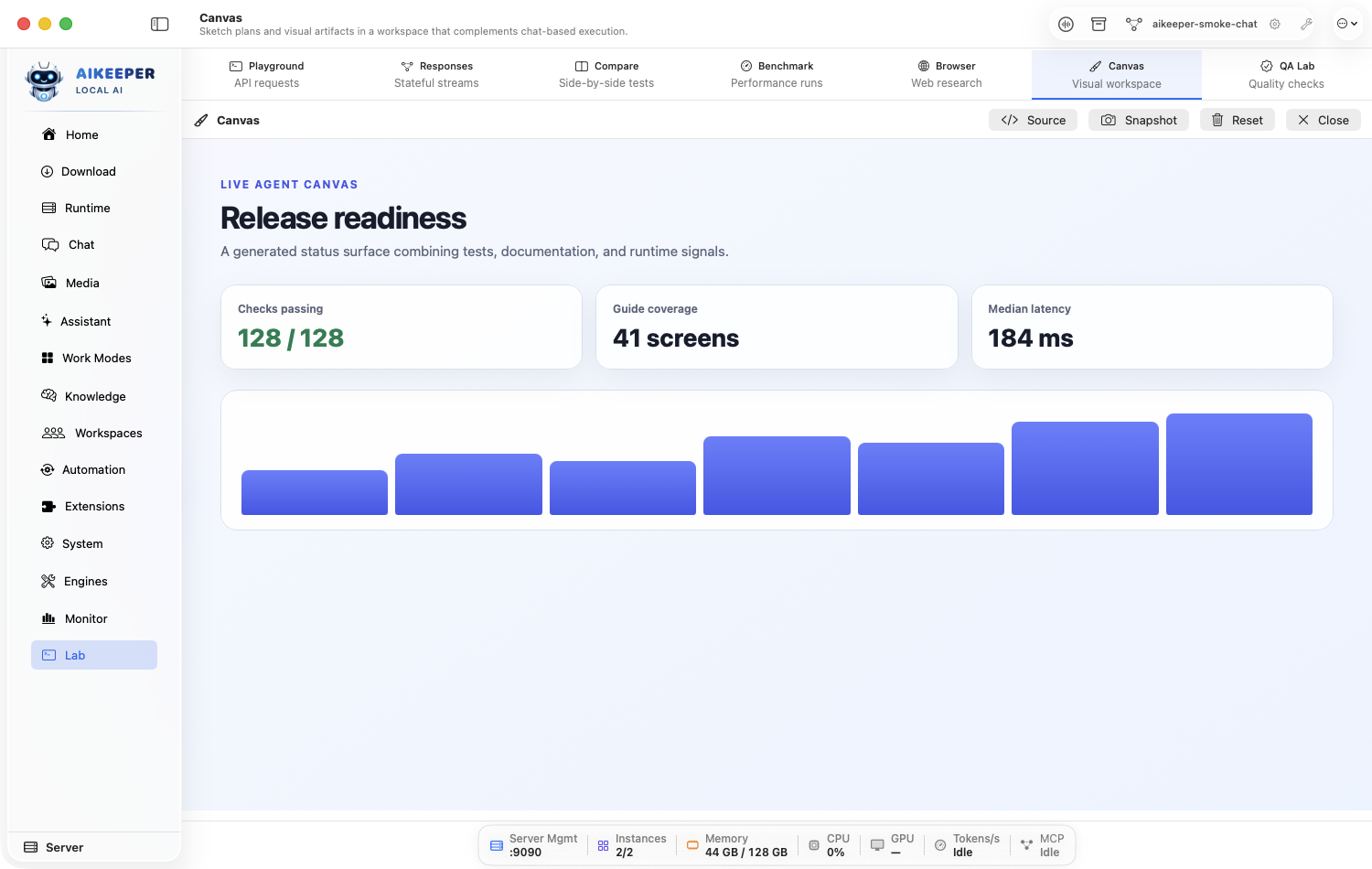
Render live HTML, charts, or interactive output, inspect source, and preserve a known-good snapshot.
Before you start
- HTML/chart/interactive source from Chat, an agent, or your own edit.
Open Chat and choose Canvas from the session tools; create or load the artifact source.
Render/preview it and interact with the important controls.
Open the source view and correct any visible error rather than repeatedly asking the model to regenerate everything.
Create a snapshot when the artifact is working. Make one change, then use history/reset to prove recovery.
Export or hand the artifact to the next workflow only after the snapshot test passes.
You are done when
The artifact renders, key interactions work, source is inspectable, and the known-good snapshot can be restored.Create a QA regression check
Save a focused probe so a model, prompt, route, or workflow change can be tested again later.
Before you start
- A behavior with a clear expected result.
- A stable test input that contains no sensitive production data.
Open Lab > QA Lab and create a suite named for the behavior, not the implementation.
Add one small probe with input, target, expected condition, and useful failure message.
Run it against the known-good setup and save the result.
Temporarily change the test expectation or target so the probe fails, confirming it is capable of detecting a problem.
Restore the correct setup and rerun before relying on the suite.
You are done when
The probe passes in the intended setup, fails in the controlled bad setup, and passes again after restoration.Transcribe, review, and promote local audio
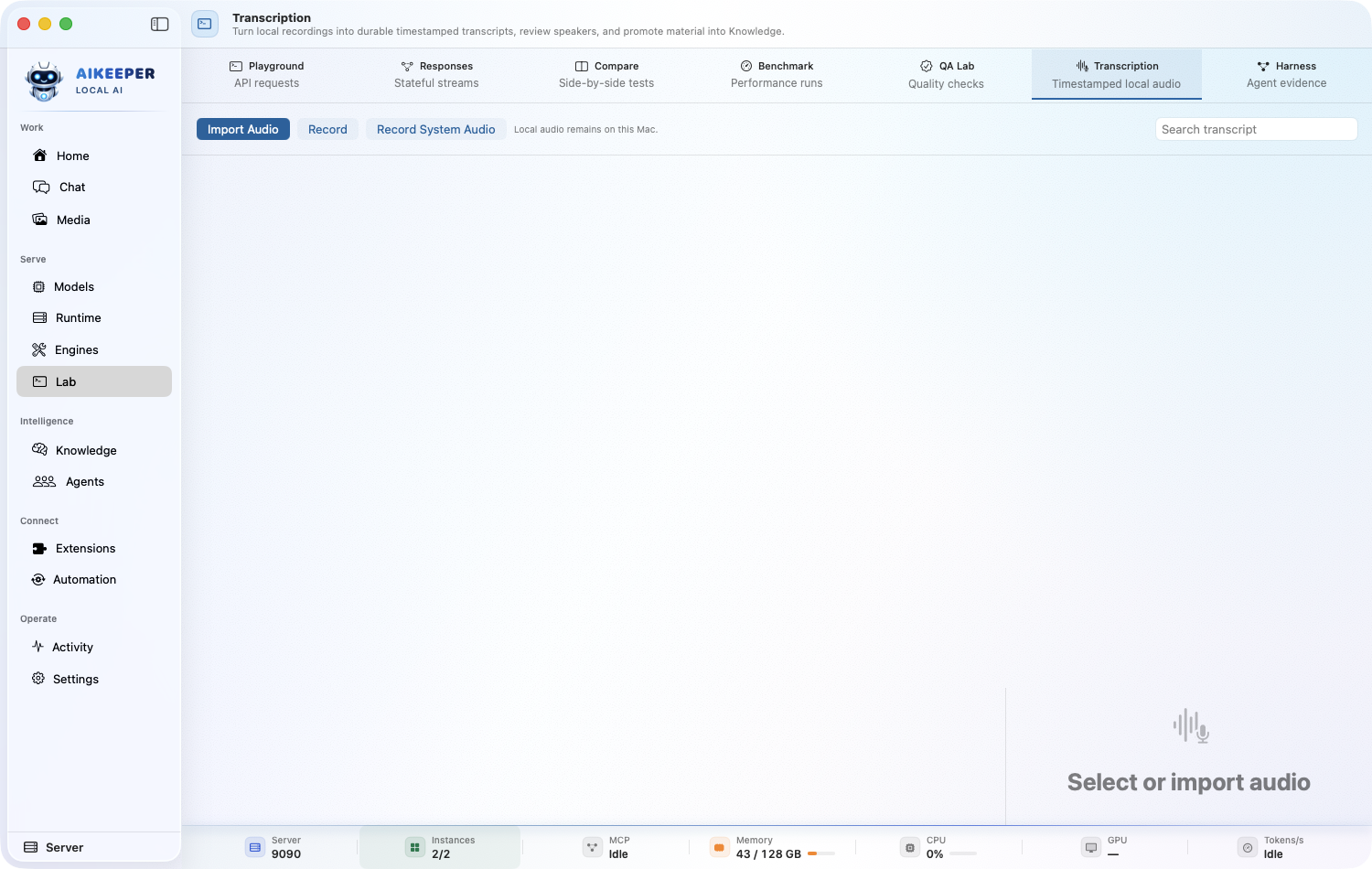
Import, record, or capture audio; review timestamped segments; and move durable material into Knowledge.
Before you start
- The local transcription model selected in Settings.
- Microphone or Screen Recording permission only for the capture method that needs it.
Open Lab > Transcription. Choose Import Audio for a file, Record for the microphone, or system-audio capture when a meeting/app stream is the source.
Stop the recording cleanly and wait for local transcription. The workspace keeps the copied audio, model identifier, waveform, timestamped segments, and automatically grouped chapters.
Play from a segment and correct text or speaker labels when the local acoustic clustering guessed incorrectly.
Generate a summary or action items only after the transcript is readable, then export as text, Markdown, JSON, SRT, or WebVTT.
Choose Add to Knowledge for material that future chats should retrieve; leave one-off recordings in Transcription.
You are done when
The audio plays, timestamps seek correctly, edits persist after reopening the document, and an added transcript becomes searchable in Knowledge.Inspect Harness experiments, traces, and context budgets
Use one evidence surface to connect a regression case to prompt composition, timing spans, tool contracts, and runtime environment state.
Before you start
- At least one Chat or agent request; richer pages appear after experiments and tools have run.
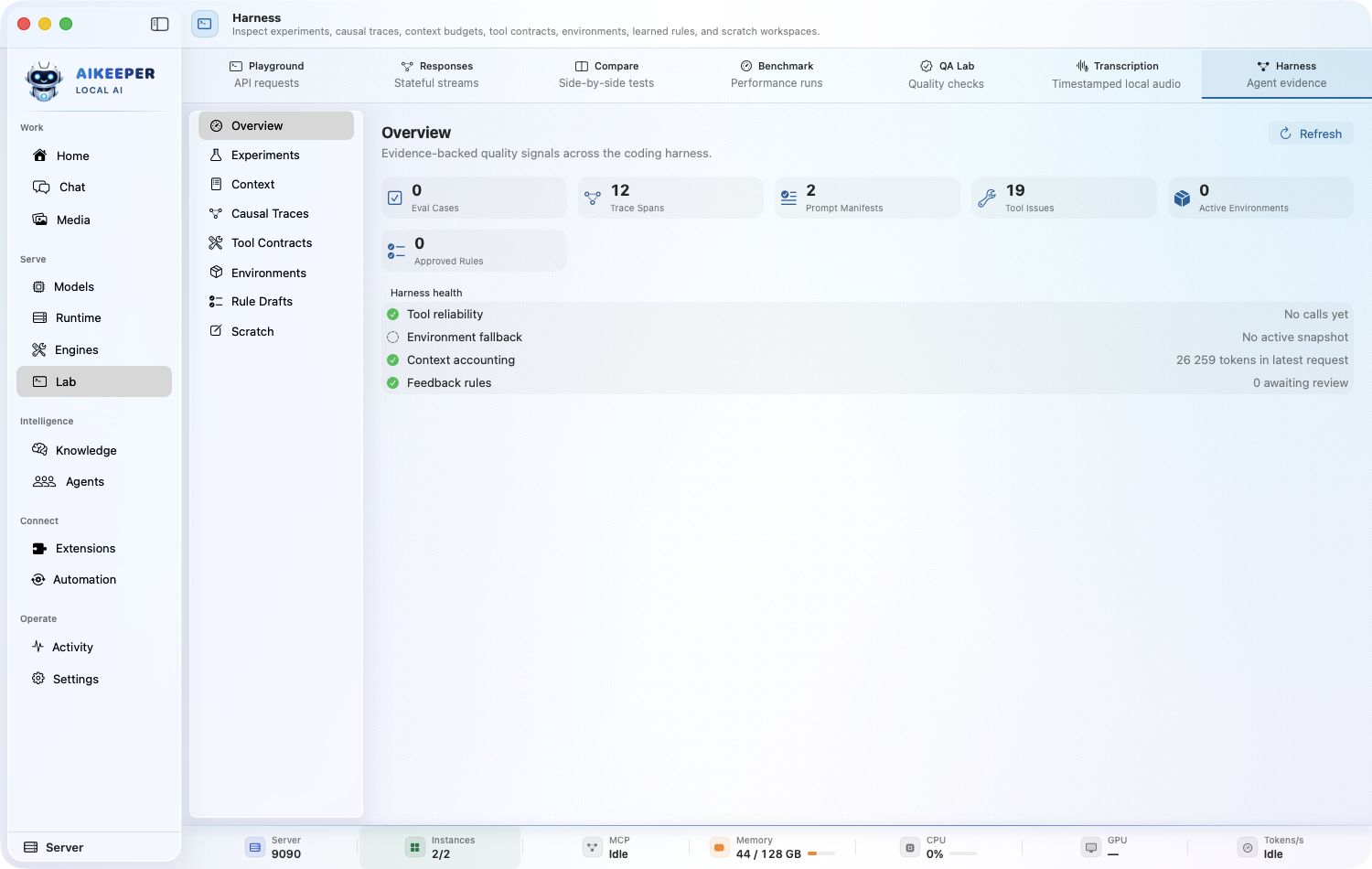
Open Lab > Harness and start at Overview to see regression cases, trace spans, prompt manifests, tool issues, environments, and pending rules.
Use Experiments to compare run counts and recent keep rate for a named case rather than relying on a single anecdotal result.
Open Context and inspect the token share of system, memory, skills, tools, files, and other prompt components. Estimated counts are identified separately from tokenizer counts.
Open Causal Traces to follow the complete span chain and duration/error count; export completed traces to the configured OTel destination only when sharing is intended.
Use Tool Contracts to review lint issues and call reliability, then compare the active environment fingerprint before blaming a model or prompt.
You are done when
You can name the failing case, exact context composition, error span, tool-contract status, and environment fingerprint from recorded evidence.Review learned rules and use a disposable scratch workspace
Keep feedback-derived behavior provisional and prototype risky work outside the real project until explicitly saved.
Before you start
- An open Chat session for scratch creation.
- Evidence attached to any proposed learned rule.
Open Lab > Harness > Rule Drafts and read the draft body, evidence count, and security-sensitive warning before deciding.
Approve a useful rule for 90 days, or reject it. Do not turn one user correction into permanent unreviewed system context.
Open Scratch, give the prototype a clear label, and create the app-managed disposable workspace from the active chat session.
Inspect its isolated path and preview. Choose Save As… only for a result worth keeping; otherwise choose Discard and confirm the exact workspace.
Return to Overview and confirm no security-sensitive rule is pending unintentionally and no abandoned scratch remains ready.