Models, engines, and runtimes
Choose the right files and engine, start from the model library, review publisher and file details, recover downloads, tune against real tasks, manage SSD caches, and make smaller or fine-tuned copies.
Follow the numbered steps for the everyday path. Open Advanced details for compatibility, settings, technical limits, and deeper checks. Times are estimates; large downloads and model loading can take longer.
Screenshots show the real app with illustrative sample data. They show where controls are; example answers, jobs and telemetry are not measured results. Open any image at full size to follow along.
Find one workflow
Filter this collection by name, outcome, provider, engine, channel, mode, or command.
Read the Engines screen
Understand the four groups, the status filters and the rows that are not chat engines, such as Qwen3-TTS and the transcription tools.
Before you start
- Ai Keeper in Server mode.
Open Engines. Rows are grouped under Chat & code, Media & speech, Tools and App integrations. Use the filter for All, Needs you, Installed or Not installed.
Use the filter at the top: All, Needs you (updates and repairs), Installed and Not installed. The number beside each says how many rows match.
Read the small label under an engine’s name. Recommended engines are the usual choices, Specialist engines serve particular model families, and Pick manually engines are used only when you choose them for a runtime.
In Media & speech the label says what the row does: Creates images (mflux), Creates video (LTX Video), Creates music (mlx-audio), Speaks (Qwen3-TTS) and Transcribes (mlx-whisper, Parakeet).
Click any row. The pane on the right shows its status, versions, what uses it and its recent activity, with Install, Repair, Re-check and Versions….
You are done when
You can name the engine your model needs, say whether it is installed, and find its Install or Repair button.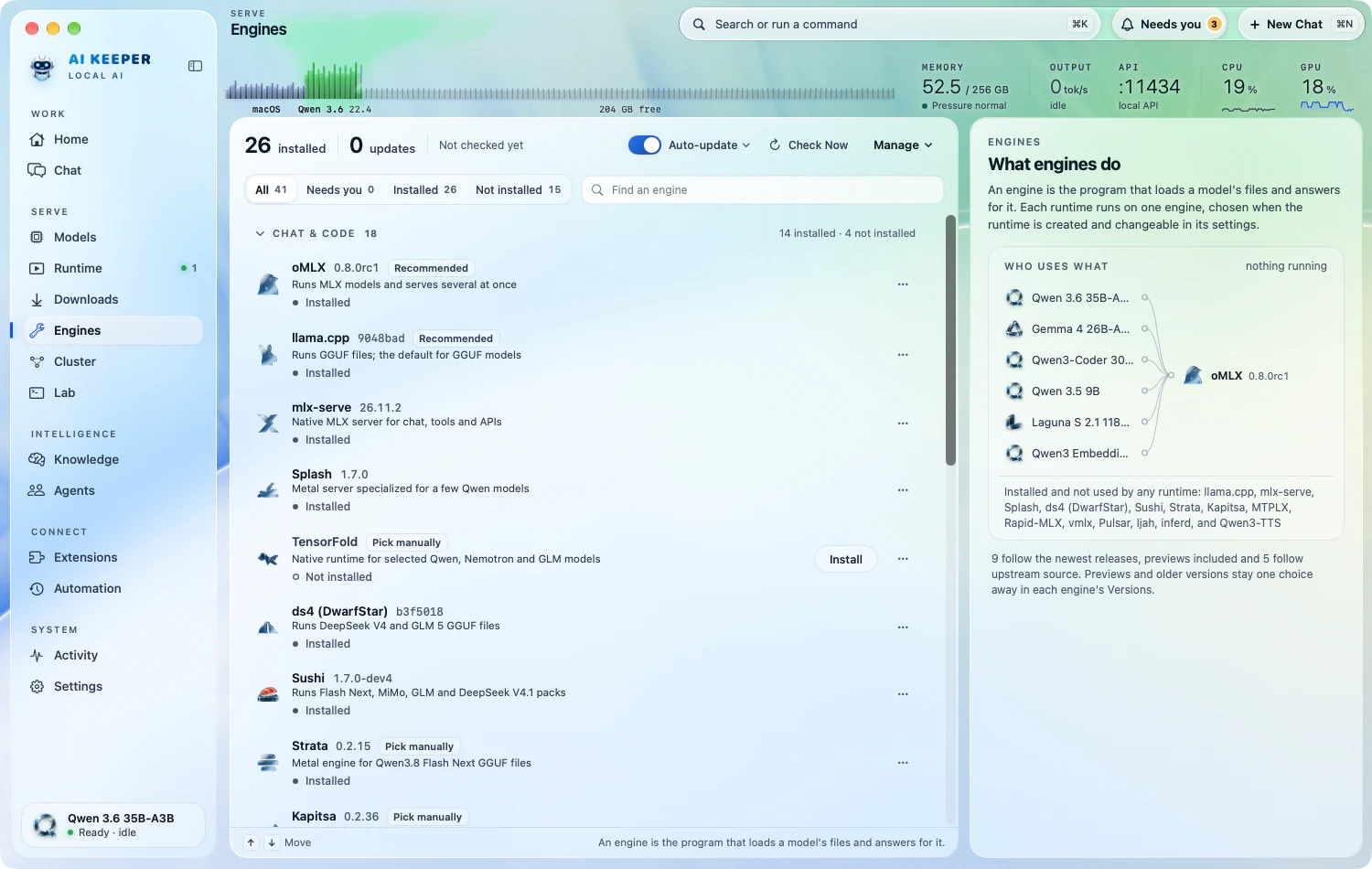

Advanced details
llama.cpp FastMTP is a separate app-managed llama.cpp build listed with the chat engines; it is labelled llama.cpp build and is not a separate engine card in New Runtime.
A row’s name can differ from the engine name used when you create a runtime: Engines lists mlx-audio, New Runtime lists mlx-audio Music.
If something looks wrong
Install or repair the engines you need
Start with the selected model’s engine. Optional core tools can install when the feature needs them.
Before you start
- Internet access.
- Enough disk space for managed tools.
If a model in Models shows Needs engine, choose Get … from its … menu and Engines opens on the right engine. Otherwise open Engines and select the engine yourself. Click Install, or Repair if it is installed but broken.
If you want the optional recommended core tools in advance, use Install Recommended. They are also requested as features need them.
Use Check for Updates for catalog refresh or the selected row’s Re-check. Read its resolved version and health.
For a failure use Output Log from More engine actions, fix the specific missing requirement and re-check the affected engine.
You are done when
The selected model’s engine shows a resolved usable installation, and a small instance test can start.
Advanced details
Engine installation verifies software availability and supported command-line configuration. It does not certify every model or promise faster answers.
Release availability and measured tuning qualification are separate. Latest upstream releases, including previews, remain available; a reviewed older version remains a user choice rather than a release ceiling.
If something looks wrong
Install an optional specialist engine
Add a specialist such as Sushi, Splash/Pulsar, TensorFold, mlx-serve, ds4, OptiQ or MTPLX when the checkpoint or a measured need calls for it.
Before you start
- Know why the engine marked Recommended is not enough for this model.
- Read the engine description and machine requirements first.
Open Engines and search for the specialist by name. Select the matching row and click Install in its inspector. For a batch, choose Install Optional… from the overflow menu.
The Install Optional Dependencies sheet opens with every item already ticked. Click Deselect All, tick only the engine you need, then click Install Selected. For example, ds4 is for supported DeepSeek V4 and GLM GGUF files on high-memory Macs; mlx-vlm is for MLX models that see images; llama.cpp engines need GGUF files.
To choose which version an engine follows, select it and click Versions…. Under Track pick Stable, the newer track (Latest release, which includes prereleases, or Latest source), or Hold one version. Leave your saved choice alone unless you mean to change it.
Open its row after completion and run Re-check.
You are done when
The engine row shows an installed version and a healthy resolved executable or environment.
Advanced details
Some formats are engine-specific: Splash packages bundle their trained draft; Sushi EXL3 packs have family/version constraints; TensorFold supports release-specific checkpoint families. Ordinary MLX compatibility does not establish compatibility with these loaders.
Compare answer quality, reliability, time to useful output and memory for your own task before switching a saved runtime. A new upstream feature or throughput claim is not a measured improvement on your Mac.
If something looks wrong
Control engine updates and versions
Engines update themselves by default. Choose which release track each one follows, hold a version that works, or go back after a bad update.
Before you start
- At least one installed engine.
- Know which runtimes use it: updating or repairing an engine stops them first.
Open Engines. The Auto-update switch controls automatic checking and installation; in a compact window it is under Manage → Automatic updates. The same setting is in Settings → General. Updates wait for the affected runtimes to stop.
Select an engine to open its details. Read the installed version and track there, then click Versions… to inspect available releases and the release-track choices supported by that engine. Newest releases, including prereleases, remain available alongside older choices.
To hold a specific release, select it in Versions and choose Hold or Hold and Install. More choices… opens the full version selection sheet. Holding a version keeps it out of automatic updates without changing saved runtime settings.
To check manually, click Check Now. When updates are available, Update All (…)… opens a review where you choose what to install. For an engine in use, choose whether to wait for its runtimes to stop or stop them and install now.
If an update fails, read the selected engine’s status and offered recovery action, such as Roll Back to … or Repair. Use the page’s Manage → Output Log to read installer output.
You are done when
The selected engine’s details show the version and track you chose, and a runtime using it starts and answers a test prompt.
Advanced details
mlx-lm, mlx-optiq and vLLM-MLX share one track setting. Manage → Release Tracks → All Prerelease / Latest Source… changes every engine with a track choice; the confirmation explains which held versions are released.
Automatic updates skip held versions and never install an engine or tool that is missing.
A newer engine release says nothing about answer quality or speed on your models. Keep a held version until your own comparison supports the change.
If something looks wrong
Review a model’s publisher, license and files
Check the publisher, permitted use, selected format and complete files before starting a model.
Before you start
- A complete downloaded model listed in Models.
- Its upstream repository/model card and an intended use.
Open Models and select the model. Its publisher is shown under the name. Read Overview for what it is good for, its format, size and longest context, and Details for memory fit, capabilities and the model's configuration.
Open Files. It shows where the model is stored, not a list of files: click Show in Finder to see the weights, config and helper files, and Hugging Face Page to compare them with what the publisher lists.
Read the licence. Ai Keeper shows it on the model's page in Downloads, with Open access, no sign-in or Needs sign-in and approval; for a model you already have, use Hugging Face Page. Confirm that your intended commercial, research or redistribution use is permitted.
If the download is incomplete or the files/layout are unexplained, complete or replace it from a known source before starting. Do not treat a plausible model name as provenance.
Use Start only after the selected model and engine match. Test a harmless prompt, then use Lab tests for answer quality.
You are done when
You can identify the publisher/repository, chosen quantization or variant, complete model/helper files and relevant license terms before launching.

Advanced details
Repository provenance, file review and licensing are distinct from model quality and runtime memory admission. A successful download or startup does not certify provenance, licensing suitability or answer quality.
Keep the exact checkpoint/revision and selected quantization with your evidence. Changing or converting weights creates a different evaluation target.
If something looks wrong
Download a model from Hugging Face
Search by task or repository, review MLX/GGUF/Splash/Sushi formats, and download the exact variant you need.
Before you start
- Know whether you need MLX or GGUF.
- For gated models, have the required Hugging Face access.
Open Downloads in the sidebar. Search Hugging Face by name, publisher or link, then narrow by format (Any format, MLX, GGUF, Splash, Sushi) and by task (Chat, Code, Sees images and so on). Only models that fit this Mac is ticked by default and hides models that are too big.
Open the model page and read capabilities, size, quantization, publisher and license. A drafter or vision projector is a helper, not a standalone chat model.
On the Sizes tab download one size, normally the row marked Recommended; each row shows its download size and the memory it needs. A row labelled Speed-up add-on is an optional helper, not a model. The downloader adds recognized matching same-repository helpers where required.
Click Download, or the arrow beside it and Download and Start. Files go to the Download Folder set in Settings > Storage & Downloads (the Change… link on the Downloads disk card opens it). Follow progress under Your downloads. Pause and Remove from Your Downloads keep the partial files; only Delete Download… removes them.
When it is listed under Ready to use, click Show in Models. Click Create to save a runtime with the recommended settings, then Start. To set it up yourself, choose Start with Other Settings… from the model's … menu.
You are done when
The model has a real local path, non-zero size, detected format, and no incomplete-download warning.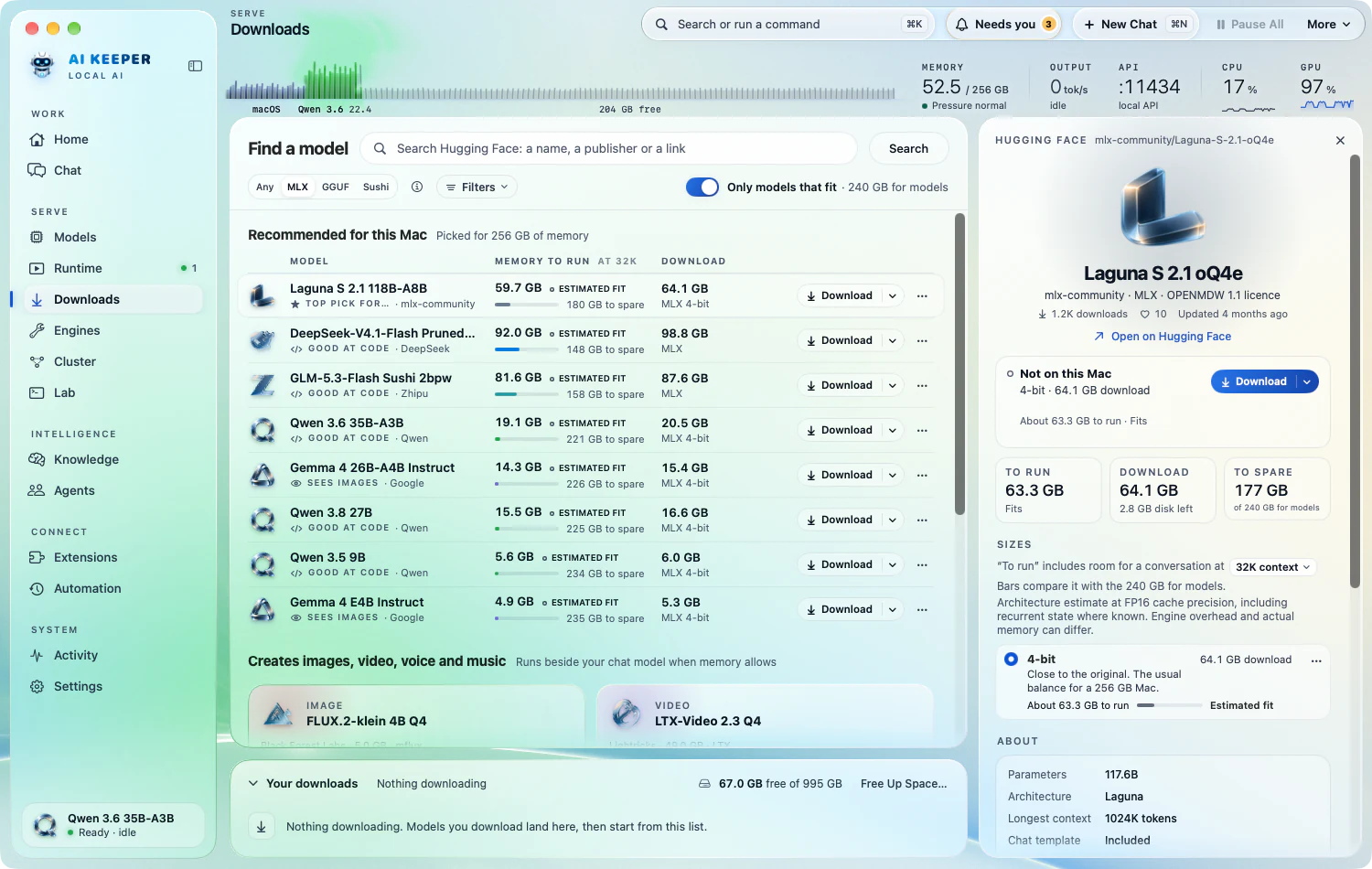

Advanced details
GGUF split shards must form a complete numbered set. Files named .gguf.partN are binary transport pieces and require publisher assembly before import; Ai Keeper does not automatically assemble them.
Recognized DFlash/DSpark/EAGLE-3/MTP companions are paired by checkpoint/format contracts, not by merely being a smaller model. Automatic helper download does not override installed-engine support or memory admission.
If something looks wrong
Start a model or create a runtime
Use Start from Models for the simple path, or create a named runtime when you need explicit roles, ports and engine choices.
Before you start
- A complete model listed in Models.
- Required engine dependencies are healthy.
In Models, find the downloaded model. If the button says Create, click it to save the suggested runtime without leaving Models. When it becomes Start, click it. For your own settings use Start with Other Settings… in the model’s menu.
Alternatively open Runtime and click New Runtime. Leave Where does it run? on On this Mac and choose the model under Model.
Under Engine keep the card marked Recommended for the first run. The summary on the right should read Who can connect: Only this Mac; leave the port alone unless you have a connection plan (it is under Access & network).
Under Context length choose a size marked fits; the suggested one is marked Recommended. Click Create and Start, or Save Without Starting to start it later. Wait until Runtime lists it under Running before sending a request.
If it does not start, select it in Runtime and open Diagnostics and Logs for This Runtime. For chat, confirm it appears in Chat’s model picker; for media, choose it in the corresponding Chat section.
You are done when
Runtime lists it under Running, its Overview tab shows an Address under Connect, and it appears in the relevant model picker.

Advanced details
The default starting context is up to 65,536 tokens, bounded by model capacity and assessed memory fit. This is a preference, not a permanent 64K hard cap; saved settings remain authoritative.
Runtime configurations can share model files but each live configuration consumes resources. Choosing a local engine manually pins your intended backend; Automatic resolves compatibility rather than serving as a speed guarantee.
More example screens


If something looks wrong
Try sharing a model with a simulated Mac
Walk through the link and memory plan using one Mac and a clearly marked simulated peer.
Before you start
- Ai Keeper in Server mode.
- A compatible local model to select in the Model step.
Open Cluster under Serve. In Macs, click Try with a simulated Mac.
Open Cables and Fast link. Look at the source of the readings and the Simulated tag.
In Model, choose a model and read the estimated memory and placement. Compare Automatic and Stack by memory.
Go to Run, start the demonstration and inspect its stages. Look for Simulated and Would use in the run card, then click Stop.
You are done when
The run is marked Simulated and all models stay unloaded by the demonstration. Stop returns the Run page to its stopped state.

Advanced details
In Automatic, the plan can keep a model on one Mac when it fits. Compare that with a shared plan to see how the layer placement and memory budgets change.
Use actual measured link and runtime readings when evaluating a physical setup.
Link two Macs and run one shared model
Pair the Macs, check their connection, choose a model and start the shared runtime.
Before you start
- Two Macs running Ai Keeper in Server mode with a reachable connection.
- Enough model storage and working memory on each Mac, with a compatible engine.
On each Mac open Cluster › Macs. Generate a link code on the Mac you want to add. On the coordinating Mac choose Link beside the discovered Mac or use Add by address, then enter its code.
Open Cables to review negotiated link speeds and run Test speed. In Fast link, read the readiness checks for the transport you want to use and apply any macOS changes it calls for.
In Model, choose the model and sharing method. Review each Mac’s layer assignment and memory. If the app offers Copy for a missing model, wait for the transfer to finish.
Choose Run › Start, wait for the running state, then use Show in Runtime to find the model and send a short check in Chat. Return to Cluster › Run to inspect memory and link traffic or stop it.
You are done when
The linked Macs are connected, Run shows the chosen deployment, and the shared runtime answers a test prompt.

Advanced details
Stack by memory assigns consecutive layers to different Macs. Mirror shares each layer across supported engines and Macs. In Automatic, one Mac may run the entire model if it fits.
oMLX supports compatible MLX weights and uses Remote Login to start its work on the peer. ds4 uses supported DeepSeek or GLM GGUF models. llama.cpp uses supported GGUF and an RPC-capable engine. Fast links and Mirror support depend on the selected engine and hardware.
Run labels total cable traffic and memory used by all apps on each Mac. Cables distinguishes measured speeds, macOS reports and estimates. A simulated run loads no model.
If something looks wrong
Tune a model and compare engines with evidence
Measure settings against quality, speed and memory, then review a separate tuned runtime or apply a supported engine recommendation.
Before you start
- A stopped or editable instance.
- A repeatable prompt or benchmark for comparison.
Open Models, select a chat model and open Improve. Click Tune… under Tune for this Mac to measure candidate settings.
Read the result. Your existing runtime keeps its settings; click Keep as a New Runtime only when the measured tradeoff suits you.
Use Compare under Compare engines to try engines that can open this exact model. Review failures and the recommendation before applying it to a runtime.
Use Lab → Evaluate → Results by model for your real answer-quality tasks, and Performance for repeated TTFT/throughput measurements.
For a manual change, select the runtime in Runtime, open its Settings tab and change one setting. A change that needs a restart waits until you click Apply & Restart. Leave locked fields alone, retest the same workload, and keep the previous usable configuration for comparison.
You are done when
A reviewed candidate starts reliably, your task checks remain acceptable, and recorded quality, useful-output time and memory explain why you prefer it.

Advanced details
Tune/engine comparison is scoped to the tested model, settings, workload and machine. Do not extrapolate a short probe to a full-context or multimodal certification.
Native MTP, speculative drafts, quantized KV and SSD streaming can affect compatibility, memory and latency. Fresh defaults have family/engine qualification rules; preserving saved choices matters more than turning every switch on.
TensorFold needs a supported MLX checkpoint. The comparison skips TensorFold for GGUF models. You can still try an explicit engine selection in New Runtime and read its compatibility guidance and actual startup result.
If something looks wrong
Set up embedding, reranker, vision, STT, or TTS roles
Create specialist instances so routing sends each job to a model designed for it.
Before you start
- A model built for the chosen specialist role.
- A compatible engine installed.
In Models, select the model, read the Good for labels on Overview and read its model card.
Create a runtime for it (Create in Models, or New Runtime in Runtime). There is no role choice in that sheet: Ai Keeper works the role out from the model. Only if requests go to the wrong runtime, select it in Runtime, open Settings, search for Runtime Role and change it from Automatic to Embeddings, Rerank, Multimodal Chat (image input), Audio STT (transcription) or Audio TTS (speech).
Keep the engine marked Recommended unless the model requires a specialist one. Click Create and Start.
Test the matching feature: index a tiny document, run a rerank request in Lab → API Tester, attach an image in Chat, transcribe a short clip, or synthesize one sentence.
You are done when
The role-specific action returns the expected type of output and the instance is not offered as an ordinary chat model unless it truly supports chat.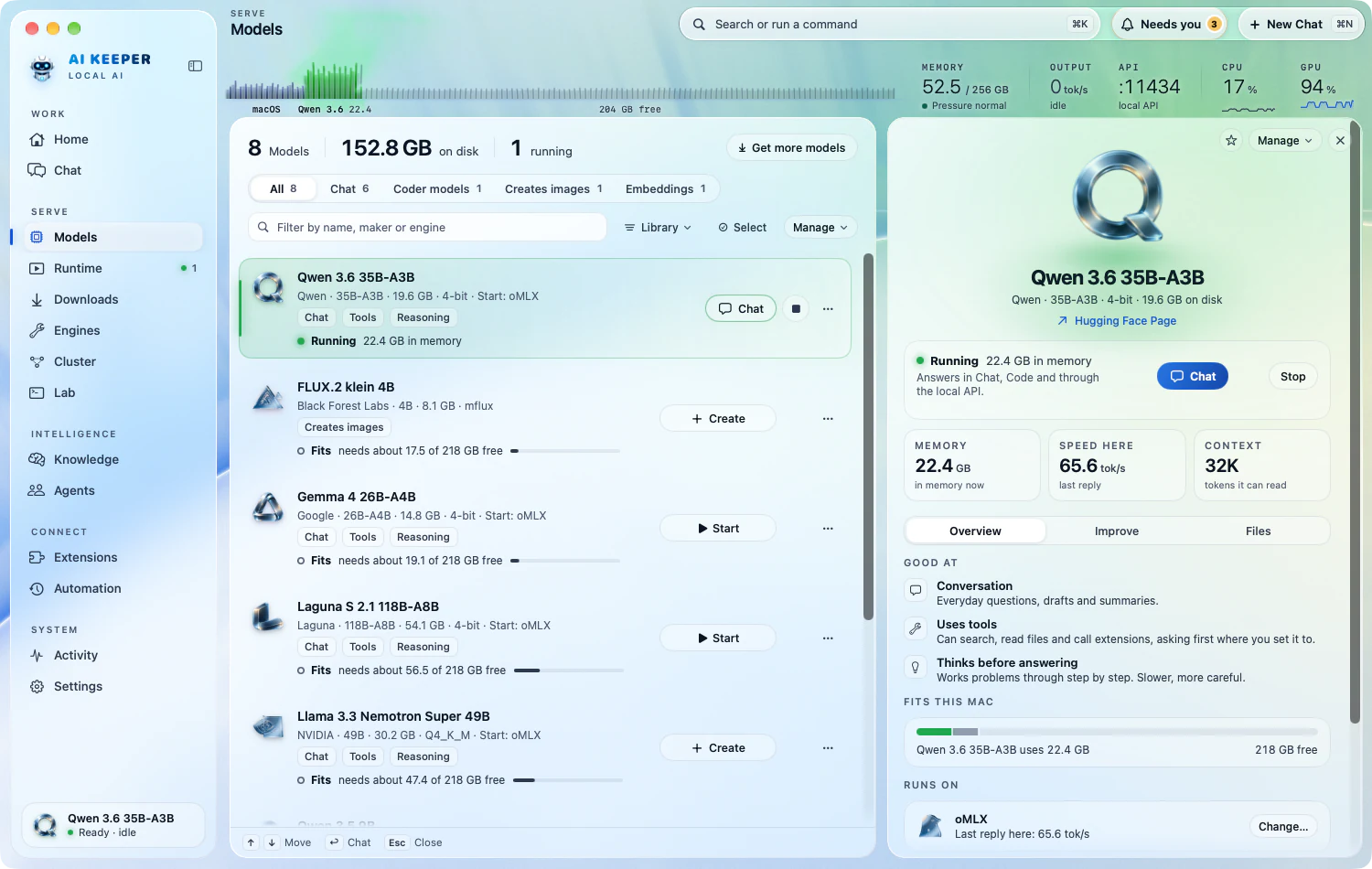

Advanced details
Role is a routing contract, not a conversion. An embedding checkpoint produces vectors, a reranker orders query/document pairs, and STT/TTS provide speech services. Do not assign an ordinary chat model a specialist role and expect new capabilities.
Choose compatible helper runtimes explicitly for retrieval, grounding or speech. Startup does not silently download and recreate missing grounding/reranker instances.
If something looks wrong
Stop, reveal, or delete models safely
Free memory or disk space without removing files still used by running instances.
Before you start
- Know which conversations or automations depend on the model.
To free memory, open Runtime and Stop the exact instance. Its downloaded weights remain available.
To inspect files, open Models, select the model and click Show in Finder. Check the Runtimes list on Overview first: deleting a model also deletes its runtimes.
Use Free Up Space from Models/Runtime/Downloads to inspect unfinished downloads and other storage. Resume completes a recoverable transfer; deletion permanently discards its private partial files.
For engine caches, open Free Up Space and click Clear… beside Engine caches. Stop that engine's runtimes first; the sheet lists each cache with its size before you confirm.
To remove a model, select it and click Delete Model… at the bottom of its panel. The confirmation names the model. Deleting is permanent: running runtimes of that model are stopped and its runtimes are deleted with it. Nothing goes to the Trash; only Leftover files removed with Move to Trash… in Free Up Space do.
You are done when
The stopped process disappears from Activity > More > Monitor, or the deleted model and its runtimes disappear from Models and Runtime.
Advanced details
Engine cache deletion removes reusable prompt/session state and can make the next request slower. It does not delete saved Chat history. Hugging Face download cache is separately labeled because removing it may require downloads again.
The cache cleanup refuses active managed engines and unsafe/symlink roots. Independently started engine processes must also be stopped; the app does not silently stop them.
If something looks wrong
Choose a model that fits your task and Mac
Translate model format, quantization, memory and capability labels into a practical first choice.
Before you start
- Know the task: chat, code, pictures, audio or document retrieval.
Open Downloads and choose the task you need (Chat, Code, Sees images, Creates images and so on). Start with Recommended for this Mac.
For general chat choose a complete MLX or GGUF model. Specialist Splash and Sushi packages require their matching loaders. Media and embedding models serve different tasks.
Read each card's verdict: Fits and About … GB to run. On a model's page the Sizes tab lists every size with its download size and memory. A smaller size needs less memory and can lower answer quality; the context length and other running models also need memory.
Read the license, publisher and capability labels. Pick one modest model first, download it and run a representative small test.
Save that prompt as a test before exploring a bigger model or different quantization.
You are done when
One downloaded model fits the selected task, starts and produces a useful representative answer.
Advanced details
Weight size is only part of RAM demand: KV cache, context, draft companions, batch/concurrency and temporary allocations contribute. The admission estimate is not a measured peak.
Parameter count alone does not determine quality, speed or tools/vision support. Evaluate exact checkpoints and quantizations with matched workload evidence.
Resume or remove an unfinished download
Recover the original transfer instead of downloading an entire repository again.
Before you start
- An interrupted or incomplete model transfer.
Open Downloads and show Your downloads. A stopped download is under Paused or Needs attention. If it is not listed, click Free Up Space… and then Review… beside Unfinished downloads.
Use Resume when the app can recover the original plan. Check the destination and chosen variant before continuing.
Wait for verification and promotion into Library; private partial folders are not runnable models.
Click the trash button (Delete Download…) only when you want to abandon the download for good. The confirmation says how much space it frees.
Start the model only after the complete Library entry appears.
You are done when
The transfer becomes a complete Library model or the explicitly selected partial files are removed.
Advanced details
Resume uses the pinned revision, original destination and exact file plan. An unmatched old plan remains available for cleanup rather than guessing a broader download.
Remove from Your Downloads takes a stopped download off the list and out of the queue but keeps its files on disk, where Free Up Space still finds them. Permanent deletion revalidates the install journal and repository lease, so active work is kept.
Use SSD offload and cache budgets
Choose which storage purpose you need: model residency, reusable prompts or saved sessions.
Before you start
- A compatible runtime; stop it before changing controls that require restart.
- Free space on the cache/model volume.
In Runtime select the runtime and open its Settings tab. Switch the level from Essentials to Everything, or type SSD in Search every setting, and find SSD offload under Start & memory. Read which purposes this engine supports.
Choose a single purpose first. Model expert streaming reduces resident weights; reusable prompts and saved sessions cache work for later requests. They solve different problems.
For a supported budget choose Custom and enter a GB limit. Adjust by disk percentage is an optional way to set that fixed cap.
For supported oMLX MoE models, review Stream model experts from SSD and Keep experts in RAM. Begin conservatively and retain enough RAM for shared weights and active context.
Click Apply & Restart when that bar appears (there is no Save button), then compare memory pressure and answer latency with the same task.
You are done when
The intended setting persists and the restarted runtime works with a measured acceptable memory/latency tradeoff.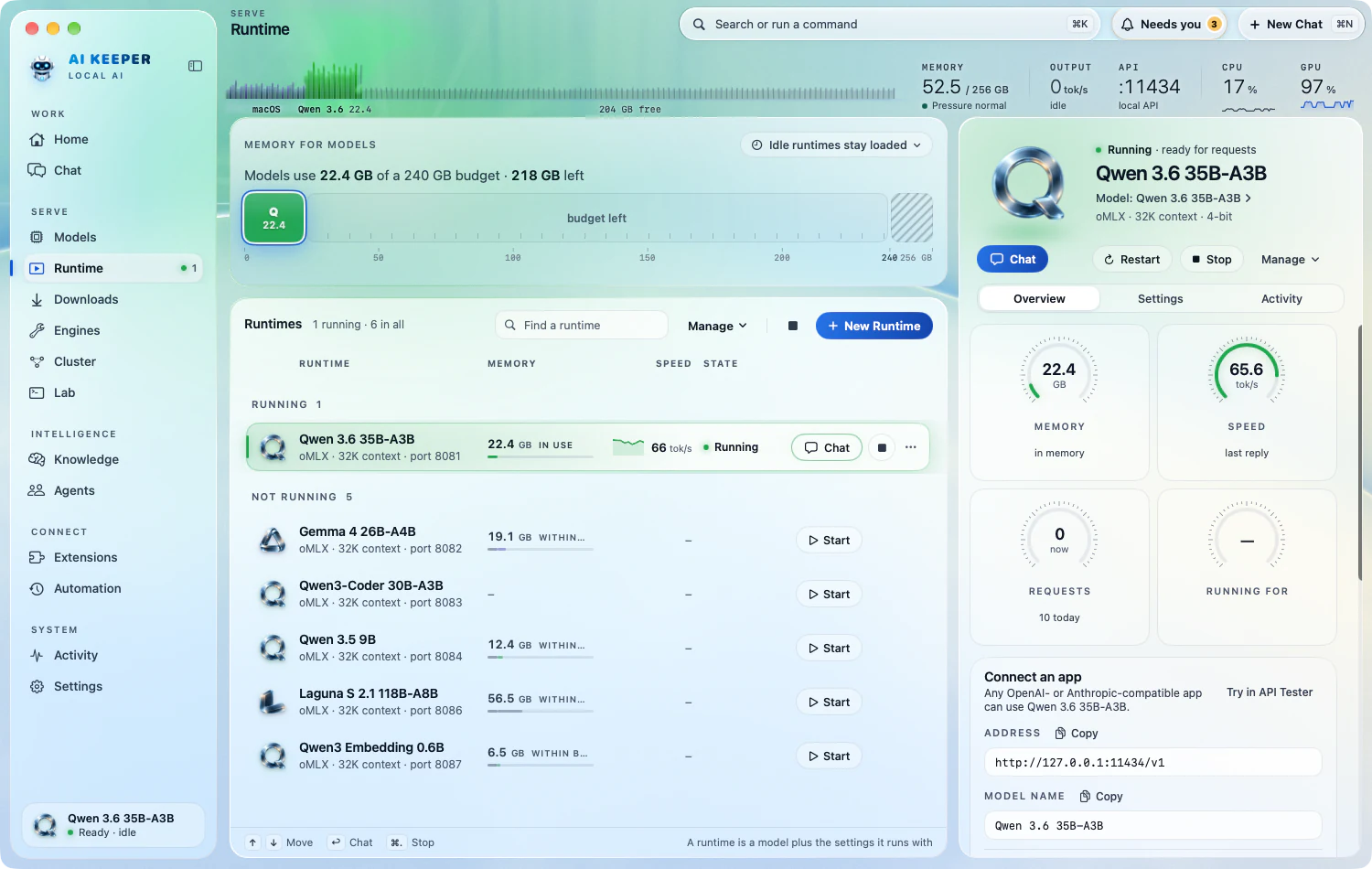

Advanced details
Disk percentages are converted into a saved GiB cap when edited, not continuously recalculated or based on model weight size. Budgets are requests to the backend, not reservations or guarantees.
oMLX experts-only RAM percentage supports Custom values in (0,100]; the backend rounds to whole experts and validates layouts. Expert streaming pauses incompatible MTP/DFlash for that launch while preserving saved settings.
mlx-flash’s weight budget is a planning estimate and does not enforce the engine’s wired limit; its server path does not currently use disk KV. Read unsupported/unused labels rather than assuming every engine has the same controls.
Choose model variants and matched draft helpers
Understand why an extra model file may accelerate or add vision support without being another chat model.
Before you start
- A model repository with variant/helper entries.
Open the model's page in Downloads and choose the size you need on the Sizes tab.
Tell models and helpers apart. In Downloads a helper row is labelled Speed-up add-on. In Models a helper shows Helper, speeds up other models, and has no Start button. Their technical names are MTP, Assistant, DFlash, DSpark, EAGLE-3 and vision projector.
Let recognized matching helpers accompany the selected model. Do not download a random smaller language model as a draft.
To see how a helper is used, select the runtime in Runtime, open Settings and look under Speed for Speculative Decoding. Keep the defaults and any locked setting.
Compare a representative task with the selected compatible path and inspect errors before keeping a manual override.
You are done when
The target is runnable, required companions resolve, and helpers are not offered as standalone chat models.
Advanced details
Pairing preserves checkpoint identity, vision variant and revision. EAGLE-3 needs the expected extract-layer contract; DFlash/DSpark depth follows the trained block where applicable.
Recognition, automatic download and a successful launch do not certify draft acceptance, memory fit at full context or answer quality. Native MTP and engine/family compatibility holds retain precedence.
Make a smaller model copy
Create a separate lower-memory copy and compare it before replacing your daily model.
Before you start
- A complete supported MLX or GGUF source model.
- Disk space for both source and output; a useful evaluation task.
Open Models, select the model and open Improve. Under Make a smaller copy click Convert….
For an MLX model the Convert / Quantize controls open in place: choose a Quantizer, choose Bits (start with 4-bit), check that Output is a new folder (Choose…), then click Convert.
For GGUF the Re-quantize GGUF sheet uses available installed llama.cpp types; an importance-matrix method may require calibration text.
For finer control click Advanced Quantization and choose a Method: DWQ needs a calibration dataset; Dynamic downloads a small calibration text on first use. Read memory-fit warnings before you click Start.
Wait for completion, inspect the new output in Library, start a separate runtime and compare the same saved tasks against the original.
You are done when
A separate complete model copy starts, the source remains available, and your tests disclose its quality/memory tradeoff.
Advanced details
Re-quantizing an already compressed source can compound information loss. A smaller file is not proof that quality loss is minor on your workload.
GGUF choices come from installed quantization tools; shard handling and importance-matrix requirements differ by type. Keep calibration data separate from held-out evaluation.
Fine-tune with reviewed documents or chats
Prepare a dataset, train a separate adapter, and compare held-out tasks before daily use.
Before you start
- A supported local MLX base model and permitted training material.
- Enough disk/memory for the training lane and saved checkpoints.
Open Models, select an MLX model, open its Improve tab and click Prepare & Train… under Teach it your material. The same sheet is also under More at the top of Models.
Choose Build Dataset…. Import documents, saved chats, an existing dataset or manual examples. Generate draft examples only from a route permitted to receive those sources.
Review every included answer against its source. Deduplicate, keep related sources together, inspect train/validation/test splits and export to a new folder.
Open Fine-Tune…, select the supported method/dataset and review learning rate, rank, batch size, sequence length and memory fit. Install the requested trainer when missing.
Start deliberately, watch progress/loss and logs, and Cancel if the run is unsuitable. Inspect saved checkpoints and the final adapter. If Runs shows a save warning, use Retry saving before closing the app.
Use the held-out test split to compare base and adapted models with matched inputs/settings before selecting the adapter for serving.
You are done when
The reviewed dataset and adapter are saved, and a held-out comparison explains whether the adapter improves your task.
Advanced details
Image + text training currently integrates qwen2_vl local checkpoints, one local PNG/JPEG/WebP image in a user question and one assistant text answer. Other architectures/multiple images/audio/video/tool training are rejected in this lane even when upstream has broader support.
LoRA keeps base weights and learns an adapter; a quantized base uses QLoRA. Image-training vision weights remain frozen, and Resume reloads adapter weights with a fresh optimizer rather than exact optimizer-state continuation.
Dataset Builder can preserve/export richer examples than a selected trainer accepts. Exportability is not training compatibility, and lower loss is not held-out answer quality.
If something looks wrong
Use the built-in Apple Intelligence model
Check macOS availability and use its on-device text model without installing a separate engine process.
Before you start
- A Mac/macOS configuration whose Apple Intelligence model is available. Read the status rather than assuming the app minimum OS enables this optional feature.
Open Runtime and find the Apple Intelligence row, which is pinned at the top. If you hid it, open Manage at the top of Runtime and choose Restore Apple Intelligence.
Open the row's … menu, choose Edit Connection… and read Status. Click Open System Settings when the status says Apple Intelligence needs enabling or setup.
Read the Managed by macOS fields. Leave unavailable engine, context, hardware and image controls to the system.
Choose the available Apple Intelligence route in Chat and send a short text task. Confirm the result and any explicit framework limitation.
If you want memory or Calendar, opt in deliberately and grant the requested Calendar read access. Test one harmless question before using personal data.
You are done when
The availability status is ready, the selected route answers a short text request, and optional personal-data tools reflect your choices.
Advanced details
Apple Intelligence runs inside macOS without a separate model-server port. The editor labels macOS-managed controls so you can distinguish what you can change from what the system manages.
This on-device model is text-only in the current integration; it does not accept arbitrary adapters or become a system-wide Siri provider for your downloaded models. Framework availability, context and guardrails remain authoritative.
Built-in date/time and safe math are distinct from opt-in memory/Calendar. Calendar stays hidden until read access exists; client-supplied OpenAI tools use the proxy’s supported bridge rather than bypassing tool policy.
Teach a vision model with reviewed image-and-answer examples
Train a separate adapter on one-image questions, then compare it against the original model.
Before you start
- A complete local qwen2_vl checkpoint supported by the current image trainer.
- A reviewed dataset folder with train.jsonl, optional validation/test files and local PNG, JPEG or WebP images.
- Sufficient memory and disk for the training run and checkpoints.
Open the model’s Improve tab, choose Prepare & Train…, then Fine-Tune…. Under Training data, choose Image + text and use Install Image Trainer when requested.
Choose the prepared dataset folder. Each example needs one user image and question plus one assistant text answer. Images must be inside that folder; remote URLs and missing files cannot be used.
Review the base model, learning rate, rank, batch size, sequence length and checkpoint interval. Keep independent images for validation and the final held-out comparison.
Start the run and follow progress. Cancellation keeps saved checkpoints. If you continue from weights, account for the fresh optimizer rather than assuming exact training-state continuation.
Ensure the run record saves successfully, then compare the base model and adapted model on the same held-out images and prompts. Test both useful improvements and ordinary questions you do not want to degrade.
You are done when
The adapter and run record are saved, and matched held-out examples show whether it improves the intended image questions.
Advanced details
LoRA learns separate adapter weights while retaining the base model. A quantized base uses QLoRA; vision weights remain frozen in this image-and-text lane.
Keep the unmodified base as your comparison. Useful evidence is accuracy on unseen images and retained general behavior, not a claim that every fine-tune improves every task.
If something looks wrong
Run a model with oMLX
The general local MLX route for compatible chat, tool and supported multimodal checkpoints. In Engines this engine is labelled Recommended; it opens MLX models.
Before you start
- A model compatible with MLX.
- Enough free storage and unified memory for the selected model.
- Ai Keeper is running in Server mode.
Open Engines, search for oMLX, then select the matching row and click Install or Repair. Wait for Installed.
The engine runs the model files. You need both for a local runtime.
Open Downloads and download one model explicitly compatible with MLX. On its page read the publisher, the Model card, the licence and the size you choose on Sizes.
Open Runtime, click New Runtime, choose the model, then click the oMLX card under Engine. Choose an engine by hand only because this walkthrough is testing this exact one; compatibility advice explains the expected fit. Manual selection and Start remain available for unverified combinations; missing required files or runtimes still need attention.
Review the proposed context/memory settings and preserve saved or locked choices. Use measured Tune/Compare workflows when you are evaluating a new configuration.
Click Create and Start and wait until Runtime lists it under Running. Then send Reply with exactly: engine route ready in Chat. Read the engine under How it runs in Runtime rather than asking the model to identify its host.
You are done when
Runtime lists the runtime under Running with oMLX as its engine, Chat returns an answer, and Diagnostics shows nothing under Skipped / Unsupported Launch Flags.
Advanced details
A useful starting point for compatible MLX chat models. Optional vision, tools, acceleration and memory-saving controls still depend on the model and installed release.
Keep saved settings for an established workload. Use Optimize to compare answer quality, reliability, speed and memory before adopting a different setup.
Latest upstream releases, including prereleases, are offered independently of tuning qualification. Preserve explicit saved versions/settings and compare quality, reliability and speed on your own task before switching. Your selected release and the result of your own test are what matter for everyday use.
If something looks wrong
Run a model with mlx-serve
Use compatible local models for chat, tools and connected API clients; optional acceleration depends on your model and release. In Engines this engine is labelled Specialist; it opens MLX (GGUF by manual choice) models.
Before you start
- A model compatible with MLX (GGUF by manual choice).
- Enough free storage and unified memory for the selected model.
- Ai Keeper is running in Server mode.
Open Engines, search for mlx-serve, then select the matching row and click Install or Repair. Wait for Installed.
The engine runs the model files. You need both for a local runtime.
Open Downloads and download one model explicitly compatible with MLX (GGUF by manual choice). On its page read the publisher, the Model card, the licence and the size you choose on Sizes.
Open Runtime, click New Runtime, choose the model, then click the mlx-serve card under Engine. Choose an engine by hand only because this walkthrough is testing this exact one; compatibility advice explains the expected fit. Manual selection and Start remain available for unverified combinations; missing required files or runtimes still need attention.
Review the proposed context/memory settings and preserve saved or locked choices. Use measured Tune/Compare workflows when you are evaluating a new configuration.
Click Create and Start and wait until Runtime lists it under Running. Then send Reply with exactly: engine route ready in Chat. Read the engine under How it runs in Runtime rather than asking the model to identify its host.
You are done when
Runtime lists the runtime under Running with mlx-serve as its engine, Chat returns an answer, and Diagnostics shows nothing under Skipped / Unsupported Launch Flags.
Advanced details
Use the selected model for chat and compatible client requests. Optional acceleration needs a matching model; a visible control does not prove it is active.
Check a short answer, a long prompt and any tools or images you actually need before making this your everyday engine.
Latest upstream releases, including prereleases, are offered independently of tuning qualification. Preserve explicit saved versions/settings and compare quality, reliability and speed on your own task before switching. Your selected release and the result of your own test are what matter for everyday use.
If something looks wrong
Run a model with mlx-optiq
Run compatible OptiQ models with memory-saving options, optional acceleration and supported adapters or vision. In Engines this engine is labelled Specialist; it opens MLX / OptiQ models.
Before you start
- A model compatible with MLX / OptiQ.
- Enough free storage and unified memory for the selected model.
- Ai Keeper is running in Server mode.
Open Engines, search for mlx-optiq, then select the matching row and click Install or Repair. Wait for Installed.
The engine runs the model files. You need both for a local runtime.
Open Downloads and download one model explicitly compatible with MLX / OptiQ. On its page read the publisher, the Model card, the licence and the size you choose on Sizes.
Open Runtime, click New Runtime, choose the model, then click the mlx-optiq card under Engine. Choose an engine by hand only because this walkthrough is testing this exact one; compatibility advice explains the expected fit. Manual selection and Start remain available for unverified combinations; missing required files or runtimes still need attention.
Review the proposed context/memory settings and preserve saved or locked choices. Use measured Tune/Compare workflows when you are evaluating a new configuration.
Click Create and Start and wait until Runtime lists it under Running. Then send Reply with exactly: engine route ready in Chat. Read the engine under How it runs in Runtime rather than asking the model to identify its host.
You are done when
Runtime lists the runtime under Running with mlx-optiq as its engine, Chat returns an answer, and Diagnostics shows nothing under Skipped / Unsupported Launch Flags.
Advanced details
Smaller compatible weights and cache settings can help a model fit in memory. Compare the answers as well as memory use when changing precision.
Adapters must match their base model. Vision needs the appropriate model assets; it is not added to every text model by choosing this engine.
Latest upstream releases, including prereleases, are offered independently of tuning qualification. Preserve explicit saved versions/settings and compare quality, reliability and speed on your own task before switching. Your selected release and the result of your own test are what matter for everyday use.
If something looks wrong
Run a model with ds4 (DwarfStar)
Serving for supported DeepSeek V4 Flash/PRO and GLM 5.2/5.3 GGUF files, with DSML tools and a compressed disk-backed cache. In Engines this engine is labelled Specialist; it opens DeepSeek V4 / GLM 5.x GGUF models.
Before you start
- A model compatible with DeepSeek V4 / GLM 5.x GGUF.
- Enough free storage and unified memory for the selected model.
- Ai Keeper is running in Server mode.
Open Engines, search for ds4 (DwarfStar), then select the matching row and click Install or Repair. Wait for Installed.
The engine runs the model files. You need both for a local runtime.
Open Downloads and download one model explicitly compatible with DeepSeek V4 / GLM 5.x GGUF. On its page read the publisher, the Model card, the licence and the size you choose on Sizes.
Open Runtime, click New Runtime, choose the model, then click the ds4 (DwarfStar) card under Engine. Choose an engine by hand only because this walkthrough is testing this exact one; compatibility advice explains the expected fit. Manual selection and Start remain available for unverified combinations; missing required files or runtimes still need attention.
Review the proposed context/memory settings and preserve saved or locked choices. Use measured Tune/Compare workflows when you are evaluating a new configuration.
Click Create and Start and wait until Runtime lists it under Running. Then send Reply with exactly: engine route ready in Chat. Read the engine under How it runs in Runtime rather than asking the model to identify its host.
You are done when
Runtime lists the runtime under Running with ds4 (DwarfStar) as its engine, Chat returns an answer, and Diagnostics shows nothing under Skipped / Unsupported Launch Flags.
Advanced details
Large DeepSeek and GLM models can require substantial memory and SSD space. Use the estimates for the selected files and confirm actual memory pressure during your task.
Streaming and caching can change loading time and response speed. Keep the working profile, test one change at a time and inspect launch diagnostics when an option is unavailable.
Latest upstream releases, including prereleases, are offered independently of tuning qualification. Preserve explicit saved versions/settings and compare quality, reliability and speed on your own task before switching. Your selected release and the result of your own test are what matter for everyday use.
If something looks wrong
Run a model with Splash
Dedicated serving for Qwen3.8 and Qwen3.6 Splash packages, which ship a target model together with a matched DFlash draft for speculative decoding. In Engines this engine is labelled Specialist; it opens Splash package models.
Before you start
- A model compatible with Splash package.
- Enough free storage and unified memory for the selected model.
- Ai Keeper is running in Server mode.
Open Engines, search for Splash, then select the matching row and click Install or Repair. Wait for Installed.
The engine runs the model files. You need both for a local runtime.
Open Downloads and download one model explicitly compatible with Splash package. On its page read the publisher, the Model card, the licence and the size you choose on Sizes.
Open Runtime, click New Runtime, choose the model, then click the Splash card under Engine. Choose an engine by hand only because this walkthrough is testing this exact one; compatibility advice explains the expected fit. Manual selection and Start remain available for unverified combinations; missing required files or runtimes still need attention.
Review the proposed context/memory settings and preserve saved or locked choices. Use measured Tune/Compare workflows when you are evaluating a new configuration.
Click Create and Start and wait until Runtime lists it under Running. Then send Reply with exactly: engine route ready in Chat. Read the engine under How it runs in Runtime rather than asking the model to identify its host.
You are done when
Runtime lists the runtime under Running with Splash as its engine, Chat returns an answer, and Diagnostics shows nothing under Skipped / Unsupported Launch Flags.
Advanced details
Use the complete Splash model package with its matched draft. A standalone model of the same family is not necessarily an equivalent package.
Judge responsiveness on your Mac and task. Speculative decoding is an acceleration technique, not evidence that answers are more accurate.
Latest upstream releases, including prereleases, are offered independently of tuning qualification. Preserve explicit saved versions/settings and compare quality, reliability and speed on your own task before switching. Your selected release and the result of your own test are what matter for everyday use.
If something looks wrong
Run a model with Pulsar
A local engine for supported MLX and GGUF checkpoints. Older held releases use matching legacy Splash packs. In Engines this engine is labelled Pick manually; it opens Compatible MLX / GGUF models.
Before you start
- A model compatible with Compatible MLX / GGUF.
- Enough free storage and unified memory for the selected model.
- Ai Keeper is running in Server mode.
Open Engines, search for Pulsar, then select the matching row and click Install or Repair. Wait for Installed.
The engine runs the model files. You need both for a local runtime.
Open Downloads and download one model explicitly compatible with Compatible MLX / GGUF. On its page read the publisher, the Model card, the licence and the size you choose on Sizes.
Open Runtime, click New Runtime, choose the model, then click the Pulsar card under Engine. Choose an engine by hand only because this walkthrough is testing this exact one; compatibility advice explains the expected fit. Manual selection and Start remain available for unverified combinations; missing required files or runtimes still need attention.
Review the proposed context/memory settings and preserve saved or locked choices. Use measured Tune/Compare workflows when you are evaluating a new configuration.
Click Create and Start and wait until Runtime lists it under Running. Then send Reply with exactly: engine route ready in Chat. Read the engine under How it runs in Runtime rather than asking the model to identify its host.
You are done when
Runtime lists the runtime under Running with Pulsar as its engine, Chat returns an answer, and Diagnostics shows nothing under Skipped / Unsupported Launch Flags.
Advanced details
Pulsar is the current name of FastKernel. Your saved engine choice persists. Official Splash is a separate engine.
Use a complete MLX or GGUF checkpoint supported by your Pulsar release. When you hold an older Pulsar release that expects a Splash pack, keep the original pack and its matching draft.
Latest upstream releases, including prereleases, are offered independently of tuning qualification. Preserve explicit saved versions/settings and compare quality, reliability and speed on your own task before switching. Your selected release and the result of your own test are what matter for everyday use.
If something looks wrong
Run a model with Sushi
Serving for the supported Qwen3.8 Flash Next and MiMo-V2.6-Flash families, including Sushi EXL3 expert packs. In Engines this engine is labelled Specialist; it opens Sushi / compatible MLX models.
Before you start
- A model compatible with Sushi / compatible MLX.
- Enough free storage and unified memory for the selected model.
- Ai Keeper is running in Server mode.
Open Engines, search for Sushi, then select the matching row and click Install or Repair. Wait for Installed.
The engine runs the model files. You need both for a local runtime.
Open Downloads and download one model explicitly compatible with Sushi / compatible MLX. On its page read the publisher, the Model card, the licence and the size you choose on Sizes.
Open Runtime, click New Runtime, choose the model, then click the Sushi card under Engine. Choose an engine by hand only because this walkthrough is testing this exact one; compatibility advice explains the expected fit. Manual selection and Start remain available for unverified combinations; missing required files or runtimes still need attention.
Review the proposed context/memory settings and preserve saved or locked choices. Use measured Tune/Compare workflows when you are evaluating a new configuration.
Click Create and Start and wait until Runtime lists it under Running. Then send Reply with exactly: engine route ready in Chat. Read the engine under How it runs in Runtime rather than asking the model to identify its host.
You are done when
Runtime lists the runtime under Running with Sushi as its engine, Chat returns an answer, and Diagnostics shows nothing under Skipped / Unsupported Launch Flags.
Advanced details
Use a complete Sushi-compatible model package. Different releases can support different families and quantizations.
A model loading successfully does not establish tool reliability or long-context quality. Try your representative prompts before switching a saved runtime.
Latest upstream releases, including prereleases, are offered independently of tuning qualification. Preserve explicit saved versions/settings and compare quality, reliability and speed on your own task before switching. Your selected release and the result of your own test are what matter for everyday use.
If something looks wrong
Run a model with Strata
An optional local engine for supported Qwen3.8-Flash-Next GGUF models, including release-dependent Gyro exports. In Engines this engine is labelled Pick manually; it opens Qwen3.8-Flash-Next GGUF models.
Before you start
- A model compatible with Qwen3.8-Flash-Next GGUF.
- Enough free storage and unified memory for the selected model.
- Ai Keeper is running in Server mode.
Open Engines, search for Strata, then select the matching row and click Install or Repair. Wait for Installed.
The engine runs the model files. You need both for a local runtime.
Open Downloads and download one model explicitly compatible with Qwen3.8-Flash-Next GGUF. On its page read the publisher, the Model card, the licence and the size you choose on Sizes.
Open Runtime, click New Runtime, choose the model, then click the Strata card under Engine. Choose an engine by hand only because this walkthrough is testing this exact one; compatibility advice explains the expected fit. Manual selection and Start remain available for unverified combinations; missing required files or runtimes still need attention.
Review the proposed context/memory settings and preserve saved or locked choices. Use measured Tune/Compare workflows when you are evaluating a new configuration.
Click Create and Start and wait until Runtime lists it under Running. Then send Reply with exactly: engine route ready in Chat. Read the engine under How it runs in Runtime rather than asking the model to identify its host.
You are done when
Runtime lists the runtime under Running with Strata as its engine, Chat returns an answer, and Diagnostics shows nothing under Skipped / Unsupported Launch Flags.
Advanced details
Install from Engines, then select Strata manually in a runtime. Its first Start may prepare files and download supporting model assets; inspect progress before treating it as stalled.
Keep all model shards and reserve space for preparation. Sampling, vision and format support depend on the selected release; an older Mac release used greedy replies regardless of sampling settings. Test the behavior you need.
Latest upstream releases, including prereleases, are offered independently of tuning qualification. Preserve explicit saved versions/settings and compare quality, reliability and speed on your own task before switching. Your selected release and the result of your own test are what matter for everyday use.
If something looks wrong
Run a model with Ijah
A local engine for supported Qwen3.8 Flash Next and Swift-1.5 packs. In Engines this engine is labelled Pick manually; it opens Ijah EXL3 pack models.
Before you start
- A model compatible with Ijah EXL3 pack.
- Enough free storage and unified memory for the selected model.
- Ai Keeper is running in Server mode.
Open Engines, search for Ijah, then select the matching row and click Install or Repair. Wait for Installed.
The engine runs the model files. You need both for a local runtime.
Open Downloads and download one model explicitly compatible with Ijah EXL3 pack. On its page read the publisher, the Model card, the licence and the size you choose on Sizes.
Open Runtime, click New Runtime, choose the model, then click the Ijah card under Engine. Choose an engine by hand only because this walkthrough is testing this exact one; compatibility advice explains the expected fit. Manual selection and Start remain available for unverified combinations; missing required files or runtimes still need attention.
Review the proposed context/memory settings and preserve saved or locked choices. Use measured Tune/Compare workflows when you are evaluating a new configuration.
Click Create and Start and wait until Runtime lists it under Running. Then send Reply with exactly: engine route ready in Chat. Read the engine under How it runs in Runtime rather than asking the model to identify its host.
You are done when
Runtime lists the runtime under Running with Ijah as its engine, Chat returns an answer, and Diagnostics shows nothing under Skipped / Unsupported Launch Flags.
Advanced details
Download the complete pack in Downloads. Full downloads include required companion setup. If the table could not be downloaded, use Resume to finish setup.
Verify that the pack starts and gives a correct short answer before adding an optional draft or comparing extended context.
Latest upstream releases, including prereleases, are offered independently of tuning qualification. Preserve explicit saved versions/settings and compare quality, reliability and speed on your own task before switching. Your selected release and the result of your own test are what matter for everyday use.
If something looks wrong
Run a model with inferd
Serve multiple simultaneous requests from agents or API clients using the same model. In Engines this engine is labelled Pick manually; it opens Compatible MLX models.
Before you start
- A model compatible with Compatible MLX.
- Enough free storage and unified memory for the selected model.
- Ai Keeper is running in Server mode.
Open Engines, search for inferd, then select the matching row and click Install or Repair. Wait for Installed.
The engine runs the model files. You need both for a local runtime.
Open Downloads and download one model explicitly compatible with Compatible MLX. On its page read the publisher, the Model card, the licence and the size you choose on Sizes.
Open Runtime, click New Runtime, choose the model, then click the inferd card under Engine. Choose an engine by hand only because this walkthrough is testing this exact one; compatibility advice explains the expected fit. Manual selection and Start remain available for unverified combinations; missing required files or runtimes still need attention.
Review the proposed context/memory settings and preserve saved or locked choices. Use measured Tune/Compare workflows when you are evaluating a new configuration.
Click Create and Start and wait until Runtime lists it under Running. Then send Reply with exactly: engine route ready in Chat. Read the engine under How it runs in Runtime rather than asking the model to identify its host.
You are done when
Runtime lists the runtime under Running with inferd as its engine, Chat returns an answer, and Diagnostics shows nothing under Skipped / Unsupported Launch Flags.
Advanced details
Try a single request first. Then submit several independent requests together and compare completions, latency and memory with your current engine.
In Runtime, Automatic Max Concurrent Requests lets inferd use its available slots. An explicit cap still applies. The engine can spill its prompt cache to SSD when configured.
Latest upstream releases, including prereleases, are offered independently of tuning qualification. Preserve explicit saved versions/settings and compare quality, reliability and speed on your own task before switching. Your selected release and the result of your own test are what matter for everyday use.
If something looks wrong
Run a model with Kapitsa
A local engine for compatible coding and chat models with reusable prompt caches and draft acceleration on supported families. In Engines this engine is labelled Pick manually; it opens Kapitsa-supported checkpoint models.
Before you start
- A model compatible with Kapitsa-supported checkpoint.
- Enough free storage and unified memory for the selected model.
- Ai Keeper is running in Server mode.
Open Engines, search for Kapitsa, then select the matching row and click Install or Repair. Wait for Installed.
The engine runs the model files. You need both for a local runtime.
Open Downloads and download one model explicitly compatible with Kapitsa-supported checkpoint. On its page read the publisher, the Model card, the licence and the size you choose on Sizes.
Open Runtime, click New Runtime, choose the model, then click the Kapitsa card under Engine. Choose an engine by hand only because this walkthrough is testing this exact one; compatibility advice explains the expected fit. Manual selection and Start remain available for unverified combinations; missing required files or runtimes still need attention.
Review the proposed context/memory settings and preserve saved or locked choices. Use measured Tune/Compare workflows when you are evaluating a new configuration.
Click Create and Start and wait until Runtime lists it under Running. Then send Reply with exactly: engine route ready in Chat. Read the engine under How it runs in Runtime rather than asking the model to identify its host.
You are done when
Runtime lists the runtime under Running with Kapitsa as its engine, Chat returns an answer, and Diagnostics shows nothing under Skipped / Unsupported Launch Flags.
Advanced details
Start with a compatible checkpoint. Compare a representative coding task and then repeat it with similar context to see how prompt reuse affects your own workload.
Kapitsa starts privately on this Mac. Use Ai Keeper’s API & Integrations settings if you want to give another client access to the runtime.
Latest upstream releases, including prereleases, are offered independently of tuning qualification. Preserve explicit saved versions/settings and compare quality, reliability and speed on your own task before switching. Your selected release and the result of your own test are what matter for everyday use.
If something looks wrong
Run a model with TensorFold
Exact speculative decoding with release-specific checkpoint kernels, request concurrency, prompt snapshots and supported opt-in vision paths. In Engines this engine is labelled Pick manually; it opens Compatible MLX models.
Before you start
- A model compatible with Compatible MLX.
- Enough free storage and unified memory for the selected model.
- Ai Keeper is running in Server mode.
Open Engines, search for TensorFold, then select the matching row and click Install or Repair. Wait for Installed.
The engine runs the model files. You need both for a local runtime.
Open Downloads and download one model explicitly compatible with Compatible MLX. On its page read the publisher, the Model card, the licence and the size you choose on Sizes.
Open Runtime, click New Runtime, choose the model, then click the TensorFold card under Engine. Choose an engine by hand only because this walkthrough is testing this exact one; compatibility advice explains the expected fit. Manual selection and Start remain available for unverified combinations; missing required files or runtimes still need attention.
Review the proposed context/memory settings and preserve saved or locked choices. Use measured Tune/Compare workflows when you are evaluating a new configuration.
Click Create and Start and wait until Runtime lists it under Running. Then send Reply with exactly: engine route ready in Chat. Read the engine under How it runs in Runtime rather than asking the model to identify its host.
You are done when
Runtime lists the runtime under Running with TensorFold as its engine, Chat returns an answer, and Diagnostics shows nothing under Skipped / Unsupported Launch Flags.
Advanced details
Check the supported MLX checkpoint families for the release you are installing. In Models → Improve, Ai Keeper leaves TensorFold out when you compare engines for a GGUF model.
Optional draft decoding and prompt reuse can reduce waiting on supported models. Benefits depend on the request and installed release.
Exact decoding describes agreement with the same engine under its supported settings. It does not guarantee factual correctness or identical answers from another engine.
Latest upstream releases, including prereleases, are offered independently of tuning qualification. Preserve explicit saved versions/settings and compare quality, reliability and speed on your own task before switching. Your selected release and the result of your own test are what matter for everyday use.
If something looks wrong
Run a model with vmlx
JANG-family support, continuous batching, multimodal controls, adapters, and native Anthropic messages. In Engines this engine is labelled Specialist; it opens MLX / JANG models.
Before you start
- A model compatible with MLX / JANG.
- Enough free storage and unified memory for the selected model.
- Ai Keeper is running in Server mode.
Open Engines, search for vmlx, then select the matching row and click Install or Repair. Wait for Installed.
The engine runs the model files. You need both for a local runtime.
Open Downloads and download one model explicitly compatible with MLX / JANG. On its page read the publisher, the Model card, the licence and the size you choose on Sizes.
Open Runtime, click New Runtime, choose the model, then click the vmlx card under Engine. Choose an engine by hand only because this walkthrough is testing this exact one; compatibility advice explains the expected fit. Manual selection and Start remain available for unverified combinations; missing required files or runtimes still need attention.
Review the proposed context/memory settings and preserve saved or locked choices. Use measured Tune/Compare workflows when you are evaluating a new configuration.
Click Create and Start and wait until Runtime lists it under Running. Then send Reply with exactly: engine route ready in Chat. Read the engine under How it runs in Runtime rather than asking the model to identify its host.
You are done when
Runtime lists the runtime under Running with vmlx as its engine, Chat returns an answer, and Diagnostics shows nothing under Skipped / Unsupported Launch Flags.
Advanced details
Check the selected model family, format and installed release before relying on vision or adapters.
Cache options do not apply equally to every request type. Confirm actual behavior in Diagnostics and compare a representative workload.
Latest upstream releases, including prereleases, are offered independently of tuning qualification. Preserve explicit saved versions/settings and compare quality, reliability and speed on your own task before switching. Your selected release and the result of your own test are what matter for everyday use.
If something looks wrong
Run a model with mlx-vlm
Direct multimodal MLX serving for vision-language models. In Engines this engine is labelled Pick manually; it opens Multimodal MLX models.
Before you start
- A model compatible with Multimodal MLX.
- Enough free storage and unified memory for the selected model.
- Ai Keeper is running in Server mode.
Open Engines, search for mlx-vlm, then select the matching row and click Install or Repair. Wait for Installed.
The engine runs the model files. You need both for a local runtime.
Open Downloads and download one model explicitly compatible with Multimodal MLX. On its page read the publisher, the Model card, the licence and the size you choose on Sizes.
Open Runtime, click New Runtime, choose the model, then click the mlx-vlm card under Engine. Choose an engine by hand only because this walkthrough is testing this exact one; compatibility advice explains the expected fit. Manual selection and Start remain available for unverified combinations; missing required files or runtimes still need attention.
Review the proposed context/memory settings and preserve saved or locked choices. Use measured Tune/Compare workflows when you are evaluating a new configuration.
Click Create and Start and wait until Runtime lists it under Running. Then send Reply with exactly: engine route ready in Chat. Read the engine under How it runs in Runtime rather than asking the model to identify its host.
You are done when
Runtime lists the runtime under Running with mlx-vlm as its engine, Chat returns an answer, and Diagnostics shows nothing under Skipped / Unsupported Launch Flags.
Advanced details
A vision model needs its image-processing assets as well as its language weights. Test with an image whose contents you can verify.
A text-only checkpoint does not gain vision simply by changing engines. Manual trials remain available and show the actual backend result.
Latest upstream releases, including prereleases, are offered independently of tuning qualification. Preserve explicit saved versions/settings and compare quality, reliability and speed on your own task before switching. Your selected release and the result of your own test are what matter for everyday use.
If something looks wrong
Run a model with mlx-flash
Low-memory weight streaming for Macs that cannot keep a whole MLX model in memory. Its disk-backed KV cache is not used by the server Ai Keeper launches. In Engines this engine is labelled Pick manually; it opens MLX models.
Before you start
- A model compatible with MLX.
- Enough free storage and unified memory for the selected model.
- Ai Keeper is running in Server mode.
Open Engines, search for mlx-flash, then select the matching row and click Install or Repair. Wait for Installed.
The engine runs the model files. You need both for a local runtime.
Open Downloads and download one model explicitly compatible with MLX. On its page read the publisher, the Model card, the licence and the size you choose on Sizes.
Open Runtime, click New Runtime, choose the model, then click the mlx-flash card under Engine. Choose an engine by hand only because this walkthrough is testing this exact one; compatibility advice explains the expected fit. Manual selection and Start remain available for unverified combinations; missing required files or runtimes still need attention.
Review the proposed context/memory settings and preserve saved or locked choices. Use measured Tune/Compare workflows when you are evaluating a new configuration.
Click Create and Start and wait until Runtime lists it under Running. Then send Reply with exactly: engine route ready in Chat. Read the engine under How it runs in Runtime rather than asking the model to identify its host.
You are done when
Runtime lists the runtime under Running with mlx-flash as its engine, Chat returns an answer, and Diagnostics shows nothing under Skipped / Unsupported Launch Flags.
Advanced details
Weight streaming exchanges some speed and SSD activity for lower memory pressure. It can be useful when keeping all weights in memory is impractical.
Inspect actual memory and response time. Historic disk-cache options are not evidence that this serving path uses that cache.
Latest upstream releases, including prereleases, are offered independently of tuning qualification. Preserve explicit saved versions/settings and compare quality, reliability and speed on your own task before switching. Your selected release and the result of your own test are what matter for everyday use.
If something looks wrong
Run a model with llama.cpp
The general GGUF engine with Metal offload, grammar, adapters, and broad model compatibility. In Engines this engine is labelled Recommended; it opens GGUF models.
Before you start
- A model compatible with GGUF.
- Enough free storage and unified memory for the selected model.
- Ai Keeper is running in Server mode.
Open Engines, search for llama.cpp, then select the matching row and click Install or Repair. Wait for Installed.
The engine runs the model files. You need both for a local runtime.
Open Downloads and download one model explicitly compatible with GGUF. On its page read the publisher, the Model card, the licence and the size you choose on Sizes.
Open Runtime, click New Runtime, choose the model, then click the llama.cpp card under Engine. Choose an engine by hand only because this walkthrough is testing this exact one; compatibility advice explains the expected fit. Manual selection and Start remain available for unverified combinations; missing required files or runtimes still need attention.
Review the proposed context/memory settings and preserve saved or locked choices. Use measured Tune/Compare workflows when you are evaluating a new configuration.
Click Create and Start and wait until Runtime lists it under Running. Then send Reply with exactly: engine route ready in Chat. Read the engine under How it runs in Runtime rather than asking the model to identify its host.
You are done when
Runtime lists the runtime under Running with llama.cpp as its engine, Chat returns an answer, and Diagnostics shows nothing under Skipped / Unsupported Launch Flags.
Advanced details
GGUF models are available in many sizes. Keep every shard of your selected quantization; optional vision projectors and draft models have separate requirements.
For an API service, test several simultaneous requests as well as a single chat. Context size, concurrency and memory affect one another.
Latest upstream releases, including prereleases, are offered independently of tuning qualification. Preserve explicit saved versions/settings and compare quality, reliability and speed on your own task before switching. Your selected release and the result of your own test are what matter for everyday use.
If something looks wrong
Run a model with llama.cpp TurboQuant
TurboQuant KV/weight compression and compatible MTP draft models. In Engines this engine is labelled Specialist; it opens GGUF models.
Before you start
- A model compatible with GGUF.
- Enough free storage and unified memory for the selected model.
- Ai Keeper is running in Server mode.
Open Engines, search for llama.cpp TurboQuant, then select the matching row and click Install or Repair. Wait for Installed.
The engine runs the model files. You need both for a local runtime.
Open Downloads and download one model explicitly compatible with GGUF. On its page read the publisher, the Model card, the licence and the size you choose on Sizes.
Open Runtime, click New Runtime, choose the model, then click the llama.cpp TurboQuant card under Engine. Choose an engine by hand only because this walkthrough is testing this exact one; compatibility advice explains the expected fit. Manual selection and Start remain available for unverified combinations; missing required files or runtimes still need attention.
Review the proposed context/memory settings and preserve saved or locked choices. Use measured Tune/Compare workflows when you are evaluating a new configuration.
Click Create and Start and wait until Runtime lists it under Running. Then send Reply with exactly: engine route ready in Chat. Read the engine under How it runs in Runtime rather than asking the model to identify its host.
You are done when
Runtime lists the runtime under Running with llama.cpp TurboQuant as its engine, Chat returns an answer, and Diagnostics shows nothing under Skipped / Unsupported Launch Flags.
Advanced details
Compression can help memory use, but support depends on this engine and the exact model. Settings from ordinary llama.cpp are not always interchangeable.
Compare a representative task with your working llama.cpp configuration before adopting a compressed setup. Keep the baseline available.
Latest upstream releases, including prereleases, are offered independently of tuning qualification. Preserve explicit saved versions/settings and compare quality, reliability and speed on your own task before switching. Your selected release and the result of your own test are what matter for everyday use.
If something looks wrong
Run a model with MTPLX
Native multi-token prediction for compatible Qwen, DeepSeek/GLM, Gemma 4, Step and related checkpoints, plus target-only packs such as Laguna. In Engines this engine is labelled Recommended; it opens MTPLX-compatible MLX models.
Before you start
- A model compatible with MTPLX-compatible MLX.
- Enough free storage and unified memory for the selected model.
- Ai Keeper is running in Server mode.
Open Engines, search for MTPLX, then select the matching row and click Install or Repair. Wait for Installed.
The engine runs the model files. You need both for a local runtime.
Open Downloads and download one model explicitly compatible with MTPLX-compatible MLX. On its page read the publisher, the Model card, the licence and the size you choose on Sizes.
Open Runtime, click New Runtime, choose the model, then click the MTPLX card under Engine. Choose an engine by hand only because this walkthrough is testing this exact one; compatibility advice explains the expected fit. Manual selection and Start remain available for unverified combinations; missing required files or runtimes still need attention.
Review the proposed context/memory settings and preserve saved or locked choices. Use measured Tune/Compare workflows when you are evaluating a new configuration.
Click Create and Start and wait until Runtime lists it under Running. Then send Reply with exactly: engine route ready in Chat. Read the engine under How it runs in Runtime rather than asking the model to identify its host.
You are done when
Runtime lists the runtime under Running with MTPLX as its engine, Chat returns an answer, and Diagnostics shows nothing under Skipped / Unsupported Launch Flags.
Advanced details
Compatible model families can use multi-token prediction to reduce waiting. The installed release and checkpoint determine availability.
Validate structured output and tools separately from plain chat. Long sessions and concurrent API clients need their own comparison.
Latest upstream releases, including prereleases, are offered independently of tuning qualification. Preserve explicit saved versions/settings and compare quality, reliability and speed on your own task before switching. Your selected release and the result of your own test are what matter for everyday use.
If something looks wrong
Run a model with Rapid-MLX
Fast serving with parser auto-detection, PFlash prompt compression, bounded caches, DSpark, multimodal routes, and request constraints. In Engines this engine is labelled Pick manually; it opens MLX models.
Before you start
- A model compatible with MLX.
- Enough free storage and unified memory for the selected model.
- Ai Keeper is running in Server mode.
Open Engines, search for Rapid-MLX, then select the matching row and click Install or Repair. Wait for Installed.
The engine runs the model files. You need both for a local runtime.
Open Downloads and download one model explicitly compatible with MLX. On its page read the publisher, the Model card, the licence and the size you choose on Sizes.
Open Runtime, click New Runtime, choose the model, then click the Rapid-MLX card under Engine. Choose an engine by hand only because this walkthrough is testing this exact one; compatibility advice explains the expected fit. Manual selection and Start remain available for unverified combinations; missing required files or runtimes still need attention.
Review the proposed context/memory settings and preserve saved or locked choices. Use measured Tune/Compare workflows when you are evaluating a new configuration.
Click Create and Start and wait until Runtime lists it under Running. Then send Reply with exactly: engine route ready in Chat. Read the engine under How it runs in Runtime rather than asking the model to identify its host.
You are done when
Runtime lists the runtime under Running with Rapid-MLX as its engine, Chat returns an answer, and Diagnostics shows nothing under Skipped / Unsupported Launch Flags.
Advanced details
Check parser detection and model identity after an engine update, especially when using tool calls.
Prompt compression and cache choices can affect your workload. Compare accuracy and response time; provider routing is configured separately in Ai Keeper.
Latest upstream releases, including prereleases, are offered independently of tuning qualification. Preserve explicit saved versions/settings and compare quality, reliability and speed on your own task before switching. Your selected release and the result of your own test are what matter for everyday use.
If something looks wrong
Run a model with llama-diffusion
Generate text with compatible diffusion language models in GGUF format. In Engines this engine is labelled Specialist; it opens Diffusion-LM GGUF models.
Before you start
- A model compatible with Diffusion-LM GGUF.
- Enough free storage and unified memory for the selected model.
- Ai Keeper is running in Server mode.
Open Engines, search for llama-diffusion, then select the matching row and click Install or Repair. Wait for Installed.
The engine runs the model files. You need both for a local runtime.
Open Downloads and download one model explicitly compatible with Diffusion-LM GGUF. On its page read the publisher, the Model card, the licence and the size you choose on Sizes.
Open Runtime, click New Runtime, choose the model, then click the llama-diffusion card under Engine. Choose an engine by hand only because this walkthrough is testing this exact one; compatibility advice explains the expected fit. Manual selection and Start remain available for unverified combinations; missing required files or runtimes still need attention.
Review the proposed context/memory settings and preserve saved or locked choices. Use measured Tune/Compare workflows when you are evaluating a new configuration.
Click Create and Start and wait until Runtime lists it under Running. Then send Reply with exactly: engine route ready in Chat. Read the engine under How it runs in Runtime rather than asking the model to identify its host.
You are done when
Runtime lists the runtime under Running with llama-diffusion as its engine, Chat returns an answer, and Diagnostics shows nothing under Skipped / Unsupported Launch Flags.
Advanced details
This engine generates text with compatible diffusion language models. It is separate from image generation.
Generation settings can change completion time and output behavior. Start with a short text task and evaluate the result before using a larger workload.
Latest upstream releases, including prereleases, are offered independently of tuning qualification. Preserve explicit saved versions/settings and compare quality, reliability and speed on your own task before switching. Your selected release and the result of your own test are what matter for everyday use.
If something looks wrong
Create media with mflux
Local image creation, supported editing and masked fill through managed media instances. In Engines this engine is labelled by what it creates; it opens Supported image checkpoint models.
Before you start
- A model compatible with Supported image checkpoint.
- Enough free storage and unified memory for the selected model.
- Ai Keeper is running in Server mode.
Open Engines, search for mflux, then select the matching row and click Install or Repair. Wait for Installed.
The engine runs the model files. You need both for a local runtime.
Open Downloads and download one model explicitly compatible with Supported image checkpoint. On its page read the publisher, the Model card, the licence and the size you choose on Sizes.
Open Runtime, click New Runtime, choose the model, then click the mflux card under Engine. Choose an engine by hand only because this walkthrough is testing this exact one; compatibility advice explains the expected fit. Manual selection and Start remain available for unverified combinations; missing required files or runtimes still need attention.
Review the media model, estimated memory and task-specific settings; keep the initial test short and modest.
Open Chat → Image → Create, select this engine instance/model and submit a small test. The managed runtime can start automatically.
You are done when
The selected mflux instance completes a job, its output opens from the matching Chat section/gallery, and no model-load or encoding error remains.
Advanced details
Creation, image editing, masked fill and background removal require different model capabilities and inputs. A fill task needs a mask.
Keep your original image. An edit can change details outside the intended area; inspect the output before exporting it. Stop unused media runtimes to reclaim memory.
Latest upstream releases, including prereleases, are offered independently of tuning qualification. Preserve explicit saved versions/settings and compare quality, reliability and speed on your own task before switching. Your selected release and the result of your own test are what matter for everyday use.
If something looks wrong
Create media with LTX Video
Local video generation and supported image-conditioned video through managed media instances. In Engines this engine is labelled by what it creates; it opens Supported LTX checkpoint models.
Before you start
- A model compatible with Supported LTX checkpoint.
- Enough free storage and unified memory for the selected model.
- Ai Keeper is running in Server mode.
Open Engines, search for LTX Video, then select the matching row and click Install or Repair. Wait for Installed.
The engine runs the model files. You need both for a local runtime.
Open Downloads and download one model explicitly compatible with Supported LTX checkpoint. On its page read the publisher, the Model card, the licence and the size you choose on Sizes.
Open Runtime, click New Runtime, choose the model, then click the LTX Video card under Engine. Choose an engine by hand only because this walkthrough is testing this exact one; compatibility advice explains the expected fit. Manual selection and Start remain available for unverified combinations; missing required files or runtimes still need attention.
Review the media model, estimated memory and task-specific settings; keep the initial test short and modest.
Open Chat → Video → From words, select this engine instance/model and submit a small test. The managed runtime can start automatically.
You are done when
The selected LTX Video instance completes a job, its output opens from the matching Chat section/gallery, and no model-load or encoding error remains.
Advanced details
Start with a short, modest-resolution clip. Frame count, dimensions and encoding affect both wait time and temporary memory.
Beta video operations depend on installed capability. Resource estimates help planning but are not measured peaks or permanent limits.
Latest upstream releases, including prereleases, are offered independently of tuning qualification. Preserve explicit saved versions/settings and compare quality, reliability and speed on your own task before switching. Your selected release and the result of your own test are what matter for everyday use.
If something looks wrong
Create media with mlx-audio Music
Local MiniMax music generation through managed media instances. In Engines this engine is labelled by what it creates; it opens Supported music checkpoint models.
Before you start
- A model compatible with Supported music checkpoint.
- Enough free storage and unified memory for the selected model.
- Ai Keeper is running in Server mode.
Open Engines, search for mlx-audio, then select the matching row and click Install or Repair. Wait for Installed.
The engine runs the model files. You need both for a local runtime.
Open Downloads and download one model explicitly compatible with Supported music checkpoint. On its page read the publisher, the Model card, the licence and the size you choose on Sizes.
Open Runtime, click New Runtime, choose the model, then click the mlx-audio Music card under Engine. Choose an engine by hand only because this walkthrough is testing this exact one; compatibility advice explains the expected fit. Manual selection and Start remain available for unverified combinations; missing required files or runtimes still need attention.
Review the media model, estimated memory and task-specific settings; keep the initial test short and modest.
Open Chat → Audio → Music, select this engine instance/model and submit a small test. The managed runtime can start automatically.
You are done when
The selected mlx-audio Music instance completes a job, its output opens from the matching Chat section/gallery, and no model-load or encoding error remains.
Advanced details
Music generation is separate from speech playback and transcription. Choose the right task and model for the result you want.
Try a short track first, then listen to the exported file. A completed job is not a guarantee of musical quality or support for every vocal language.
Latest upstream releases, including prereleases, are offered independently of tuning qualification. Preserve explicit saved versions/settings and compare quality, reliability and speed on your own task before switching. Your selected release and the result of your own test are what matter for everyday use.